Claude Code 2.0 Review: Rewind Rollback, Usage Monitoring, and Other Practical New Features

Claude Code 2.0 hands-on review: usage monitoring, code rollback, and prompt search boost dev efficiency.
The author reviews Claude Code 2.0 from a daily usage perspective. Sonnet 4.5 is fast with a thinking mode toggle; the VS Code extension offers a friendly UI but lacks auto-permission mode; among the three core features, /usage resolves quota transparency, Rewind enables true code rollback with checkpoints, and Ctrl+R provides cross-session prompt search for context management. The updates are pragmatic overall, pushing developers toward AI-driven spec-driven development paradigms.
As a developer who uses Claude Code every day, when Anthropic released version 2.0 last week, I thought it was worth taking a serious look: do these updates actually help us improve efficiency in our daily work? Not looking at flashy demos, not rehashing documentation, but starting from actual hands-on experience to see which features are truly worth incorporating into our workflows.
First Impressions of the Sonnet 4.5 Model
Claude Code 2.0 ships with the brand-new Sonnet 4.5 model by default. Sonnet 4.5 is positioned as the mid-tier offering in Anthropic's Claude model family—Anthropic's naming system has three levels: Haiku (lightweight and fast), Sonnet (balanced performance and speed), and Opus (strongest reasoning capabilities). The version number 4.5 indicates this is a mid-cycle iteration of the fourth-generation architecture. Frankly speaking, as of October 2025, all the latest models from various providers are extremely capable, and it's becoming increasingly difficult to draw clear distinctions between them.
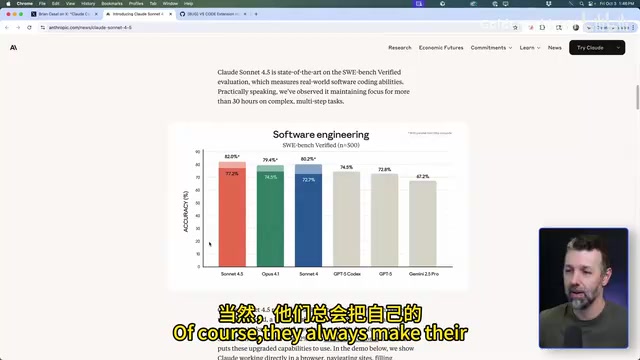
According to Anthropic's published benchmark data, Sonnet 4.5 slightly outperforms Claude Opus 4.1 in coding capabilities. Of course, every company makes their new model look "just slightly better than the competition" when they release it—this phenomenon is known in the industry as "benchmark gaming," where model developers tend to cherry-pick evaluation dimensions and datasets that favor their own products. Independent evaluation platforms like Chatbot Arena use blind human evaluation and are considered more reflective of real-world usage experience. What truly matters is the actual feel during day-to-day use.
After about a week of intensive use, Sonnet 4.5 hasn't produced any obvious errors, and execution speed is noticeably faster than Opus. One noteworthy new feature is the thinking mode toggle—pressing Tab switches between "thinking on" and "thinking off." The underlying mechanism is Chain-of-Thought reasoning: when enabled, the model generates an internal reasoning process before producing its final answer—breaking down the problem, evaluating multiple approaches, and verifying logical consistency. This approach significantly improves accuracy on complex tasks (such as multi-step code refactoring or architecture design), but at the cost of consuming more tokens and time. With thinking mode off, the model generates answers directly, responding faster, which is suitable for simple code completion or file operations. This design is quite practical—it essentially gives developers a choice between reasoning depth and response latency, allowing flexible adjustment based on task complexity.
VS Code Extension: Good but with Regrets
Claude Code 2.0 also launched a VS Code extension. Since Cursor is an AI-native code editor built on the VS Code open-source codebase (Code OSS) and retains compatibility with VS Code's extension ecosystem, this extension works in Cursor as well. After installation, a Claude button appears in the sidebar—click it to use Claude Code within the sidebar interface.

Compared to the terminal interface, the sidebar UI is definitely more user-friendly—the experience of browsing each code change is much better. However, there's currently a critical limitation: sidebar mode doesn't support "dangerously accept permissions" mode (i.e., automatically accepting all permission requests).
For developers accustomed to using the --dangerously-skip-permissions flag, this means every operation requires manual permission confirmation, seriously disrupting workflow continuity. This flag is an advanced run mode for Claude Code that, when enabled, allows the Agent to automatically execute file read/write operations, terminal commands, and other actions without individual confirmation. This is crucial for complex tasks that require the Agent to execute dozens of consecutive steps—manual confirmation each time not only interrupts the workflow but also causes the Agent to lose execution context. Quite a few users have already raised this request on GitHub, hoping Anthropic will fix it soon. Until then, terminal mode remains the more efficient choice.
Three Core New Features Explained
Usage Command — Transparent Consumption Monitoring
Back in July this year, when Claude Code introduced weekly limits, the most frustrating thing wasn't the limits themselves, but the lack of transparency—users had no idea how much of their quota they'd used or how much remained.
Claude Code 2.0 finally addresses this pain point. Through the /usage command, you can see a clear usage chart containing three key pieces of information:
- Current session usage
- Weekly quota consumption by model
- Reset time for the current time window

The last point is particularly useful, relating to Claude Code's 5-hour sliding window quota mechanism. Unlike fixed time windows (e.g., resetting at midnight daily), a sliding window is a dynamic time period calculated from each request. For example, if you consume a large amount of quota at 2 PM, that portion will be released at 7 PM, rather than waiting until the next day. The advantage of this mechanism is smoother distribution of server load, but it makes it harder for users to predict when their quota will recover. Previously, I was always guessing: I knew there was a 5-hour sliding window, but I didn't know exactly when it started or how long until reset. Now it's crystal clear, making it possible to plan work rhythm more effectively. This seemingly simple feature actually dramatically improves resource management efficiency.
Rewind Command — True Code Rollback
This is the most talked-about feature in Claude Code 2.0, and the update I consider most practically valuable.
In previous versions, we could go back to a certain point in the conversation, but couldn't roll back code changes. When Claude Code's modifications didn't meet expectations, I could only type "undo what you just did" in the conversation and watch it attempt to reverse things—a process that was both slow and unreliable.
Now, with the Rewind command, Claude Code creates Checkpoints throughout the conversation. This checkpoint mechanism is fundamentally different from version control systems like Git: Git records code snapshots that developers actively commit, with granularity decided by the developer; Claude Code's checkpoints are automatically created with each code change operation by the Agent, offering finer granularity and recording the state of every step the Agent takes. More critically, checkpoints simultaneously save the conversation context state—meaning a rollback not only restores code but also restores the Agent's "mental state" at that point, allowing subsequent conversation to restart from that node without having to re-explain requirements.
When rolling back, you can choose to:
- Restore both code and conversation
- Restore conversation only
- Restore code only
However, note several important limitations:
- Files modified through bash commands will not be rolled back
- Code manually modified by the developer will not be rolled back
- Only code changes directly written by the Claude Code Agent can be rolled back
This limitation is interesting—it actually pushes developers to rely more on AI for writing code. If you want to fully leverage the Rewind feature, you need to let Claude Code handle all code changes rather than making manual modifications yourself.

This aligns perfectly with current development trends. Take spec-driven development as an example—this is a development paradigm that has gradually gained popularity with the rise of AI coding tools. Its core idea is: the developer's primary work shifts from writing code to writing precise specifications (typically requirements documents in Markdown format), with the AI Agent then automatically generating implementation code based on those specs. Under this paradigm, the developer's role becomes more like "architect + reviewer" rather than traditional "code writer." The main Agent, when executing complex tasks, also automatically spawns specialized Sub-Agent instances, each responsible for a subtask, reporting results back to the main Agent upon completion. Manual code modification only happens during the final fine-tuning stage—adjusting UI styles, colors, or subtle logic optimizations. This workflow naturally complements the Rewind feature.
Ctrl+R Prompt Search — A Context Management Power Tool
The third new feature is cross-session prompt search. Press Ctrl+R to search historical prompts, with support for retrieval across multiple recent sessions.
This feature is particularly valuable in the following scenarios:
Scenario 1: Information preservation before Compact. When a long conversation approaches the context window limit, you typically need to use the /compact command to compress the conversation. The context window is the maximum number of tokens a large language model can process at once—when conversation history exceeds this limit, the model loses earlier information, leading to degraded answer quality or "forgetting" phenomena. The /compact command releases context space by having the model summarize and compress the current conversation—condensing lengthy conversation history into brief summaries of key information. However, automatic compression inevitably loses details, especially contextual information that seems unimportant but may be critical in subsequent development. Using Ctrl+R to find previously crafted detailed prompts and manually supplementing them into the new context after compact ensures important information isn't lost.
Scenario 2: Reusing prompts across Agents. When switching between Claude Code and other coding Agents, you can quickly find previous prompts and copy them to another tool, enabling multi-Agent parallel work. Codex CLI mentioned here is OpenAI's command-line AI coding tool, positioned similarly to Claude Code; Cursor Agent is the built-in AI coding assistant in the Cursor editor. Multi-Agent parallel work refers to developers simultaneously using multiple AI coding tools to handle different tasks—for example, using Claude Code for backend logic and Cursor Agent for frontend interfaces. The challenge with this approach is maintaining context consistency across Agents, and Ctrl+R's prompt search feature addresses exactly the problem of reusing context across tools.
Essentially, this is a context management tool. Actively managing AI's "short-term memory"—rather than relying on automatic compression—is one of the core skills for professional developers using AI coding tools.
Summary and Recommendations
Claude Code 2.0's updates are pragmatic rather than flashy overall. Sonnet 4.5 strikes a good balance between speed and quality; the Usage command resolves the long-standing transparency issue; the Rewind feature provides a genuine code safety net; and prompt search strengthens context management capabilities.
For developers who use Claude Code daily, my recommendations are:
- Prefer terminal mode for now, and wait for the sidebar extension to support permission skipping
- Build a habit of regularly checking
/usageto allocate your weekly quota wisely - Let Claude Code handle all code changes as much as possible to fully leverage the Rewind feature
- Use
Ctrl+Rin combination with/compactto actively manage your context window
None of these features are revolutionary on their own, but combined together, they genuinely bring Claude Code's maturity as a daily development tool up another notch.
Related articles
 Product Reviews
The Programmer's Desk Setup Guide: Building a Workspace That Feels Like Home
Discover how programmers build productive, comfortable workspaces. From multi-monitor setups to ergonomic design, explore the desk philosophy that drives focus and flow.
 Product Reviews
Qoder vs Cursor Real-World Comparison: Which $20/Month AI IDE Is Better?
Hands-on comparison of Qoder vs Cursor AI IDEs: Agent autonomy, human interaction count, and architecture decisions. Qoder needed only 2 interactions vs Cursor's 8.
 Product Reviews
Cursor Cloud Agent Demo: Eliminating Bottlenecks Across the Entire Software Development Lifecycle
Deep analysis of Cursor's Cloud Agent demo showing how cloud VMs, automated test artifacts, and a full-chain control plane systematically eliminate human bottlenecks across the software development lifecycle.