Claude Code Beginner's Guide: Environment Setup & Integration with Domestic AI Models

Step-by-step Claude Code setup for Chinese users, including DeepSeek integration to bypass access restrictions.
This practical guide helps users in China get Claude Code running from scratch, tackling the biggest obstacle head-on: the official Claude model being inaccessible domestically. The tutorial covers three stages: installing Node.js and Git Bash for the runtime environment, globally installing Claude Code via npm, and configuring three environment variables to replace the default model with DeepSeek. A working HTML to-do app demo validates the entire workflow. The guide also flags a critical gotcha — API Keys are only shown once and must be saved immediately.
Many developers share a similar experience the first time they use an AI coding assistant: it feels great at first, but as soon as the project logic gets even slightly complex, the conversation starts going in circles — it might generate seven or eight files with duplicate functionality, or fix one bug while introducing three new ones. A lot of people conclude that AI coding tools are just toys. But the problem often isn't the AI itself — it's the tools and methods being used.
This article is based on a hands-on tutorial from a Bilibili content creator, focusing on setting up Claude Code from scratch, configuring the environment, and tackling the unavoidable challenge for users in China: integrating domestic AI models. The goal is to help you clear that first hurdle.
Why Choose Claude Code
Claude Code is a command-line AI coding tool — essentially a software package written in JavaScript. Compared to repeatedly copying and pasting code in a regular chat window, it can directly manipulate local files, create directories, and execute tasks, making it far better suited for engineering projects with real complexity.
For developers who've been through the "AI-generated code getting messier by the minute" phase, standardizing your toolchain often does more to fix the problem than simply switching to a different model. That's why this tutorial emphasizes getting the environment and configuration right before anything else.
Setting Up the Runtime Environment: Node.js and Git Bash
Before running Claude Code, you need to prepare two foundational pieces of software.
Node.js: The JavaScript Runtime
Since Claude Code is written in JavaScript, you need Node.js installed to run it. Head to the official Node.js website, download the installer, and double-click it — just keep clicking "Next" for a straightforward installation.
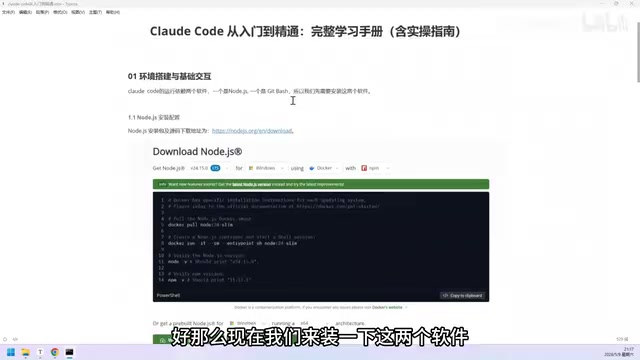
Once installed, verify it worked: open a command line, type node and press Enter. If you see version information, the installation was successful. Press Ctrl + C to exit.
One heads-up: the Node.js official servers are hosted in the US, so download speeds from China may be slow. Using a VPN or finding a reliable domestic mirror is recommended.
Node.js is an open-source runtime environment that lets JavaScript run outside the browser, built on Google's V8 engine. Before it existed, JavaScript could only execute inside a browser — it couldn't directly access the file system or network sockets. Node.js broke that limitation, enabling developers to build command-line tools, server applications, and other desktop-grade software in JavaScript. Claude Code leverages this capability to run locally as a CLI tool with direct read/write access to your project files. npm (Node Package Manager) installs alongside Node.js and is the world's largest software package registry, hosting over 2 million open-source packages. The
-gflag innpm install -gmeans "global install," making the tool accessible from any directory on your system.
Git Bash: Version Control and Linux Command Support
Git Bash serves two purposes: it provides Git version control capabilities, and it lets you use Linux-style commands on Windows. Claude Code is much more "comfortable" with Linux-style instructions, making Git Bash an important compatibility layer.
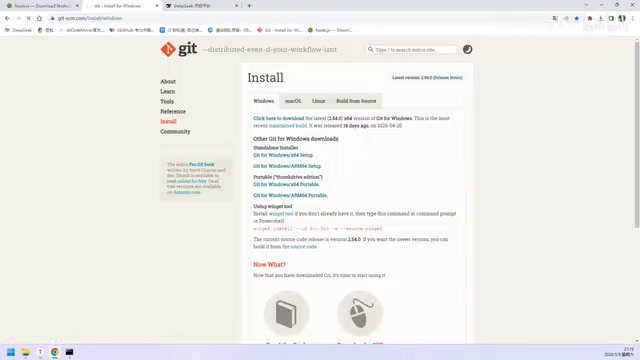
Go to the Git official website's Windows download page and select the Intel platform version. Installation is again just clicking "Next." To verify: type git in the command line — if you see a large block of help text, you're good to go.
Git Bash is a terminal emulator bundled with Git for Windows. It packages the MinGW (Minimalist GNU for Windows) toolchain, giving Windows users access to Unix/Linux commands like
ls,cp, andgrepwithout installing a full Linux subsystem. Many development tools — including Claude Code — are designed to run on Linux/macOS environments by default. Their internal path handling and script execution follow POSIX conventions, which can cause path format incompatibilities and missing command errors in native Windows CMD or PowerShell. Git Bash effectively eliminates this friction. Compared to the WSL (Windows Subsystem for Linux) built into Windows 10/11, Git Bash is lighter and faster to set up — a much lower barrier to entry for beginners.
Installing Claude Code
With both foundational tools in place, you're ready to install Claude Code itself. Since it's a JavaScript package, npm is the easiest way to get it.
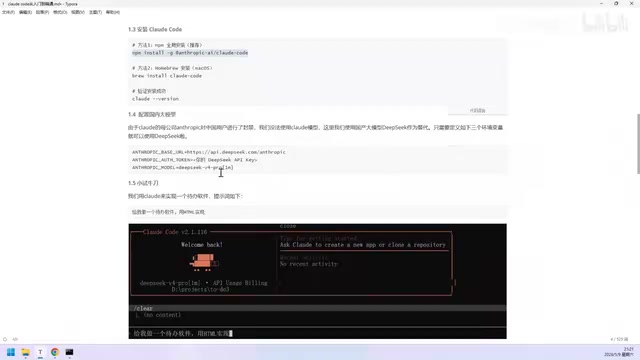
Run the official npm installation command in your terminal (something like npm install -g @anthropic-ai/claude-code), press Enter, and wait for the installation to complete. Afterward, run the claude command to check the version and confirm a successful install.
Integrating Domestic Models: The Key to Bypassing Access Restrictions
This is where most users in China get stuck. Claude Code connects to Anthropic's official Claude models by default, but that service blocks mainland China IP addresses, making it inaccessible to regular users. Even if you manage to register an account through a VPN, there's a real risk of getting banned — not a reliable approach.
The more practical solution is to connect Claude Code to a domestic large language model. This tutorial uses DeepSeekAd as the example, demonstrating how to swap out the default model.
Step 1: Get an API Key
Log in to the DeepSeek open platform, navigate to the "API keys" page, click to create a new key, give it a name, and generate your API Key.
Important: The API Key is only displayed once at creation time. You must copy and save it immediately. Once you close the window, you can never view it again — you'd have to generate a new one.
Step 2: Configure Three Environment Variables
The core of connecting to a different model is setting three environment variables:
- API endpoint: The DeepSeek service endpoint URL
- Token: The API Key you just generated
- Model name: The specific model you want to use
Open Windows' "Environment Variables" settings, click "New," and fill in the variable name and value in the popup window. Configure all three variables in sequence, then click "OK" to save.
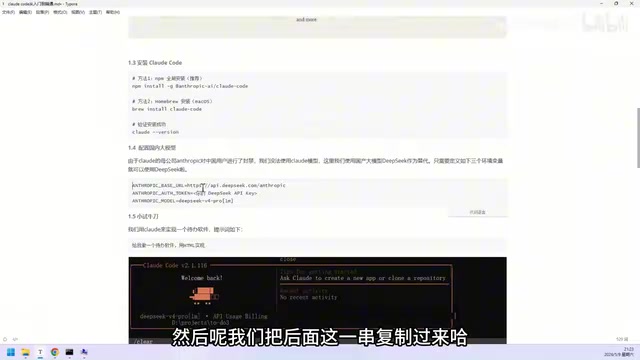
Once configured, Claude Code will use the domestic model for inference, completely resolving the access issue.
Environment variables are key-value configuration pairs managed at the operating system level. Programs can read these values at startup to modify their behavior without any changes to the source code. Claude Code reads specific environment variable names to determine which API endpoint to send requests to, which authentication key to use, and which model to call. On Windows, you can configure these through "System Properties → Advanced → Environment Variables" using a graphical interface. After making changes, you'll need to open a new terminal window for the new variables to take effect — terminals only read environment variables once at startup. For DeepSeek, the three variables typically correspond to:
ANTHROPIC_BASE_URL(pointing to DeepSeek's OpenAI-compatible endpoint, e.g.,https://api.deepseek.com),ANTHROPIC_API_KEY(your DeepSeek API Key), andCLAUDE_MODELor a similar variable (the model name, e.g.,deepseek-chat). Refer to the official Claude Code documentation or the video tutorial for the exact variable names.
Test Run: Generating a To-Do App with AI
With everything configured, it's time to try it out. The demo in the tutorial prompts Claude Code to "build a to-do list app in HTML." After pressing Enter, it starts thinking and writes the code into the corresponding directory, asking whether to create files along the way — just select "yes" to confirm.
Once generation is complete, the output opens as a functional to-do app: you can add items, mark them as complete, and distinguish between in-progress and completed tasks. For a simple request, the result is quite solid — proof that the entire setup is working.
Summary
The greatest value of this tutorial is that it clearly explains the pitfalls Chinese users are most likely to fall into: installing Claude Code itself isn't hard — the hard part is the official model's access restrictions. By setting up the environment with Node.js and Git Bash, installing the package via npm, and configuring three environment variables to connect to a domestic model, anyone can get a functional AI coding workflow running locally.
Mastering the configuration is just the starting point. The real efficiency multipliers come later: learning how to manage context, break down complex tasks, and avoid the "the more you edit, the messier it gets" spiral — those are the areas worth diving deeper into next.
Related articles

Is the Agent Harness Dead? Cursor's Early Engineer Breaks Down the Real Architecture of AI Coding Agents
Cursor early engineer Jediah breaks down the real architecture of the agent harness: why "the harness is dead" is only half right, how the data flywheel lets the harness obsolete itself, and how Grokbot, software factories, and primitive design open new frontiers for agents.
Python Visitor Pattern and Better Alternatives Explained
A deep dive into Python's visitor pattern and four alternatives: method pattern, pattern matching, dictionary mapping, and functools.singledispatch. Choose the best decoupling design by change frequency.

357 Days of Deep Experience: Why Omarchy Made Me Stop Distro-Hopping
A 357-day deep dive into Omarchy: 59-second install, out-of-the-box audio and GPU support, the Quattro QuickShell rewrite migration pains, and why Arch users should try it.