Claude Code Beginner's Guide: From Installation to Git Workflow in Practice

Claude Code has evolved into a full-stack AI engineering collaborator — here's how to install and use it.
Claude Code has grown from a basic command-line code analyzer into a full-cycle AI collaborator with context awareness, multi-agent orchestration, and engineering workflow support. It works via CLI, IDE plugins, or the web, and can be configured with CC Switch to use domestic models like DeepSeek or Kimi. Users can complete project analysis, code generation, Git branch management, code review, and bug fixes entirely through conversation — no manual coding required.
Claude Code has become an indispensable AI programming tool in the developer community. It has evolved from a simple command-line code analysis utility into a full-fledged "AI collaborator" capable of handling development, testing, deployment, and engineering workflows. This guide, based on a Bilibili tutorial series, walks you through Claude Code's core capabilities, installation and configuration, and the most practical Git workflow use cases — helping beginners get up to speed quickly.
Claude Code's Core Capabilities: From Code Assistant to Engineering Collaborator
The original version of Claude Code was limited to command-line interactions, primarily used to analyze project code, understand relationships between files, and provide explanations and suggestions. After rapid iteration, its capabilities have fundamentally changed.
The most significant upgrade is context awareness. Early versions could only process a single file; now you can ask detailed questions about an entire project structure and get thorough analysis. This is especially valuable for developers reading complex open-source projects or diagnosing tricky production issues — it doesn't just explain code, it can also uncover hidden historical bugs, identify performance problems, and attempt fixes.
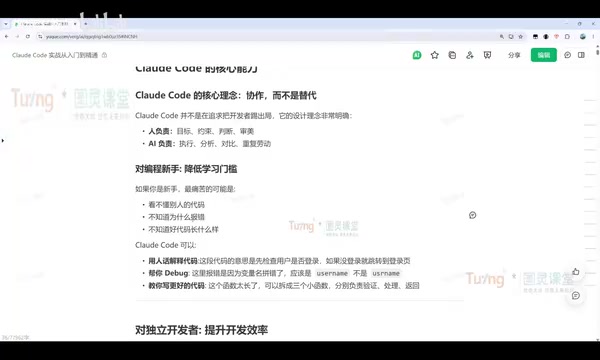
Another key shift is its engineering orientation. Where people once focused on its coding ability, developers now use it to implement automated testing, SDD (Spec-Driven Development), and other engineering practices. Through its Skills mechanism, developers can codify real-world experience into reusable skills, significantly improving efficiency.
For solo developers, Claude Code can use multi-agent orchestration to simultaneously spin up roles like product, development, testing, and operations, dramatically compressing the time cost of a full-stack solo project. For teams, its value lies in standardization — using CLAUDE.md to enforce coding standards, maintain architecture documentation, run code quality checks, and help new team members quickly understand projects even without documentation.
Multi-agent orchestration is one of the foundational mechanisms behind Claude Code's engineering capabilities. Traditional AI coding assistants operate on a single conversation thread, while multi-agent architecture allows the system to run multiple cooperating AI instances simultaneously, each taking on a different role (such as product planning, code implementation, or test verification). These agents can share context and pass task results to one another, forming a pipeline-style collaboration. For solo developers, this means full-stack work that once required constant context-switching can be broken down into parallel sub-tasks, significantly shortening the cycle from requirement to running code.
SDD (Spec-Driven Development) is a development methodology where specification documents are written first, and tools or teams implement against those specs. Similar to Test-Driven Development (TDD), SDD emphasizes clearly defining interface contracts and behavioral constraints before writing code. Combined with Claude Code's CLAUDE.md mechanism, teams can embed architectural decisions, naming conventions, and prohibited patterns into a configuration file, so the AI automatically respects these constraints when generating code — maintaining consistent style and design across large-scale collaboration.
Installation & Configuration: CLI, IDE Plugins, and Switching to Domestic Models
Claude Code currently comes in three main forms: a Web version (browser-based chat, suitable for simple interactions), a CLI command-line version, and plugin integrations for editors like VS Code, PyCharm, and IntelliJ IDEA. The tutorial author recommends the IDE plugin approach for its more efficient visual interface, though familiarity with basic CLI commands is still essential.
CLI installation is straightforward — a single command does it. Mac, Linux, and WSL users run the corresponding shell command; Windows users use the IRM command. After installation, run claude -v to verify the version number. You can also install via npm, but the official one-click install script is recommended. To update, simply run claude update; the tool will also prompt you when a new version is detected.
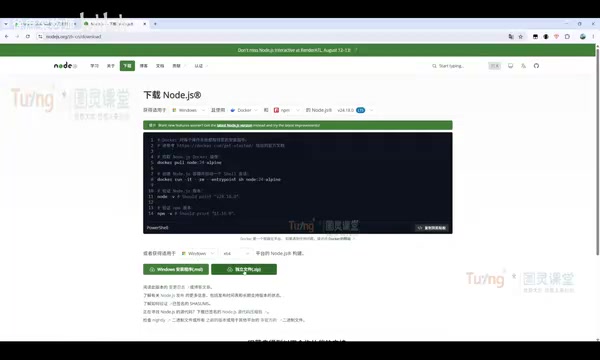
Before installing, you'll need a working Node.js environment — download and install it from the official site, then confirm with node -v (the tutorial demonstrates version 22.x). If you encounter network issues during installation, switching to a domestic mirror can speed things up.
Due to network access restrictions on the official model, the tutorial focuses heavily on switching to domestic large language models. The recommended tool is CC Switch — download the release version from its project page (Windows users can choose the portable zip version or the MSI installer). To configure it, obtain an API key for your preferred domestic model; the author recommends DeepSeekAd, Kimi, and others like Tongyi Qianwen and Zhipu AI are also supported. In CC Switch, click the plus icon, select your model, and enter the API key — the default endpoint addresses don't need to be changed. After enabling it, go to Settings and check the local routing option, then restart Claude Code. To switch back to the official model, simply select the official option and log in normally.
WSL (Windows Subsystem for Linux) is a Linux compatibility layer built into Windows 10/11 that allows users to run Linux command-line tools and shell scripts directly within Windows, without a virtual machine. For CLI tools like Claude Code that are natively designed for Unix environments, WSL provides a runtime experience much closer to Mac/Linux, avoiding compatibility issues caused by Windows path formats and permission management differences. Windows users who encounter CLI installation or script execution errors will typically resolve most problems by switching to a WSL environment.
API keys are the credentials used to access large model services — essentially a random string of characters. When using domestic models like DeepSeek or Kimi, you'll need to register an account on the respective platform, generate a key, and be aware of usage quotas and billing rules. CC Switch acts as a local proxy: it intercepts API requests sent by Claude Code and forwards them to the specified domestic model endpoint, attaching your configured key, so Claude Code doesn't need to know anything about the underlying model switch.
Getting Started: Commands and Basic Coding
When you first start, use /help to view the list of built-in commands. An even easier approach is to simply ask in conversation — for example, "What command should I use to resume a conversation?" — and Claude Code will tell you directly, with almost no need to consult the official docs.
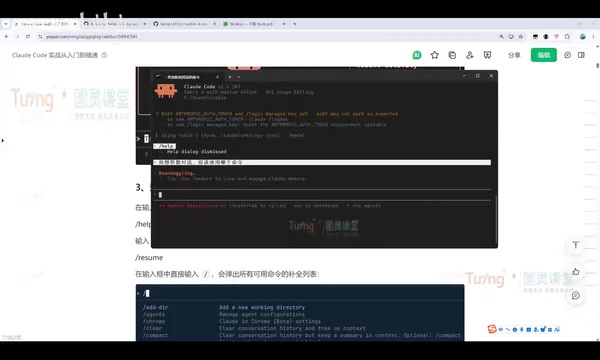
A few frequently used commands are worth memorizing: claude -c or claude --continue resumes the previous conversation; claude --resume (or -r) shows your conversation history and lets you pick one to resume; clearing the current conversation starts a fresh session.
In enterprise project development, the most common first step is asking it to analyze the project structure. In the tutorial demo, the author navigates to a project directory and types "analyze this project" — Claude Code quickly identifies it as a Vue-based front-end admin system and analyzes it module by module. This is extremely useful for interns just starting a new job or developers picking up an unfamiliar codebase.
Basic coding is equally simple. For example, asking it to "implement a bubble sort algorithm in Python" will generate the code and automatically run tests. To add more tests, just follow up with "add some code to test the algorithm" and it will produce a more complete test file.
Claude Code follows a fixed workflow for modifications: it automatically locates the files that need changing, shows you the proposed changes, waits for your approval, and only then executes. You can approve changes one by one or decline them, keeping full control over what gets modified.
Git Workflow in Practice: Complete Development Cycle Through Conversation
The highlight of the tutorial is demonstrating how to complete a full Git workflow through pure conversation, without writing a single line of code manually.
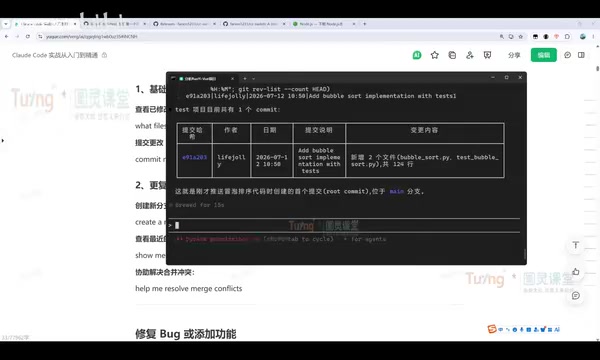
The flow looks roughly like this: ask it to create a project (e.g., "build a personal tech blog with HTML + CSS + JS"), then through conversation, have it clone a remote repository, move files, commit, and push code. Throughout the process, the user only issues instructions — Claude Code automatically calls the necessary Git commands.
More advanced use cases include branch development and automated review. The tutorial demonstrates creating a dev branch in a test project, implementing three different sorting algorithms, committing, and pushing — all automated. Once tests pass, the code is automatically pushed to the corresponding branch. It also demonstrates automated issue investigation: asking it to analyze a branch for problems and output the findings to an issue.md file, where it surfaces correctness issues, discrepancies between documentation and implementation, and design portability concerns. Then a follow-up prompt — "fix all issues based on issue.md and commit and push" — has it work through fixes step by step.
Claude Code's problem-resolution workflow is: locate the relevant code, understand the context and logic, analyze the root cause, then propose a solution. If the project has tests, it will run them to verify the fix. This is essentially an automatable closed loop of "identify issue → analyze issue → resolve issue."
Commands also fall into two categories: internal slash commands and external headless mode. Externally, you can use claude -p to run a one-off command — for example, "analyze the project structure in the test directory" — and have the output printed directly to the console without entering a conversation window. claude commit can invoke a Git commit directly from the terminal. This flexibility is ideal for scripting and batch-processing scenarios.
Headless Mode is a CLI execution mode where the program runs a single task and exits without any interactive interface, writing results directly to standard output. The claude -p command uses this mode, making it well-suited for integration into shell scripts, CI/CD pipelines (such as GitHub Actions or Jenkins), or scheduled tasks. For example, you could call claude -p in a pre-push hook script to automatically run code quality checks before pushing, seamlessly embedding AI review into your existing DevOps workflow with no manual intervention required.
Summary
Claude Code has evolved from a simple coding assistant into an AI collaborator that covers the full workflow: analysis, development, testing, Git workflows, and code review. For beginners, mastering installation and configuration (especially switching to domestic models) and conversational Git workflows is enough to unlock significant productivity gains. The barrier to entry is dropping rapidly — the real challenge has shifted back to the human side: setting goals, defining constraints, and making judgment calls.
Related articles

How Big Can Stars Really Get? The Physical Limits of the Largest Stars
Red supergiants are the largest stars by volume, with radii up to 2,000 times the Sun, engulfing the inner solar system. But there is no precise upper limit on stellar size—models predict up to 15,000 solar radii. The most massive blue stars are far smaller than red supergiants—biggest and heaviest are two different things.

Apple HomeView Smart Display Full Feature Breakdown: Wall-Mount or Desktop, $299
Apple launches HomeView, a $299 smart display with wall-mount and desktop options, 12MP camera for facial recognition, smart home control, music playback, and recipe step-by-step cooking. Full breakdown of watch faces, apps, privacy, and cooking integration.

Where Did the Promised New Studio Go? Craft Computing Answers After Five Years
Craft Computing's host responds to viewer questions: the new studio promised five years ago was shelved as construction costs soared from $30,000 to $75,000, and was replaced by a 168-square-foot garage conversion.