Claude Code for Absolute Beginners: A Step-by-Step Guide (Install + Connect an LLM + Hands-On Practice)

A beginner's guide to installing Claude Code, connecting an LLM, and building your first tool—no coding needed.
A complete beginner's guide to Claude Code: how to install it via VS Code, connect an LLM (official Anthropic or domestic models via CC Switch), master its four core usage modes, and build your first practical tool using only plain language—no coding required.
For most people, using AI still means "chatting" with tools like ChatGPT or Doubao. But if you genuinely want to boost your productivity with AI, Claude Code might be the single most worthwhile tool for ordinary people to pick up—it's not just a talking "brain," but an executor with "hands and feet." You explain what you want in plain language, and it can directly write files, run commands, open web pages, and knock out a whole string of tedious tasks in one go.
This article is based on a beginner tutorial by Bilibili creator Ziyu, aimed at complete newcomers with no programming background. From installation and connecting an LLM to building your first small tool with your own hands, we'll walk through the entire process of getting started with Claude Code.
Why Claude Code Is Worth It for Ordinary People
According to the original video's author, he uses Claude Code roughly 50 hours per week on average, covering nearly every work and study scenario. His earlier experience of going from zero to landing an AI job offer in just one month (the video was viewed by 40,000 people) was also entirely assisted by Claude Code.
The core difference between Claude Code and traditional chat-style AI lies in execution. Traditional AI tells you "how you should do it," while Claude Code just does it for you. It has already helped the author fully automate his content creation, along with file and project management, doubling his overall efficiency. For ordinary people, this means you don't need to learn programming—you can direct AI to complete tasks that used to require professional skills, using nothing but natural language.
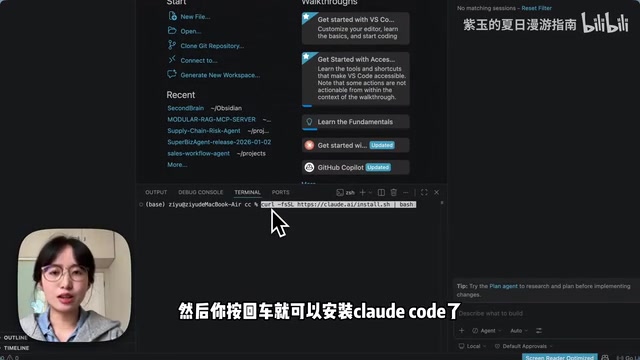
Step 1: Install VS Code and Claude Code
There are several ways to use Claude Code: run it directly in the terminal, run it inside VS Code or Cursor, or use the desktop version. For beginners, we recommend the VS Code + Claude Code plugin route.
The reason is simple: the terminal-only approach is a text interface with black text on a white background—many people take one look and give up. VS Code, on the other hand, has a graphical interface where most operations can be done with a mouse click, making the mental barrier far lower.
Installation Steps
- Go to the VS Code official website to download and install it for free.
- Open VS Code, click Open to create or select a folder, then click Trust to trust that directory.
- Click the button in the top-right corner to enter Terminal mode.
- Copy and paste the appropriate command to install Claude Code (commands differ between Mac and Windows), then press Enter to run it.
Note: Windows users must first install Git for Windows, otherwise Claude Code won't run even after installation. Just head to the Git for Windows official website to download and install it.
Once installed, type claude --version in the Terminal and press Enter. If you see a version number, the installation was successful.
A Practical Tip: Keep a Backup AI Window Open at All Times
Before diving in, here's a high-frequency practical habit worth sharing: always keep another AI chat window open (ChatGPT, Tongyi Qianwen, DeepSeek—any of them work). In real usage, it helps solve three common types of roadblocks:
- Installation errors: When the terminal spits out a pile of red text, copy the whole thing into another AI. It usually gets resolved in one or two rounds—far faster than searching yourself.
- Off-target results: Copy your Claude Code conversation log into another AI and have it judge whether the prompt wasn't clear enough or whether Claude Code drifted off course. Coordinating multiple LLMs is often more efficient.
- Struggling to write prompts: Have one AI craft the prompt for you first, then paste the whole thing into Claude Code to execute.
Step 2: Connect an LLM to Claude Code
Here's a vivid analogy: Claude Code itself is just the "car chassis"—it still needs "fuel," i.e., an LLM, to actually run. There are two main ways to connect one.
Option 1: Official Anthropic subscription
Subscribe directly to the Pro or Max plan on the official website. But there are two obvious drawbacks: users in China who use the official subscription directly are prone to getting their accounts banned, and the price is on the steep side.

Option 2: CC Switch + a domestic LLM (more friendly for users in China)
Using a small tool called CC Switch, you can connect Claude Code to domestic models like Zhipu GLM, MiniMax, and Kimi. The author personally recommends Zhipu—it's beginner-friendly, affordable, stable, and capable enough.
How to do it: search for and install CC Switch, add an LLM within its interface, select the provider, and enter the corresponding API Key to complete the connection. You can obtain an API Key after subscribing to a Coding Plan on the Zhipu, MiniMax, or other official websites.
Step 3: Install the Plugin and Master the Four Usage Modes
Back in VS Code, search for Claude Code in the plugin panel on the left and install the first one, the official "Claude Code for VS Code" plugin. Once installed, a chat window appears on the right—send a message and receive a reply, which means the setup is complete.
For daily use, just chat in plain language. For more advanced operations: type a slash / followed by an English command to quickly invoke a feature (e.g., /model to switch LLMs); click the plus sign to add files or web pages as context.
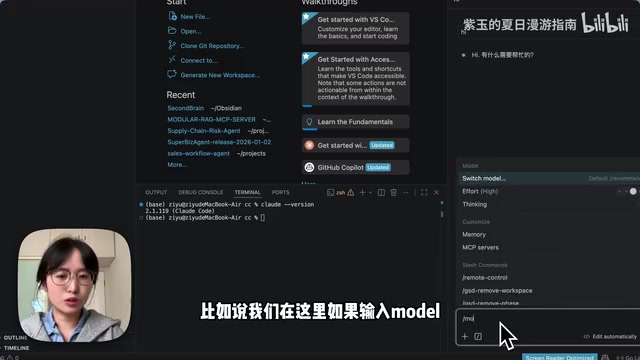
The Four Core Modes
- Ask Before Edit (default mode): Asks for your approval before every file change or command execution—suited for cautious operations.
- Edit Automatically: Makes file changes directly when needed, without confirming each one—suited for fast-paced scenarios.
- Plan Mode: Instead of writing code right away, it first talks through the plan with you before taking action. This is the mode beginners should focus on mastering most.
- Auto Mode: A recent addition to Claude Code that automatically assesses the current project situation and selects the most appropriate mode.
Hands-On Demo: Build Your First Small Tool Without Writing a Single Line of Code
Let's take a "schedule management tool" as an example. After entering Plan Mode, tell it: "I want to build a small schedule management tool to manage my daily work and study progress. Please help me plan it out." Instead of immediately writing code, it will ask you about the details of your requirements, confirm them with you, and only then get to work.
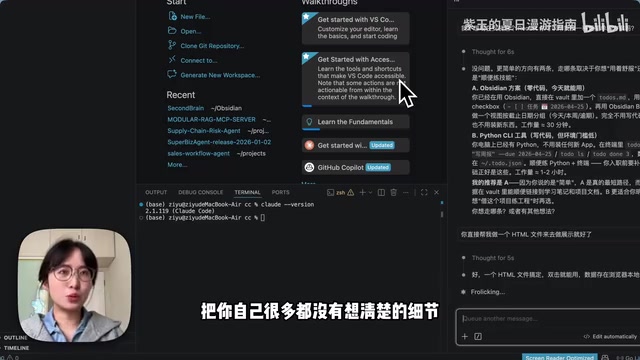
The greatest value of Plan Mode is precisely that it digs out, one by one, all the details you hadn't even thought through yourself, making the subsequent implementation more complete. In the demo, when it ran into an obstacle like needing to install the requests library, you can just say "I don't want to install this, help me switch to a simpler approach," or "use an HTML file to display it," and it will flexibly adjust.
The result is very tangible: after one or two rounds of conversation, a working prototype of a schedule manager—one that can add tasks and pick dates—is ready. To keep tweaking, you again just use plain language—for instance, "the font is a bit small, and add a day/night toggle mode too"—and the changes take effect once you refresh the page.
The entire process doesn't require writing a single line of code. Just tell it what you want, the same way you'd talk to a colleague.
What Else Can Claude Code Do
Here are four real-world use cases that show Claude Code's capabilities extend far beyond "writing code":
- Visual personal webpage: Turn a plain black-and-white PDF résumé into a personal homepage with images, links, and a portfolio showcase.
- Build a "second brain": Combine it with Obsidian to manage your note-taking system, automatically organize ideas, generate weekly reports, and even brainstorm Xiaohongshu topic ideas.
- Automated content creation workflow: From trend monitoring and topic screening to script generation and data review, about 80% of the process is handed off to Claude Code.
- Hand-build an interview demo tailored to a job description: This was also one of the key moves the author used to land an AI development job offer at a top-tier company.
These use cases share a common thread: you explain what you want in plain language, and Claude Code can build it from scratch—writing code is just a very small part of it.
Conclusion
What this article covers is only the most basic way to use Claude Code—installing it, chatting with it, and building a small demo with Plan Mode. It still has plenty of advanced capabilities to explore, such as MCP, Skills, and Agent Teams. For ordinary people with no programming background whatsoever, the real significance of Claude Code is this: it makes "explaining your needs clearly" the only barrier, giving everyone a super assistant that can truly get work done for them.
Related articles

Disaster and Glory of the Apollo Program: The History We Must Revisit Before Returning to the Moon
From the fatal Apollo 1 fire to Apollo 8's daring lunar orbit to Apollo 11's successful landing—revisiting the disasters, fears, and compromises of the Apollo program and their lessons for today's return to the Moon.

Netflix Trust Exercise Turns Into Firing Trap: Where Are the Boundaries of Corporate Trust?
A Netflix employee was fired after sharing private info in a trust exercise. We analyze the risks of corporate trust exercises and how employees can protect themselves.

AMD CDNA5 Architecture Deep Dive: Technical Evolution and the AI Computing Competition Landscape
Deep analysis of AMD's CDNA5 architecture covering Chiplet packaging upgrades, HBM memory evolution, and low-precision compute optimization, examining how AMD challenges NVIDIA's AI chip dominance.