Claude Code for Beginners: A Non-Engineer's Guide to Building Your Own AI Assistant

A complete non-engineer's guide to building a genuinely capable AI assistant with Claude Code, from setup to MCP plugins.
This article summarizes creator Reymond's tutorial on configuring Claude Code for users with no programming background. It covers Claude Code's fundamental difference from chat AI (upgrading from a "Q&A library" to a "personal concierge"), installation pitfalls, improving the terminal experience with CMUX, building cross-session memory with cloud.md, setting permission boundaries, and installing MCP tools like Firecrawl and Playwright to enable web scraping. The core philosophy: treat yourself like a helpless infant — whenever you don't know how to do something, just tell Claude Code and let it handle it.
Is your AI still stuck in the chat-and-answer phase? When real work comes up, are you still copying and pasting things manually? In this tutorial, Bilibili creator Reymond offers a different answer — build a truly capable AI work assistant using Claude Code (CC), with zero programming background required.
This article summarizes Reymond's complete walkthrough for non-engineers setting up Claude Code from scratch, covering everything from what makes it fundamentally different from traditional AI, to installation, memory configuration, and connecting MCP plugin tools.
What Exactly Is Claude Code
If seeing the word "Code" makes you think of programming and developer tools — and assume it has nothing to do with you — you might be missing out on one of the most powerful productivity tools of this new era. Reymond uses a clear three-layer framework to explain the evolution of AI.
When you download the Claude desktop app, you'll find three applications: Chat, Code, and the underlying capability tiers — each corresponding to one of three stages in AI development. The first layer, Chat, is what most people use today — ChatGPT, Gemini, and similar tools. Think of it as a "library with no hands or feet" — knowledgeable, but unable to actually do things for you. The second layer is the Agent / Computer Use category that became popular last year. Like a "freelance organizer," it can help manage folders, sort files, and handle basic Gmail and calendar tasks — with limited access permissions.
The third layer is Claude Code. Reymond describes it as a personal concierge operating on a "you describe it, it creates it" basis. It comes with built-in capabilities for engineering design and content production. You can write out your entire regular workflow, then communicate with it through a single conversation window — and it will autonomously call on the tools and knowledge it needs to complete the task.

This is the biggest difference from older tools like GPTs or Gems. Previously, each assistant could only work within its own chat window and "forgot" everything when you switched tabs. Now, all external tools and skills are consolidated into one AI assistant — like having an entire company team where "whoever is needed gets called in automatically."
Strictly speaking, Claude Code is a CLI-based AI coding and automation agent released by Anthropic — not a standalone desktop application. Its core capabilities are Tool Use and an Agentic Loop. When faced with a complex task, it can autonomously break it into steps, interact with the file system, execute terminal commands, read and write data, and iteratively correct itself based on results — rather than simply outputting text suggestions and waiting for the user to act manually. Reymond's "you describe it, it creates it" is a direct reflection of this multi-step autonomous execution capability. This also explains why using the terminal rather than a graphical interface unlocks its full potential — the command-line environment gives it maximum access and flexibility to call on system resources.
Three Core Advantages
Reymond outlines three key advantages Claude Code has over traditional AI tools — the fundamental reasons it can upgrade from a "chat tool" to a genuine "work assistant."
Deeply knows you: All your data, habits, and preferences are stored locally and available at any time. This means it can make judgments based on your real work history rather than giving generic advice.
You can hand it tool keys: You can give it API keys so it can directly operate your tools. Using Reymond's personal AI avatar "Ray Meng" as an example — it can log directly into a GA dashboard and WordPress backend to edit and publish articles, automatically adjusting formatting according to preset rules, saving what would otherwise be one to two hours of layout work.
Near-unlimited plugin tools + self-training: There are countless open-source tools available online, and you can "train" this agent with your own workflows, gradually shaping it into a dedicated team tailored specifically to you.
Reymond demonstrated his real-world setup: his AI assistant Ray Meng is connected to Discord and sends a daily morning briefing on to-dos. Each evening, it crawls his computer's work logs and conversation records to tell him what he actually accomplished that day. This is a stark contrast to ordinary AI tools that "can only access calendars and Gmail" — because plans change, and his assistant focuses on what was actually done. He also used natural language to build a Slido tool, a brand toolkit, a student testimonial manager, a household accounting system, and a team dashboard that integrates revenue, subscriptions, and traffic data — eliminating the need to switch between multiple backends during meetings.
Why Teach the Terminal Directly
One interesting choice: Reymond originally recorded a tutorial using a graphical IDE like Antigravity, then scrapped it and re-recorded everything to teach the command-line terminal instead.
His reasoning was "avoid the long way around." He started with an IDE himself, but after a month realized he'd inevitably end up in the terminal anyway. Rather than teach viewers a tool they'd eventually abandon, he decided to go straight to the most effective path — the one that unlocks the full potential of Claude Code.
He references a perspective from Anthropic and organizational psychologist Adam Grant: the talent of the future is defined more by "willingness to abandon familiar workflows" than by existing skills. He compares it to learning touch typing — when you first stop looking at the keyboard, your speed might drop from 40 words per minute to 20. But push through that dip, and you'll eventually reach 100 to 120 words per minute. Being willing to temporarily get worse, to let go of established habits, is what enables real breakthroughs.
Key Details for Installation and Account Setup
There are a few common pitfalls for beginners during installation, which Reymond specifically calls out.
First, when searching for Claude Code on Google, never click the sponsored or ad results at the top of the page. These phishing sites look identical to the official website and may lead you to download malicious software. Always go directly to claude.com or claude.ai.
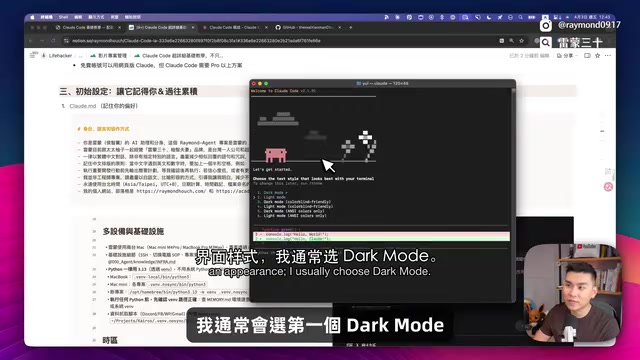
On the official site, find the Native Install instructions — available for both macOS and Windows. Copy the corresponding command, open your terminal (searchable via Spotlight), paste it in, and run it. If the installation shows an error saying the Claude command can't be found, scroll up and look for the Setup Notes section, then run the configuration command provided there. Many people get stuck because they miss that note.
Regarding payment: using Claude Code requires a subscription. Reymond recommends beginners start with the Pro plan (US$20/month) to get a feel for it, then upgrade to Max if the quota runs out. When logging in, make sure to select the first option — "use monthly subscription credits" — rather than pay-as-you-go billing. In the Claude ecosystem, pay-as-you-go "can rack up a terrifyingly large bill."
Upgrading Your Terminal with CMUX
The built-in system terminal is quite limited. For example, pressing Shift+Enter to add a new line sends the message instead — a frustrating experience for beginners.
Reymond recommends a better terminal called CMUX: it has a clean interface, rich features, supports Command+T to open multiple tabs (like browser tabs, so you can run multiple tasks simultaneously), and can split the window to work side by side. Once installed and inside the Claude command, selecting text automatically copies it — eliminating the frustrating issue in older terminals where the cursor always lags behind.
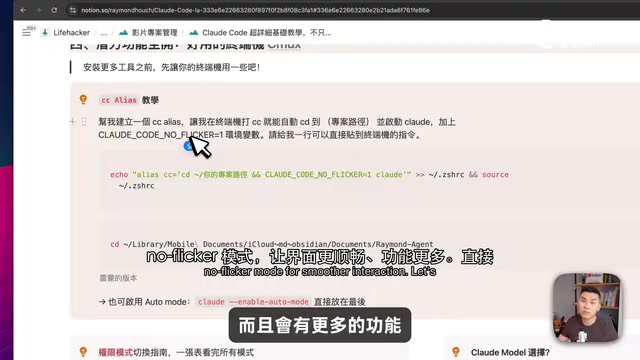
He also shares a practical tip: ask Claude Code to create a cc alias shortcut, so that typing just two characters — cc — automatically switches to your dedicated working directory and launches Claude Code in the new "Note Flicker" mode. No more typing the full claude command every time.
He repeatedly emphasizes a core principle for working with AI — "treat yourself like a helpless infant." When you encounter something you don't know, don't immediately spend half an hour on Google only to find no useful answers. Instead, just tell Claude Code what you need and let it handle it. For example, if a non-engineer doesn't know what cd (Change Directory) means — no problem. Just ask it: "How do I get you to move to this folder for development?" and it will automatically navigate there.
Teaching the AI to Remember You: The cloud.md Memory File
Once the environment is set up, the first step is getting Claude to remember your preferences. In the Claude ecosystem, there's an important file called cloud.md that stores your communication style, tone preferences, and various personal settings.

Reymond mentions a convenient approach: Google's Gemini team provides a migration prompt that can organize the AI memory you've accumulated in ChatGPT or Gemini into a structured document, which you can then import into Claude. Just copy this prompt into your existing AI tool, and it will output a structured block of text. Paste that into Claude Code, and it will create a cloud.md file that remembers your preferences.
For permission management, Claude Code offers several modes: Default (ask before every action), Accept Edit, Plan, and Bypass (allow everything). Constantly clicking "yes" as a beginner can get exhausting — you can switch to Accept Edit or Bypass to reduce interruptions, toggling between them quickly with Shift+Tab. But Reymond warns you to hold firm on "red lines" — he shares a set of rules to prevent accidental deletion (a blocklist of about 23 entries) to avoid the AI executing dangerous commands like deleting or overwriting files. On model selection: Pro plan users are advised to use Sonnet to make their quota last longer, while those who want maximum performance can opt for the top-tier model with a million-token context window.
cloud.md is essentially a Markdown plain-text file stored in your local working directory. Claude Code reads it automatically at startup as part of its "system-level prompt." Unlike ChatGPT's memory feature, the contents of cloud.md are entirely user-controlled, stored locally, and freely editable — with no dependency on black-box cloud storage. This means you can precisely define what the AI should know: your preferred tone, definitions of terms you use frequently, workflow priorities, and even which operations are absolutely forbidden. The file can be edited manually or updated automatically through conversation with Claude. This "externalized memory" design makes cross-conversation context continuity possible, and is one of the key architectural features that sets Claude Code apart from ordinary chat AI.
Connecting MCP Plugins to Break Through Scraping Limitations
With memory configured, Reymond tested the AI's ability to scrape web content. Crawling his own WordPress blog worked fine — the structure is simple and the text is easy to extract. But sites like Facebook stopped it cold — content is dynamically loaded via JavaScript, leaving only fragmented snippets.
This is exactly where Claude Code differs most from other AI tools: you can give it tools to make it more powerful. Reymond's approach is to let the AI try on its own first, then give it the right tools after two or three failed attempts. He compares this to onboarding a new employee — the first failure isn't grounds for firing; instead, let them try a few different approaches, and if nothing works, work alongside them to find a solution.
For the web scraping challenge, he goes straight to the answer: install two MCP plugin tools — Firecrawl and Playwright — used respectively for scraping social media and general websites. Simply tell Claude Code "help me install these two MCPs," and it will generate an installation plan, execute it automatically, and install any missing dependencies on its own. Firecrawl's free tier allows 500 article crawls per month — more than enough for most people.
After installation, remember to remind the AI to write the new rules into cloud.md, as it sometimes forgets to log them. At this point, the AI assistant is now capable of scraping web pages. Reymond previews the next steps: connecting Gmail, Google Calendar, and Notion to automatically generate a daily morning briefing — topics to be covered in upcoming tutorials.
MCP (Model Context Protocol) is an open protocol released by Anthropic in late 2024, allowing AI models to communicate with external tools, data sources, and services in a standardized way. Think of it as a "plugin system" for AI — just like a browser can install extensions, Claude Code can gain the ability to operate databases, control a web browser, read and write local files, and even interact with third-party APIs through MCP. What makes MCP distinctive is that it's bidirectional: external tools can not only supply data to the AI, but the AI can also actively trigger tool actions. The community has already built hundreds of open-source MCP servers covering everything from web scraping and email management to calendar syncing and database queries — which is exactly why Reymond describes this system as having "near-unlimited plugin capabilities."
Conclusion
The value of this tutorial isn't in any single specific operation — it's in how it deconstructs the complete mental model a non-engineer needs to use Claude Code effectively: understanding its nature as a "built-in team," improving the terminal experience, establishing a memory file, managing permissions appropriately, and continuously expanding capabilities through MCP. The core collaboration philosophy remains consistent throughout — describe what you need clearly, treat yourself like a helpless infant, and let the AI handle the execution and iteration from there.
Related articles

Felix Rieseberg Personal Homepage
Felix Rieseberg's personal homepage sparks attention on Hacker News. This article covers the Slack engineer's technical background, the rise and fall of nativefier, and the value of a developer homepage as a tech calling card.

@ai-sdk/vue 3.0.306 Patch Release Syncs with [email protected] Update
@ai-sdk/vue 3.0.306 released, synced with [email protected]. A routine patch release for the Vercel AI SDK ecosystem with no public API changes; the Vue adapter layer stays version-aligned with the core package.

Gemini 4 Argon API Launches: The Era of Million-Token Output Begins
Google launches Gemini 4 Argon with sparse MoE architecture, up to 1M output tokens, and a 68.90% Vals Index score, available across API, AI Studio, and the Gemini app.