Claude Code Installation Guide: Setting Up an AI Programming Environment on Windows from Scratch
A complete beginner's guide to installing Claude Code on Windows with all prerequisites.
This tutorial walks you through installing Claude Code on Windows from scratch. It covers installing the prerequisites Git and Node.js, verifying each installation, and running the official npm installation command via PowerShell. Post-installation notes on network configuration, API key setup, and version updates are also included.
Introduction
Claude Code is a terminal-based AI programming tool developed by Anthropic that lets you interact with Claude directly from the command line to write, debug, and refactor code. Unlike traditional AI code completion tools (such as GitHub Copilot, which primarily offers line-level or block-level code suggestions), Claude Code falls under the "Agentic Coding" category — it doesn't just generate code snippets but can understand an entire project's contextual structure and autonomously perform file read/write operations, execute terminal commands, search codebases, and more. It's more like an AI programming partner with autonomous decision-making capabilities. Anthropic positions it as a core tool in the developer workflow, designed to let developers describe requirements in natural language while AI handles the complete pipeline from analysis to implementation.
This article provides a detailed walkthrough of installing Claude Code from scratch on Windows, including all prerequisite configuration steps for Git, Node.js, and other dependencies.
How Can You Use Claude Code?
Claude Code offers multiple usage methods suited to different scenarios:
- Terminal: The simplest and most direct approach, aligned with developers' daily habits
- IDE Integration: Can be used within development tools like VS Code
- Web Interface: Accessible through a browser
- Desktop App: A standalone application (less convenient for users in China)
This tutorial uses the terminal approach, which is also the most fundamental method recommended by the official documentation. The advantage of the terminal approach is that it doesn't depend on any specific editor or IDE — you can launch it directly from any project directory and fully leverage all of Claude Code's capabilities, including file operations, command execution, Git operations, and more. For developers accustomed to using the command line, this method has the lowest learning curve and offers the most flexibility. Claude Code's official website is claude.com, where you can find documentation for all usage methods on the "Get Claude Code" page.
Installing Prerequisites: Git
Before installing Claude Code, you need to install two prerequisite tools: Git and Node.js.
Why Do You Need Git?
Git is the world's most widely used distributed version control system, created by Linus Torvalds (the creator of Linux) in 2005. Its core function is tracking every modification to files, allowing developers to revert to any historical version at any time. Claude Code depends on Git for two important reasons: First, Claude Code needs to understand a project's file structure and change history when analyzing and modifying code, and Git provides this contextual information. Second, after Claude Code makes code modifications, it uses Git's diff functionality to show users exactly what was changed, making it easy to review and confirm. Without Git installed, many of Claude Code's core features won't work properly.
Downloading and Installing Git
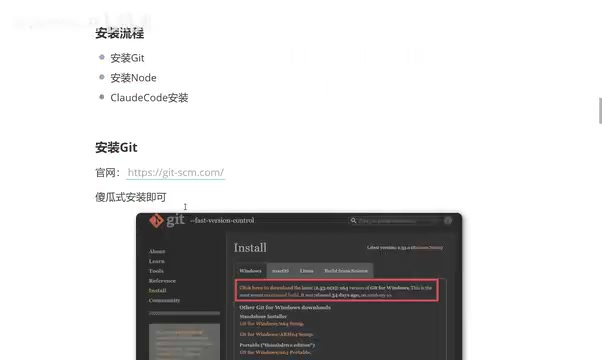
Visit the Git official website (git-scm.com) and click the "Install for Windows" button to download the installer.
The Git installation process is very straightforward — just click Next all the way through. The installer is relatively small (typically around 50MB), and it's recommended to keep the default installation path (C drive). During installation, you'll encounter several configuration option pages (such as default editor selection, PATH environment variable configuration, line ending handling, etc.). For most users, keeping all default options is fine — these defaults are already optimized recommended settings.
Verifying Git Installation
After installation, press Win+R, type cmd to open the command prompt, and enter the git command:
- If you see a bunch of help information, Git was installed successfully
- If you get an error saying "is not recognized as an internal or external command," the installation has an issue and you need to reinstall or check your environment variables
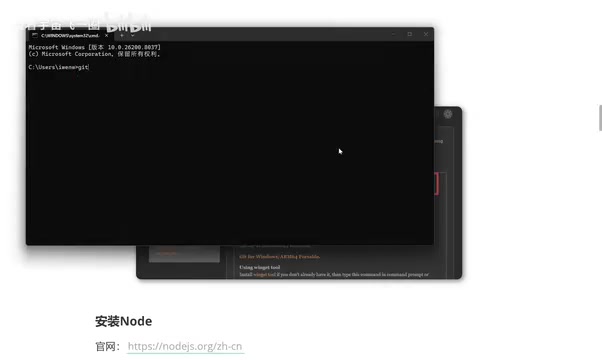
The "is not recognized as an internal or external command" error typically means Git's executable path wasn't added to the system's PATH environment variable. PATH is the list of directories the operating system uses to locate executable programs — a program can only be called directly from the command line at any location when its directory is included in PATH. If you encounter this issue, try re-running the installer and make sure the "Add to PATH" option is checked, or manually add Git's installation directory (typically C:\Program Files\Git\cmd) to the system environment variables.
Installing Prerequisites: Node.js
Why Do You Need Node.js?
Node.js is a JavaScript runtime environment built on Chrome's V8 engine that enables JavaScript — a language originally limited to running in browsers — to execute on servers and local computers. Claude Code itself is a command-line application written in JavaScript/TypeScript and requires Node.js as its runtime environment. Additionally, installing Node.js automatically includes npm (Node Package Manager), the largest package manager in the JavaScript ecosystem with over 2 million open-source packages. The Claude Code installation command uses npm to download and manage dependency packages.
Downloading and Installing Node.js
Visit the Node.js official website (nodejs.org), click "Get Node," and select the Windows installer to download. The Node.js website typically offers two versions: LTS (Long Term Support) and Current (latest). For installing Claude Code, the LTS version is recommended as it has been more thoroughly tested and offers better stability. Claude Code requires Node.js version 18.x or higher, and current mainstream LTS versions (such as 20.x or 22.x) all meet this requirement.
It's the same standard installation process — Next → Next → Finish. It's recommended to keep the default C drive installation path. As long as your C drive has a few GB of free space, there's no need to change the drive.
Verifying Node.js Installation
Open the command prompt and enter the following command to verify:
node -v
If it correctly outputs a version number (e.g., v24.14.1), Node.js was installed successfully. You can also simply type node and press Enter — as long as there's no error, you're good. Additionally, it's recommended to verify that npm is available by entering npm -v to check its version. npm is the key tool for installing Claude Code in the next steps — even if Node.js is installed successfully, you won't be able to proceed if the npm command isn't available.
Installing Claude Code via PowerShell
Why Use PowerShell?
Windows comes with two command-line tools: the traditional CMD (Command Prompt) and PowerShell. PowerShell is Microsoft's next-generation command-line environment, offering more powerful script execution capabilities, better Unicode character support, and a more modern pipeline processing mechanism compared to CMD. Claude Code's installation scripts have better compatibility in PowerShell, particularly when handling network requests and file paths, where PowerShell performs more reliably. Windows 10 and later systems come with PowerShell pre-installed, so no additional installation is needed.
Running the Installation Command
With Git and Node.js ready, you can now officially install Claude Code. Here are the steps:
- Search for PowerShell in the Windows search bar and open it (running as administrator is not required)
- Visit the Claude Code official website and copy the installation command from the top of the page
- Paste the command into PowerShell and execute it

The installation command is typically in the form of npm install -g @anthropic-ai/claude-code, where the -g flag indicates a global installation — meaning Claude Code is installed as a system-level command that can be called directly from any directory. During installation, npm downloads Claude Code and all its dependencies from Anthropic's package repository, which requires a stable network connection.
The installation process takes a few minutes. When the terminal displays version information (e.g., 2.1.104), Claude Code has been successfully installed.
Confirming the Claude Code Installation Path
After installation, take note of the installation path. The default location is:
C:\Users\your-username\.local\bin\claude.exe
If you can find the claude.exe executable in this directory, Claude Code has been correctly installed on your machine.
Post-Installation Notes
Completing the installation doesn't mean you can start using it right away — Claude Code requires additional configuration before it can run properly. Here are a few things to keep in mind:
-
Network Environment: Claude Code needs to connect to Anthropic's servers, and users in China may need to configure a network proxy. During operation, Claude Code sends user prompts and code context to Anthropic's cloud API for processing, then returns the model's response to the local terminal. This means every interaction requires a stable international network connection — high latency or unstable connections will affect the user experience.
-
API Key Configuration: You need to set up an Anthropic API Key or log into an account to call the Claude model. Anthropic offers two usage methods: one is pay-per-use via API Key (you need to create a key in the Anthropic Console and bind a payment method, with charges based on input and output token counts); the other is logging in directly with a Claude Pro/Max subscription account (Max subscriptions include Claude Code usage quota at $100 or $200 per month, suitable for heavy users). When you run the
claudecommand for the first time, the tool will guide you through the authentication process. -
Permission Issues: While administrator privileges aren't strictly required for installation, you can try running as administrator if you encounter permission errors.
-
Version Updates: Claude Code is updated frequently (typically with new releases every week). It's recommended to regularly check for and install new versions using the
npm update -g @anthropic-ai/claude-codecommand. New versions typically bring performance optimizations, bug fixes, and support for the latest Claude model capabilities.
Summary
The Claude Code installation process can be summarized in three steps: Install Git → Install Node.js → Execute the official installation command via PowerShell. The entire process is beginner-friendly and doesn't involve complex environment configuration. After installation, you'll still need to configure your account and network settings before you can actually start using it — that's the next step.
It's worth noting that Claude Code represents an important direction in the evolution of AI-assisted programming tools — moving from passive code completion to proactive task execution. Compared to tools like Cursor and GitHub Copilot, Claude Code places greater emphasis on an "Agentic" working mode, where the AI not only understands your intent but can also autonomously plan execution steps, invoke tools, and verify results. As large language model capabilities continue to improve, these types of tools are poised to evolve from "programming assistants" into true "AI developers," fundamentally transforming how software development is done.
Related articles

Private Key Set to 4? CA's Elementary Mistake Leaves TLS Exposed
CA eMudra set private keys to tiny values like 4, making TLS certificates brute-forceable. A Computerphile video demonstrates the full process from extracting public keys to forging certificates, and explores the fragility of the PKI trust chain.

How Gen Turns Data into Decisions with ChatGPT Work
In an OpenAI user case, business leader Gen shares how ChatGPT Work turns data into decisions: within hours of launch, teams can judge whether integrations and onboarding flows work, shifting decision iteration from hundreds of trial-and-error attempts to a fast feedback loop.

ChatGPT vs. Claude In-Depth Comparison: Strong at Coding but Weak at Research — How to Bridge the Gap?
A user considers switching from ChatGPT to Claude, finding Claude stronger at coding but shallower at research. We analyze the differences and share tips to make Claude's research deeper.