Claude Code Interaction Tips in Practice: Four High-Frequency Operations That Take You From Typing to Actually Using It

Four core Claude Code interaction patterns: mode switching, message queue, Esc rollback, and shell commands.
This article covers four high-frequency Claude Code interaction patterns, built around one core principle: read the current state, then pick the right action. Shift+Tab cycles through permission modes; Plan mode lets Claude propose before acting. Messages can be queued mid-task to add context, but slash commands and regular messages process at different times — the queue isn't an emergency stop. Esc interrupts without reverting completed work; double-tap opens the rollback menu for checkpoints, though external side effects can't be undone. Prefixing input with ! runs shell commands directly; Ctrl+B backgrounds long tasks, but background doesn't mean success — always verify output.
Most people use Claude Code passively: type, hit Enter, watch it work, hesitate to add anything mid-task, and restart from scratch when things go sideways. But this terminal interface is simultaneously handling your input, tool calls, execution results, and permission prompts — pressing the same key in different states won't produce the same result. Read the current state first, and shortcuts become an asset instead of a source of panic.
This article breaks down the content from Episode 4 of the "Claude Code Whiteboard Series" on Bilibili, covering four high-frequency interaction patterns: switching modes, queuing messages, interrupting and rolling back, and running shell commands directly. One caveat: your terminal may differ from the official documentation, so if a key doesn't work, check the help reference to confirm.
Pattern 1: Shift+Tab to Switch Permission Modes
Press Shift+Tab to cycle through permission modes. After switching, check the mode indicator in the interface to confirm where you are. These modes control how the AI is allowed to act — they don't swap in a smarter model. That distinction matters. Available modes depend on your configuration and version.
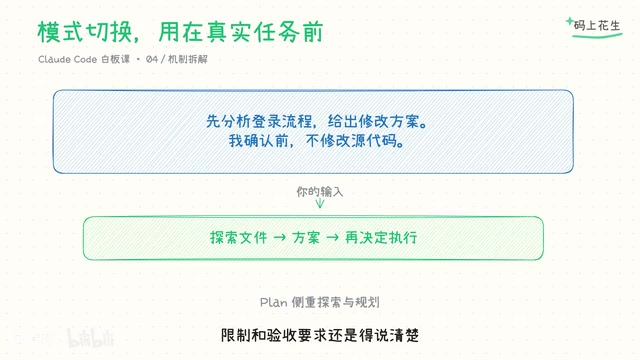
For complex changes, switch to Plan mode and let Claude explore the problem and propose an approach before doing anything. For example, if you're reworking a login flow, have it analyze the current state and outline proposed changes first — you review before any code gets touched. This lets you catch issues upfront: missing error handling, untested paths, or broken compatibility with legacy interfaces.
But modes only constrain how the AI acts. The goal, constraints, and acceptance criteria still need to come from you — otherwise it's just guessing in a different mode.
Claude Code's permission modes generally fall into a few tiers: Auto mode allows the AI to autonomously read/write files and run commands; Plan mode restricts it to analysis and proposals without modifying anything; some versions also include an Ask mode that requests confirmation before any file edit or command execution. These modes are essentially "trust boundary" settings — the more automated the mode, the more autonomous execution space you're granting the AI. For unfamiliar codebases or tasks with vague scope, starting with a conservative mode prevents the AI from running too far in the wrong direction.
Pattern 2: Message Queue — Add Context While It Works
While Claude is working, you can keep typing follow-up requirements and pressing Enter — messages will queue up. For example, if it's reading test code, you can add "only modify the login module" and then "don't touch shared interfaces" without waiting for the entire task to finish.
Regular messages get delivered into the current work cycle once tool calls complete; any messages still waiting also get sent after the cycle ends. However, different types of queued content aren't processed at the same time: regular messages and slash commands don't both execute "immediately and simultaneously." Commands and slash commands typically wait for the current cycle to finish, then are processed in order.
Queuing follow-up messages is great for adding boundary conditions — it's not the right tool for an emergency stop. If you need to halt execution immediately, don't just drop a message in the queue, and definitely don't queue a pile of contradictory instructions.
Slash commands are a special class of built-in instructions in Claude Code, prefixed with / — for example, /diff (view changes), /clear (reset context), /help (view help). The key difference from regular chat messages is this: regular messages tell the AI what to do, while slash commands directly control the behavior of the tool itself. That's why they're processed at different times in the queue — slash commands typically wait until the current tool-call cycle ends rather than cutting in line. Understanding this helps you accurately predict when queued input will actually take effect.
Pattern 3: Esc to Interrupt and the Rollback Menu
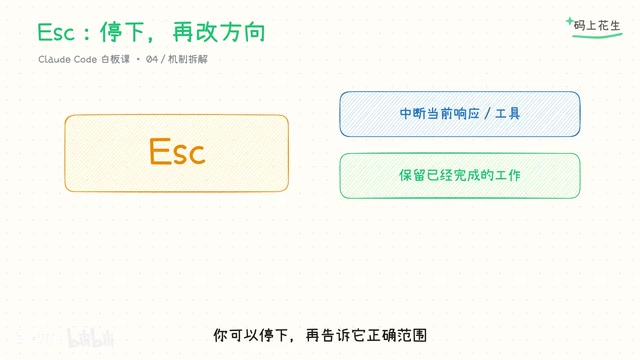
During normal operation, pressing Esc interrupts the current response or tool call so you can restate the direction. But work already completed is preserved — one Esc doesn't automatically revert all file changes. If it modified the wrong module, you can stop it, then give it the correct scope.
If a dialog is open, Esc typically closes the dialog first; at a permission prompt, Esc may mean rejecting that specific operation. Same rule applies: read the state, then press the key.
Double-tapping Esc is a detail people often get wrong: if the input box has a draft, double-tap clears the draft first; only when the input box is empty does double-tap open the rollback menu. From the menu, you can return to a previous checkpoint, restore code, roll back the conversation, or handle context through the available options. But checkpoints aren't a universal time machine — side effects from remote databases, deployments, and terminal commands can't be undone through this menu. Confirm the scope of what's recoverable before relying on it.
The "checkpoint" mechanism in the rollback menu is essentially an auto-saved session snapshot that Claude Code creates during the conversation, capturing the dialogue context and some file state at a specific moment. It's similar to a Git commit, but narrower in scope: it primarily covers Claude Code's own conversation history and in-editor file changes, and has no power over operations already executed via terminal commands (e.g., database writes, git push, npm publish). Checkpoints are best used to "return to a discussion point and start fresh" rather than to truly "undo all side effects." Before any irreversible operation, a manual git commit is still the more reliable safety net.
Pattern 4: ! to Run Shell Commands Directly
Prefix your input with ! to enter Shell mode. For example, !git status checks your repository state directly — the command and its output enter the current session, and Claude can continue explaining based on the results. No need to say "please run this for me" and wait for it to narrate a simple command.
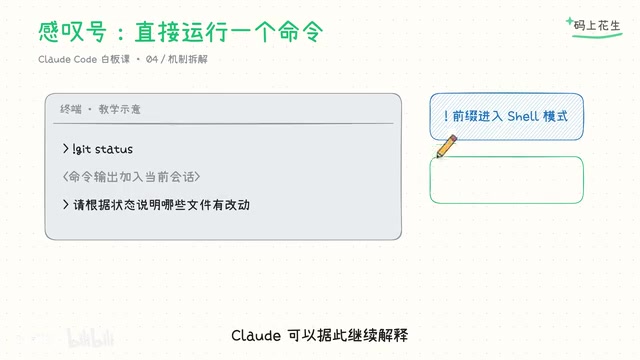
But this actually executes commands, so practice with familiar read-only commands first — don't casually hit Enter on a deletion command. For long-running commands in the foreground, use Ctrl+B to send the task to the background (if you're in tmux, press it twice). You can also ask Claude directly to run long commands in the background and continue the conversation.
Important: background doesn't mean canceled, and it doesn't mean success. For tests and builds, you still need to check the output and exit code when they finish — being able to type in the interface doesn't mean the check has passed.
tmux (Terminal Multiplexer) is a tool that lets you create and manage multiple sessions and windows within a single terminal. When using Ctrl+B to send a task to the background in Claude Code, if your terminal runs inside tmux, Ctrl+B will be captured by tmux as its own prefix key — so you'll need to press it twice (first to trigger tmux, second to pass it through to Claude Code). Without tmux, a single Ctrl+B works. For long-running builds or tests, you can also ask the AI directly to launch the command in the background (using nohup or appending &), which avoids key-conflict issues entirely.
Three Handy Extras
Beyond the four core patterns, a few more tools are worth keeping in mind: /diff to review changes, Ctrl+R to search input history. If you're comfortable with Vim, you can switch to Vim editing mode in settings. For writing long prompts, use whatever multi-line input method your terminal supports.
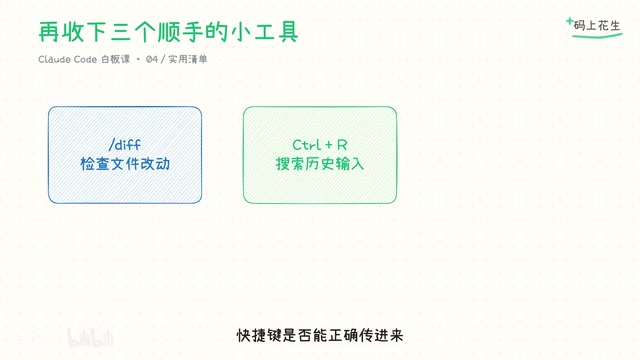
Whether these shortcuts are correctly received depends on your terminal and configuration, so practice with them before relying on them under pressure.
One Rule to Remember: Mode First, Then Collaborate
Saving a shortcut cheat sheet isn't the same as knowing how to use it. The real logic is: choose your mode first, add context as work progresses, and stop when the direction is wrong. Interrupting, rolling back, and backgrounding tasks each solve different problems — know your current state, pick the right action, and working with this AI teammate will feel a lot smoother.
Try it with one of your own projects: press Shift+Tab once and observe how the mode indicator changes, then ask Claude to explain a module. While it's working, queue two related requirements (e.g., "focus on the entry function" and "don't change the code yet") and watch how the queue and timing behave. That hands-on experience will stick far better than memorizing key names.
The next episode covers permission modes — understanding which actions need confirmation and which can be auto-approved. Once the interaction feels fluid, the next question is: what level of access should this AI teammate actually have?
Related articles

Chain of Thought Isn't Just for AI: How Humans Can Use CoT to Improve Thinking Quality
Chain of Thought isn't just a prompt trick for large models. Starting from a Hacker News discussion, this article analyzes why CoT works for human thinking too, breaks down actionable ways to transfer it, and highlights the key differences between human CoT and machine CoT.
Cloudflare Teams Up with OpenAI: Closi…
Cloudflare Teams Up with OpenAI: Closing the Loop from Vulnerability Discovery to Defense with AI
Cloudflare uses OpenAI Daybreak to investigate security vulnerabilities and generate reviewable remediation plans, while developers use Codex to boost coding efficiency and quality.

Orca Multi-Agent Orchestration in Practice: A Guide to Parallel Collaboration with Claude and Codex
Orca is Stable AI's free open-source agent workbench supporting 34 agents like Claude Code and Codex in parallel. Learn its Git worktree isolation, multi-model orchestration, and mobile management.