Codex Beginner's Guide: A Step-by-Step AI Work Assistant Tutorial for Non-Coders

A step-by-step guide to using OpenAI Codex as an AI work assistant — no coding skills needed.
This guide walks complete beginners through setting up and using OpenAI Codex's desktop client as a practical AI work assistant. Covering installation, essential configurations like Memory and permissions, the project-as-folder workflow, and browser control plugins, it shows how Codex can automate tasks, organize data, and generate content — no programming knowledge required.
Why Everyday Users Should Pay Attention to Codex
AI tools are everywhere, but few are truly accessible to non-technical users. OpenAI's Codex desktop client is designed with a fully localized interface, no memorization of code required, and one-click core operations — making it quick to pick up even without any programming background.
It's worth understanding the backstory: OpenAI's Codex was originally released in 2021 as a code generation model, serving as the underlying technology powering GitHub Copilot. Built on the GPT architecture and fine-tuned on large-scale code datasets, it was trained on billions of lines of public code from GitHub and quickly became a benchmark model in the code generation space. It helped popularize the concept of "natural language programming" and profoundly shaped the AI-assisted coding tools market that followed. The new desktop client, however, represents a major shift — from "code assistant" to "computer-use agent." At its core, it bridges large language models with local operating system permissions, upgrading AI from pure text generation to a hands-on agent capable of reading and writing files, controlling browsers, and executing automated tasks.
This article is based on a beginner-friendly tutorial, and the central message is clear: Codex isn't just a chatbot. Its most important capability is being executable and actionable — it can directly read, understand, and even operate files on your computer, turning ideas into real outputs rather than just telling you "here's what you should do."
One important clarification: the Codex use cases discussed here are not about building websites or writing programs. Instead, the goal is to use it as an AI work assistant for everyday tasks like automation, data organization, and content generation — no coding background needed.
Step 1: Download and Install
The installation process is straightforward. Head to the OpenAI official website and search for the download. Both Windows and macOS versions are available. Double-click the installer once it's downloaded, and the Codex client icon will appear on your desktop.
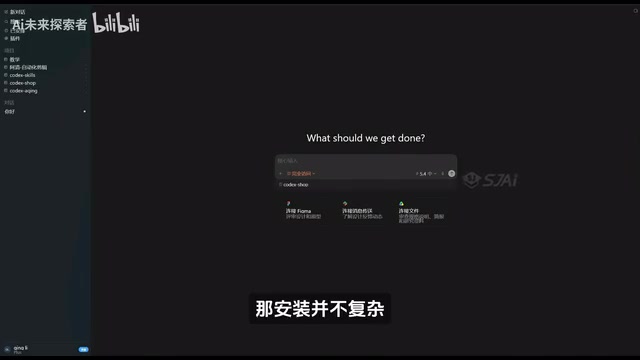
Once installed, log in with your ChatGPT account to access the main interface. One common pitfall: if account registration or login keeps failing, you'll likely need to resolve your local network environment first — this is a prerequisite unrelated to the tool itself.
Step 2: Three Essential Configuration Steps
Many beginners rush straight into using a new tool, but the tutorial specifically advises: spend a few minutes on basic setup first — it will save you a lot of headaches later.
Enable Three Permissions
Click "Settings" in the bottom-left corner, go to General Settings, and enable all three permissions. This reduces the number of confirmation pop-ups during use, making the workflow smoother.
Enable the "Memory" Feature
Find the "Enable Memory" option in Personalization Settings and make sure to turn it on. This step is critical — Codex is not a one-off chat tool. The more you use it, the better it learns your work habits, preferences, and communication style.
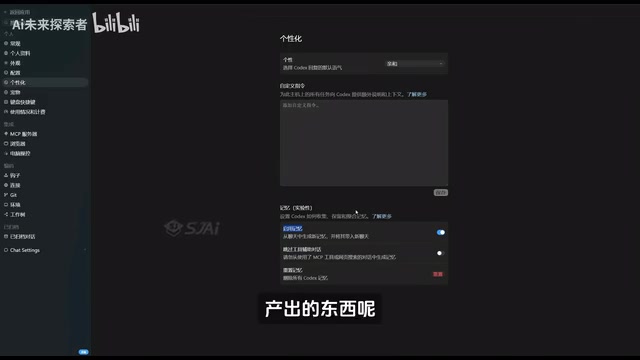
It's worth understanding the technical logic behind the Memory feature. Large language models are inherently stateless — once a conversation ends, no memory is retained. At a fundamental level, an LLM is a pure inference engine: it takes input, produces output, and clears all context when the session closes. Codex's Memory feature works by persistently storing user preferences, work habits, and summaries of past interactions, then injecting this information into the model's context window at the start of each new conversation. This effectively gives the model an "external long-term memory store," compensating for the inherent limitations of finite context windows. This "Retrieval-Augmented Memory" design philosophy is also the direction that leading AI products — including ChatGPT Memory, Claude Projects, and Notion AI — are converging on: achieving user-level personalization through external storage and dynamic context injection, without modifying the model's underlying parameters. Once Memory is enabled, Codex's outputs will increasingly align with your real needs, creating a noticeable "the more you use it, the better it understands you" experience — a key design differentiator from ordinary conversational AI.
Step 3: Understanding the Core Concept — "Projects"
When exploring the interface, don't be overwhelmed by the number of buttons. You only need to get familiar with three areas: the left sidebar (main feature entry points), the conversation and project list (where you give instructions and view responses), and the workspace for creating projects.
A Project Is Just a Folder
The most important concept in Codex is the "Project." Think of it simply as a folder — you can choose any path on your computer and give it a name, and all generated outputs will be organized into that folder.
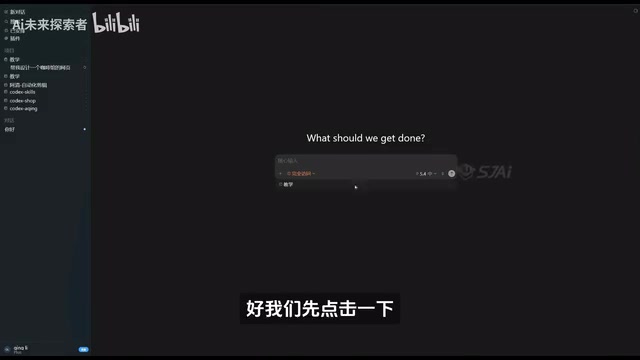
This design reflects a core principle from software engineering: workspace isolation. Traditional conversational AI outputs only exist within the chat window and are hard to persist or reuse. By binding to a local file path, every Codex output — whether generated webpage code, organized data files, or automation scripts — is saved as a real file that can be called by other tools, version-tracked, and shared for collaboration. From a broader perspective, this aligns with the "Everything as Code" philosophy in software engineering: bringing every AI output into a manageable, traceable file system, so that AI workflows genuinely integrate into the daily digital asset management of both developers and everyday users. This "conversation as workflow" design is a key architectural difference that sets Codex apart from pure chat tools.
This design offers two direct benefits: first, tasks are clearly categorized — for example, "design a café webpage" and "generate Codex documentation" can coexist in the same project at a glance; second, multiple tasks can run in parallel without interfering with each other. You can also create multiple project folders organized by work type — such as automated video editing or a personal brand website — and manage each independently.
The Usage Method Is Extremely Simple
The operational logic is completely intuitive: whatever you want done, just describe it in plain language in detail. If the output doesn't meet your expectations, ask it to regenerate, or provide additional reference and feedback — Codex will adjust accordingly until the result matches your requirements. This is how the "no code memorization needed" promise is delivered in practice.
Step 4: Extend Capabilities with Plugins and Skills
Plugins and Skills are what many users are most curious about. For beginners, don't get hung up on the technical distinction between the two — just think of them both as "tools that extend Codex's capabilities."
A Typical Example: Browser Control Plugin
Take the "computer use" (browser control) plugin as an example. Once installed, Codex can directly open programs or webpages on your computer, read page content, automatically fill out forms, and batch-collect information. Without this plugin, these operations simply aren't possible.
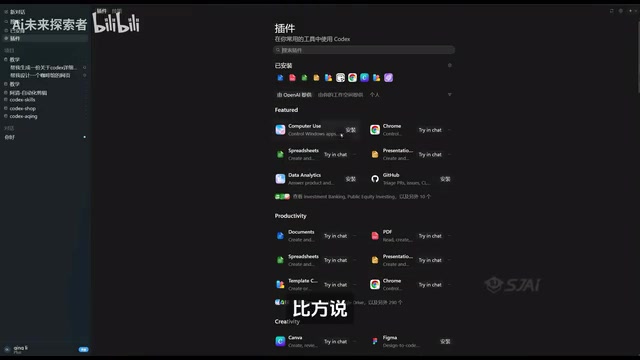
This type of "computer use" plugin represents one of the most closely watched frontiers in AI today — GUI agents (Graphical User Interface Agents). Anthropic was the first to roll out a similar capability in Claude in 2024, allowing AI to perceive the screen via screenshots and simulate mouse and keyboard actions to complete tasks — essentially making AI "use a computer like a human." At the technical level, this typically relies on the coordinated work of a Vision-Language Model for screen understanding and an action planning module: the model first semantically interprets a screenshot of the current screen, identifying the location and function of buttons, input fields, links, and other UI elements; the planning module then generates a sequence of specific instructions — such as "click coordinate X, type text Y, scroll page Z" — and executes them. The significance of this technology is that it bypasses the technical barrier of traditional API integration, enabling AI to operate any software with a graphical interface, not just platforms with open APIs. Everyday users don't need any programming knowledge to have AI handle tedious computer tasks on their behalf.
Installation is simple: just click the install icon in the plugin section of the left sidebar. According to the tutorial, Codex's plugin ecosystem includes over 300 built-in common function templates, with a large library of mature plugins and Skills already available — more than enough to cover the majority of everyday user needs.
Real-World Results and Getting Started Tips
Taking "design a café webpage" as an example, Codex generates results remarkably fast — the page structure is complete, with a menu section, content layout, and placeholder areas all in place, and the overall design quality is above average. This directly demonstrates its core value of being "executable and actionable."
For everyday users looking to get started, the key steps can be summarized as follows: install the software and resolve any network issues; enable the three permissions and the Memory feature; manage tasks using the "project = folder" mental model; and install plugins as needed to expand capabilities. Master these steps, and you can have Codex handle a large volume of daily work — no need to understand any complex technical theory.
Codex represents a clear trend: AI tools are evolving from "knowing how to talk" to "knowing how to act." In the industry, this corresponds to the emerging paradigm of Agentic AI — unlike traditional question-and-answer language models, agentic AI can autonomously plan multi-step tasks, invoke external tools, perceive environmental feedback, and adjust actions accordingly, forming a closed loop of "perceive → decide → execute." From an architectural standpoint, the key innovations enabling this paradigm include: Tool Use/Function Calling mechanisms that allow models to actively trigger external APIs and local programs; Chain-of-Thought reasoning that enables models to decompose complex tasks into executable sub-step sequences; and outcome-reward-based training methods derived from RLHF, which help models maintain goal alignment across long-horizon tasks. The dense release of products like Operator, Computer Use, and Project Mariner by leading labs including OpenAI, Anthropic, and Google between 2024 and 2025 collectively signals that the entire industry is transitioning from the era of "language models" to the era of "action models." When an AI can genuinely operate your files and computer — turning ideas directly into results — it is no longer just a chat toy. It is, in every sense of the word, an AI work assistant.
Key Takeaways
Related articles

Reddit Discussion: Real-World AI Agent Use Cases Shared for Business School Classrooms
A Reddit business school lecturer seeks real AI Agent use cases for classroom teaching. This article compiles typical AI Agent applications in professional and personal scenarios and offers three analytical dimensions for selecting classroom cases, helping readers understand the practical value and limitations of AI Agents.

Multi-LLM Provider API Integration: Standardization Challenges and Compliance Headaches
Explore the current state and challenges of multi-LLM provider API standardization, analyze enterprise data compliance pain points, and share community practices and router limitations for data governance in multi-model architectures.

Binance Halts Withdrawals as Hackers Suspected of Stealing Billions in Crypto
Binance paused withdrawals Thursday after a suspected cyberattack, with some estimates claiming billions in crypto stolen. This article reviews the incident, the uncertainty of loss estimates, and the custody trust paradox facing centralized exchanges.