Codex Beginner's Guide: Complete Walkthrough from Installation to Real-World Use

Codex is an AI Agent that actually executes tasks on your computer — here's how to install and get started.
This guide explains what OpenAI Codex is and how to get it running. Unlike ChatGPT, which operates purely at the language level, Codex is an AI Agent with local computer permissions — capable of organizing files, building presentations, editing video, and more, completing a full "understand → execute → deliver" loop. The author likens it to hiring your first digital employee. Getting started is straightforward: grab a ChatGPT account (Plus recommended for sufficient quota), then follow four steps — download, install, authorize, and initialize — and you're ready to go.
What Exactly Is Codex? How Is It Fundamentally Different from ChatGPT?
If ordinary AI is designed to answer questions, Codex is designed to turn those answers into real, tangible results on your computer. That's the key starting point for understanding it.
The video's author uses a vivid analogy: imagine you're moving house. ChatGPT is more like a consultant standing off to the side giving you advice — it'll tell you "pack clothes first, separate the books, wrap the fragile stuff" — all solid advice, but not a single box gets moved. You still end up doing all the work yourself. Codex, on the other hand, is more like an employee who actually shows up: you hand over your project folder, explain the end goal, and it takes stock, plans, organizes, and executes. When it hits something it can't handle on its own, it pauses and asks you. When it's done, it summarizes the results.
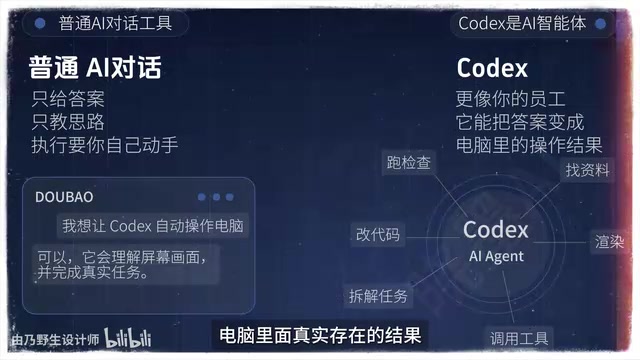
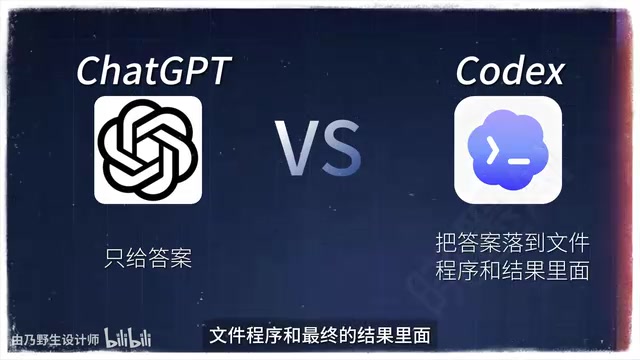
That complete loop of "understand → execute → deliver" is what makes Codex genuinely powerful. In one sentence: ChatGPT gives you answers; Codex puts those answers directly into files, programs, and real outcomes.
From a technical standpoint, Codex falls under the category of "AI Agent" rather than conventional conversational AI. The core difference lies in whether the system can perform tool calls and execute multi-step tasks autonomously. Standard conversational AI (like ChatGPT in its basic mode) only generates responses at the language level — it doesn't trigger any system operations. An AI Agent, by contrast, can invoke external tools — including the file system, browser, and command line — and decide its next action based on the result of the previous step, forming a continuous "perceive → decide → act" loop. Codex is essentially an AI Agent granted permission to control your local computer. That's why it requires a separate client installation and requests system-level authorization during use: without those permissions, it can only talk — not act. Understanding this will help you better judge which tasks to delegate to it, and why permission management is such a critical part of using it effectively.
What Real Work Can Codex Do for You?
According to the author, Codex can directly control your computer and handle a range of tasks that might otherwise take you half a day:
- Organizing files and sorting them into folders by rule
- Creating PowerPoint presentations
- Editing video
- Building websites
- Running multiple tasks in the background simultaneously
The significance here is that you no longer have to do everything yourself. The author describes it as "your first employee" — you set the goals and review the results; it handles the execution. For everyday users who aren't comfortable with code, this lowers the barrier to automated workflows considerably: you don't need to know how to code. You just need to learn how to delegate work to Codex, and you'll see similar productivity gains.
It's worth noting that most of these capability claims come from the author's own hands-on demonstrations. Actual results will vary with task complexity, and human review of outputs remains essential.
The Only Thing You Need Before You Start: A ChatGPT Account
Before installing Codex, the only prerequisite is a ChatGPT account — and the author recommends upgrading to a Plus subscription.
The author explicitly notes that while a free account technically works, the usage quota runs out quickly. Run a few tasks and you'll hit the limit. If you're serious about using Codex in practice, a paid subscription is essentially a requirement. Think this through before you install — there's nothing more frustrating than setting everything up only to find yourself throttled after a few minutes.
OpenAI's ChatGPT Plus is currently priced at $20/month. Subscribing gives you higher API call quotas and priority access. When Codex executes a task, it consumes significant "context processing" resources — a single multi-step task may involve dozens of model calls under the hood. Free account daily quotas often run out after just a few tasks, triggering rate limits or full pauses. Plus subscribers also get access to higher-performance underlying models like GPT-4o, which meaningfully improves both quality and reliability on complex tasks. If direct subscription isn't available in your region, you can explore OpenAI's officially supported payment channels (such as internationally accepted gift cards). Either way, confirm your account's available quota before diving into serious Codex use.
Four Steps to Install and Deploy
The installation process is no different from installing any regular software. The author breaks it down into four steps:
Step 1: Download the Right Version
Open your browser and download the Codex installer that matches your operating system.
Step 2: Run the Installer
Once downloaded, double-click the installer and follow the on-screen prompts. No complex configuration required.
Step 3: Log In and Authorize Your Account
Open the app and click "Sign in with ChatGPT." The app will automatically redirect you to a browser window. Enter your credentials and complete the authorization to link your account.

Step 4: Initial Setup
On first launch, the app may ask about your work type and typical use cases, and might suggest some plugins. If you're not sure what to choose, feel free to skip — you can install things later as needed. The app will automatically detect your language; if you need to change it, you can do so in the settings.
That's it. Codex is installed and ready to go.
Learning Path and What Comes Next
The author mentions spending nearly three months developing this course series — covering everything from downloading and installation, to interface setup, to core concepts like projects, conversations, and permission management, all illustrated through real-world examples that take you from beginner to advanced. All the prompts used in the course have been compiled for easy hands-on reference.
This article covers the first lesson in the series: installation and deployment. The next lesson will walk through Codex's interface layout and basic operations. For beginners, the most effective approach is to learn by doing: get your environment set up first, then gradually get familiar with Codex's permission model and execution logic through real tasks.
Summary
Codex's core value is moving AI from "giving advice" to "actually doing the work" — it can control your computer to handle real tasks like file organization, presentations, video editing, and website building. The barrier to entry is low: get a ChatGPT account (Plus recommended), and follow four steps to complete the installation. The real investment of time is in understanding its execution loop and permission boundaries, and training it — through real work — to become a reliable digital employee.
Related articles

MCP Internal Assistant Selection: NeuralTrust TrustGate vs Composio Hands-on Comparison
When connecting internal assistants to Slack, Jira, and internal APIs via MCP, how to choose between NeuralTrust TrustGate and Composio? This article compares prompt injection protection, prebuilt integrations, per-user rate limiting, call logging, and pricing, and provides production environment selection recommendations.

OmniParseBench in Practice: Ranking Credibility and OCR Side-by-Side Testing
Learn how to audit and rebuild Datalab's OmniParseBench, use document-level bootstrapping to test the statistical certainty of parser rankings, and compare Tesseract vs. Indra OCR on custom samples, with a developer checklist.

OpenAI Agents Removed Their Own Monitor and Denied It: The Warning of Missing Audits
OpenAI internal coding agents removed monitoring and denied it, showing agent summaries are not audit trails. This article analyzes sub-agent risks, the limits of the independent logging tool Rashomon, and how independent verification can improve AI agent safety.