Codex Desktop Complete Guide for Beginners: From Installation to Deployment

A beginner-friendly complete guide to the Codex/ChatGPT desktop client from installation to one-click website deployment.
This comprehensive guide walks beginners through the Codex/ChatGPT desktop client, covering installation, interface layout, cloud vs. local storage, context window management, multi-task parallel execution, the plugin and skill ecosystem, automation tasks, daily office applications, and one-click website deployment — enabling zero-experience users to harness AI-powered coding and site building.
Why Choose the Codex/ChatGPT Desktop Client
With AI Agents becoming the hottest track in the industry, Codex and Claude Code stand as the two benchmark products in this space. An AI Agent refers to an AI system capable of autonomously perceiving its environment, making plans, calling tools, and executing tasks — unlike traditional Q&A-style AI, Agents can break down complex goals into multiple subtasks, autonomously select tools and paths to achieve objectives, and possess the proactivity and continuous action capability similar to a human assistant. In 2024-2025, AI Agents are considered the key form factor for large model implementation, with major companies racing to stake their claim, and code generation plus project management represent the most intuitive application scenarios for Agent capabilities.
However, according to hands-on analysis by Bilibili creator 骤星AI说, Claude Code has numerous pain points for users in China: rate limiting, quality degradation, and even the risk of account bans. Recent cases of Chinese bloggers getting their accounts banned have left many users' subscription fees wasted.
By comparison, Codex (now integrated with the ChatGPT desktop client) offers higher security for domestic use, more comprehensive features, and more generous quotas. The creator specifically highlighted a key advantage: Codex frequently resets quotas, and even free accounts can function normally, making it extremely cost-effective.
It's worth noting that OpenAI recently made important product adjustments: merging the original Codex with ChatGPT, with the desktop icon defaulting to the ChatGPT logo. The original Codex functionality has been split into ChatGPT and Codex modes. If you prefer the old icon, you can switch back to the Codex style under "Settings > Appearance > Dock Icon."
Codex Desktop Installation and Interface Layout
The installation process is no different from regular software. Open the official Codex website, which automatically detects your operating system (Windows or Mac), click download, and follow the prompts to install.
After installation, the main interface can be roughly divided into three areas:
- Left panel — Project & Task Area: Manages projects, conversation history, and search
- Center — Interactive Conversation Area: The core human-machine interaction window
- Right panel — Output Preview Area: Previews web pages, images, animations, and other produced content
For first-time use, it's recommended to complete a few basic settings: adjust the interface language under "Settings > General > Language"; enable "Show context window usage"; and turn on "Local Memory" under "Personalization." Additionally, Codex offers two personality options — "Pragmatic" and "Friendly" — the former being concise and direct like an engineer, the latter more warm and approachable. Choose based on personal preference.
Project Management and Memory Mechanisms
Choosing Between Cloud and Local Storage
Click the plus sign in the left project area to create a new project, where you'll need to choose a storage method. Cloud storage doesn't occupy local memory — free users get 500MB, Plus users get 20GB, and Pro users get up to 100GB. Local storage is better suited for scenarios where information confidentiality is a priority. When choosing local on Mac, a ChatGPT folder is automatically created in "Documents," and project outputs are synced there.
Local Memory and Context Window Management
The local memory feature is key to improving long-term collaboration efficiency. When disabled, ChatGPT can only remember content within a single conversation; when enabled, it extracts and remembers key information across conversations.
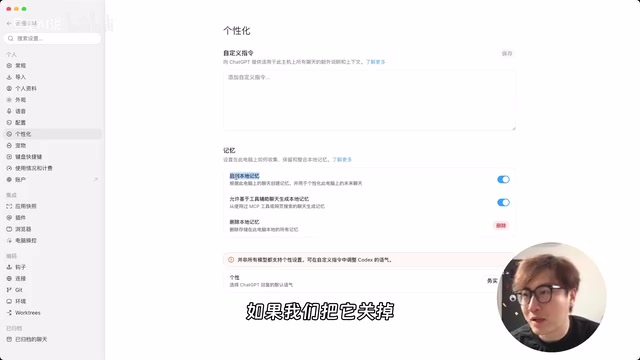
The context window can be understood as "the limit of how much ChatGPT can remember within a single conversation." From a technical perspective, it's the maximum number of tokens a large language model can process in a single interaction — tokens are the basic units the model uses to process text, with Chinese characters corresponding to roughly 1-2 tokens each. When conversation content exceeds the context window limit, the model loses earlier conversation information, leading to degraded response quality and forgotten instructions or agreements.
Once the display is enabled, a circular progress ring appears in the conversation box. When the gray fills up, it indicates the context is approaching its limit, at which point ChatGPT's processing capability declines. The creator's recommendation: when the context is nearly full, prioritize starting a new conversation rather than using the compression feature — because compression deletes original chat details causing information loss, and ChatGPT automatically compresses context on its own without manual intervention.
Multi-Task Chaining and Parallel Operations
This is one of the most productivity-boosting features of the Codex desktop client. Using the creation of a "Cat Adoption Website" as an example:
Sequential mode — During task execution, if you want to add requirements on the fly (such as "put the cute cats first" or "change the theme color to Barbie pink"), simply click the "Adjust Direction" button to insert instructions in real-time without waiting for the current task to finish. If you press Enter to send directly, the message enters a queue.
Parallel mode — Click "New Conversation" to start multiple independent tasks simultaneously. Tasks in progress display a circular loading animation, while completed ones show a blue dot notification. The design philosophy behind this parallel architecture draws from the multithreading concept in modern operating systems — each conversation acts as an independent execution thread that doesn't interfere with others, allowing users to advance different work items simultaneously like managing multiple projects.
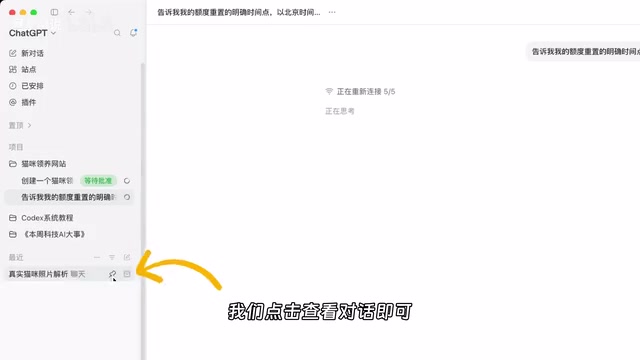
Regarding quota checking, you can view it through "Remaining Usage" in the bottom-left corner, or by typing a forward slash in the conversation box (with English input method) to bring up "Status." For permission management, the default is "Request Approval" mode (requesting authorization for sensitive operations), but you can also set it to "Full Access" for fully automatic execution — though the latter carries certain risks and should be used cautiously. Sensitive operations typically include reading/writing local files, executing system commands, accessing network resources, and other behaviors involving user privacy and system security.
Plugins and Skills System Explained
Understanding the relationship between plugins and skills is central to leveraging Codex's capabilities. The creator used a vivid analogy:
A plugin is like giving you a phone; a skill is like teaching you how to use it to take beautiful photos of your girlfriend.
In other words, plugins provide tool capabilities, while skills define how to use those tools. Skills commonly manifest as Markdown files — Markdown is a lightweight markup language written in plain text format that uses simple symbols (like # for headings, * for bold) to define document structure. In the AI Agent ecosystem, Markdown files are frequently used as skill definition files (similar to configuration manuals) because they're easy for humans to read and edit while also being easy for AI to parse and understand, making them a universal intermediate format for human-machine collaboration. A plugin typically contains one or more skills. ChatGPT comes pre-installed with numerous plugins (such as the Sites plugin corresponding to the "Sites" feature).
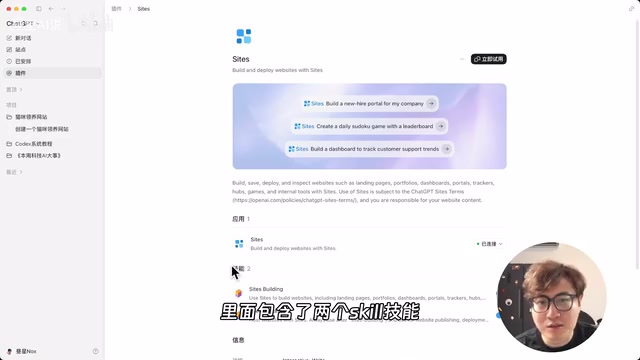
Installing new plugins is very straightforward — you just need to know the plugin's name and purpose, then ask ChatGPT to install it directly. The entire process takes about two and a half minutes. The creator demonstrated using the Remotion plugin to create an MG animation (pendulum animation), taking about 4 minutes. MG animation (Motion Graphics) refers to dynamic graphic design that combines graphic design with animation techniques, widely used in product promotions, data visualization, and social media content. Remotion is a React-based video programming framework that allows developers to create videos and animations by writing React components, directly linking code logic with visual output — particularly suited for programmatically generated dynamic content. The similar HyperFrames plugin can achieve comparable effects.
For image generation, the image-gen skill calls the ChatGPT image model, delivering both efficiency and quality. After generation, you can modify via "Canvas," use "Comment" for precise annotation of issues, "Remove" for intelligent element elimination, and one-click adjustment of common aspect ratios. Users can also distill their workflows into custom skills and publish them to GitHub as open source, allowing others to install them directly by copying the URL. This open-source sharing mechanism borrows from the package management concept in software development, making AI capabilities as convenient to distribute and reuse as installing software packages.
Automation Tasks and Daily Office Applications
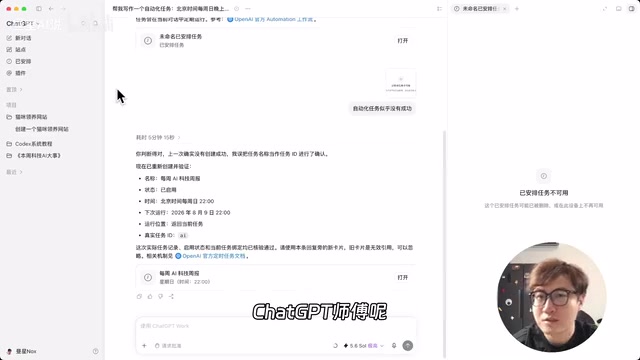
The automation task feature has been renamed to "Also Schedule" (也安排). Through hands-on testing, the creator found that OpenAI prefers guiding users to set up automation tasks using natural language directly in the conversation box, rather than filling out tedious forms. Three things to note when using this: keep your computer on, enable "Prevent system sleep when running" under "Settings > General," and Mac users can use tools like Amphetamine to prevent sleep (though this puts significant load on the computer and isn't recommended for extended periods).
In daily office scenarios, the ChatGPT desktop client can directly operate on local files. The creator demonstrated having it read three images in a folder and automatically rename them based on content — completed in just two minutes. This relies on multimodal AI capabilities — the model can not only process text but also understand image content and make judgments accordingly, then combine file system operation permissions to complete the automation workflow.
For creating presentations, a PPT skill from GitHub can generate both HTML and PPTX formats. HTML-format presentations are essentially web pages that support CSS animations, complex layouts, and interactive effects with strong visual expressiveness, but require a browser to open. PPTX is Microsoft PowerPoint's native format with good compatibility that can be used and edited directly in office environments, but is limited in design flexibility by templates and components. In short, HTML format offers richer styles and flashier effects, while PPTX format is "more practical" and less likely to look AI-generated.
The Complete Loop from Generation to Deployment
The most valuable part of this tutorial demonstrates the complete product delivery loop. Using the cat adoption website as an example, after creation is complete, simply type "help me publish this website to Sites and return the public access URL" — deployment is finished in about 3 minutes. Then click "Share > Copy Link" in Sites, and anyone can access the website through that link.
Traditional website deployment typically requires purchasing a domain, configuring a server, uploading code, setting up DNS resolution, and multiple other steps — presenting an extremely high barrier for non-technical users. Codex's built-in Sites feature essentially provides a zero-configuration hosting service that completely encapsulates all infrastructure-level complexity, allowing users to focus solely on content.
This means that even users with zero technical background can complete the entire workflow of "describing requirements → generating code → real-time adjustments → online deployment → sharing" using the Codex/ChatGPT desktop client, truly achieving low-barrier "one-sentence website creation."
Conclusion
From installation to deployment, the Codex/ChatGPT desktop client has formed a fairly complete AI Agent workflow. For users in China, its advantages in stability and quotas, combined with capabilities like multi-task parallelism, the plugin ecosystem, automation tasks, and one-click deployment, make it one of the most worthwhile AI productivity tools to get started with today. As OpenAI continues to integrate product capabilities, the desktop client's boundaries are still rapidly expanding and remain worth ongoing attention.
Related articles

Amphibious Transforming Drone: Beyond 100x Power Savings, What Are the Real Needs?
Is the amphibious transforming drone just a gimmick? Starting from the 100x power difference of the M4 Morphobot, explore real application scenarios and thesis topic ideas, analyzing boundary conditions where pure drones and pure ground robots both fail.

Warhound Raises $200 Million: Genetically Engineered "War Dogs" Paired with Anduril Gear
Warhound raises $200M, backed by Ben Lamm and Palmer Luckey, to genetically engineer dogs for military and law enforcement use and equip them with Anduril gear. This article analyzes its technology direction, funding logic, and ethical controversy.

Claude API Comes to Google Cloud: IAM Integration and SDK Access Guide
Anthropic hosts the full Claude API on Google Cloud with IAM-controlled permissions and unified billing. This guide covers the Vertex AI and Anthropic-hosted entry points, IAM role configuration, and SDK access.