Codex Desktop In-Depth Review: Goodbye Command Line, AI Programming Enters the Visual Era

OpenAI releases Codex Desktop, bringing AI programming tools into a visual GUI era.
OpenAI has launched the Codex desktop application, bringing AI programming tools from the command line into a graphical interface. Its core features include Git Worktree-based multi-task parallel isolated development, visual code review and commit workflows, a Skills system for one-click integration of professional development capabilities, and scheduled automated bug scanning and fixing. The tool dramatically lowers the barrier for developers to use AI programming and Git collaboration, with free users able to try it immediately.
OpenAI recently released the Codex desktop application, bringing AI programming tools from the command line into the era of graphical interfaces. Free users can try it out immediately, while paid users enjoy double the usage quota. As an independent developer who has been using AI programming tools like Claude Code, Codex, and OpenCode for a long time, this article provides a comprehensive hands-on review to help you decide whether this tool deserves a place in your development workflow.
Goodbye Command Line: A Full Overview of the Codex Desktop Visual Workspace
Over the past year or two, mainstream AI programming tools — whether Claude Code, Codex, or the recently popular Devin — have almost exclusively operated in command-line environments. This design choice has its technical merits: terminal environments natively support standard I/O streams, pipe operations, and script automation, making it easy for AI agents to invoke system toolchains. However, this also creates a significant barrier to entry. According to the Stack Overflow 2023 Developer Survey, approximately 30% of developers worldwide self-identify as beginners or learners who aren't comfortable with CLI operations. You need to be familiar with terminal operations, Git commands, environment configuration, and a whole series of prerequisites to use these tools smoothly.
Codex Desktop fundamentally changes this dynamic. The introduction of a graphical user interface (GUI) not only reduces cognitive load but, more importantly, visualizes critical decision points like "code review," "commit," and "push," helping developers find a more comfortable balance between AI automation and manual control. Upon opening the application, the interface layout is immediately clear:
- Left panel: Task list, with real-time visibility into each AI agent's status and progress
- Center: Core workspace, the main arena for code editing and interaction
- Right panel: Code change status panel, with clear diffs for review
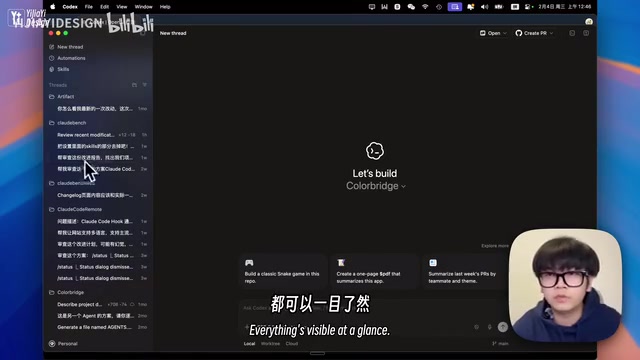
All operations can be completed with mouse clicks — no switching to terminals, no typing commands. This design philosophy dramatically lowers the barrier to entry for AI programming tools, allowing even beginning developers to get started quickly.
Core Feature: Worktree Isolation and Multi-Task Parallel Development
The most powerful capability of Codex Desktop is Worktree isolation — you can launch multiple independent tasks simultaneously within the same code repository without them interfering with each other.
To understand this feature, you first need to know the underlying mechanism of Git Worktree. Git Worktree is an advanced feature introduced in Git 2.5 that allows developers to check out multiple working directories from the same Git repository simultaneously. In traditional workflows, switching branches means you must stash or commit your current work, but Worktree gives each task its own independent filesystem view while sharing the same .git directory and object database. This is especially important in large projects — you can fix a production bug while continuing uninterrupted feature development. Codex Desktop wraps this underlying Git capability into visual operations, essentially allowing AI agents to execute tasks in parallel within their own isolated Worktrees, fundamentally preventing file conflicts between multiple tasks.
In my testing, I launched three tasks simultaneously within the same project:
- Enhancing icon accessibility
- Strengthening computation isolation and performance optimization
- Improving localization hardcoding issues
All three tasks appeared simultaneously in the left panel in an active state, running independently. The sidebar displays each agent's progress in real time, with clear notifications when tasks complete.

Clicking on a completed task reveals clear code diffs, allowing developers to review code changes line by line. Once confirmed, simply click the "Commit" button to complete the Git commit, then click "Push" to push to the GitHub repository. The entire flow — from code generation, review, to commit and push — is seamlessly completed within the graphical interface.

This is hugely significant for beginner developers. Manually configuring Git worktrees and managing multiple branches could traditionally take hours of troubleshooting. Codex Desktop encapsulates these complex workflows into visual operations, dramatically lowering the barrier to collaborative development on GitHub.
Skills System: One-Click Integration of Professional Development Capabilities
Beyond its core programming functionality, Codex Desktop also introduces the increasingly popular Skills system. OpenAI has pre-built multiple professional skill modules covering various development scenarios:
- Design skills: Assist with UI/UX-related development work
- GitHub skills: Deep integration with repository management
- Deployment skills: Simplify application release workflows
- Notion skills: Connect to knowledge bases and streamline information flow
In terms of technical architecture, the Skills system is closely related to the recently emerging MCP (Model Context Protocol). MCP is an open standard proposed by Anthropic in late 2024, designed to provide AI models with a unified tool-calling interface that enables secure, standardized access to external services (such as GitHub API, Notion databases, deployment platforms, etc.). OpenAI's Skills system adopts a similar design philosophy — modularly encapsulating external capabilities through declarative configuration rather than hardcoded integration. This "skills marketplace" model foreshadows the future direction of AI programming tools: developers can extend their AI agent's professional capabilities on demand, much like installing browser extensions, without worrying about the details of underlying API authentication and data format conversion.
Usage is extremely simple — click "Add" to include a skill in your skill library, then click "Try" to start using it. This one-click integration approach lets developers gain professional-grade assistance without manually configuring various APIs and toolchains.
Automation: Scheduled Scanning Leaves Bugs Nowhere to Hide
The Automation feature in Codex Desktop is equally noteworthy. You can create scheduled automated tasks for your projects, such as automated bug scanning.

The technical principle behind this feature combines static code analysis with large language model reasoning capabilities. Traditional static analysis tools (like ESLint and SonarQube) rely on predefined rule sets and have limited ability to identify logical bugs. AI-driven scanning can understand code semantics and business context, identifying potential issues that rule engines struggle to catch — such as race conditions, boundary value errors, or code paths that violate business logic. Combined with Git diff analysis (scanning only recently committed changes), this can significantly narrow the scan scope and reduce false positive rates. This "continuous AI review" model is becoming an important component of DevSecOps processes.
The actual operation is equally intuitive: select the target project and click "Create" to set up an automation rule. Once configured, the system automatically scans recent code commits at the scheduled time (for example, every day at 9 AM), identifies potential bugs, and attempts automatic fixes. The entire process only requires toggling a single option in settings to enable — truly achieving "set it once, benefit continuously."
Related articles
 Product Reviews
The Programmer's Desk Setup Guide: Building a Workspace That Feels Like Home
Discover how programmers build productive, comfortable workspaces. From multi-monitor setups to ergonomic design, explore the desk philosophy that drives focus and flow.
 Product Reviews
Qoder vs Cursor Real-World Comparison: Which $20/Month AI IDE Is Better?
Hands-on comparison of Qoder vs Cursor AI IDEs: Agent autonomy, human interaction count, and architecture decisions. Qoder needed only 2 interactions vs Cursor's 8.
 Product Reviews
Cursor Cloud Agent Demo: Eliminating Bottlenecks Across the Entire Software Development Lifecycle
Deep analysis of Cursor's Cloud Agent demo showing how cloud VMs, automated test artifacts, and a full-chain control plane systematically eliminate human bottlenecks across the software development lifecycle.