Codex for Chinese Users: Complete Guide to Using DeepSeek Instead of GPT

Use DeepSeek instead of GPT to run Codex in China with the Codex++ management tool.
Chinese developers can use OpenAI's Codex without a ChatGPT Plus account by pairing it with the Codex++ management tool and a domestic model like DeepSeek. This guide covers the full setup: installing both tools, configuring the DeepSeek API provider, obtaining and saving an API Key, topping up tokens, and launching Codex correctly through the management tool.
OpenAI's Codex is increasingly regarded by developers as a must-have AI coding tool. As a fine-tuned variant of the GPT model series optimized for code generation, Codex was originally released in 2021 as the underlying engine powering GitHub Copilot. In 2025, a new version was relaunched as a standalone coding assistant capable of understanding natural language instructions to generate, explain, and debug code across multiple programming languages — with core capabilities built on pretraining over billions of lines of public code. As an American product, however, it presents significant barriers for users in China: you need a ChatGPT Plus account and a stable overseas network connection. The good news is that with third-party management tools, you can run Codex using domestic Chinese models like DeepSeek or Doubao as the backend instead of GPT. This article walks through the complete setup process for this workaround.
Two Approaches: Direct Login vs. Domestic Model Alternative
Before diving in, identify which type of user you are — your choice here directly determines how complex the setup will be.
Option 1 (Simplest): You already have a ChatGPT Plus account and access to an overseas network. Simply download the official Codex app, log in with your ChatGPT account, and you're done — no extra configuration needed.
Option 2 (Most common for China-based users): You don't have a Plus subscription, the corresponding account, or a stable overseas connection. In this case, you'll need the combination of a third-party tool plus a domestic large language model. This is the approach this article focuses on.
It's worth noting that the OpenAI team has hinted at potentially supporting native third-party model integration in the future — at which point you'd be able to configure DeepSeekAd or Doubao directly without relying on management tools. Until that feature officially launches, the third-party approach remains the practical choice for users in China.
Step 1: Install Codex and the Codex++ Management Tool
Setting up the domestic model route requires downloading two tools — both are essential.
Installing the Original Codex
Windows users can open the Microsoft Store, search for Codex, and click to install for free. Mac users can do the same through the App Store. The process is no different from installing any regular app — there's no technical complexity involved.
Important warning: After installation, do NOT open Codex directly. The original Codex defaults to requiring a ChatGPT account login, so launching it directly will leave you stuck at the login screen. The correct approach is to launch it through the management tool.
Installing the Codex++ Management Tool
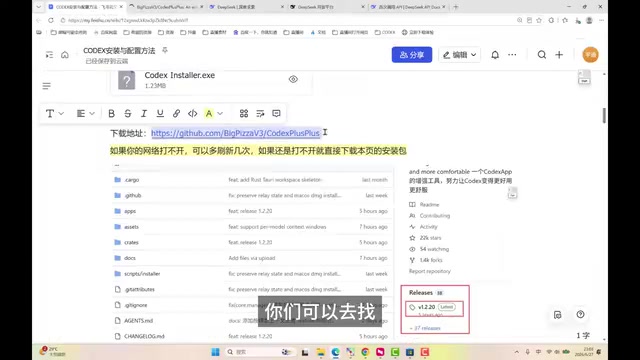
The role of the Codex++ management tool is straightforward — it doesn't modify any of Codex's core functionality, but only changes how it handles authentication, allowing you to connect domestic LLMs as the backend. The technical foundation of this approach is that domestic models like DeepSeek and Doubao are broadly compatible with the OpenAI API format (i.e., OpenAI Compatible API). Codex++ leverages this compatibility to seamlessly redirect requests that would normally go to OpenAI's servers to the API endpoints of domestic models — entirely transparently from Codex's perspective.
After installation, three related programs will appear on your system: Codex, Codex++, and Codex++ 管理工具 (Codex++ Management Tool). This is a common point of confusion — make sure you open the "Codex++ Management Tool". The interface has many features, but we only need the model provider configuration section.
Step 2: Configure DeepSeek as the Backend Model
Open the management tool and click "模型供应商" (Model Providers) in the left sidebar. By default there's only one entry — we need to add a domestic model. The following uses DeepSeek as an example, which offers excellent performance at a very competitive price.
Filling In the Provider Configuration
Click "添加供应商" (Add Provider) and fill in the following key fields:
- Name: Any custom label works, such as "My DeepSeek" — this is just for your own reference.
- Access Mode: Must be set to "纯API" (Pure API) mode. Pure API access means Codex++ bypasses the original OpenAI authentication flow and directly forwards requests to the third-party model's API endpoint — this is the technical core of the entire setup.
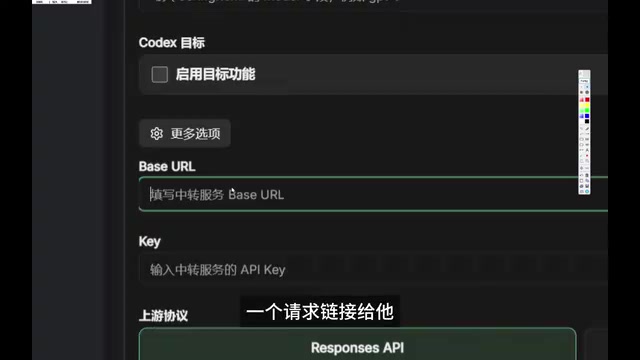
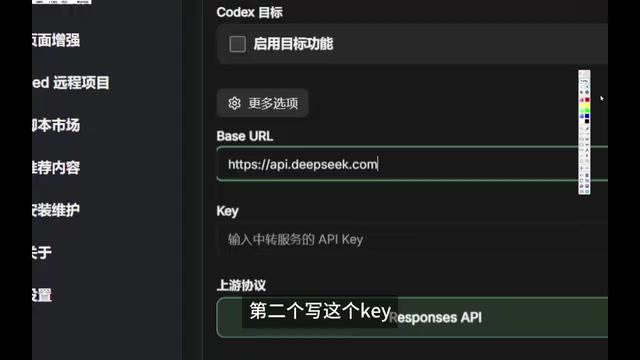
- Base URL: Enter
api.deepseek.com. The Base URL is the root address of the provider's API endpoint; all requests are sent with this as the prefix. Copy and paste this directly to avoid typos. - API Key: Enter the key you obtained from the DeepSeek open platform.
How to Get Your DeepSeek API Key
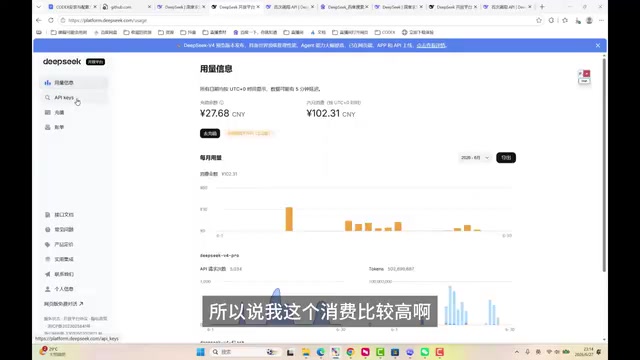
An API Key is the unique credential for your account — essentially a unique string designed for program-to-program communication. It verifies the caller's identity when accessing LLM services, effectively proving to Codex that it's using your DeepSeek account. To obtain one: go to the DeepSeek website → "API开放平台" (API Open Platform) → "API Keys" in the left sidebar → click "创建" (Create).
Important: The key shown after creation is displayed only once. Once you close the window, you cannot view it again — you'll have to create a new one. Copy it immediately and save it to a local document for future use.
Verify Configuration and Save
Once you've filled everything in, click the "从上游获取" (Fetch from Upstream) button. The tool will automatically test whether the current URL and API Key are valid. If a model list (e.g., DeepSeek Pro) is successfully retrieved, the configuration is working.
Click "保存" (Save), and the provider you just configured will appear in the list. Hover over it on the right side and click "使用" (Use). When the status shows "使用中" (In Use), you're all set.
Step 3: Add Credits and Launch Codex
Adding Credits to Your DeepSeek Account
Many newcomers overlook this step: Codex is just the coding tool itself — the actual "work" is done by the model you've configured. That means you need to top up your account with the corresponding provider.
It's worth explaining the concept of tokens here: they are the basic billing unit for large language models. When processing text, the model splits it into "token" units. In Chinese, roughly one character corresponds to 1–2 tokens; in English, approximately 4 characters equal 1 token. Domestic models like DeepSeek use a pay-per-token model, which is more flexible than ChatGPT Plus's fixed monthly fee — especially suitable for developers with uneven usage patterns. Go to the DeepSeek API platform's top-up page and add as little as ¥10 to get started.
For reference on actual costs: heavy usage (running from morning to night with multiple background tasks) runs about ¥100/month. For typical learners, ¥10 worth of tokens is more than enough to get through most learning content — excellent value for money.
Launching Codex Correctly via the Management Tool
Once configuration is complete, click "重启 Codex++" (Restart Codex++) in the upper right of the management tool. Once again: do not launch the original Codex directly. You must launch it through the management tool for the custom authentication to take effect.
After launching, Codex will present login options. Select the second option: "使用其他方式登录" (Sign in with another method), not the first ChatGPT login option. In the input field that appears, paste your DeepSeek API Key (even though the interface says "OpenAI API key" — entering your DeepSeek key works fine here, precisely because DeepSeek is compatible with the OpenAI API format, making the two interchangeable at the interface level). Click "继续" (Continue) and wait a moment for the first login to complete.
Once in the main interface, check the model selector in the lower right corner and confirm that "DeepSeek Pro" is selected. The entire setup is now complete — you can start AI-assisted coding with Codex powered by a domestic large language model.
Summary
The core logic of this setup isn't complicated: the original Codex provides the coding tool itself, the Codex++ management tool handles authentication, and domestic LLMs provide the underlying intelligence. The whole approach works fundamentally because DeepSeek, Doubao, and other domestic models all follow the OpenAI Compatible API format standard, allowing different models to be swapped in seamlessly at the interface level. Once you understand this division of responsibilities, the configuration approach is identical regardless of whether you want to connect Doubao, DeepSeek, or any other model compatible with that standard.
For developers in China, this is a practical, low-cost, high-value path to experiencing a top-tier AI coding assistant. As OpenAI potentially opens up native third-party model integration in the future, the setup process may become even simpler. In the meantime, mastering the method in this article lets you get real, barrier-free use out of Codex.
Related articles

Coinbase Engineer: How to Determine Whether an AI Agent Can Operate Unattended
Coinbase engineer Evan Kormos shares an engineering method for judging whether an AI agent can run unattended: model processes with DAG/DCG, replace output comparison with statistical evaluation, and hand over control in three phases—supervision, sampling, and exception handling.

WorkBuddy Beginner's Guide: How AI Agents Automate Office Tasks
WorkBuddy tutorial: learn how this desktop AI agent workbench automates files, organizes data, and generates documents, compared with LLMs and Codex, plus a beginner path and cost analysis.

Doubao Work in Practice: Three Modes That Let AI Actually Get Work Done
Doubao Work practical tutorial: from chat mode to Work Mode Lite and Pro, explaining the logic for choosing among three modes with real office task demonstrations. Even complete beginners can learn to use an AI agent to handle local files, organize materials, and generate documents.