Complete Guide to Codex: From Installation to Practical Deployment

Complete Codex guide: from setup to deployment, master this AI assistant that actually does the work
Codex is an AI Agent that goes beyond chatting—it autonomously edits files, runs programs, operates browsers, and deploys websites. This guide covers four usage methods (recommending desktop client), three permission modes, model selection, plugins vs skills, automation, worktrees, and a complete website deployment case study.
What is Codex: An AI Assistant That Takes Action
OpenAI's Codex is often compared to ChatGPT, but they're fundamentally different. There's an apt home renovation analogy that illustrates this: If you ask ChatGPT to help with renovations, it will give you detailed instructions—move the stove left, paint the cabinets this color—with thorough explanations. Then nothing happens. You still have to do all the work yourself. Codex, on the other hand, will measure dimensions, draft plans, move the stove, apply paint, and even take photos for your approval when finished.
This is the core difference between an "AI Agent" and a "chatbot." AI Agents represent one of the most important paradigm shifts in AI over the past two years. Traditional large language models are essentially text generators—they receive input, produce text, and the interaction ends there. AI Agents add a complete feedback loop: perceiving the environment, formulating plans, calling tools, executing actions, observing results, and iteratively correcting. This concept originates from the "agent" definition in reinforcement learning. Since 2024, as technologies like Function Calling and Tool Use have matured, Agent architectures have moved from academia to commercial products. Codex is one of the most representative products in this wave—it can directly open folders on your computer, create files, run programs, search online, operate browsers, and even commit to code repositories and deploy to production after making changes. While it started with programming, it has evolved into an all-purpose assistant that can write code, create PowerPoints, work with Excel, write Word reports, operate browsers, and even produce videos.
More importantly, it supports multiple "workers" working in parallel—one painting the kitchen, one installing the bathroom, one fixing the living room light, all running simultaneously in the background without interfering with each other. This autonomous capability is Codex's greatest value proposition compared to traditional AI tools.
Four Usage Methods and Installation Preparation
Codex offers four formats: command-line interface (CLI), VS Code extension, desktop client, and web version. All four have equivalent performance and mostly overlapping features, but considering ease of use, feature completeness, and beginner-friendliness, the desktop client is the top choice, which this guide primarily focuses on.
Before installation, you need a ChatGPT account, preferably with Plus or Pro membership. While free accounts can now use Codex, the quota is extremely limited—you'll exhaust it after just a few uses. Plus users can send 30 to 150 messages every 5 hours, which is sufficient for daily use; heavy users or enterprise scenarios can consider Pro with higher quotas.
Compared to similar tools like Claude Code, Codex has two significant advantages: more generous and frequently resetting quotas—sometimes quotas reset for very minor reasons—and fewer account restrictions, making it less prone to bans than some other tools.
Login Method Selection
There are two login methods. The recommended approach is logging in directly with your ChatGPT account—message quotas use your subscription allocation, you get the latest models first, and unlock advanced features like cloud tasks. The alternative is logging in with an API Key, but models update more slowly, cloud tasks are unavailable, and pay-as-you-go costs may be higher. The conclusion is clear: unless there's a special reason, subscribing to Plus and logging in with your ChatGPT account is the most cost-effective approach.
Interface Guide: Projects, Conversations, and Permission Modes
After logging in, the left sidebar contains four function buttons—new conversation, search, plugins, and automation—plus two core lists: Projects and Conversations. Understanding the difference between these two is crucial:
- Conversations are similar to web ChatGPT chats, suitable for gathering information, writing copy, translation, Q&A, and other miscellaneous tasks;
- Projects correspond to a folder on your computer where all generated files, code, PowerPoints, and Excel files are saved, making them easy to manage and preventing loss.
Simple rule: Use projects whenever file generation is involved; use conversations for casual chatting. Each project can have multiple conversations, with one conversation handling one task—think of it as "projects are main folders, conversations are work threads within those folders."
Three Permission Modes
Since Codex can directly operate your computer, permission management is a key concept, with three modes:
- Default permissions (safest): Can only modify within the current project folder; requires your approval for internet access, running commands, or accessing external files—suitable for beginners;
- Auto-review: Codex self-assesses risk, automatically approves safe operations, and only asks about risky ones—like having an internal approval officer;
- Full access (highest): Can do anything without asking, most efficient but with risk of accidental deletion.
Recommended progression: Use default permissions the first week, try auto-review the second week, and only consider full access when very familiar and the project has Git backup.

Model Selection and Core Operation Techniques
You can switch models and thinking intensity in the bottom-right corner of the input box. Recommend GPT 5.5 as the default first choice—it performs best for complex code writing, refactoring, and debugging; GPT 5.4 mini suits simple quick tasks and saves quota; GPT 5.3, optimized specifically for programming, still excels at certain complex engineering tasks.
Thinking Intensity Settings
Thinking intensity has four levels: low, medium, high, and ultra-high:
- Low: Almost no thinking before answering, suitable for simple operations like fixing typos
- Medium: Default recommended level, balancing speed and quality
- High: Suitable for feature development with complexity
- Ultra-high: Deepest and slowest thinking, suitable for mysterious bugs that regular mode repeatedly fails to fix
High-Frequency Daily Operations
Three common daily operations:
- Task queuing: While Codex executes task A, you can directly input new task B, which will queue and execute in order;
- Task interruption: Click the guide button next to a message to inject new requirements directly into the running task, letting AI adjust while working;
- Multi-task parallel: Open new conversations to run multiple tasks simultaneously, even across projects. Note that different conversations don't share context, but they can all read files from the same project folder.
Additionally, the small circle next to the model tag indicates context window usage percentage. GPT 5.5 has approximately 256K context (hundreds of thousands of Chinese characters), and Codex automatically compresses overly long conversations without manual intervention. It's worth understanding the context window concept in depth: A context window is the maximum amount of text a model can "see" and "remember" in a single conversation, measured in tokens. Early GPT-3.5 had only a 4K token window, equivalent to about 3,000 Chinese characters—the model would "forget" earlier content in slightly longer conversations. 256K tokens equals hundreds of thousands of Chinese characters, close to a medium-length book. Window expansion reflects advances in sparse attention mechanisms, sliding window attention, RoPE positional encoding extrapolation, and other technologies. However, large windows don't equal high utilization efficiency—research shows models still have degraded information retrieval ability in the middle of windows (the "needle in a haystack" problem), making Codex's automatic compression mechanism essential. It intelligently retains key information and discards redundant content, maximizing the limited window space.
Plugins and Skills: The Ecosystem Foundation of an All-Purpose Assistant
Many people confuse "plugins" and "skills," but the difference is simple:
- Skills are packaged execution steps written as Markdown files. For example, an image generation workflow "determine description → select style → adjust model → output" written as a file is a skill. Think of it as "an instruction manual";
- Plugins are a level up, containing multiple skills plus connectivity to external applications. For example, the built-in computer use plugin can take over your computer and includes multiple skills like operating apps, screen recording, and keyboard operations.
Activation Methods
Type @ to specify calling a plugin, type $ to trigger a skill. You can use both in one message, for example: "Analyze AAPL stock using @documents, summarize into a Word report, and use $image to generate a cover image."
Office Scenario Applications
Leveraging the plugin ecosystem, Codex can complete extensive office work:
- Generate Word documents: Using the document plugin, automatically search online for information, organize and analyze it, and generate documents with tables of contents, tables, and conclusions;
- Generate Excel spreadsheets: Using the super sheets plugin, generate comparison tables with color coding;
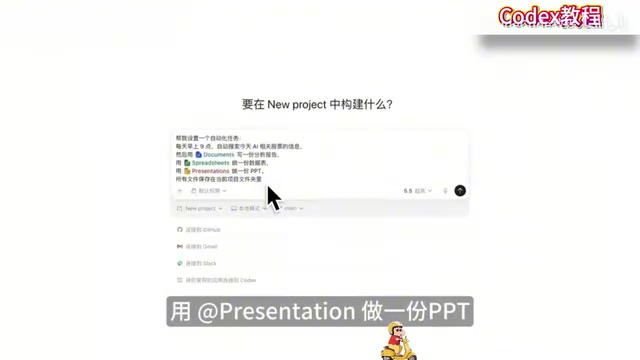
- Generate PowerPoint presentations: Using the presentation plugin, generate clean business-style presentations with key points and images on each slide.
Even more powerful, you can generate Word, Excel, PowerPoint, and cover images with one command, all saved to the project folder.
Advanced Features: Automation, Worktrees, and Terminal
For daily repetitive tasks (like daily stock analysis reports), use the automation feature. Simply tell Codex in natural language "automatically search AI stock information and generate reports and PowerPoints every day at 9 AM," and it will create a scheduled task. One reminder: try running the command in a regular conversation first before setting it as a scheduled task to confirm results meet expectations, otherwise you'll waste quota.
Three Environment Modes
Three environment modes:
- Local mode: Directly modifies real files on your computer, suitable for small changes, but requires backup habits;
- Worktree mode: Codex creates a parallel copy in the background to work on, leaving original files completely untouched—suitable for multiple AIs modifying simultaneously to avoid conflicts. After changes, you can choose to merge, create a new branch, or discard entirely. Like "photocopying a contract for two lawyers to modify separately";
- Cloud mode: Tasks execute on OpenAI servers, computer doesn't need to stay on—suitable for time-consuming large tasks, but configuration is more complex; beginners can ignore this for now.
The worktree concept here deserves elaboration. It's an advanced feature of the Git version control system. Git is currently the world's most mainstream distributed version control system, created by Linus Torvalds (father of Linux) in 2005. Its core idea is creating snapshots (commits) for each project change, making all modifications traceable and reversible. Worktree allows checking out multiple working directories simultaneously in the same repository, each corresponding to different branches without interfering with each other. This is particularly valuable for AI Agent scenarios—multiple AI assistants can each modify code in independent worktrees, avoiding overwrite conflicts, then merge afterward. Understanding this background helps you see why Codex makes "worktree mode" the recommended environment for multi-task parallel work.
The Terminal's Utility
Codex also has a built-in terminal (open with Command+J), with the working directory automatically following the current conversation and able to read terminal output (like development server logs) to automatically determine status. A practical tip: if you also have Claude Code installed, you can type cloud in the Codex terminal to launch it, achieving two-AI collaboration—Codex handles operating browsers and generating images, while Claude Code optimizes frontend design.

Operating Browsers and Computers: Codex's Outstanding Advantage
After installing the BrowserUse plugin, Codex can autonomously open browsers, visit websites, click buttons, fill forms, take screenshots and recordings, and extract information. In testing, having it find free templates in Canva, modify titles, and output a report—the entire process only required human intervention for login.
This relies on a cutting-edge technology called Computer Use, representing an important direction in the AI Agent field—GUI Agents (graphical interface agents). Traditional AI tool invocation depends on API interfaces, while Computer Use operates applications by capturing screen images, understanding interface element positions, then simulating mouse clicks and keyboard input. This technology first gained widespread attention with Anthropic's Claude Computer Use released in October 2024. Its technical principles involve coordination among multiple AI subsystems including visual positioning models (converting buttons, input boxes, and other elements in screenshots to coordinates), OCR recognition, and action planning. Its revolutionary nature lies in breaking API barriers—even if software doesn't provide programming interfaces, AI can complete tasks by operating through the interface like humans.
Going further, Codex can also operate other applications on your computer (currently Mac only). In testing, it autonomously opened Chrome, visited Xiaohongshu (Chinese social platform), searched keywords, downloaded watermark-free image-text posts, and saved them to a desktop folder—the entire process required no intervention and quality was excellent.
AGENTS.md: Writing an Onboarding Manual for AI
Create an AGENTS.md file in the project root directory, and Codex will automatically read and follow the rules within it at each startup. This solves the pain point of "having to repeat instructions every time you start a new conversation"—like writing an onboarding manual for a new colleague.
The design philosophy of AGENTS.md reflects the trend of prompt engineering evolving from one-time prompts to systematic rules. In AI Agent scenarios, single-conversation prompts are often insufficient—you need to define global behavioral guidelines, code styles, prohibited operations, and other persistent rules. AGENTS.md is essentially "file-based system prompting," similar to .editorconfig or .eslintrc configuration files in software engineering, but targeted at AI rather than code editors. The industry currently has multiple similar practices: Cursor uses .cursorrules files, Claude Code uses CLAUDE.md files, and GitHub Copilot has also started supporting custom instruction files. The common design principle for these files is simplicity, specificity, and executability—vague rules are hard for AI to follow, and overly long rules squeeze out effective context space.
Write clear rules in Chinese, but note keep it under 150 lines, otherwise it will occupy AI memory capacity and actually impair understanding of specific requirements.
Practical Case: Building and Deploying a Website from Scratch
Let's connect all features through a complete workflow. After creating a "Personal Brand Website" project and inputting requirements, Codex automatically writes code, launches a local development server, and provides a preview URL. Unsatisfied aspects can be modified through real-time conversation (like "add screenwriter to the title"), with effects visible upon refresh.
Finally, deployment. After installing and authorizing the Vercel plugin, directly @ select the Vercel plugin to have it deploy—moments later you get a public URL accessible worldwide. Vercel is a cloud deployment platform founded by Guillermo Rauch, creator of the Next.js framework, focusing on hosting frontend applications and serverless functions. Its core advantage is zero-configuration deployment—just link your code repository, and Vercel automatically detects the project framework, executes builds, assigns CDN domains, and completes launch, typically in under a minute. Vercel uses an Edge Network behind the scenes, deploying content to dozens of global nodes, with users automatically routed to the nearest server when accessing. This explains why the entire process is so fast—the platform has automated all the work traditionally requiring DevOps engineers: server configuration, domain resolution, SSL certificate application, CDN distribution, etc. The entire process requires no manual deployment scripts.
Six Practical Tips and Common Issues
These six experiences will help you use Codex more efficiently:
- Use projects for anything involving files, not conversations;
- One task per conversation—the purer the conversation, the better AI performs;
- Create plans first for complex tasks (using plan mode), confirm they're correct before implementing;
- Write clear "completion criteria", like "done means all tests pass, manual testing works, no unrelated files changed";
- Commit frequently to enable quick rollback when things break;
- Have Codex review its own code—open a new conversation to check security and performance; it often catches overlooked issues.
Common Issue Responses
- Quota exhausted: Wait 1-2 hours and refresh to recover;
- Broke the code: Worktree mode—just discard the copy; local mode—click undo all or
git checkout; - AI changed unrelated code: Explicitly write in AGENTS.md "don't make extra optimizations without my request."
Conclusion: Worth Learning Whether You're a Programmer or Not
Codex has evolved from a pure programming tool into an all-purpose AI assistant. Operations personnel can set automation for daily reports, photographers can quickly prototype interactions to validate ideas, content creators can have it search and organize viral topic ideas—you don't need to understand HTML, CSS, or JavaScript, just clearly state requirements in Chinese.
But understand this: How much power Codex unleashes depends fundamentally on the user. The better you understand your project and the more clearly you can describe requirements, the higher quality results it delivers. Vague requirements only yield vague results. This is perhaps the universal truth of all AI Agent tools.
Related articles

Salesforce Acquires Rune for $375M: AI Logistics Tech Bolsters Defense Business
Salesforce reportedly acquires defense tech startup Rune for $375M. Rune's AI logistics tech will strengthen Salesforce's Missionforce defense platform, continuing its M&A spree.

Why Fair Use Benefits Everyone in the AI Era
Starting from a Hacker News discussion, this article analyzes the legal logic and controversies of the fair use principle in AI training and content creation, and its dual impact on creators and the tech ecosystem.

Mistral Large 4 Open-Sources a Trillion Parameters, Microsoft Offers Voluntary Severance to 60,000 Employees
Mistral Large 4 open-sources a trillion-parameter multimodal model with a coding agent score of 48; SanDisk earnings show AI inference reshaping NAND demand; Google Gemini adds in-app file editing, OpenAI raises Codex quotas, and Microsoft offers voluntary severance to 60,000 employees.