Complete Guide to Getting Cursor Pro for Free via Hacktoberfest and Global Hack Week

How to claim free Cursor Pro credits through MLH's Hacktoberfest and Global Hack Week challenges.
This guide walks through the five-step process of obtaining free Cursor Pro credits via MLH's Hacktoberfest/Global Hack Week events: installing Cursor, registering with phone verification, connecting a 30-day-old GitHub account on the MLH page, claiming the promo code while handling potential GST issues, and activating Pro via Stripe. Key risks are highlighted — confirm the checkout amount is $0.00 and watch out for auto-renewal after the trial ends.
Background: MLH Hacking Events and the Cursor Pro Perk
Hacktoberfest and Global Hack Week are global online events for developers, organized and run by MLH (Major League Hacking). Participants complete challenge tasks to earn various perks, including subscriptions to developer tools. This tutorial focuses on one such perk — completing a specific challenge to receive free Cursor Pro credits.
Cursor is a highly popular AI-powered code editor that has gained significant traction in recent years. Built on the VS Code engine, it integrates powerful code completion and conversational programming capabilities. Its Pro tier normally requires a paid subscription, so obtaining free credits through an official event is an attractive opportunity for developers who want to try it out. Note that this article is based solely on a single YouTube tutorial — the rules and perks for these events may change with official policy updates, so always refer to the MLH and Cursor official pages before proceeding.
MLH (Major League Hacking) is the world's largest student hackathon league, supporting over 200 hackathon events per year and reaching hundreds of thousands of developers. Hacktoberfest is an open-source contribution month hosted by DigitalOcean every October, encouraging developers to submit Pull Requests to open-source projects on GitHub. Global Hack Week is MLH's own weekly challenge series, held multiple times throughout the year in a more flexible format that includes learning, building, and interactive task modules. Both are well-recognized brand events within the developer community. Sponsors typically use these events to promote their tools to their target audience — students and early-career developers. The free Cursor Pro credits are a sponsorship perk of this kind — essentially a product trial promotion, not an unconditional giveaway.
Step 1: Download and Install Cursor
The process starts by navigating to the Cursor website through the challenge page. As shown in the tutorial, right-click the download link on the challenge page and open it in a new tab, then click the download button to save the installer locally.
Once downloaded, double-click the installer and grant the required permissions. Several configuration options will appear during installation — the tutorial recommends accepting the defaults, as they'll be helpful for completing other challenges in Cursor later. Click Finish when installation is complete, then type "cursor" in your system's search bar to launch the editor.
Step 2: Register an Account and Verify Your Phone Number
Opening Cursor for the first time requires registering an account. After clicking Sign up, you can either log in with a Google account or manually register with your name and email. The tutorial demonstrates "continue with email code" (email verification code login) as a reliable method.
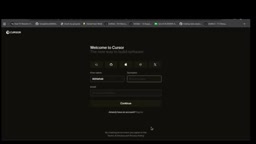
During registration, the system will ask you to link and verify a phone number — enter your number and receive a verification code to complete the process. This step is also a hard requirement when claiming the perk later. Once verified, you can click "maybe later" to skip the plan selection screen and return to the main Cursor interface to finish logging in.
Step 3: Connect Your GitHub Account to Claim a Promo Code
The core step for claiming free credits happens on the MLH page. You'll need to enter the "claim your promo code" flow, which has two prerequisites: a verified phone number and a connected GitHub account.
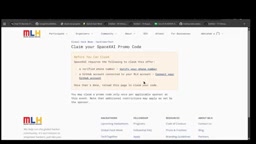
Click "connect GitHub" in the social media connections section and complete the authorization to link your account. There is one critical restriction worth highlighting: the GitHub account you use must be at least 30 days old. This is a common threshold to prevent abuse — newly created accounts cannot be used to claim the perk. Once connected, refresh the page and proceed with phone number verification, which can be done via WhatsApp or SMS OTP.
Step 4: Claiming the Credits and Handling Tax Issues
Once both your phone number and GitHub account are verified, refresh the browser to see the claim option. Click "redeem" and the system will display "credits issued" to confirm the credits have been added to your account.
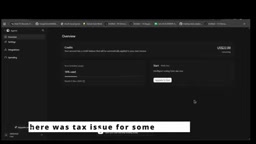
The tutorial specifically flags an issue for users in India and similar regions: due to GST (Goods and Services Tax), some users may see a $22 charge or a minimum spend requirement. According to the video, the MLH team has since fixed this issue, and updated credits should no longer carry this restriction. If you still encounter an older promo code with a charge attached, it's recommended to check your email again for a new promo code issued by the team as a replacement.
Step 5: Activate Pro and Submit the Challenge
After claiming your credits, go to the "spending" section of your account and click "upgrade" to use your existing credits toward a Pro subscription.
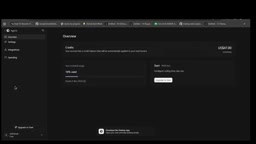
The system will redirect you to a Stripe checkout page. The amount shown should be $0.00 — you'll need to enter your card details and address, then click subscribe. Worth noting: even though the event claims to be free, this step still requires you to bind a payment method. Assess the risk accordingly before proceeding. If you'd rather not complete this step, you can skip the challenge entirely.
Once Pro is successfully activated, the final step is to go back to the challenge page and submit your project: take a screenshot of the activated Pro interface, then on the challenge page select "sign up with cursor pro", click "submit your project", and upload the screenshot to complete the entire challenge.
Stripe is a widely used online payment processing platform, and many SaaS products (including Cursor) use it as their subscription billing infrastructure. When you add a credit card on the Stripe checkout page — even for a $0.00 transaction — that card is saved as the default payment method for future automatic renewals. Once the Pro trial period ends, if you don't manually cancel your subscription, Stripe will automatically charge you according to Cursor's standard pricing (currently $20/month). After completing the card binding, it's strongly recommended to note the subscription expiration date and set a calendar reminder so you can decide whether to cancel before renewal and avoid unexpected charges.
A Realistic Take on These "Free Perks"
The practice of claiming paid tool credits through hacking events is fundamentally a promotional strategy — a collaboration between vendors and communities targeting users who genuinely participate in open-source and development activities. Requirements like phone verification, a 30-day-old GitHub account, and binding a payment method are all designed to filter for real users and prevent mass abuse.
For developers, this is a low-cost way to try Cursor Pro — but it comes with caveats: event rules can change at any time, and whenever card binding is involved, always confirm the amount is zero and understand whether auto-renewal applies. This article is purely a workflow summary based on a single tutorial. For the latest rules and actual availability, refer to official information from MLH, Hacktoberfest, and Cursor directly.
Related articles

Chain of Thought Isn't Just for AI: How Humans Can Use CoT to Improve Thinking Quality
Chain of Thought isn't just a prompt trick for large models. Starting from a Hacker News discussion, this article analyzes why CoT works for human thinking too, breaks down actionable ways to transfer it, and highlights the key differences between human CoT and machine CoT.
Cloudflare Teams Up with OpenAI: Closi…
Cloudflare Teams Up with OpenAI: Closing the Loop from Vulnerability Discovery to Defense with AI
Cloudflare uses OpenAI Daybreak to investigate security vulnerabilities and generate reviewable remediation plans, while developers use Codex to boost coding efficiency and quality.

Orca Multi-Agent Orchestration in Practice: A Guide to Parallel Collaboration with Claude and Codex
Orca is Stable AI's free open-source agent workbench supporting 34 agents like Claude Code and Codex in parallel. Learn its Git worktree isolation, multi-model orchestration, and mobile management.