Complete Guide to Importing Passwords and Secure Notes into Off Grid AI

Complete workflow for importing passwords into OGAD from LastPass-format CSV and verifying each record.
This article explains how to import a LastPass-format CSV password export into the local Pro Vault using Off Grid AI Desktop. It emphasizes that a successful import doesn't equal a completed migration—what matters is being able to verify records one by one. It covers file format limitations (LastPass CSV only, ~500 KB limit), pre-import destination preparation (install OGAD, set up Pro Vault, pair the browser extension, choose the target computer), concrete steps, causes and troubleshooting for skipped records, and a sampling method where login items and secure notes should be verified separately. Finally, it notes that you should export an encrypted KDBX file from the desktop Vault as a backup, promptly clean up temporary plaintext CSV shards, and keep the original account collection until your self-check is complete.
Migrating your password vault to a new tool matters most when you can verify each record one by one afterward—not just see a "import complete" message. Off Grid AI Desktop (OGAD) supports importing login credentials and secure notes from a LastPass-format CSV file through its companion browser extension, with data ultimately stored in the local Pro Vault.
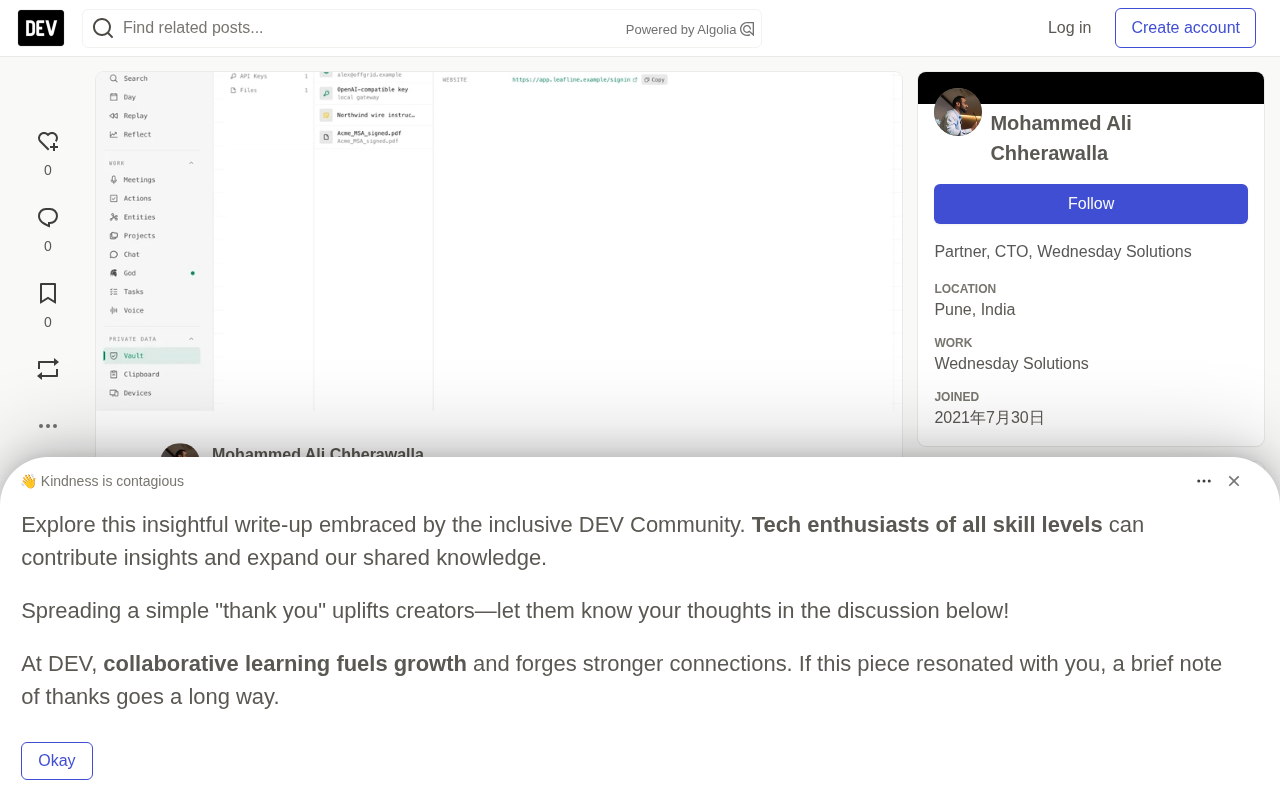
This guide breaks down the entire import process—from file format requirements and pre-import preparation, to how to handle skipped records, how to verify notes and login items, and finally the encrypted backup.
Before You Import: What Files Work
The browser Vault's "Import & Export" interface has a "Import from LastPass" option, which can only read CSV export files in a specific format. Renaming an export from another tool to .csv won't make its column structure compatible—a format mismatch means the import fails.
Browser import has a file size limit of about 500 KB. Supported login and secure note rows become Vault entries, while other rows may simply be skipped. This means the number of items in the source service doesn't necessarily equal the number successfully imported.
A key security reminder: CSV password export files contain readable plaintext secrets. Don't put it in emails, chat prompts, shared folders, or code repositories. Inspecting and importing this file doesn't require going through an AI model at all.
LastPass's CSV export is its officially provided plaintext table format, with columns typically including url, username, password, extra, name, grouping, fav, and other fields. Login items and secure notes are encoded in the same table, distinguished by the url value (such as http://sn). Because the column structure is hardcoded to match by the importer, CSVs exported from other password managers (like 1Password, Bitwarden)—even if also comma-separated—won't match in column names and field meanings, so changing the file extension does nothing.
Also note that CSV itself isn't a strict standard—different tools handle quote escaping, line breaks, and character encoding (UTF-8 vs UTF-8 BOM) differently. If a password contains commas, double quotes, or line breaks, it must be properly escaped, or parsing will shift columns and cause a row to be skipped for "missing credentials." After exporting, it's a good idea to scan the row and column count with a plain text editor or spreadsheet tool to confirm the header is complete and fields aren't misaligned before handing it to the importer.
Before Importing, Prepare the Destination
The destination must be in place first. Install OGAD, set up the Pro Vault, and pair the browser extension with this desktop. Unlock the Vault and confirm the extension can open it properly.
Choose the target computer before you start the import. Importing to one desktop device doesn't mean it's synced to all your other devices. Store your Vault recovery information somewhere other than the computer you're migrating from.
It's worth making a small checklist in advance, listing the accounts you need to verify immediately: your primary email, one work service account, and any account with recovery information stored in a secure note. The goal is to test coverage, not to copy these passwords into another document.
Concrete Steps to Perform the Import
- Use the source password manager's own export function to export a supported CSV file
- Open "Import & Export" in the paired browser Vault
- Under "Import from LastPass," click "Select CSV"
- Choose the exported file from its local location
- Wait for the results, and check both the imported and skipped counts
- Before deleting any source data, open a few imported entries to check
Keep the desktop app running and the Vault unlocked during the import. A browser connection failure doesn't mean nothing was saved. When results are uncertain, check the destination first before deciding whether to retry the file.
What Skipped Records Mean
The importer may skip duplicates, rows missing credentials, empty rows, invalid entries, and malformed rows. The skip count is information to review, not grounds to conclude the entire migration failed.
| Result | What to Check Next |
|---|---|
| Duplicate rows | Compare existing entries in the destination with the source file |
| Missing credentials | Check whether the row is a supported login item or note |
| Empty or malformed rows | Inspect the export file itself with an appropriate local tool |
| Unsupported entries | Keep them in the source service until you find a supported destination |
Don't repeatedly import the same file just to pad the numbers—duplicates may already exist. If you need to split a large file into multiple parts, each file must retain the expected CSV header, and protect each shard just like the original file.
"Empty rows" and "malformed rows" in a CSV are often two manifestations of the same class of problem. An empty row might be a trailing newline left by the export tool, or it could be a group header row; malformed rows usually come from unescaped quotes or newline characters embedded in fields, causing the parser to split one record into two.
When judging, don't just look at the total the importer gives you—go back to the source file itself: open it with a CSV-capable tool, and check for rows with inconsistent column counts, or rows where name or username is empty. Duplicates are also worth distinguishing—they could be multiple entries that already existed for the same account in the source, or you may have imported the same file twice. For the former, which one to keep is your decision; for the latter, you should clean up the extra copies. For "unsupported entries," these are usually source-specific types (such as records with attachments, or identity information) that have no corresponding fields in the LastPass format, and can only stay in the original service until you find a tool that can accept them.
Verify Login Items and Notes Separately
For login items, check the website, username, and saved password. Test the login through the real website. Multiple accounts under the same service need to be checked separately, because a plausible-looking title can still correspond to the wrong username.
For secure notes, open it and confirm the text is complete. Verify with a record you can recognize. Check line breaks and any instructions you'll need to follow later, such as account recovery procedures. Don't actually consume recovery codes just to test them, unless that's exactly what you intend to do.
An effective migration sample should include both record types, one long note, and a service with multiple accounts. If any sample has a problem, stop and investigate that group of records—don't rush to clean up the source data.
Make an Encrypted Backup for the New Vault
The extension's export guidance will point you to OGAD. Exporting from the desktop Vault can save an encrypted KDBX file—something completely different from the readable CSV used for importing.
Keep a backup identifiable by date and destination. Don't assume that downloading a file means you'll definitely be able to open it later. Follow the Vault's recovery and backup process while you still have access to the original computer.
Once you've confirmed the destination and a suitable backup are in place, delete the temporary readable export files from wherever you created them. Don't forget the shard copies you made for the import. Keep the original account collection until your own migration check is complete.
KDBX is the encrypted database format used by the KeePass family of password vaults, and OGAD's Pro Vault follows this container standard, so it can also be opened in compatible tools. Its fundamental difference from CSV is: CSV is plaintext, and anyone can read the passwords directly; KDBX encrypts the entire vault contents with a master key and wraps it as a whole, so no readable fields are visible in the file.
Opening KDBX requires the correct combination of credentials, usually a master password, and possibly a key file. This means the backup file itself can be stored with relative peace of mind, but the master password must not be stored together with the backup, or the encryption is effectively meaningless. Also, KDBX iterates with tool versions (such as KDBX 3.1 and 4.0), and when exporting, if the target tool is older, it may not be able to read a newer version file. When making a backup, you should record the export date, the tool version used, and the target device, and actually try opening it on another machine once to confirm it truly works—not just see that the file downloaded successfully.
Common Troubleshooting
If "Select CSV" rejects the file, check the format and size first. If the Vault can't be accessed, check the paired desktop and its lock state. If the imported count is unusually low, look at the skip reasons against the source file's item types, rather than assuming all rows should be passwords.
Start with a controlled migration: open OGAD, prepare the local Vault, import a supported export file, and verify the accounts and notes you need before deactivating the source service.
Related articles

Chain of Thought Isn't Just for AI: How Humans Can Use CoT to Improve Thinking Quality
Chain of Thought isn't just a prompt trick for large models. Starting from a Hacker News discussion, this article analyzes why CoT works for human thinking too, breaks down actionable ways to transfer it, and highlights the key differences between human CoT and machine CoT.
Cloudflare Teams Up with OpenAI: Closi…
Cloudflare Teams Up with OpenAI: Closing the Loop from Vulnerability Discovery to Defense with AI
Cloudflare uses OpenAI Daybreak to investigate security vulnerabilities and generate reviewable remediation plans, while developers use Codex to boost coding efficiency and quality.

Orca Multi-Agent Orchestration in Practice: A Guide to Parallel Collaboration with Claude and Codex
Orca is Stable AI's free open-source agent workbench supporting 34 agents like Claude Code and Codex in parallel. Learn its Git worktree isolation, multi-model orchestration, and mobile management.