Complete Guide to Installing and Configuring Claude Code Desktop: Connecting to DeepSeek Models

A step-by-step guide to setting up Claude Code Desktop with DeepSeek model integration via CC Switch.
This guide walks through the complete setup of Claude Code Desktop, from installation and enabling Developer Mode for account-free usage, to connecting cost-effective DeepSeek models via the CC Switch proxy tool. It also covers Chinese localization and using custom Skills to streamline developer workflows, offering a practical solution for budget-conscious developers.
Introduction
As Anthropic's AI programming assistant, Claude Code recently launched a Desktop version that offers a more intuitive and user-friendly experience compared to the previous CLI (Command Line Interface) version. However, the high cost of Claude's official models has led many developers to seek integration with domestic Chinese models to reduce expenses. This article provides a comprehensive guide to configuring Claude Code Desktop, covering installation, account-free usage, Chinese localization, connecting to DeepSeekAd models, and using custom Skills.
Technical Background and Positioning of Claude Code
Claude Code is an AI programming assistant tool built by Anthropic on its Claude large language model. Anthropic was founded in 2021 by former OpenAI Research VP Dario Amodei and others, focusing on AI safety research with a core philosophy of building reliable, interpretable, and controllable AI systems. The CLI version of Claude Code requires users to interact through terminal commands—powerful but presenting a barrier for non-technical users. The Desktop version provides a graphical user interface (GUI) where users can complete tasks through clicking, dragging, and other intuitive operations, significantly lowering the barrier to entry while retaining the core capabilities of the CLI version.


Installing Claude Code Desktop
Download and Installation
First, visit the official Claude Code page and hover over the "Get Claude Code" button to see multiple usage options. Desktop appears first in the list. Clicking it redirects you to the download page, which automatically matches the appropriate version for your operating system (Windows/Mac).
After downloading, double-click the executable file to install. The entire process is straightforward and requires no additional configuration. Once installed, you'll see a login screen offering sign-in options including Google accounts.
Account-Free Usage Configuration
If you don't want to register or log in, follow these steps for account-free usage:
- Click the hamburger menu (three horizontal lines) in the top-left corner
- Select "Help"
- Find the third option, scroll down to find "Enable Developer Mode"
- Click to enable and wait for Claude Code to restart
After restarting, you'll see a new interface. Don't take any action yet—next, you'll need to install a helper tool.
How Developer Mode Works
Developer Mode is a built-in advanced feature toggle in Claude Code Desktop. Once enabled, the application exposes more underlying configuration options, including custom API endpoints, model switching, and third-party service integration. This design pattern is common in many applications—for example, Android's Developer Options or Chrome's Developer Tools. Its essence is exposing hidden advanced configuration items to users who need them, enabling the application to be driven by third-party API services without an official account. This provides the technical foundation for subsequently connecting to models like DeepSeek.
Connecting to DeepSeek Models via CC Switch
Installing CC Switch
CC Switch is a software tool for unified management of AI tool workflows, with its core function being model switching. Note that the version must be 3.15.0 or above—older versions don't support Claude Code Desktop configuration.
You can download it from the official GitHub address. Installation is equally straightforward. After installation, a "Desktop" option with a small computer icon will appear at the top of the interface, indicating support for Claude Code Desktop.
CC Switch and API Routing Mechanism
CC Switch is essentially a local API proxy/routing tool. It starts a local HTTP service that intercepts API requests from Claude Code and forwards them to the user-specified model provider (such as DeepSeek). This architecture is similar to the concept of a Reverse Proxy—the client (Claude Code) believes it's communicating with the original service, while requests are actually being forwarded by middleware to other targets. The advantage of local routing is that it doesn't require modifying Claude Code's source code; it only needs to redirect requests at the network layer, offering good compatibility and stability. This also means that when new model providers emerge in the future, you only need to add configurations in CC Switch without waiting for official Claude Code adaptation.
Configuring the DeepSeek Model
Configuration steps:
- Enable local routing: Click the settings button on the left → Routing → Local Routing → Click the down arrow to enable
- Add a model: Return to the Desktop interface → Click the add button on the right → Select DeepSeek
- Enter API Key: Go to DeepSeek's official website API documentation, create a new API Key on the Key management page, copy it and paste it into CC Switch
- Configure context size: It's recommended to check the 1M context option to allow Claude Code to support a larger context window
- Start the service: After clicking add, make sure to start the service—otherwise the configuration won't take effect
Once started, you can minimize CC Switch (closing the window only minimizes it to the system tray and doesn't actually exit).
About the DeepSeek Model
DeepSeek is one of China's leading AI companies. Its DeepSeek-V3 and DeepSeek-R1 models have performed excellently across multiple benchmarks, particularly in code generation and mathematical reasoning tasks, approaching or even matching top international standards. DeepSeek provides an interface compatible with the OpenAI API format, meaning most tools that support the OpenAI API can switch to DeepSeek with simple configuration. Its API pricing is far lower than Claude's official rates (typically several to over ten times cheaper), which is the primary economic motivation for developers choosing to integrate DeepSeek. The 1M (one million token) context window mentioned in the configuration means the model can process approximately 750,000 English words or even more Chinese characters in a single input, which is extremely helpful for analyzing large codebases and understanding complex project structures.
Completing the Integration
Back in Claude Code Desktop:
- Click the hamburger menu in the top-left corner
- A new "Developer" option will now appear
- Click "Configure Third-party"
- Information is already auto-filled (CC Switch automatically completed the configuration)
- Click Apply and restart
After restarting, you can enter the Claude Code main interface. The model list will include Flash and Pro versions, as well as the 1M context version. Select the corresponding model to start chatting.
Chinese Localization for Claude Code Desktop
By default, Claude Code Desktop has an entirely English interface. You can apply community-provided localization patches for Chinese translation.
Technical Implementation of Localization
Localization patches typically achieve interface localization by replacing language resource files within the application. Claude Code Desktop is most likely built on the Electron framework—a technology that uses web technologies (HTML, CSS, JavaScript) to build cross-platform desktop applications. Well-known applications like VS Code, Slack, and Discord are all built on this technology. The localization tool locates the locale or resources folder in the application's installation directory and replaces English strings with their Chinese mappings. Note that localization may break after application updates, requiring re-execution of the localization script.
Localization Steps
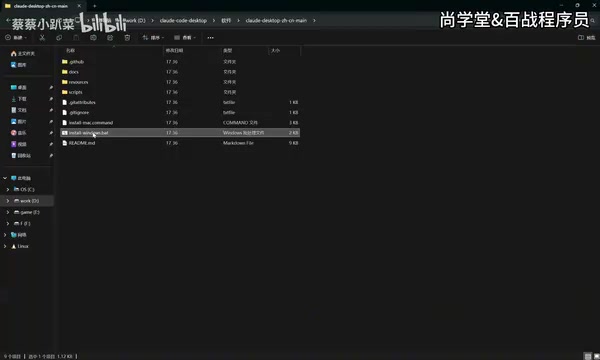
- Download the localization package (includes both Mac and Windows versions)
- After extracting, find the
.batfile (Windows batch script) and double-click to run - Select option 1 "Install Simplified Chinese" and press Enter to confirm
- The localization tool will automatically close Claude Code and perform the translation
- After completion, Claude Code will automatically restart
Once localized, interface elements like "New Task," "Project Plan," and "Task Customization" will all appear in Chinese, and conversation history can be viewed normally.
Using Custom Skills
Design Philosophy of the Skill System
Skills are reusable prompt templates or workflow definitions in Claude Code. The concept is similar to ChatGPT's Custom Instructions or GPTs, but more oriented toward developer workflows. A Skill file is typically in Markdown format, defining task execution steps, output formats, constraints, and more. Through the Skill system, users can encapsulate common programming patterns (such as code review processes, architecture design templates, test case generation rules, documentation standards, etc.) into reusable components, avoiding repetitive input of complex prompts and significantly improving work efficiency.
Differences Between Desktop and CLI Versions
In the CLI version, using custom Skills requires placing files in the .claude/skills/ directory, where the system automatically scans and loads available Skills. The Desktop version requires uploading and installing Skills as compressed packages, with a different operation method. This design consideration is that the Desktop version targets a broader user base, reducing the complexity of file system operations through a graphical upload management interface.
Uploading Skills
- Create a new task
- Click the plus icon → Skills → Manage Skills
- Click "Add Skill" → "Upload Skill"
- Supported file formats:
.mdfiles, compressed archives (.zip), or.skillfiles - Drag and drop your prepared Skill files to upload
Invoking Skills
After uploading, type a forward slash / in the chat box, select "Skills," then choose the corresponding Skill name to invoke it. For example, when invoking a creative generation Skill, enter your requirements and Claude Code will execute the task following the workflow defined in the Skill.
Summary
Through the five steps above, we've completed the full configuration of Claude Code Desktop:
| Step | Content | Difficulty |
|---|---|---|
| 1 | Install Desktop version | ⭐ |
| 2 | Account-free usage | ⭐⭐ |
| 3 | Chinese localization | ⭐ |
| 4 | Connect to DeepSeek | ⭐⭐⭐ |
| 5 | Custom Skills | ⭐⭐ |
The overall configuration process isn't complex—the key lies in using CC Switch as middleware. By connecting to domestic models like DeepSeek, you can significantly reduce usage costs (DeepSeek API pricing is typically one-tenth or even less than Claude's official rates) while retaining Claude Code's powerful programming assistance capabilities, including code generation, code explanation, bug fixing, and architecture suggestions. For developers on a budget who still want to experience an AI programming assistant, this is a highly practical solution.
It's worth noting that this approach of connecting third-party models through API proxying offers excellent extensibility. Beyond DeepSeek, theoretically any model provider offering an OpenAI API-compatible interface (such as Qwen, Zhipu GLM, Moonshot, etc.) can be connected in a similar manner, allowing developers to flexibly switch to the most suitable model based on different task requirements.
Related articles

Chain of Thought Isn't Just for AI: How Humans Can Use CoT to Improve Thinking Quality
Chain of Thought isn't just a prompt trick for large models. Starting from a Hacker News discussion, this article analyzes why CoT works for human thinking too, breaks down actionable ways to transfer it, and highlights the key differences between human CoT and machine CoT.
Cloudflare Teams Up with OpenAI: Closi…
Cloudflare Teams Up with OpenAI: Closing the Loop from Vulnerability Discovery to Defense with AI
Cloudflare uses OpenAI Daybreak to investigate security vulnerabilities and generate reviewable remediation plans, while developers use Codex to boost coding efficiency and quality.

Orca Multi-Agent Orchestration in Practice: A Guide to Parallel Collaboration with Claude and Codex
Orca is Stable AI's free open-source agent workbench supporting 34 agents like Claude Code and Codex in parallel. Learn its Git worktree isolation, multi-model orchestration, and mobile management.