Complete Guide to OpenAI API Billing Setup: How to Add a Payment Method and Purchase Credits

Step-by-step guide to enabling OpenAI API pay-as-you-go billing and purchasing credits safely.
This article walks through the complete process of enabling API billing on the OpenAI developer platform. It clarifies a common misconception — OpenAI uses token-based pay-as-you-go billing, not gift-card-style top-ups. The steps covered include logging in, navigating to Billing settings, adding an internationally enabled credit or debit card, setting a purchase amount, and optionally configuring Auto Recharge. The guide highlights potential pitfalls for non-US users around card compatibility and recommends that beginners start with manual top-ups and set a monthly usage cap before enabling Auto Recharge, to prevent runaway API calls from generating unexpectedly large bills.
The Truth About OpenAI API Billing: It's Pay-as-You-Go, Not a Top-Up
Many people assume that purchasing OpenAI API credits works like buying a gift card — you load money upfront and spend it over time. That's not how it works. OpenAI uses a usage-based billing system: you add a payment method, and the platform charges you based on the actual number of tokens your API calls consume.
The cost depends on which model you use — more powerful models charge a higher price per token. While some accounts may carry a prepaid balance, the vast majority of regular users operate on a pay-as-you-go basis. In other words, what you're really doing is enabling billing on the OpenAI platform, not simply topping up a fixed balance.
Understanding this distinction matters, because it shapes how the whole system works: the "credits" you add function more like a spending cap or prepaid buffer than a one-time purchase package.
Tokens are the basic unit of billing for the OpenAI API, and understanding them helps you estimate costs. Tokens don't map directly to words or characters — they're the smallest semantic units the model uses when processing text. In English, 1 token is roughly 4 characters or 0.75 words. Chinese characters are denser, so 1 Chinese character typically corresponds to 1–2 tokens. Each API call is billed on both "input tokens" (the prompt you send) and "output tokens" (the model's response), and together they make up the total usage for that call. With GPT-4o, for example, input and output tokens are priced differently, with output generally costing more. This means optimizing prompt length and managing context window size are key strategies for reducing API costs.
Step 1: Log In and Navigate to Settings
Open a browser on your computer and go to platform.openai.com. If you already have an account, log in directly; if not, use the options on the page to create one.
Once you're in the OpenAI developer dashboard, click the gear icon in the top-right corner to open the Settings page. The left-hand panel contains all the options related to payment and usage. Find and click Billing to enter the core billing configuration area.
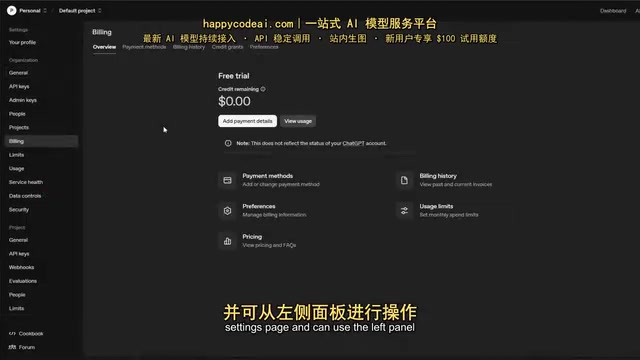
From this page, you can add a payment method, purchase credits, configure auto-recharge, and view your billing history — all in one place.
Step 2: Add a Payment Method
On the Billing page, click the "Add payment method" button and fill in your card details, including the card number, billing address, and country.
One important note: OpenAI currently accepts debit and credit cards and requires that cards be capable of international transactions. This is the most common stumbling block for users outside the US — if your card doesn't support overseas or international payments, the binding step will almost certainly fail. Make sure to confirm your card has international transaction capabilities before you proceed.
For users outside the US, beyond needing a card that supports international transactions, keep the following in mind: some dual-currency credit cards (those carrying a Visa or Mastercard logo) can work after you enable overseas payment functionality, but single-network UnionPay cards will almost always fail to bind. Additionally, OpenAI may place a small pre-authorization hold (typically $1 or less) when you add a card to verify it's valid; this is usually reversed within a few business days. Common reasons for binding failures include: the card not having overseas transactions enabled, a billing address that doesn't match your bank's records, or geographic restrictions on OpenAI services in your region. It's a good idea to contact your card issuer to confirm your card's status before attempting to add it.
Step 3: Set Your Purchase Amount and Configure Auto-Recharge
After entering your card information, OpenAI will ask you to specify how much credit you want to purchase. The tutorial uses $5 as an example, but you can enter any amount that fits your needs.
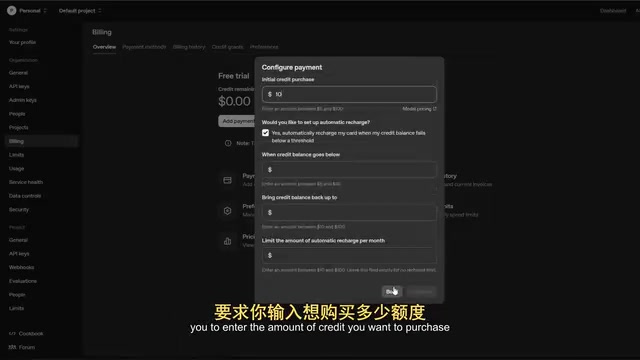
There's also an important feature here — Auto Recharge. This lets you set a threshold so that when your account balance drops below a certain level, the system automatically tops it up, preventing API calls from being interrupted due to an empty balance.
For beginners, however, it's a good idea to leave Auto Recharge unchecked initially, since you can always enable it later. Starting with small manual top-ups gives you better control and helps you avoid unexpectedly large charges caused by runaway code loops or abnormal API usage. Once you've configured everything, click "Continue" to complete the payment.
The risks of Auto Recharge deserve special attention. If your application has a bug causing the API to be called repeatedly (a "runaway loop"), or if request volume spikes during a high-traffic scenario, your balance can be depleted in a very short time — and Auto Recharge will keep refilling it, potentially resulting in a bill far higher than you anticipated. OpenAI's Usage Limits feature can serve as a safety net: by setting a hard monthly spending cap in the Billing page, your total expenditure won't exceed that limit even if Auto Recharge is enabled. For beginners who aren't yet familiar with their usage patterns, using both features together is the recommended approach — set a conservative monthly cap first, then decide whether to enable Auto Recharge once you have a better sense of your typical consumption.
Step 4: Verify Your Credits and Manage Billing
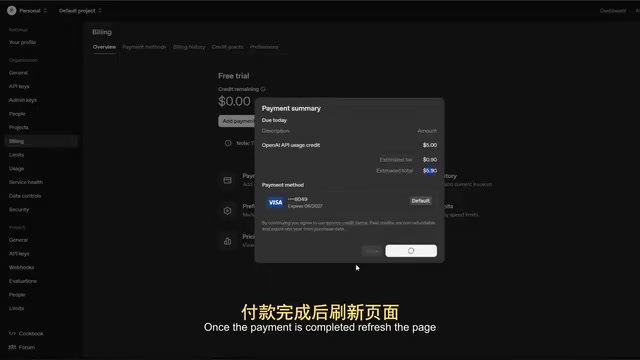
After completing the payment, refresh the page and your new credits will appear under the "Pay as you go" section in the OpenAI dashboard. Seeing the credits show up confirms that billing has been successfully activated and you're ready to start making API calls.
If you skipped the Auto Recharge option when adding credits and want to enable it later, you can return to the Billing page at any time and toggle it on. The Billing page also provides billing history and Usage Limits settings, so you can keep a close eye on your spending at any time.
Handling Credit Limits and Tips for Cost Control
For developers and individual users, the two most practical features to manage together are Usage Limits and Auto Recharge:
- Set a Usage Limit: Configure a hard monthly spending cap in your billing settings. Once reached, the service stops, preventing runaway bills.
- Use Auto Recharge carefully: It's well-suited for stable production environments, but it's best to leave it off during personal testing and development.
- Monitor your usage: Check the usage dashboard regularly to understand actual consumption across different models and optimize your call patterns accordingly.
By configuring these options thoughtfully, you can ensure API service continuity while effectively guarding against unexpected overages and high bills from accidental usage.
That covers the complete process for purchasing OpenAI API credits and correctly enabling billing. The steps aren't complicated — the key is understanding the pay-as-you-go model and making sure you have a bank card that supports international transactions.
Related articles

FastAPI: A High-Performance Python Framework and a Production-Ready API Development Powerhouse
FastAPI is a high-performance web framework based on Python type hints, supporting async and automatic OpenAPI docs. With over 100k GitHub stars, this article analyzes its core strengths, production readiness, and selection advice.

Tesla Optimus Begins Mass Production: Can the Goal of 20,000 Units Per Week Be Achieved?
Tesla Optimus officially begins mass production as Musk sets a target of 20,000 units per week. This article analyzes the supply chain challenges behind mass production, the real gap in capacity ramp-up, and the competitive landscape for humanoid robots.

PCL: A Minecraft Launcher with 8.5k Stars — Why Was It Written in VB.NET?
An in-depth analysis of PCL, the GitHub Minecraft launcher with 8,500+ stars: why it chose VB.NET, its features and China network advantages, and the limits of Windows-only.