Complete Tutorial: Configuring Ollama Local Models in Director Master
Learn how to connect Ollama local Qwen models to Director Master and run the full short film workflow.
This article explains how to integrate Ollama local models into Director Master based on a Bilibili tutorial. It covers downloading and installing Ollama, setting a large-capacity disk as the model path, downloading and verifying Qwen 3.8 via cmd, and adding Ollama as a provider in Agent Settings. It then demonstrates running topic selection, outline, script, and storyboard workflows with local Qwen 3.8.
As deploying local large models becomes easier, more and more creators are trying to use local models to handle topic selection, scriptwriting, and storyboarding in video production. The Bilibili tutorial "Director Master Tutorial: How to Configure and Use Ollama Local Model Services" fully demonstrates how to connect Ollama to Director Master and use a local Qwen model to drive the entire short film production workflow.
Why Use Local Models in Director Master
According to the video, many users prefer local models for video production, including writing topic ideas, scripts, and prompts. Compared with cloud APIs, local models have advantages in privacy, cost, and controllability, making them especially suitable for creative scenarios that require repeated generation and frequent debugging. Director Master is a dedicated agent for directors that covers the entire workflow from topic selection, script, storyboard, and prompts to video. After supporting Ollama integration, creators can embed the capabilities of local models into this pipeline.
Ollama is an open-source local large model runtime framework that packages model download, loading, inference, and API serving into operations that can be completed with a single command. Users do not need to manually configure deep learning environments such as CUDA or PyTorch, nor do they need to understand model weight formats. They only need to execute a command like ollama run qwen in the command line, and Ollama will automatically pull the model file and start a local HTTP service compatible with the OpenAI interface style (listening on port 11434 by default). Director Master discovers and calls models through this local service address. Ollama supports Windows, macOS, and Linux, and its model library covers mainstream open-source models such as Qwen, Llama, and Gemma, making it the most common choice for individual creators integrating local models.
Installing and Configuring Ollama
Download and Installation
The first step in the tutorial is to go to the Ollama official website and download the installer. The page provides a manual download entry; the downloaded file is an exe file, and double-clicking it completes the installation. This step has no additional dependencies and is relatively friendly to Windows users.
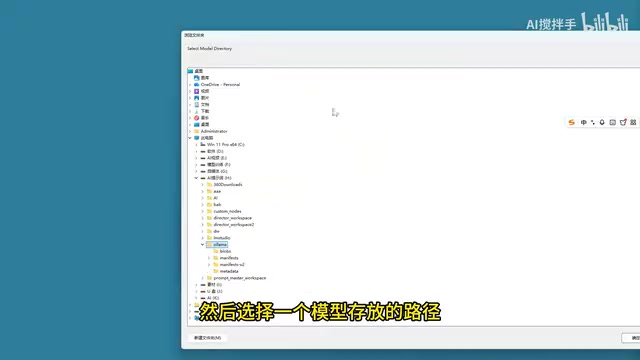
Set the Model Storage Path
After installation, you need to specify the storage location for local models in the settings first. The video reminds viewers that this path stores model files, so you should choose a disk with ample space and click OK after selecting it. This step is critical because large model files are sizable, and placing them on the system drive can easily take up space.
Download and Verify the Model
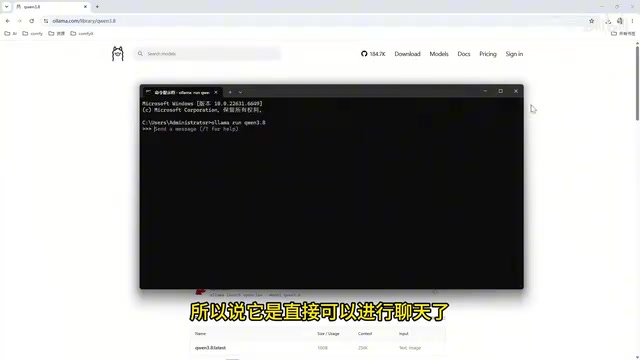
Once the path is configured, you can download the model. The tutorial uses the Qwen 3.8 model as an example: copy the corresponding command from the model page, open cmd, paste it, and execute it. On the first run, the model is not yet available locally, so Ollama will download it automatically; after the download is complete, you can chat directly. In the video, because the demonstrator had already downloaded it, the command took them straight into the chat interface.
The model storage path needs to be set separately because the weight files of large models are far larger than those of ordinary software. Taking a model around the Qwen 3.8B scale as an example, the quantized file is usually several GB, while larger models such as 7B and 14B can range from more than ten to dozens of GB. By default, Ollama stores models in the user directory on the system drive. Long-term use of multiple models can easily fill up the system drive and affect the operating system and other software. By setting the environment variable OLLAMA_MODELS to point to a large-capacity disk, you can change the default storage location without moving already installed models; if models have already been downloaded, you need to manually migrate the files in the old directory, otherwise you may encounter the situation where "the model is downloaded but the list is empty."
The "Qwen 3.8" mentioned in the article corresponds to the 3.8B parameter-scale model in the Tongyi Qianwen open-source series. The "B" in the model name refers to the parameter unit billion. A larger parameter count usually means stronger understanding and generation capabilities, but it also places higher demands on VRAM and memory. 3.8B is a lightweight model that can run on ordinary consumer-grade GPUs or even in a pure CPU environment, making it suitable for frequent calls in local creative scenarios. It should be noted that when the model runs locally, it also undergoes quantization compression (such as 4-bit quantization). The actual space and memory usage are lower than the original floating-point weights, which is also the premise that allows the complete workflow in the tutorial to run on a personal computer.
Connecting Ollama in Director Master
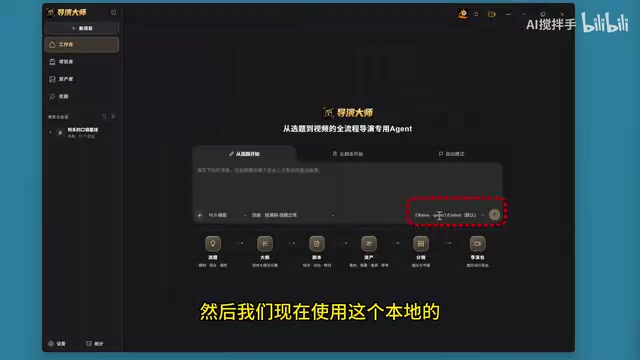
Once the local service is ready, open Director Master, go to Settings > Agent Settings, click Add Provider, select Ollama from the provider list, and then click Get Available Models. In the video, the demonstrator's local environment has two models installed, 3.5 and 3.8; after selecting 3.8, add it, save it, and set it as default, then close the settings panel.
Running the Short Film Production Workflow with a Local Model
After the integration is complete, the tutorial actually walks through the production workflow using local Qwen 3.8.
Topic Selection and Outline
The first step starts with topic selection. Enter "I want to make an animated film about a three-year-old child," and the system returns several options. After selecting one, a topic draft confirmation card appears. After checking that it is correct, click Save as Formal Topic. Then click the intelligent Agent to generate a creative outline. Once the outline appears, save it as a formal outline.
Script and Storyboard
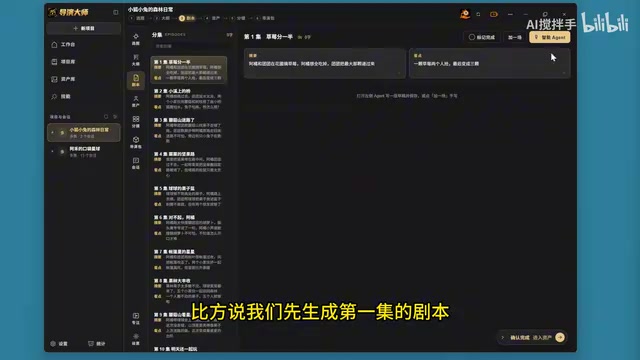
The next step is to generate the script: first generate the script for episode one, click the intelligent Agent to directly generate and send the script, and after obtaining the script draft, confirm and save it as a formal script. Then break the episode one script into storyboards, generate the storyboard, and send it. After the first scene's storyboard is completed, you can choose to automatically break down the remaining scenes or only write the current storyboard.
The video clearly states that the focus this time is on demonstrating how to configure Ollama local models, and subsequent steps such as generating assets will be covered in a dedicated video.
The Practical Value of Local Model Integration
From the tutorial workflow, connecting Ollama to Director Master is not complicated: install the service, specify the model path, pull the model, add the provider in Agent Settings, and get the model. It can be completed in a few steps. For teams that want to keep the creative workflow local, this solution provides a reusable path. It should be noted that the generation quality of local models depends on the scale of the selected model. Qwen 3.8 in the tutorial is only an example; in actual use, you should choose an appropriate model based on hardware conditions and creative needs.
FAQ
Must Ollama models be placed on a large-capacity disk? The video recommends choosing a disk with ample space to store model files to avoid taking up system drive space.
How does Director Master recognize locally installed models? After adding the Ollama provider in Agent Settings, click Get Available Models, and the system will list the locally installed models for selection.
One-line Summary
Demonstrates how to connect the local Ollama Qwen model to Director Master and run the entire short film creation workflow.
Paragraph Summary
Based on a Bilibili tutorial, this article explains how to connect the Ollama local model service in Director Master. The process includes downloading and installing Ollama from the official website, specifying a large-capacity disk as the model storage path in settings, using cmd to execute a command that automatically downloads the Qwen 3.8 model and verifies chat, and then adding the Ollama provider in Director Master's Agent Settings, getting available models, and setting one as default. After integration, the author actually runs through the production workflow of topic selection, outline, script, and storyboard using local Qwen 3.8, verifying the feasibility of a local-model-driven creative pipeline and noting that model selection should combine hardware conditions with creative needs.
Related articles
Ollama+RAG Local Knowledge Base Setup: A Step-by-Step AnythingLLM Tutorial
Based on a Bilibili tutorial, this guide details building a local RAG knowledge base with Ollama + AnythingLLM: from general LLM knowledge limits and RAG principles to document upload, vector storage, and verification.
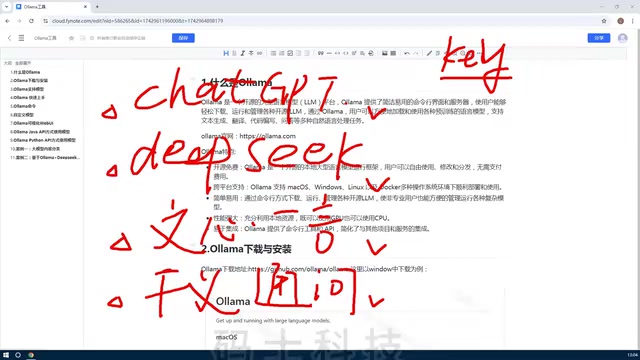
The Ultimate Ollama Tutorial: A Beginner's Guide to Running Large Models Locally for Free
Ollama is an open-source local large model management tool supporting free download and deployment of models like DeepSeek, with command-line and Web UI, cross-platform, automatic GPU/CPU scheduling — ideal for AI beginners and private deployment.
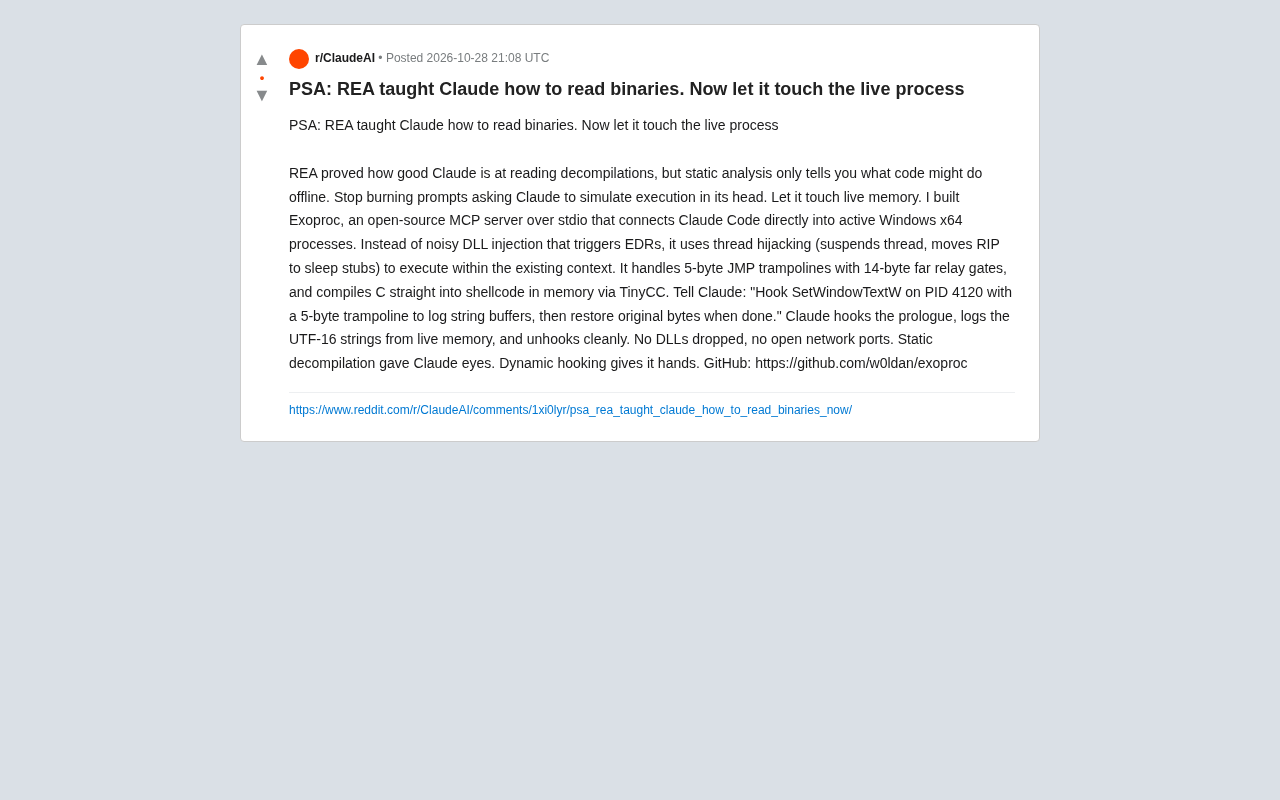
Giving Claude "Hands": Exoproc Open-Source MCP Server Enables Live Process Hooking
Exoproc is an open-source MCP server enabling Claude Code to hook live Windows x64 processes via thread hijacking, bypassing EDR for dynamic analysis. Static decompilation gave Claude eyes; dynamic hooking gives it hands.