Connecting Codex to Local Models: What Each GPU Tier from 8G to 24G Can Run

Pick locally runnable coding models for 8G–24G GPUs using VRAM minus file size, and connect them to Codex and Claude Code.
The article proposes a simple model-selection algorithm for running Codex or Claude Code on local models: VRAM minus model file size, with the remainder left for context (64K recommended, Ollama defaults to 4000). It lists models for four GPU tiers: 8G for Qwen 3.5 9B/4B, 12G for Gemma 4 12B (~3.4G left), 16G for GPT-OSS 20B (~2G left, needs Flash Attention and Q8 cache), and 24G for 27B–30B coding models (5–6G left). Setup: install Ollama, set context to 64000, install Codex and connect via ollama launch codex or a config file, then verify 100% GPU with ollama ps. Claude Code works too but isn't officially supported and requires a tool-calling-capable model. The article closes with four common pitfalls and two hard limits, recommending the official service for large tasks.
Title
Connecting Codex to Local Models: What Each GPU Tier from 8G to 24G Can Run
Meta Description
Connecting Codex and Claude Code to local models comes down to one subtraction: VRAM minus model file size leaves room for context. This article lists runnable models, real-world headroom, the four-step Ollama setup, and four common pitfalls for 8G, 12G, 16G, and 24G GPUs, and explains why Claude Code officially doesn't support local models.
Article Content
When connecting Codex or Claude Code to local models, the most common question isn't "how do I connect it" but "which model can my GPU actually run." A Bilibili video splits VRAM into four tiers — 8G, 12G, 16G, and 24G — does the subtraction for each, and walks through the complete setup steps. This article organizes the math, the model lists, and the pitfalls so you can pick the right option for your own card.
Why Connect Coding Tools to Local Models
Codex and Claude Code are essentially tools that let AI read code and modify files on your computer. By default, they call cloud services. The local model route mentioned in the video has three practical benefits: your code never leaves your machine, you don't pay per call, and it keeps working after you lose internet access.
The trade-offs are equally direct: you need a sufficiently large GPU, and the setup falls into the "unofficially supported" category. The video repeatedly stresses that Anthropic's official documentation explicitly states Claude Code is not supported with non-Claude models — this path can work, but if something breaks, the official channels won't help.
Codex and Claude Code are both "agentic coding tools": they don't just autocomplete code — they autonomously perform multi-step operations in your project directory such as reading files, searching, modifying, and running commands. These tools depend on the underlying LLM's reasoning and tool-calling capabilities, and by default they route inference through vendor-hosted APIs (such as OpenAI's Codex service or Anthropic's Claude service). "Connecting to a local model" means swapping out the inference backend for a model service running on your own GPU, typically by exposing a local port with an OpenAI-compatible interface through a local inference framework like Ollama or LM Studio, then pointing the tool's requests at that port. Whether the local route works therefore depends on two things: whether the local model has a sufficient context window and tool-calling capability, and whether the GPU can fit the entire model into VRAM.
The Core Algorithm: VRAM Minus Model File Size
VRAM Is the Workbench, the Model Is the Toolbox
The video uses a vivid analogy: VRAM is a workbench, the model file is a toolbox, and the toolbox has to sit fully on the table to be convenient to use. Whatever doesn't fit stays in system RAM, getting shuffled back and forth on every use, which slows things down noticeably. Ollama's official documentation is blunt — don't let the model spill onto the CPU.
Don't Forget to Leave Room for the "Blueprints"
Besides the model file, one more thing occupies VRAM: context, i.e., how much content the AI can see at once. In chat scenarios context is small, but coding tools need to look at several files simultaneously, so context balloons quickly. Ollama officially recommends at least 64000 context (64K) for coding tools, but the default is only 4000. So when connecting a coding tool with default settings, the first thing to do is bump up the context.
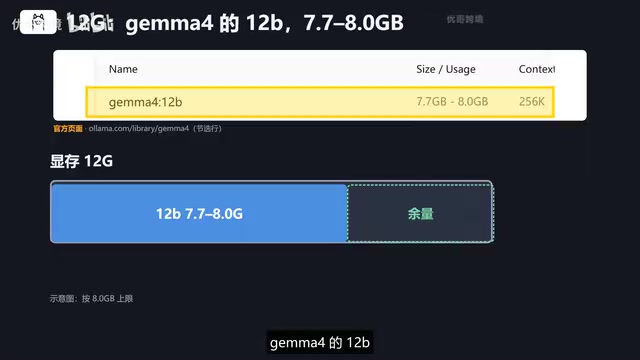
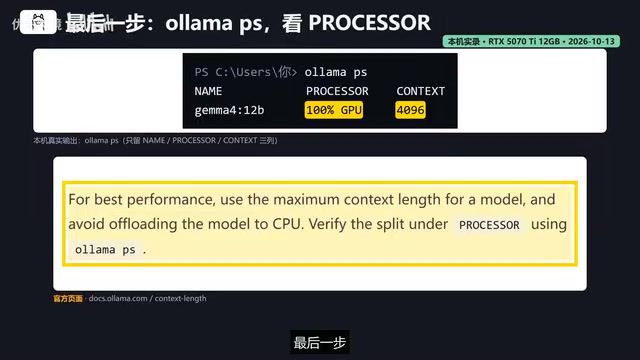
So choosing a model becomes one subtraction: VRAM minus model file size, with the remainder left for context. The more you have left over, the more comfortable things are; if the result is below 0, it won't fit. After setup, type ollama ps in the terminal and check the Processor column — only "100% GPU" means the entire model is in VRAM. The video specifically notes that this is about "does it fit," not about who generates tokens faster; speed also depends on the GPU model.
A context window (context length) is the total number of tokens a model can "see" at once in a single request, including the system prompt, conversation history, ingested code snippets, and the model's own output. Coding tools need to repeatedly read multiple files and retain tool-call results within a session, so context consumption is far higher than in ordinary chat. Ollama's num_ctx (or the environment variable OLLAMA_CONTEXT_LENGTH) controls this window size, and it directly determines KV Cache VRAM usage, which grows roughly linearly with context length. Raising context from the default 4000 to 64000 can grow the KV Cache from a few hundred MB to several GB — exactly the space that must be reserved after "VRAM minus file size." Setting context too small forces the tool to truncate history after reading a few files, which manifests as "forgetting what it just changed" or interrupted tool calls.
What Each of the Four GPU Tiers Can Run
8G Tier: Qwen 3.5 9B Is the Safest Bet
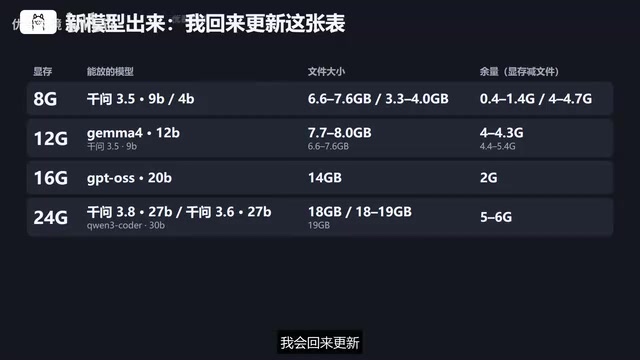
The 9B model file is 6.6 to 7.6G, leaving 0.4 to 1.4G headroom; the 4B model file is 3.3 to 4G, leaving 4 to 4.7G. This tier is tight on space, so pick a smaller model or keep context to just what you need.
12G Tier: Gemma 4 12B Measured at 3.4G Left
12G is the practical configuration for many people. This tier fits Google's Gemma 4 12B, with a file size of 7.7 to 8G, leaving just over 4G by the raw math; the video's author measured actual VRAM usage at 8.8G, leaving about 3.4G — that's at the default 4000 context. Qwen 3.5 9B leaves 4.4 to 5.4G at this tier. As for GPT-OSS 20B at 14G, 12 minus 14 is less than 0 — it won't fit, and part of it will spill into RAM.
16G Tier: The Official Threshold for GPT-OSS 20B
The 16G tier fits GPT-OSS 20B, with a 14G file; the official docs say a minimum of 16G is enough to run it, leaving about 2G headroom. Ollama's setup documentation for Codex uses this family. Headroom is thin, and the official guidance offers two ways to save cache: enable Flash Attention and set the cache type to Q8. Officially, this roughly halves cache memory usage with negligible quality loss.
GPT-OSS is a family of open-weight models released by OpenAI, offering sizes such as 20B and 120B. It uses a MoE (Mixture of Experts) architecture, activating only part of its parameters during inference, which makes it easier to deploy under the same VRAM budget than a dense model. "Flash Attention," mentioned here, is a kernel-fusion technique that reduces the VRAM read/write overhead of attention computation, lowering peak VRAM usage at long contexts; "setting cache type to Q8" means storing the KV Cache in 8-bit quantized form, which compresses cache usage to nearly half of the default FP16 at the cost of minimal numerical precision loss. The combination is a common way to extend usable context when VRAM is tight, but quantized cache may cause slight output quality fluctuations for certain models — it's recommended to run a real task to verify after deployment.
24G Tier: The Comfort Zone from 27B to 30B
This tier is noticeably roomier: Qwen 3.8 27B has an 18G file, Qwen 3.6 27B has an 18 to 19G file, and the coding-focused Qwen3 Code 30B has a 19G file, leaving 5 to 6G headroom. The video mentions that Qwen 3.8's official page claims improvements in coding and general tasks. Beyond that, GPT-OSS 120B has a 65G file and officially requires an 80G card — basically out of scope for consumer GPUs.
Four Setup Steps: From Drivers to Verification
For NVIDIA GPUs, Ollama officially requires driver version 550 or higher, and the 50 series is on the supported list; for dual-GPU laptops, look at the discrete GPU's VRAM.
Step one: install Ollama. On Windows, open PowerShell and run the one-line official command, or download the installer from the official site. Once installed, use ollama pull plus the model name for your tier to download the model.
Step two: adjust context size. In Ollama's settings there's a context slider — drag it to 64000; the official docs also offer another way: set the environment variable OLLAMA_CONTEXT_LENGTH to 64000 before launching.
Step three: install Codex. The official command-line version is open source and installs with a single npm command. The shortest setup is ollama launch codex, and Ollama configures everything for you. To do it manually, use codex --oss plus -m with the model name. To make it permanent, write a config file in the Codex folder in your user directory and add a line oss_provider = ollama.
Step four: verify. Open another terminal and type ollama ps — if Processor shows 100% GPU, the whole toolbox is on the table; if it shows some layers on CPU and some on GPU, part of it has spilled into RAM, so switch to a smaller model or reduce context.
Claude Code Works Too, but It's Not Officially Supported
Anthropic's official documentation states that Claude Code is not supported with non-Claude models. The setup itself isn't complicated: first install Claude Code — a one-line official command on Windows; the shortest setup is ollama launch claude. For manual setup, set three environment variables — the token is the Ollama key, left empty; the address is local port 11434; then use claude --model with the model name. Note that you must set the variables before launching Claude, otherwise it will prompt you to log in. Once configured, requests go to the service on your own machine and don't count against your subscription quota.
There's one hard requirement for model selection: Ollama's docs say to choose models with tool-calling capability — check the tags on the model page. If you prefer LM Studio, that works too; both tools support it, just change the address to local port 1234.
"Tool use" (tool use / function calling) is the model's ability to output, in a structured format, "I want to call a certain tool with these parameters," and coding tools rely on it to trigger actions like reading files, writing files, and running commands. If a model hasn't been trained or template-adapted for tool calling, it may only reply in natural language — "I suggest you modify file X" — without actually initiating a write operation, which is the root of the "it just chats and won't act" pitfall mentioned in the article. On Ollama model pages, a model with the tools tag indicates its Modelfile has a built-in tool-calling template. In addition, Claude Code bypasses cloud authentication by pointing ANTHROPIC_BASE_URL at a local service and leaving ANTHROPIC_AUTH_TOKEN empty — this is an unofficial use of the official client, and client updates may change how variables are read, so re-verify the connection after every upgrade.
Four Common Pitfalls and Two Things You Can't Do
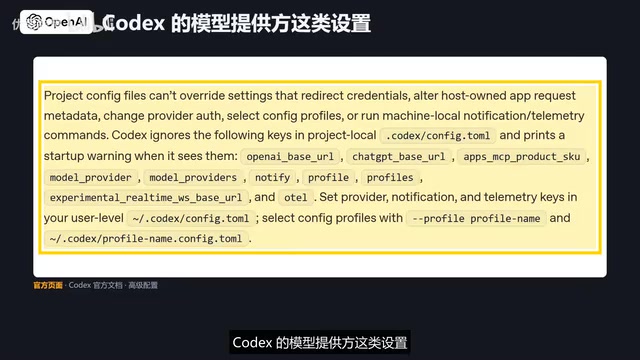
The video groups the most common snags into four categories: it's so slow it seems stuck — first check ollama ps to see if it's spilling onto CPU, then switch to a smaller tier or reduce context; you ask it to modify a file and it just chats without acting — go back to the model page and check for the tool-calling tag; Claude Code prompts you to log in again — the variables weren't set in the same terminal that launched it; config changes don't take effect — settings like Codex's model provider are only read from the config file in your user directory, and anything written in the project folder will be ignored.
Two things that can't be done also need to be spelled out. On rules: Anthropic doesn't support this path, and if some feature breaks after an update, they won't fix it for you. On capability: Ollama's Qwen 3.5 page only reports coding scores for the 39.7-billion-parameter large model; there are no corresponding scores for the small sizes that fit on consumer GPUs, so model selection can only be based on file size, not benchmark scores. Also note that models with "Cloud" in the name run on Ollama's cloud — they don't use your GPU and aren't part of the local route.
When to Pay for the Official Service
For big tasks that read a lot of files, the official Codex is still the safer bet. The video's author's take: local models suit everyday tweaks to small projects and scenarios where you care about code not leaving your machine, while big tasks should go to the official service with its free quota. Model names change every few months, so the names in this table will go stale — but the algorithm won't: VRAM minus file size, with the remainder for blueprints. When you see a new model, check three things first — how big the file is, how big the context is, and whether it has a tool-calling tag — and only install once all three line up.
One-line Summary
Using the VRAM-minus-model-file-size algorithm, pick locally runnable coding models for 8G to 24G GPUs and connect them to Codex and Claude Code.
Paragraph Summary
The article addresses the need to "connect Codex or Claude Code to local models" with a simple selection algorithm: VRAM minus model file size, with the remainder left for context; coding tools should have at least 64K context, while Ollama defaults to only 4000. Based on this, it gives model lists for four GPU tiers: 8G picks Qwen 3.5 9B or 4B; 12G can run Gemma 4 12B (measured at about 3.4G left); 16G corresponds to GPT-OSS 20B (about 2G left, requires Flash Attention and Q8 cache); 24G can handle 27B to 30B coding models (5 to 6G left). The setup flow: install Ollama, set context to 64000, install Codex and connect via ollama launch codex or a config file, then confirm 100% GPU with ollama ps. Claude Code can also be connected but isn't officially supported by Anthropic, and you must choose a model with a tool-calling tag. The article ends with four high-frequency pitfalls and two hard limitations, and recommends sticking with the official service for big tasks.
Related articles

DeepCell: One-Click AI Generation of Documents, Spreadsheets, and Slides
DeepCell tops Product Hunt with one-click generation of documents, spreadsheets, and slides, using the .deepcell format for linked updates, designed for System 2 tasks like modeling and sales reviews.

Doneas: 15-Minute Daily Accountability Calls That Keep Indie Developers From Procrastinating
Doneas is a daily accountability tool for indie developers: plan tasks on Monday, join a 15-minute call with five builders each day, and log deliveries on a public progress page. This article analyzes its core mechanics, effectiveness, and potential issues around retention and matching.

Fastlane 2.0: Fully Automated AI Ad Campaigns, From Creative to Optimization
Fastlane 2.0 is an AI ad automation tool: enter your website and it learns your brand, generates video and image ads, and runs and optimizes them on Meta, TikTok, Instagram, and YouTube.