Connecting n8n to PostgreSQL in Practice: Database Integration in Minutes

Key parameters for configuring a PostgreSQL connection in n8n, plus networking and security practices for containerized deployments.
Based on a hands-on video, the article outlines the full process of connecting n8n to PostgreSQL through the visual credential interface: create a new credential in the node, fill in host, database name, username, and password, and adjust port, max connections, and SSL as needed. It then covers what the video leaves out—Docker deployments where localhost no longer points to the host, requiring host.docker.internal or a shared Docker network—plus troubleshooting tips and production security advice.
Keywords: n8n PostgreSQL database connection
In automation workflows, databases are often the core of data flow. As an open-source automation tool, n8n provides an intuitive PostgreSQL node that lets developers complete connection configuration in just a few minutes. Based on a hands-on video, this article breaks down the key steps for configuring a PostgreSQL connection from scratch and supplements them with networking and security practices for containerized deployments.
Where to Configure the Connection and the Basic Parameters
n8n's PostgreSQL node guides users through filling in connection credentials via a visual interface. As the video demonstrates, users first need to select "create new credential" in the node, then fill in the host address, database name, username, and password in sequence. The example in the video uses localhost as the host, with the database name and username both left at their preset values. This design reduces the mental overhead of initial configuration and is well suited to quickly verifying whether a connection works.
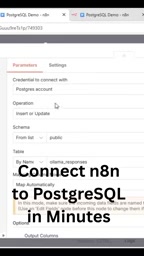
A Parameter-by-Parameter Walkthrough
Host and Database Name
The host field holds the address of the database server. The video uses localhost, meaning the database and n8n run on the same machine. The database name corresponds to the specific database within the target PostgreSQL instance and must match a database created in advance.
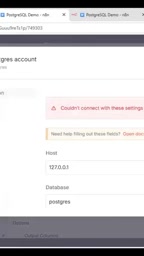
Port and User Credentials
PostgreSQL's default port is 5432, shown in the video interface as part of the postgres-related configuration. The username and password are the core of authentication, and the video stresses that the password field must be filled in correctly. For local development environments, this information is typically set when the database is initialized.
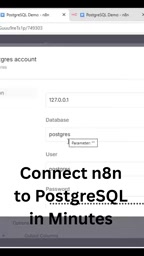
PostgreSQL's default port of 5432 is not mandatory: when initializing a cluster, it can be changed via the port parameter or the port directive in postgresql.conf, so when connecting to a non-default instance you need to confirm the actual listening port with operations. In addition, PostgreSQL's authentication method is determined by pg_hba.conf, with common options including trust, md5, scram-sha-256, and peer; when n8n connects over TCP it typically uses password-based authentication, so if the database is configured for peer or only allows local sockets, the connection will be rejected even with the correct password. Newer versions of PostgreSQL default to scram-sha-256, which older client drivers may not support—one of the common causes of connection errors.
Connection Pool and SSL Options
The maximum number of connections can be left at its default value; the video suggests adjusting or lowering it based on actual load. In the example, the SSL option is set to ignore to simplify the initial connection. This approach suits local or trusted internal network environments, while production environments should enable SSL and configure certificates.
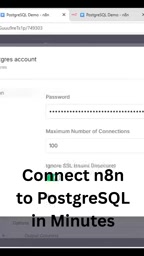
SSL in PostgreSQL has several modes: disable turns off encryption entirely, require enforces encryption but does not verify certificates, and verify-ca and verify-full verify the CA and the hostname respectively. "Ignore" in the n8n credential interface corresponds to disabling SSL, which suits local loopback connections; once traffic crosses an untrusted network, you should use at least require, and for production verify-full with a mounted CA certificate is recommended. As for the connection pool, the n8n node may create a new connection on each execution, so the maximum number of connections must be coordinated with PostgreSQL's max_connections and the instance's overall concurrency; setting it too high will eat into the connection quota available to other services and cause too many clients already errors.
Networking and Security Practices for Containerized Deployments
The configuration above works directly in a local environment, but when n8n runs as a Docker container, localhost no longer points to the host machine. Common solutions include using host.docker.internal instead of localhost, or placing n8n and PostgreSQL on the same Docker network so they can reach each other by service name. The video does not cover these scenarios, but they are unavoidable in real deployments.
Key Troubleshooting Points for Connection Failures
If the connection fails, check three things first: whether the database is listening on the correct port, whether the firewall allows the traffic, and whether the credentials match the database's actual user. In container scenarios, you also need to confirm that the network mode allows communication between containers.
Docker's network model is key to understanding this issue: each container has its own network namespace, and localhost points only to the container itself. host.docker.internal is a special DNS name provided by Docker Desktop (macOS/Windows) that points to the host machine; it is not available by default on Linux and must be added explicitly via --add-host=host.docker.internal:host-gateway. A more recommended approach is to use a custom bridge network, where containers resolve each other via service names—this avoids exposing ports to the host machine and makes management easier. If you map the PostgreSQL port to the host, be sure to restrict the binding address to 127.0.0.1 to avoid exposing the database directly to the public internet.
From Connection to Workflow: What's Next
Once the credentials are configured, n8n's PostgreSQL node can execute queries, inserts, updates, and other operations. The video demonstrates only the most basic connection setup; afterward you can write SQL in the node or use visual mapping. For scenarios requiring frequent reads and writes, it is advisable to create a separate database user with read-only or restricted read-write permissions rather than using superuser credentials.
Conclusion
The process of connecting n8n to PostgreSQL centers on credential configuration, with the core parameters being host, database name, username, and password; the connection pool and SSL can be chosen according to the environment. Once local verification passes, adjust the network address and security policy to match your deployment form, and you can bring the database into your automation workflows.
One-line Summary
Breaks down the key parameters for configuring a PostgreSQL connection in n8n and supplements them with networking and security practices for containerized deployments.
Paragraph Summary
Based on a hands-on video, the article walks through the complete process of connecting n8n to PostgreSQL via the visual credential interface: create a new credential in the node, fill in the host, database name, username, and password in sequence, and adjust the port, maximum connections, and SSL options as needed. The example uses localhost with the default connection pool and SSL temporarily ignored, which suits quick local verification. The article further points out what the video does not cover but real deployments cannot avoid—when n8n runs in a Docker container, localhost no longer points to the host machine, so you need to switch to host.docker.internal or place both on the same Docker network and reach each other by service name. Finally, it offers three troubleshooting directions for connection failures and recommends enabling SSL in production and using a database user with restricted permissions rather than superuser credentials.
Related articles

Chain of Thought Isn't Just for AI: How Humans Can Use CoT to Improve Thinking Quality
Chain of Thought isn't just a prompt trick for large models. Starting from a Hacker News discussion, this article analyzes why CoT works for human thinking too, breaks down actionable ways to transfer it, and highlights the key differences between human CoT and machine CoT.
Cloudflare Teams Up with OpenAI: Closi…
Cloudflare Teams Up with OpenAI: Closing the Loop from Vulnerability Discovery to Defense with AI
Cloudflare uses OpenAI Daybreak to investigate security vulnerabilities and generate reviewable remediation plans, while developers use Codex to boost coding efficiency and quality.

Orca Multi-Agent Orchestration in Practice: A Guide to Parallel Collaboration with Claude and Codex
Orca is Stable AI's free open-source agent workbench supporting 34 agents like Claude Code and Codex in parallel. Learn its Git worktree isolation, multi-model orchestration, and mobile management.