Cursor 1.0 BugBot Hands-On: Auto Code Review Setup Guide & Real-World Experience

Cursor 1.0 BugBot auto Code Review tested: easy setup but review capability has blind spots.
Cursor 1.0's BugBot automatically performs AI code review in GitHub PRs with easy setup, seamless PR workflow integration, and one-click fix functionality. However, hands-on testing reveals its review capability isn't comprehensive—it catches spelling errors but misses obvious HTML tag bugs, stemming from LLMs' inherent weakness in structured syntax validation. It's best used as a supplementary tool alongside traditional Lint tools and manual review.
Cursor 1.0 brings an exciting new feature—BugBot, which automatically performs Code Review within the GitHub PR workflow. For development teams, this is undoubtedly a productivity booster, but how does it actually perform? This article covers BugBot's configuration process and usage methods, then shares the real limitations discovered during hands-on testing to help you make an informed decision.
What Is BugBot?
BugBot is the new automated code review tool introduced in Cursor 1.0. When developers create a Pull Request on GitHub, BugBot automatically reviews the code changes, identifies potential bugs, and provides feedback directly on the PR page as Comments.
Code Review is a core practice in software engineering for ensuring code quality—it refers to having other developers inspect changes before code is merged into the main branch. While traditional manual Code Review is effective, it's extremely time-consuming—according to Google's engineering practices report, developers spend an average of 1-2 hours per day on code reviews. In recent years, tools like GitHub Copilot, Amazon CodeGuru, and Codacy have introduced AI-assisted review capabilities to reduce this cost. BugBot's emergence represents Cursor's move in this space, embedding AI code review capabilities directly into the GitHub Pull Request workflow that developers are most familiar with.
Regarding pricing: BugBot currently offers a 7-day free trial. After the trial period ends, you need to subscribe to Max Mode to continue using it. Max Mode is Cursor's premium AI reasoning mode, which calls upon larger-parameter, more powerful large language models (such as Claude Opus, GPT-4, and other top-tier models) under the hood. Compared to the standard mode, Max Mode performs significantly better in code comprehension, contextual association, and complex reasoning, but the token consumption and API costs per call are also considerably higher. This explains why BugBot requires a Max Mode subscription after the free trial—automated code review demands sufficient depth of code understanding from the model, which relies on more powerful underlying model support. Developers who want to try it out are advised to experience it as soon as possible.
Configuration Tutorial: Complete GitHub Integration in Three Steps
Step 1: Access Integration Settings
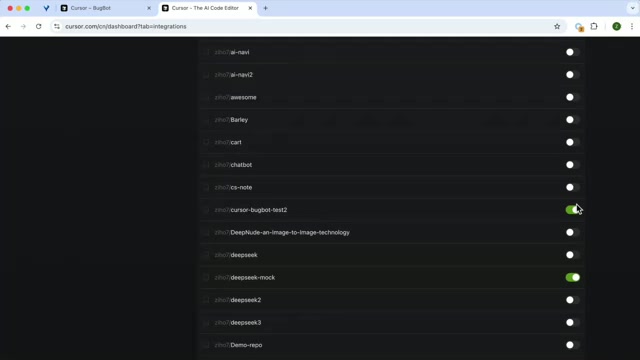
Open Cursor and navigate to Settings → Integrations. Find the BugBot feature in the integration options and click to integrate.
Step 2: Connect Your GitHub Account
After integration is complete, click Manage Connections to link Cursor with your GitHub account. Once the connection is successful, refresh the page, and your GitHub repository list will appear.
Step 3: Enable Repository Access
Select the repositories where you want to enable BugBot from the repository list and grant usage permissions. The entire configuration process is very straightforward and can be completed in just a few minutes.
Usage Workflow Demonstration
Automatic Review: Triggered on PR Creation
Once configured, BugBot's workflow is very intuitive:
A Pull Request (PR) is a collaboration mechanism provided by code hosting platforms like GitHub. After developers complete feature development on an independent branch, they create a PR to request merging into the main branch. The PR page clearly displays all code changes (diff), and team members can leave Comments on specific lines of code for discussion and review. Code is only merged into the main branch after passing review. This workflow has become the standard collaboration model for modern software development teams, and BugBot leverages this mature infrastructure to seamlessly embed AI review comments in the form of Comments.
Here are the specific steps:
- Switch to a new branch in Cursor and make code changes
- Commit the code and push to the remote repository
- Create a Pull Request on GitHub
- BugBot automatically triggers Code Review, displaying discovered issues as Comments
In our hands-on testing, BugBot successfully identified a spelling error in the code and provided a clear Bug alert. Even more conveniently, each Bug Comment has a "Fix in Cursor" button next to it. Clicking it automatically jumps to the Cursor editor and auto-generates a fix Prompt in the side panel.
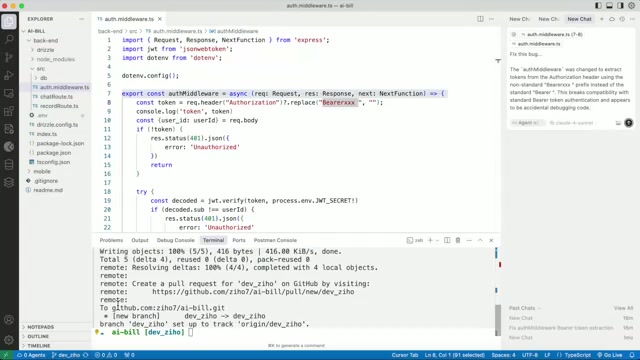
Developers only need to click confirm, and Cursor will automatically complete the fix. After committing the fix again, BugBot re-reviews the latest commit and marks previously resolved Comments as outdated, keeping the PR page clean.
Manual Trigger: Using the BugBot Run Command
Besides automatic triggering, BugBot also supports manual triggering. Type the BugBot Run command in the PR comment box to manually initiate a code review.
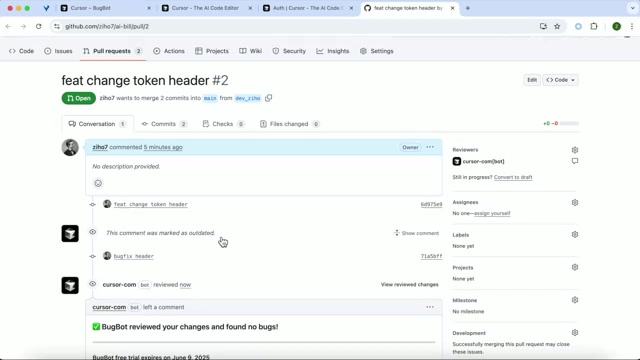
This is very useful in certain scenarios, such as when you're unsatisfied with an automatic review result or want to re-check code at a specific point in time.
Custom Configuration Options
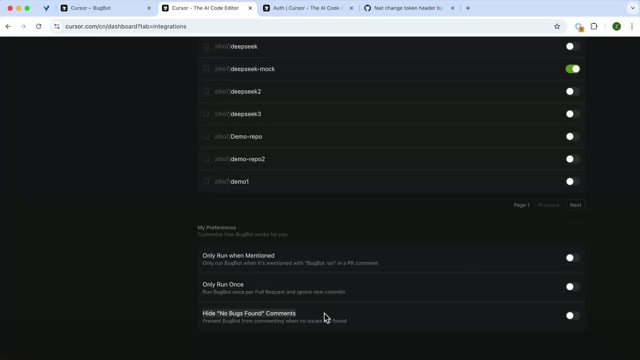
Back in Cursor's settings page, BugBot offers three practical customization options:
| Option | Description |
|---|---|
| Don't run by default | Reviews are only triggered when BugBot Run is typed in a Comment, suitable for teams that don't want every commit to trigger a review |
| Only run on PR creation | Reviews only once when the PR is created; subsequent Commits won't automatically trigger reviews |
| Hide No Bugs Found | Automatically hides Cursor's Comment if no bugs are found, keeping the page clean |
Additionally, users can set a spending cap to avoid unexpectedly high bills under Max Mode.
Limitations Discovered in Testing
While BugBot performs well on basic issues like spelling errors, hands-on testing also revealed obvious shortcomings.
In one test scenario, I deliberately introduced a very obvious front-end tag Bug—changing a <div> tag to <di>, which is an error that any experienced developer would spot instantly. However, BugBot consistently reported no bugs found during the PR review.
This indicates that BugBot's current code review capability is not comprehensive and has blind spots in detecting certain types of bugs. To understand this phenomenon, we need to understand the fundamental difference between AI code review and traditional static analysis tools. Current AI code review tools are generally based on large language models (LLMs), and their review capability essentially depends on the model's training data and reasoning approach. LLMs excel at natural language-level pattern matching (such as spelling errors and naming conventions), but have inherent weaknesses in structured syntax validation. Traditional Linters (like ESLint, HTMLHint) detect syntax errors through Abstract Syntax Tree (AST) parsing—a deterministic rule-matching approach with accuracy close to 100%. LLM review is more like "reading comprehension"—it may understand the code's intent but won't necessarily capture every syntax detail precisely. This is the fundamental reason BugBot missed the HTML tag error—it's not a syntax parser, but a review assistant based on probabilistic reasoning.
Summary and Recommendations
BugBot's Strengths
- Extremely simple integration configuration, completable in minutes
- Seamless integration with GitHub PR workflow, automatic review triggering
- "Fix in Cursor" one-click jump-to-fix, smooth experience
- Supports manual triggering and multiple customization options
BugBot's Weaknesses
- Code review capability is not comprehensive, with missed detections
- Requires Max Mode subscription, with cost considerations for long-term use
- Cannot detect certain types of bugs (e.g., HTML tag errors)
Usage Recommendations
BugBot is well-suited as an auxiliary tool in a team's Code Review workflow, helping quickly catch some basic issues. However, you should never merge code just because BugBot reports "no bugs found"—manual review remains irreplaceable.
In mature development teams, code quality assurance typically relies on multiple layers of defense: real-time checks in the local IDE, pre-commit checks triggered by Git Hooks, automated testing and Lint scanning in CI/CD pipelines, and finally manual Code Review. BugBot's positioning is to add an AI-assisted review layer at the PR stage. The best practice is to use BugBot alongside traditional static analysis tools like ESLint, Prettier, and SonarQube—let traditional tools handle deterministic syntax and convention checks, and let AI tools handle higher-level logic review and potential bug identification. Only by complementing each other can code quality assurance be maximized.
Treat BugBot as the first screening pass in Code Review, then combine it with traditional Lint tools for syntax checking and team members' manual review—that's the most reasonable approach for now.
Related articles
 Product Reviews
The Programmer's Desk Setup Guide: Building a Workspace That Feels Like Home
Discover how programmers build productive, comfortable workspaces. From multi-monitor setups to ergonomic design, explore the desk philosophy that drives focus and flow.
 Product Reviews
Qoder vs Cursor Real-World Comparison: Which $20/Month AI IDE Is Better?
Hands-on comparison of Qoder vs Cursor AI IDEs: Agent autonomy, human interaction count, and architecture decisions. Qoder needed only 2 interactions vs Cursor's 8.
 Product Reviews
Cursor Cloud Agent Demo: Eliminating Bottlenecks Across the Entire Software Development Lifecycle
Deep analysis of Cursor's Cloud Agent demo showing how cloud VMs, automated test artifacts, and a full-chain control plane systematically eliminate human bottlenecks across the software development lifecycle.