Cursor Getting Started Guide: Up and Running with AI-Native Coding in Ten Minutes
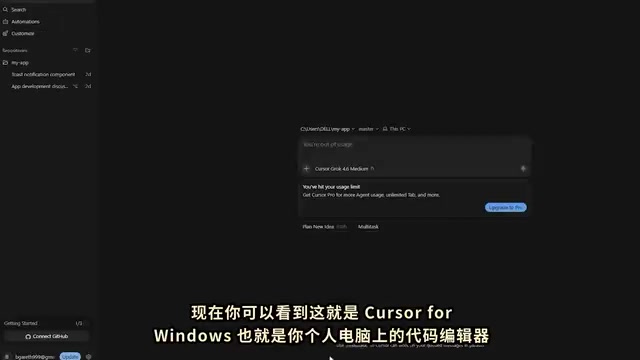
Cursor is an AI-native code editor that shifts developers from writing code to acting as architect and reviewer.
Unlike GitHub Copilot and similar plugins, Cursor is built from scratch with AI as its core interface — capable of reading entire codebases, making cross-file edits, running terminal commands, and self-correcting. It offers three interaction modes: Ask for read-only understanding, Plan for pre-execution strategy review, and Agent for autonomously completing full tasks. Combined with Tab completion, inline editing (Ctrl+K), Composer (Ctrl+I), and Project Rules, Cursor forms a complete AI-assisted development system. The keys to getting started are enabling repository indexing upfront and developing the habit of reviewing AI output.
From Code Completion Plugins to AI-Native Editors
The fundamental difference between Cursor and tools like GitHub Copilot is that Cursor isn't a completion plugin bolted onto an existing editor — it's a code environment built from the ground up with AI as its core interface. That distinction defines its ceiling: the AI can read your entire codebase, understand the context of every file, make changes across multiple files simultaneously, run terminal commands, check whether tests pass, fix its own errors, and keep iterating until the task is truly done.
This design reflects a new shift in how you work — you become the architect and reviewer, while the AI becomes the builder. Your job is to describe what needs to happen and verify the results; the AI handles the actual execution. Understanding that division of labor is the prerequisite for using Cursor well.
For developers already using VS Code, the migration cost is minimal: switching to Cursor takes about two minutes, and your existing extensions, themes, and keyboard shortcuts come along for the ride. For newcomers who've never touched VS Code, there's actually an advantage — no old habits to unlearn, just a clean start.
Registration, Download, and Plan Selection
The first step is visiting Cursor.com to create an account, then downloading the client for your platform (e.g., Windows). At its core, it's just a code editor that lives on your computer.
On the pricing side, Cursor offers tiered plans:
- Hobby (Free): Limited usage quota, great for getting started — covers most learning and light-use scenarios.
- Pro ($20/month): Unlimited completions and full access to Agent mode; this is the threshold for unlocking the full feature set.
- Pro Plus / Ultra: For heavier usage, with higher quotas and additional capabilities.
For beginners, the free Hobby plan is more than enough to work through the onboarding process and build small projects.
One Critical Setting to Enable First: Repository Indexing
Before you dive in, there's one setting worth prioritizing. Open Cursor's own settings panel (not VS Code's settings) and find the Code Intelligence options, then enable Index Repository.
Once enabled, the AI becomes aware of your entire project — not just the single file you have open. The difference in analysis quality between indexed and non-indexed states is substantial. If you want deep, project-aware answers, turn this on.
Three Core Interaction Modes: Understand Before You Execute
Knowing which mode to use in which situation is the core skill that makes everything else in Cursor click. Cursor offers three fundamental interaction modes, and they're often most effective when used in sequence.
Ask Mode: Read-Only Understanding
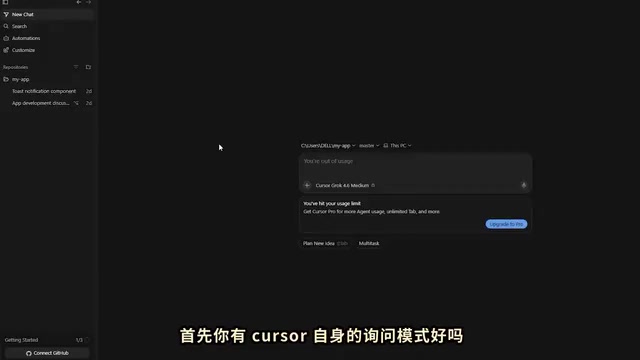
Ask mode is for questions and comprehension — it's essentially read-only analysis. You're not asking it to change anything; you're asking it to explain something. "What does this function do?" "How did this error occur?" It behaves more like a chatbot here, helping you clarify context before taking action.
Plan Mode: Strategy Review Before Execution
Plan mode is for mapping out an approach before any files are actually modified. You describe a feature or change you want, the AI lays out a strategy, and you review and approve it. This is especially valuable for complex tasks — it prevents the AI from charging headlong in the wrong direction and making sweeping changes before you realize the approach is off.
Agent Mode: Autonomous Building
Agent mode is the most powerful mode and the one that most defines what Cursor is. You describe a goal — say, "build a user authentication system" — and Cursor's agent autonomously reads the relevant files, writes code, runs terminal commands, checks whether tests actually pass, fixes failures, and keeps going until the task is complete. You review the final result rather than micromanaging every step.
In the video demonstration, Agent mode creates a complete application running on localhost and automatically opens a preview — and you can keep iterating on the code from there.

An efficient workflow often looks like this: use Ask to understand context, use Plan to align on approach, then use Agent to execute.
Agent mode relies technically on Tool Use capabilities: the AI model doesn't just generate text — it can call predefined tool interfaces to read files, write files, execute shell commands, search the codebase, and more. The result of each tool call is fed back to the model, forming a perceive-act-observe loop that continues until the model determines the task is complete. This means Agent mode quality is heavily dependent on the reasoning capability of the underlying model (such as Claude 3.5 Sonnet or GPT-4o), and performance on complex tasks varies significantly between models. Because the agent executes terminal commands autonomously, it's advisable to work on a branch when using it in production codebases or projects with sensitive data — and to carefully review every file change to avoid irreversible side effects.
Four Features for Everyday Productivity
Beyond the three modes, Cursor includes a set of features designed to fit naturally into day-to-day coding.
Tab Completion
This is the most direct, most widely used, and most consistently reliable feature. As you type, the AI predicts the next line or block of code you're about to write — press Tab to accept. It noticeably accelerates how fast you can write code.
Inline Edit (Ctrl+K)
Select any piece of code, give a natural-language instruction — something like "rewrite this to use await instead of promises" or "add error handling to this function" — and Cursor modifies the code accordingly. Crucially, there's a review interface before you accept anything, showing you precisely what changed. You can keep it or revert it.
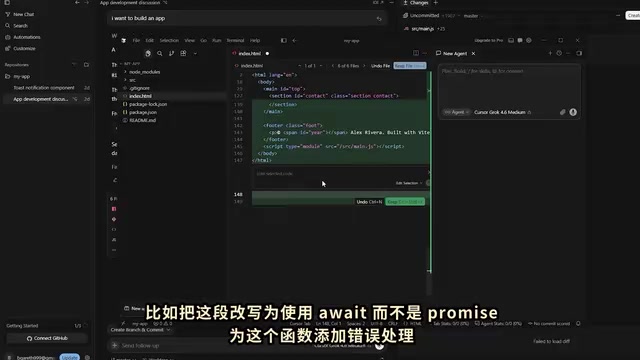
That review habit is the dividing line between experienced users and those who end up with code they don't understand or trust.
Composer (Ctrl+I)
Press Ctrl+I to open the Composer interface, where you can write out any requirement and have it generate the corresponding code. It's particularly well-suited for work that spans multiple files.
Project Rules
Project Rules ensure consistent style and architecture across your entire codebase, so the code the AI generates adheres to your established conventions.
Project Rules are essentially a "system prompt" baked into your codebase — typically stored as a .cursorrules file or a dedicated config in your project root, automatically injected as context on every AI interaction. You can use them to specify tech stack preferences (e.g., "always use TypeScript strict mode"), naming conventions, banned APIs, test coverage requirements, or even internal architectural principles. For collaborative projects, checking this file into version control ensures every team member gets consistent AI-assisted behavior and prevents stylistically fragmented AI-generated code from accumulating across the project.
Closing Thoughts
Cursor is one of the most capable AI coding environments available today — but the skill gap between someone who knows how to use it and someone who treats it as "slightly smarter autocomplete" is significant.
Breaking it down: Tab completion speeds up writing, inline editing handles targeted changes, Composer manages multi-file work, Agent mode autonomously builds features, and Project Rules maintain global consistency. Together, they form a complete AI-assisted development system. The only real advice is this: start a project today and work through these features one by one in practice.
Related articles

Felix Rieseberg Personal Homepage
Felix Rieseberg's personal homepage sparks attention on Hacker News. This article covers the Slack engineer's technical background, the rise and fall of nativefier, and the value of a developer homepage as a tech calling card.

@ai-sdk/vue 3.0.306 Patch Release Syncs with [email protected] Update
@ai-sdk/vue 3.0.306 released, synced with [email protected]. A routine patch release for the Vercel AI SDK ecosystem with no public API changes; the Vue adapter layer stays version-aligned with the core package.

Gemini 4 Argon API Launches: The Era of Million-Token Output Begins
Google launches Gemini 4 Argon with sparse MoE architecture, up to 1M output tokens, and a 68.90% Vals Index score, available across API, AI Studio, and the Gemini app.