Cursor vs. Claude Code: The Same Coding Agent, Two Different Doors

Cursor and Claude Code run the same Agent loop; the only difference is the interaction entry point, and three usage habits determine output quality.
Using "the same Agent, two doors" as its core metaphor, the article compares Cursor and Claude Code. Both run the same core loop: read code, make a plan, edit files, run and verify, check results. The difference is the entry point—Cursor's Agent lives in the editor sidebar with natural visual context; Claude Code's Agent lives in the terminal and excels at batch processing and cross-file refactoring. The article highlights three efficiency habits: specific instructions, Plan Mode, and verifiable checks like running tests. When errors occur, rewind to checkpoints and use rules files (CLAUDE.md / .cursorrules) to avoid repeating project conventions. The conclusion: tool choice depends on workflow preferences, and competition has shifted from "who's smarter" to "who fits the workflow better."
AI coding tools are evolving from "code completion" into "task agents." A completion tool helps you finish a line of code, while an Agent helps you complete an entire task—and the gap between the two is far bigger than many people imagine.
A recent technical video on YouTube used a brilliant metaphor to compare the two most talked-about AI coding tools today: Cursor and Claude Code. The video's title says it plainly—the same Agent, two doors. Understand this metaphor, and you'll understand the present and future of AI-assisted programming.
The Same Loop, Two Entry Points
Whether it's Cursor or Claude Code, both are driven by the same core work loop: read code → make a plan → edit files → run and verify → check results.
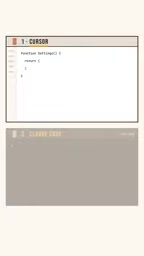
The difference lies in where the "door" opens. Cursor's Agent lives inside your code editor—you make requests in the side panel and it directly edits your project files. Claude Code's Agent lives in the terminal—you type commands and it works autonomously across the entire project directory.
This may look like just an interface difference, but it actually affects every aspect of your workflow. An in-editor Agent naturally has visual context: the files you have open, your cursor position, current errors—all of these are inputs to its decision-making. A terminal Agent is closer to traditional developer habits, excelling at batch processing, scripted tasks, and large-scale refactoring across files.
Both paths lead to the same thing: letting AI autonomously complete a full coding task, rather than just typing the next line for you.
The Agent Loop is a key concept for understanding AI coding tools. It refers to the closed-loop process an agent repeatedly executes to complete a task: reading code context, formulating an action plan, calling tools to modify files, running commands to verify results, checking whether the output is correct, and returning to step one to re-plan if it doesn't meet expectations. This loop differs from a single LLM inference—it's not "one question, one answer," but a process that can autonomously iterate multiple times. Each round of the loop may call different tools, such as file reading/writing, terminal command execution, test runners, and more. The capability ceiling of the tools themselves determines how far the loop can go, while the number of iterations and the decision quality of each round determine the reliability of the final output. Understanding this loop explains why mechanisms like Plan Mode, test verification, and checkpoint rollback are so important—they act on different stages of the loop: the planning stage, the verification stage, and the error-correction stage.
Three Habits That Make Agents Truly Efficient
The video specifically highlighted three usage habits that directly determine the quality of an Agent's output. These aren't parameter settings of the tools themselves, but the user's way of thinking.
First: Be Specific with Instructions
"Help me tweak this page" versus "Change the submit button on the checkout page so it first validates inventory and shows a prompt when inventory is insufficient"—the latter is a task description an Agent can execute efficiently. Key information includes: which file or page, and what the expected result looks like.
Second: Plan Before You Act
Plan Mode is a core capability both tools offer. When you enable planning mode, the Agent first shows every step it intends to take, and you confirm before it touches any files. This seemingly "extra step" can prevent a lot of rework.

Plan Mode is a workflow in AI coding tools where a plan is produced first and executed only after user confirmation. It contrasts with the default "just do it" mode: in default mode, the Agent starts modifying files immediately upon receiving instructions; in Plan Mode, the Agent first analyzes the codebase, lists which files it intends to modify, what it will change in each, and in what order, then pauses to wait for user confirmation or adjustments. The value of this mechanism lies in separating the two phases of "decision-making" and "execution." When formulating a plan, the LLM doesn't need to bear the risk of modifying code, and users can review whether the direction is correct at low cost. If the plan is wrong, users only need to revise the instructions and re-plan, rather than rolling back a pile of file changes already written. Plan Mode is essentially a safety valve for human-AI collaboration, especially suited for complex tasks involving multiple files and cross-module work.
Third: Give the Agent a Way to Verify
The most effective approach is to let it run tests. If tests fail, the Agent reads the failure reason, fixes the code, and re-runs until everything passes. This "check—fix—re-check" loop is the key dividing line between an Agent that "looks like it works" and one that "actually works."
What If the Agent Goes Wrong? Rollback and Rules Files
Anyone who has used AI coding tools knows that Agents occasionally "go off track." The video's recommended strategy is very practical: rewind to a Checkpoint.

Before each Agent modification, the tool automatically saves a checkpoint. If you notice the direction is wrong, simply roll back rather than manually undoing a pile of file changes. This mechanism has corresponding implementations in both Cursor and Claude Code.
Another habit emphasized by the video: write your project rules into a short config file. Whether it's coding style, directory structure conventions, or tech stack preferences, writing it once saves you from repeating it in every conversation. Claude Code uses a CLAUDE.md file, while Cursor has .cursorrules—essentially the same thing: letting the Agent understand your project's rules before it starts working.
Rules files are convention config files placed in the project directory, used to persistently communicate project specifications to AI coding tools. Different tools use different file conventions: Claude Code reads CLAUDE.md, Cursor reads .cursorrules (newer versions also support the .cursor/rules directory), and GitHub Copilot uses .github/copilot-instructions.md. These files typically contain coding style (such as indentation, naming conventions), project architecture descriptions, tech stack preferences, test commands, and more. Their core purpose is to solve the "context repetition" problem—without rules files, developers need to re-explain project conventions to the Agent in every conversation, which wastes tokens and is easy to miss. Rules files are loaded during the reading stage of the Agent loop, essentially providing the Agent with a continuously valid project manual. Writing a good rules file is often the lowest-cost, highest-return step for improving Agent output quality.
Which Door Should You Choose?
The video doesn't conclude which is "better," because it depends on how you work.
For developers who prefer visual feedback, need to frequently switch files in an editor, and like seeing diffs in real time, Cursor's door is more convenient. For developers accustomed to command-line operations, who need an Agent to execute cross-module tasks in large projects, and who like integrating AI into script pipelines, Claude Code's door feels more natural.
The core capabilities of both—reading code, making plans, editing, running, and checking—are highly consistent. The real difference isn't what the Agent can do, but where you want to collaborate with it.
Competition among AI coding tools has moved past the "who's smarter" stage and into the "who fits developers' workflows better" stage. Choosing which door is essentially choosing how you want to work.
One-line Summary
Cursor and Claude Code run the same Agent loop; the only difference is the interaction entry point, and three usage habits determine output quality.
Paragraph Summary
Using "the same Agent, two doors" as its core metaphor, the article compares two AI coding tools, Cursor and Claude Code. Both run the same core loop: read code, make a plan, edit files, run and verify, check results. The difference is the entry point—Cursor's Agent lives in the editor sidebar and naturally has visual context, while Claude Code's Agent lives in the terminal and excels at batch processing and cross-file refactoring. The article emphasizes three key efficiency habits: give specific instructions, plan before executing (Plan Mode), and give the Agent verifiable checks (such as running tests). When things go wrong, roll back to a checkpoint and use rules files (CLAUDE.md / .cursorrules) to avoid repeating project conventions. The final conclusion: which tool to choose depends on the developer's workflow preferences, and competition has moved from "who's smarter" into the "who fits the workflow better" stage.
Related articles

OpenAI Shopping Agent Hands-On: How Conversational AI Is Reshaping E-Commerce
Full breakdown of OpenAI's shopping agent demo: natural-language needs, budget-driven substitutions, visual generation, address changes, and upselling—how conversational AI reshapes e-commerce.

New DeepSeek Harness Plugin: Bringing the Cursor-Style Workflow into AI Coding
A Bilibili creator shares the Cursor-like Sidebar plugin, bringing a Cursor-style workspace to DeepSeek Harness: chat on the left, file editing on the right, Ctrl+L to reference code, hunk-by-hunk review of AI changes, plus installation notes.

Cursor Engineer Open-Sources Pstack: A Six-Phase AI Coding Pipeline Breakdown
Cursor's Lauren Tan open-sources Pstack, breaking AI coding into six phases. We detail its multi-agent design arena, TDD build, end-to-end verification, and PR babysitting, and compare it with other spec-driven frameworks.