New DeepSeek Harness Plugin: Bringing the Cursor-Style Workflow into AI Coding

The Cursor-like Sidebar plugin brings Cursor-style file referencing and change review into DeepSeek Harness.
The article introduces the Cursor-like Sidebar plugin shared by Bilibili creator "Da Fei Yu," independently developed on top of the original Better Sidebar with no official affiliation with Cursor. It uses a split layout with chat on the left and file editing on the right, supporting code editing, Markdown preview, Git, terminal, and side conversations. The core interaction uses Ctrl+L to bring files, code selections, or Markdown text along with line numbers into the conversation, and also supports drag-and-drop referencing. Change review offers single-column and left-right split comparison, allowing hunk-by-hunk approval or rejection—but rejection writes directly to disk, so proceed with care. File browsing has three modes (icon grid, vertical list, Mirror multi-column), with an ignore file to hide irrelevant content. Before installing, disable the original Better Sidebar; after installing, fully quit and restart DSH—refer to the repository for details.
Starting from Cursor Habits: A New Workspace Plugin for DeepSeek Harness
If you're used to writing code in Cursor, the thing you miss most when switching to other AI coding tools is often that three-column layout with "files, code, and conversation" side by side. Bilibili creator "Da Fei Yu" (大肺鱼) recently shared a plugin called Cursor-like Sidebar, and its goal is straightforward: bring Cursor-like file referencing and review habits into DeepSeekAd Harness (DSH for short).
This plugin is an independent plugin developed on top of the original Better Sidebar, and has no affiliation with Cursor officially. It's built around one core workflow: find the file, hand the accurate context to the AI, then check what it changed. Developers familiar with Cursor should find this way of working quite natural.

DeepSeek Harness is an AI coding environment/agent runtime framework built around the DeepSeek series of models. Its positioning is like an extensible "shell": the underlying layer calls the model to handle code understanding and generation, while the upper layer provides interactive capabilities such as file browsing, terminal, and conversation through a plugin mechanism. Unlike an all-in-one IDE like Cursor, DSH emphasizes pluggable workspace components, and community plugins like Better Sidebar extend the interface and operation flow on this mechanism. Understanding this helps clarify: Cursor-like Sidebar isn't about transforming the model's capabilities, but about mapping Cursor's interaction paradigm (file referencing, hunk-by-hunk diff review) onto DSH's plugin interfaces. Therefore, its functional boundaries are constrained by DSH's own capabilities and the plugin API.
Interface and Core Interaction: Split Panels, Conversation and Code on the Same Screen
The most intuitive change the plugin brings is the interface layout. The left side continues the conversation with the AI, while the right side lets you browse and edit project files directly. Code editing, Markdown preview, Git and native command-line terminal, and side conversations can all be used within DSH. Judging from the real screenshots shown by the creator, this split-panel design makes it possible to "discuss requirements on one side while viewing files and modification results on the other."
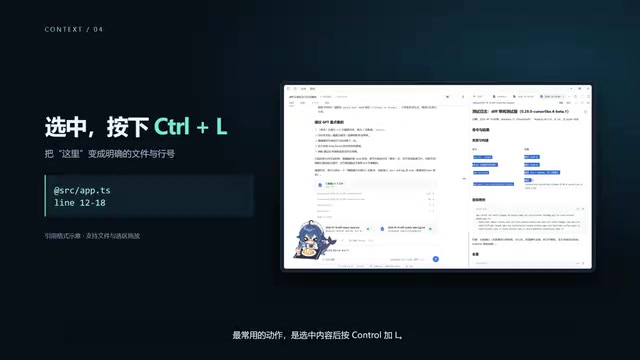
For AI coding, whether the context is accurate often determines the quality of the output. Cursor-like Sidebar turns the most common actions into shortcuts: after selecting content, press Ctrl+L, and files, code selections, or even text in the Markdown preview can be brought into the current conversation, with the reference including the file and the corresponding line numbers. You can also drag files or selected code into the input area so the AI knows exactly which section you mean.
Change Review: Approve Hunk by Hunk, Rejection Writes Directly to Disk
After the AI finishes modifying code, review is equally important. The plugin provides a native turn-based change page, which defaults to single-column comparison but can also switch to left-right split panels. You can approve or reject its changes hunk by hunk, use shortcuts to skip repeated clicks, and undo the next decision.
There's one detail worth noting: rejecting a change writes directly back to disk, so you should look carefully before acting at each step. The creator specifically reminded viewers of this in the video, and it's also a boundary that's easily overlooked in AI coding tools.

Hunk-by-hunk review originates from the way diff/patch works: a single AI modification is split into several independent change hunks, each corresponding to a contiguous set of additions, deletions, or modifications in the file. Approving or rejecting hunk by hunk means you can adopt only part of the modifications while keeping the rest as-is, which offers finer granularity than "accept all/reject all" and makes it easier to precisely control results across long files and multi-file changes. Note that rejecting a hunk essentially restores that hunk to its original content on disk, so the rejection action acts directly on the file system rather than staying only in the editor's preview layer—this is the technical reason behind the original article's reminder that "rejection writes directly to disk."
File Browsing and Installation Notes
There are three ways to browse files: the icon grid is good for viewing folders intuitively, the vertical list is good for viewing code structure, and Mirror's multi-column view is good for browsing deep directories level by level. An ignore file in the workspace root can hide irrelevant content, and together with the terminal and split-screen viewing, editing, running, and comparing can be connected into a single line.
Installation requires obtaining the plugin from the project's GitHub repository. The prerequisites given by the creator in the video are: disable the original Better Sidebar before installation, and completely quit and restart DSH after installation. For specific compatibility conditions and installation methods, please refer to the repository's documentation.

Turning "See—Reference—Review" into a Complete Loop
Cursor-like Sidebar isn't positioned as an all-in-one plugin with every feature; rather, it brings Cursor's habits of file referencing and change review straight into DeepSeek Harness. From seeing the project, to providing context, to checking modifications, it attempts to form a complete collaborative workflow. For developers who are already used to the Cursor workflow but want to try DeepSeek Harness, this kind of plugin lowers the switching cost. The project address is shown in the video, and the creator also welcomes users to share their feedback.
Related articles

Random Pruning of the DPO Computation Graph: 1.4x Training Speedup and Lower Peak Memory
DPO training too slow and memory-hungry? This paper proposes a random pruning framework for the DPO computation graph, sampling independently across position, sequence, and branch dimensions; branch pruning achieves a 1.426x step-time speedup and cuts training time by about 30%, with in-depth attribution of memory and time gains.

Why Does JEPA Underperform MLM in Longitudinal EHR Representation Learning?
New study compares JEPA and MLM for longitudinal EHR representation learning on MIMIC-IV: three JEPA variants train stably without collapse but underperform MLM; target size, not heterogeneity, drives prediction error.

Transfer Learning + Visible Light Communication: A New Approach to Energy-Efficient Indoor Positioning
A study proposes a transfer learning-based visible light communication indoor positioning method, achieving 47% accuracy improvement on the BOSCH factory dataset, 67.5% model efficiency under high noise, and introducing the ME composite metric for energy-efficient positioning in energy-constrained industrial IoT scenarios.