DeepSeek Harness Full-Multimodal Desktop Setup Guide: Image Generation, Video, and Remote Control All in One

A complete guide to turning DeepSeek Harness into a full-multimodal desktop with image gen, video, vision, and remote control.
This guide walks through a complete setup for upgrading DeepSeek Harness into a full-featured AI Agent workstation. Steps include installing DSH Desktop and using its plugin marketplace for billing management; enabling phone-based remote control via the Anywhere tool and mobile app; switching to DeepSeek V4.1 Flash for native multimodal visual understanding; using natural language to integrate Agnes for free image and video generation; and connecting AnySearch for 1,000 free high-quality web searches per day. Almost no manual config file editing is required, making this accessible to beginners.
Why Build a Desktop Client for DeepSeek Harness
DeepSeekAd Harness is a powerful Agent framework, but for newcomers, the command-line interface has always been a barrier to entry. By setting up a full-multimodal desktop environment, you can ditch hard-to-remember commands while stacking capabilities like free image generation, video creation, visual understanding, and high-quality web search — boosting your day-to-day productivity by an order of magnitude.
This tutorial walks through a complete setup workflow: DSH Desktop as the core client, Agnes for free image and video generation, DeepSeek V4.1 Flash for native multimodal visual understanding, AnySearch for enhanced web search quality, and Anywhere for controlling your desktop Harness remotely from your phone. All together, this setup can roughly expand Harness's practical capabilities five to six times.
DeepSeek Harness is an AI Agent framework built on the DeepSeek large language model. It allows the model to autonomously plan and execute multi-step tasks via Tool Use — such as web search, code execution, and file operations. Unlike a standard chat interface, Harness is closer to a "programmable intelligent assistant": you describe a goal, and the Agent breaks it down, calls the appropriate tools, and consolidates the results. Since its primary interface is the command line, the technical barrier is relatively high — which is exactly why desktop clients have emerged. Multimodal refers to a model's ability to process multiple data types simultaneously — text, images, video — rather than being limited to plain text.
Step 1: Install the Desktop Client
There are currently two solid desktop client options: the community-built DSH Desktop, and the official desktop app recently released by DeepSeek. The two are functionally similar — the official version has built-in DeepSeek account login and balance display, while DSH Desktop added these features in a recent update.
Installing DSH Desktop is straightforward: download and launch it, do a quick model configuration, and you're ready to go. Its biggest advantage is a built-in community plugin marketplace with a well-curated selection of plugins. For instance, installing a DeepSeek billing plugin adds a real-time balance display in the bottom-left corner, showing your current balance, today's spending, and even peak-hour pricing alerts — a nice touch for cost-conscious users.
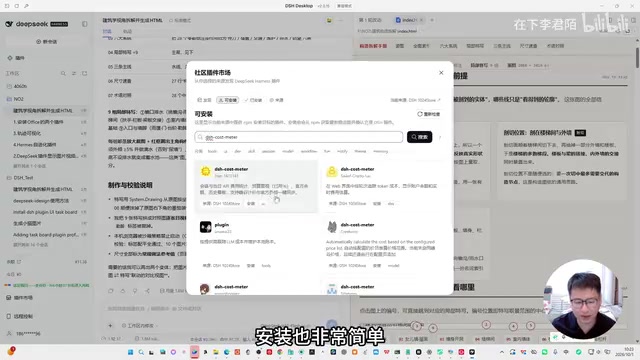
By contrast, the official client currently lacks a plugin marketplace, while DSH Desktop already includes a remote Harness control solution in its left panel. All things considered, DSH Desktop remains the more beginner-friendly starting point.
Step 2: Control Your Desktop Harness Remotely from Your Phone
Want to tap into your home computer's horsepower while you're out? DSH Desktop integrates its own remote control tool, Anywhere, along with a companion mobile app — making it one of the best options available for controlling Harness from a smartphone.
The setup process is clear: download and launch the Anywhere desktop app on your computer. If you can see your Harness session history, it's running successfully. Then click "Remote Connection" in the left panel to go to the download page for the mobile app. Once installed, click "Already Installed" on the desktop to display a pairing QR code. Scan it with your phone, and you'll have full access to all your Harness sessions — and remote control.
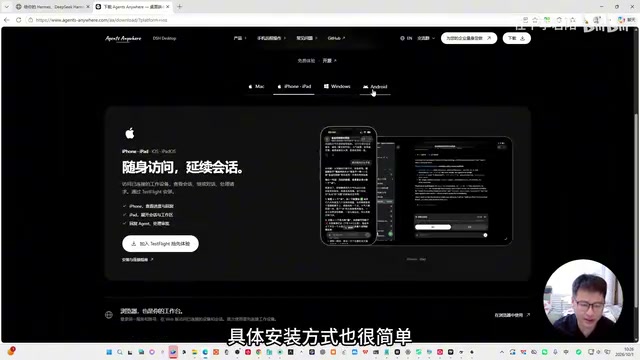
This "computer does the work, phone does the controlling" setup is genuinely practical for users running long tasks or stepping away from their desk.
Step 3: Enable Full Multimodal Capabilities (Vision / Image / Video)
Visual Understanding: Just Switch the Model
Since DeepSeek V4.1 already supports native multimodality, visual understanding no longer requires installing any extra plugins. Simply switch to DeepSeek V4.1 Flash, and the current session gains image comprehension capabilities.
In testing, feeding it an architectural sketch and asking it to "break this down from an architectural perspective" produced a detailed, professional HTML analysis report: a holistic overview of the entire image, plus numbered close-up annotations (Close-up 1 through Close-up 4) with expert commentary on each section. This kind of capability is highly valuable for design and engineering workflows.
It's worth clarifying the difference between native multimodality and "plugin-based multimodality." Early models often relied on external visual encoders (like CLIP) to convert images into text descriptions before feeding them into the language model — a process prone to significant information loss. Native multimodality means image tokens and text tokens are jointly trained and processed within the same Transformer architecture, so the model directly "sees" the image rather than relying on a text intermediary. This results in more accurate detail recognition and tighter contextual coherence. DeepSeek V4.1 Flash uses this architecture, so no additional plugins are needed — switching models is all it takes. Performance is especially reliable in professional scenarios involving mixed image-text content, such as architectural sketches or data charts.
Image and Video Generation: Connect Agnes
Both image and video generation are handled through Agnes, and both are free to use. The integration is beginner-friendly — no need to manually edit config files. Instead, you guide Harness to set itself up using natural language.
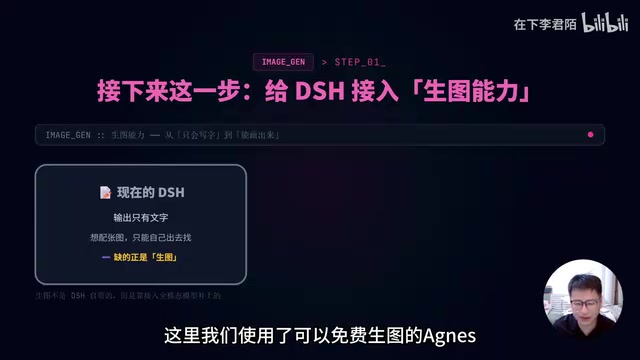
Here's how: create an account on Agnes and get your API Key, then send a command directly in Harness like: "Refer to the documentation and help me integrate Agnes image generation. Here's the API doc, and my API Key is…" Once configured, test it with something like "Help me generate an image of a kitten using Agnes" — an image should appear in roughly 10–20 seconds.
Video generation works the same way. Go through the same integration process for Agnes's video capability, then issue a prompt like "Help me generate a boot screen animation" to produce a video. Given that it's completely free, the output quality is surprisingly impressive.
Step 4: Enhance Web Search with AnySearch
Default web search quality can be inconsistent. Connecting AnySearch makes a noticeable improvement. It offers 1,000 free queries per day, comes pre-configured with high-quality data sources, and returns clean results with minimal noise.
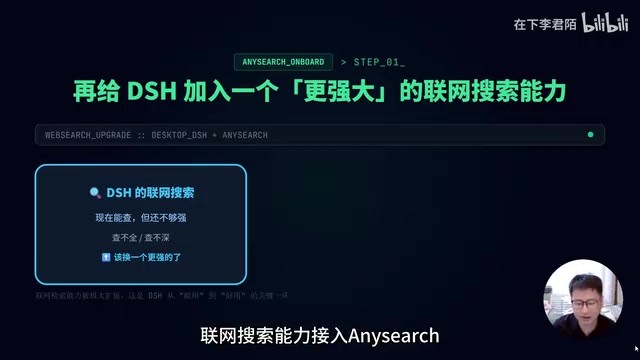
The integration follows the same pattern: create an account → get an API Key → run a setup command in Harness and provide the key. Once configured, just explicitly request AnySearch in your prompts. For example: "Search the entire web for the most worthwhile plugins to install for DeepSeek Harness and generate a polished HTML report." The results will pull heavily from high-quality international communities and forums, with noticeably higher information density.
The default web search in AI Agents typically relies on general-purpose search APIs (e.g., Bing Search API), which return results full of ads, low-quality content farms, and SEO-spam articles — leading to low-density, questionable answers. AnySearch is essentially a search aggregation layer optimized for AI use cases: it pre-selects and subscribes to high-quality data sources (academic communities, tech forums, professional media, etc.), bypassing noisy content to surface high-value results directly. Tools like this are often called Search Augmented Generation middleware — similar to providing a cleaner external knowledge source for a RAG (Retrieval-Augmented Generation) pipeline, which significantly improves the accuracy and depth of the final response.
The Full Experience After Setup
Once you've completed this workflow, you'll have a fully configured DeepSeek Harness desktop environment that's comfortable even for beginners.
A few key highlights worth emphasizing:
- DSH Desktop + Anywhere makes it possible to control Harness from your phone, anytime, anywhere;
- Visual understanding + image generation + video creation covers the core needs for content creation and analysis;
- AnySearch's high-quality web search fills the gap in information retrieval.
As the author puts it, this setup can expand Harness's day-to-day capabilities by five to six times. For anyone looking to build a fully capable AI Agent workstation at minimal cost, this is a route well worth following.
Related articles

Chain of Thought Isn't Just for AI: How Humans Can Use CoT to Improve Thinking Quality
Chain of Thought isn't just a prompt trick for large models. Starting from a Hacker News discussion, this article analyzes why CoT works for human thinking too, breaks down actionable ways to transfer it, and highlights the key differences between human CoT and machine CoT.
Cloudflare Teams Up with OpenAI: Closi…
Cloudflare Teams Up with OpenAI: Closing the Loop from Vulnerability Discovery to Defense with AI
Cloudflare uses OpenAI Daybreak to investigate security vulnerabilities and generate reviewable remediation plans, while developers use Codex to boost coding efficiency and quality.

Orca Multi-Agent Orchestration in Practice: A Guide to Parallel Collaboration with Claude and Codex
Orca is Stable AI's free open-source agent workbench supporting 34 agents like Claude Code and Codex in parallel. Learn its Git worktree isolation, multi-model orchestration, and mobile management.