DeepSeek Harness in Practice: One-Click Launcher + Local Models + Vision Plugin Configuration Guide

Three practical tips to make DeepSeek Harness easier: one-click launch, local models, and vision plugins.
This guide covers three key techniques for improving the DeepSeek Harness experience: a one-click launcher that eliminates command-line hassle, natural language integration of Ollama local models, and the modlens vision plugin that gives pure text models image recognition ability. Together, these tips help non-technical users build a friendlier, more powerful local AI workstation.
For most non-technical users, DeepSeek Harness (referred to as DSH below) is a powerful tool, but the command-line operations required every time you launch it can be a significant barrier. Based on a step-by-step tutorial by a Bilibili content creator, this article distills three key techniques for improving the DSH experience: a one-click launcher, Ollama local model integration, and configuration of the modlens vision plugin.
Say Goodbye to the Command Line: The Value of a DSH One-Click Launcher
Three Pain Points of the Traditional Launch Process
Following the standard workflow to use DSH, users have to go through a tedious routine every time: open a cmd command-line window, type a string of commands they need to memorize, press Enter and wait, copy the generated local address, then open a browser and paste the address before finally reaching the interface.
It helps to understand the technical background behind command-line operations. The Command-Line Interface (CLI) is the most fundamental way of interacting with an operating system, where users type text commands to control program execution. On Windows, cmd (Command Prompt) and PowerShell are the two most common CLI tools. For developers, the command line is a highly efficient productivity tool, but for everyday users, it lacks visual feedback and demands precise command syntax with very little room for error. As an AI tool aimed at a broad user base, DSH's reliance on command-line launching essentially follows the traditional paradigm of developer tools — a common problem among many open-source AI projects that prioritize functionality over usability.
This workflow has three obvious problems. First, users must always remember the launch command string — forget it, and you can't start the tool. Second, the black command-line window absolutely cannot be closed while the tool is running — once closed, the service actually stops, and the interface is just an unrefreshed illusion. Third, the DSH interface opens as a browser tab, mixed in with all your other everyday web pages, making it easy to accidentally close and difficult to monitor its running status at a glance.
A Standalone Application-Style Launch Solution
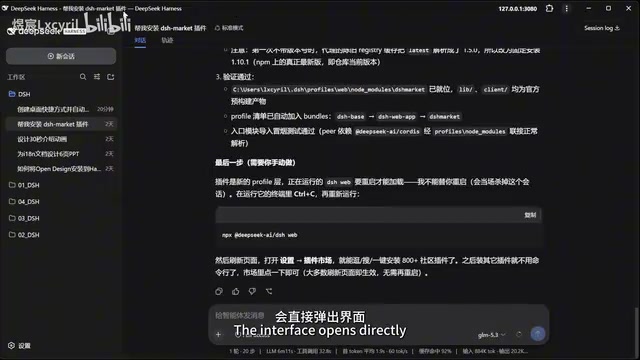
To address these pain points, the creator developed a launcher called "DSH Quick Start," with two shortcuts on the desktop: "Start" and "Stop." Double-clicking Start doesn't pop up a black command-line window. Instead, it opens the interface directly as a browser application (not a tab), completely isolated from everyday browsing and safe from accidental closure.
This browser application mode actually leverages the App Mode feature of modern browsers (implemented in Chrome via the --app parameter). In this mode, the browser hides the address bar, bookmark bar, and tab bar, making the web application visually and operationally feel like a native desktop app. It gets its own taskbar icon and window, completely separate from your regular browser windows. This technology aligns with the concept of PWA (Progressive Web App) — delivering a near-native experience using web technology while retaining the advantages of web apps: easy updates and no installation required.
The elegance of this solution lies in the fact that even if you close the front-end interface, the service continues running in the background (the command-line window is hidden rather than closed), and double-clicking Start again restores the interface. To actually stop the service, you must click the "Stop" button to terminate the hidden background process.
Notably, the creator deliberately chose not to use the common "wrapper" packaging approach popular in the community. He believes that while packaging the entire DSH into a wrapper shell is convenient, it creates compatibility issues for future updates and upgrades. So he insisted on keeping the WebUI web format and only optimizing the launch method. This trade-off reflects thoughtful consideration for long-term tool maintainability.
Model Management: Connecting Cloud and Ollama Local Models
How to Add Cloud Models
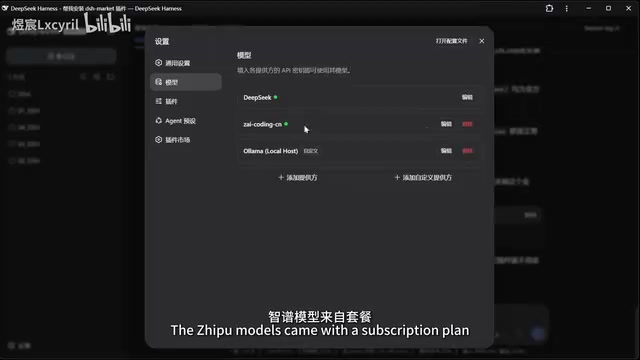
DSH comes with default models like DeepSeekAd V4 Flash and Pro — just enter the corresponding API Key to enable them. An API Key (Application Programming Interface Key) is an authentication credential for cloud AI services, essentially a "key" for users to access model services. When a user enters a platform's API Key in DSH, DSH sends the user's prompts to that platform's server via HTTP requests, where the large language model performs inference and returns the results. Different platforms (such as Zhipu's GLM series, Xiaomi's MiLM, etc.) typically follow the OpenAI-compatible API format, which allows aggregation tools like DSH to interface with multiple service providers through a unified protocol.
If users have subscriptions to other platforms (like Zhipu, Xiaomi, etc.), they can select the corresponding provider under "Add Model Provider," enter the API Key, and customize which models to enable — unnecessary models can be deselected for filtering. When users have different free quotas or paid plans across multiple platforms, DSH lets them flexibly switch between models in a single interface, achieving a cost-optimal model calling strategy.
Natural Language Integration of Ollama Local Models
The most interesting part is how Ollama local models are integrated. First, let's understand what Ollama is — it's an open-source framework for running large language models locally, dramatically simplifying the process of deploying and running AI models on personal computers. Traditionally, running large models locally required manually configuring Python environments, installing CUDA drivers, downloading model weight files, and writing inference code — an extremely high barrier. Ollama wraps all of this into Docker-like simple commands — users only need a single ollama run command to automatically download and launch a model. It supports mainstream open-source models including Meta's Llama series, Google's Gemma series, and Microsoft's Phi series, and provides an OpenAI-compatible API service on local port 11434. The core advantage of local deployment is that data never leaves your machine, ensuring absolute privacy with no ongoing API call costs.
Ollama isn't listed among DSH's providers and can't be added through the standard interface. The creator's method is remarkably simple — open a new conversation and directly tell DSH in natural language: "I have Ollama installed locally with some models. Please help me add them to the model providers."
After pressing Enter, DSH automatically scans and adds all local Ollama models. Users can then go to the edit interface to filter and keep only the ones they need. This approach of "using natural language to drive tool configuration" represents the paradigm shift of AI-era tool usage — even without understanding commands or configuration files, ordinary users can accomplish operations that previously required technical expertise.
From a technical perspective, the reason DSH can "understand" user configuration requests and execute them automatically relies on the Function Calling mechanism — the large language model parses the user's natural language intent into structured operational commands, which the system then executes as specific API calls or file operations. This stands in stark contrast to the traditional "fill-out-form, click-button" GUI interaction paradigm. The revolutionary nature of this approach is that it reduces the learning cost of tools from "understanding the tool's logical structure" to "being able to describe your needs in natural language," tying the barrier of technical tool usage to the user's language expression ability rather than their technical background.
modlens Vision Plugin: Giving Pure Text Models Image Recognition Capability
Plugin Marketplace Installation Steps
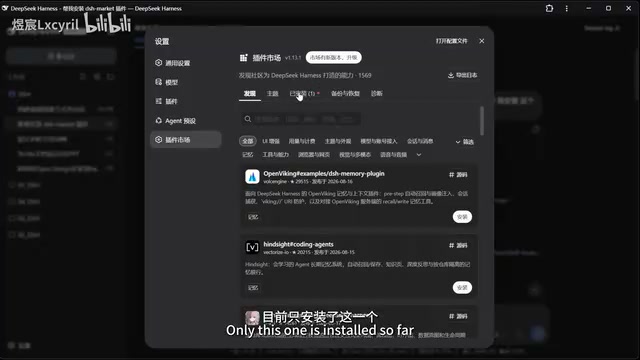
DSH supports plugin extensions, but you first need to install the plugin marketplace itself. The method is equally simple: copy the plugin marketplace URL and use a natural language command to tell DSH to "help me install this plugin." The marketplace curates a large collection of quality plugins. After installation, restart DSH and you'll see the plugin marketplace entry in settings.
Enabling Pure Text Models to "See" Images
DeepSeek itself has no vision capability — directly pasting an image will be rejected. The modlens plugin's purpose is precisely to "add vision to pure text models, enabling robust image pasting with structured content output."
From a technical standpoint, modlens's core approach is "visual proxy" — it doesn't modify the pure text model itself but adds a visual processing layer upstream of the model. When a user sends an image, the plugin first calls a vision-capable model (such as a multimodal vision model) to understand the image, converting its content into a detailed text description (structured text), which is then passed as context to the downstream pure text model for reasoning. This "image-to-text + text reasoning" pipeline architecture cleverly compensates for a single model's capability gaps through composition. While multimodal AI models (like GPT-4o, Gemini, etc.) natively support mixed image-text input, they typically require higher compute power and API costs. The modlens proxy approach provides a pragmatic alternative for resource-constrained local deployment scenarios.
After installing the plugin, vision-enabled versions appear in the model list, such as DeepSeek V4 Flash Modern and Modern V4 Pro. Even GLM models that originally lacked vision are endowed with image recognition capability. Users can drag images directly into the chat box (up to 5MB per image) and ask questions.
Multi-Path Fallback Mechanism for Visual Bridging
A noteworthy detail from actual testing is modlens's multi-path fallback strategy. Fallback is a classic design pattern in distributed systems and high-availability architectures, with the core principle being: when the preferred option is unavailable, the system automatically switches to an alternative to ensure uninterrupted service.
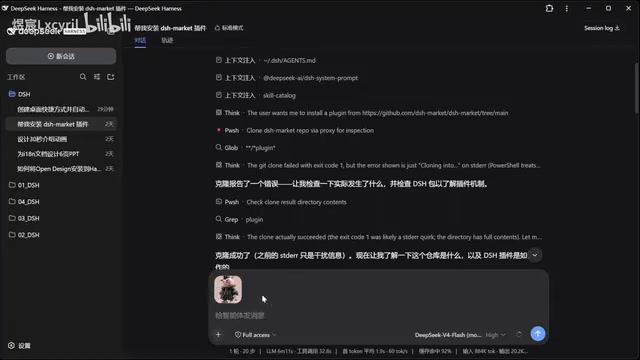
In modlens's actual operation, after the creator sent an image, the plugin first attempted visual bridging through the Antigravity CLI, but failed because the CLI required login. It then automatically switched to a local Ollama vision model (calling a 3.8B parameter vision model) to complete the recognition. This design of "automatically loading local capability when visual bridging fails" is quite clever, ensuring the availability of recognition tasks. From an engineering perspective, this requires handling timeout detection, error catching, and path-switching logic. While a 3.8B parameter vision model isn't as accurate as large-parameter cloud models, it runs smoothly on consumer-grade GPUs, reflecting a pragmatic engineering philosophy of "availability over optimality."
Regarding performance, the first recognition took as long as 5 minutes and 35 seconds due to repeated attempts, but excluding the trial phase, recognizing a single image with the local Ollama model took approximately 20 seconds in testing, with the fastest run reaching 1 minute 42 seconds at over 140 tokens/second. The creator analyzed that the time was mainly spent on the complete pipeline of model reasoning, prompt writing, image passing, and text transcription. While not blazingly fast, it's entirely usable for a local deployment solution.
Summary: AI Tool Optimization Strategies for Everyday Users
The core value of this tutorial lies not just in the three specific techniques, but in demonstrating a beginner-friendly optimization approach — most people don't know how to code, yet they can still optimize their workflows through natural language commands, community plugins, and ready-made launchers. Whether you're doing design, office work, writing prompts, or generating images and videos, mastering this kind of tool optimization is becoming increasingly important.
From the tedium of the command line to one-click convenience, from cloud APIs to freely accessible local models, to filling in the vision gap of pure text models — these three DSH techniques together outline the prototype of a friendlier, more powerful local AI workstation.
Related articles

JobRunner MCP Server: AI Agents Can Now Fix Failed Java Jobs
JobRunner launches an open-source MCP server enabling AI agents to view cluster status, diagnose failures, and recover Java jobs—incident response from any cloud coding environment or existing agent.

MLAI Digital Launches 9 Security Agents: MCP Server Safeguards the Full Lifecycle of Agentic AI
MLAI Digital launches Security MCP Server with nine built-in specialized security agents covering vulnerability discovery, attack simulation, prompt injection detection, API and infrastructure assessment, and accelerated remediation—embedding security validation across the full Agentic AI lifecycle from development to production.

Running Isaac Lab on H100 GPUs: Exploring Better Approaches
Exploring optimization methods for running Isaac Lab on NVIDIA H100 GPUs, including MIG configuration, mixed precision, TensorRT acceleration, and community experience to improve robotics simulation and reinforcement learning efficiency.