DeepSeek Harness with Wallpaper Plugin: A Complete Step-by-Step Tutorial

Deploy DeepSeek Harness with a relay API and add Wallpaper Engine dynamic wallpapers to your AI chat interface.
This guide walks through deploying DeepSeek Harness (DSH) using a third-party API relay platform and integrating Wallpaper Engine dynamic wallpapers into the interface. Key steps include registering on the relay platform, deploying DSH with one click, setting the workspace outside the C drive, configuring Permission Level 3 and the DeepSeek V4 model, sending an install command for the plugin, and manually restarting. A 'fat fish' icon confirms successful installation, after which you can set any local wallpaper as the DSH background — no source code or command-line experience required.
Introduction: Giving DeepSeek a Dynamic Wallpaper Makeover
DeepSeekAd Harness (DSH), as an extensible plugin-based framework, has recently seen a surge of creative customization ideas in the community. Among the most popular is integrating Wallpaper Engine's dynamic wallpapers into the DSH interface — transforming what was once a plain chat page into something visually stunning.
This guide is based on a hands-on walkthrough shared by a Bilibili creator, compiled into a complete flow covering everything from deploying DSH to installing the Wallpaper plugin. No need to dig into GitHub source code — a third-party API relay platform handles most of the heavy lifting, making this accessible to everyday users who want to experiment without diving into the command line.
One important note: the plugin developer has not yet added support for the desktop client, so this tutorial focuses on the web version as the primary environment.
DeepSeek Harness (DSH) is an extensible conversational framework built on large language models. Its core design philosophy decouples AI capabilities from the plugin ecosystem — developers can write plugins to extend the interface, automate tasks, or integrate external tools without modifying the core framework. Unlike using the official DeepSeek web interface directly, DSH offers local deployment and a much higher degree of customization, attracting a community of tinkerers and power users.
Wallpaper Engine is a well-known dynamic wallpaper application on Steam, featuring a vast library of user-created animated wallpapers — including videos, particle effects, and interactive scenes. Integrating it with DSH essentially reads the local file paths of wallpapers stored by Wallpaper Engine and renders them as background layers in DSH's web interface. The two aren't deeply coupled; it's more of a visual overlay at the UI level.
Step 1: Deploy DeepSeek Harness
The core approach to deploying DSH is to simplify the process using a third-party AI relay platform. In the demo, the creator used an API relay service — after registering and logging in via the top-right corner, navigate to the redemption section, enter the corresponding redemption code, and load a small amount of tokens.
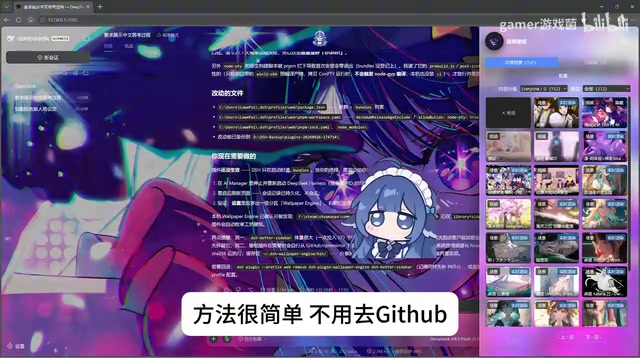
These tokens serve two purposes: some are used during plugin installation, and the rest are consumed when calling the model later. Running the plugin installation flow through the relay platform's tokens helps avoid burning through your own account quota — a practical reason why many users prefer the relay approach.
Once you locate DeepSeek Harness, click to deploy it with one click and wait for the installation to complete.
Step 2: Initialize the Workspace
The first time you open DSH, it will ask you to specify a workspace directory. It's recommended to create a dedicated folder for this purpose.
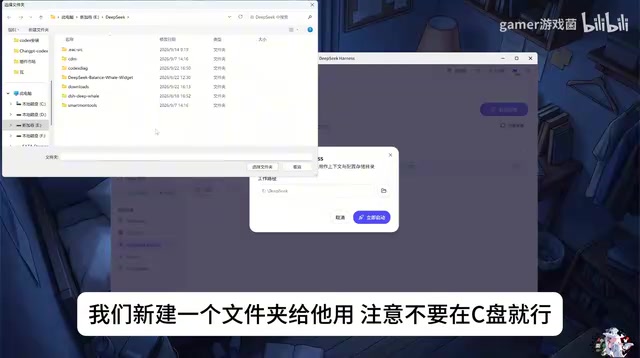
Here's an easy-to-miss detail: do not place the workspace on the C drive. Limited space or restricted permissions on the system drive can cause issues down the line — putting it on another partition is the safer choice. Once the workspace is configured, you'll see the native web interface.
Step 3: Configure the Model and Permissions
Once inside the interface, two key settings need to be configured:
Permission Level
Assign DSH Permission Level 3. This tier allows plugins to perform file reads, execute code, and carry out other operations — all of which are essential for automating background changes later.
Model Selection
In the model selector in the bottom-right corner, specify the DeepSeek V4 model provided by the relay platform. This way, token consumption comes from the relay platform's balance rather than your official account — the so-called "free ride" experience.
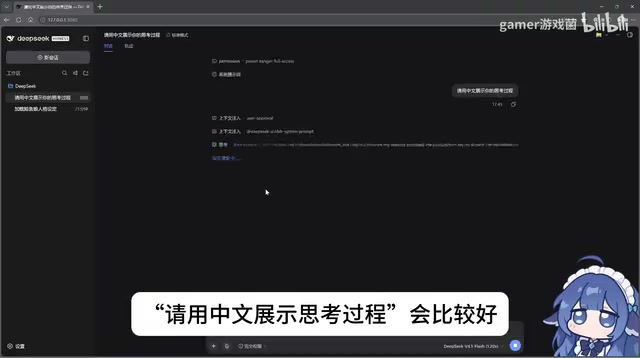
After configuring, it's a good idea to send a test message to confirm the model is responding correctly. The creator's tip: include a prompt like "please show your reasoning process in Chinese" — this makes it easier to observe the model's chain of thought and troubleshoot any issues.
How third-party API relay platforms work: These platforms typically purchase API quotas from major model providers in bulk, then resell them to individual users at discounted rates or as rechargeable tokens. Users call the model through the relay platform's interface format, with costs deducted from the platform balance rather than directly from an official account. The upside is a lower barrier to entry (no need to go through official review or wait for quota allocation); the downside is that data passes through third-party servers, so be cautious with privacy-sensitive content. When choosing a relay platform, prioritize services with a solid reputation and transparent billing policies to avoid losing funds if the platform shuts down.
Step 4: Run the Plugin Installation Command
Once you've confirmed the conversation is working, send the Wallpaper plugin installation command to the model. It will then automatically execute the code, completing the plugin download and configuration. This stage is largely automated — just wait it out.
When the model says "ready to restart," do not let it restart on its own — it won't actually execute the restart. The correct sequence is to do it manually:
- Close the browser tab
- Close the black command-line window running in the background
- Restart DSH
DSH can "automatically execute code" because Permission Level 3 (Agent Mode) allows the model to invoke the local code execution environment. Upon receiving the installation command, the model generates the corresponding Shell or Python script and runs it either through the framework's built-in sandbox or by directly calling the system terminal. The process is similar to having an AI act as both the author and executor of an automation script. This is precisely why the restart must be done manually — while the model can issue a "restart" command, the framework process itself cannot restart mid-run. That's an operating system-level constraint, not a DSH bug.
Step 5: Verify the Installation and Set Your Wallpaper
After restarting, if you see a "hanging fat fish" icon at the top of the page along with an update prompt, the plugin has been successfully installed.
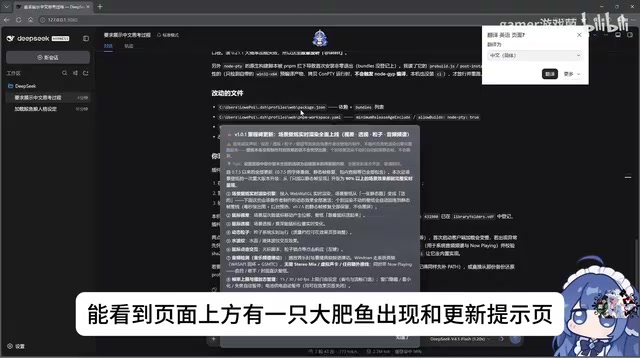
Click the fat fish icon to enter the design page. From here, you can locate your local Wallpaper Engine wallpaper files, select your preferred dynamic wallpaper, and set it as the DSH interface background. Beyond changing the background, the design page offers a range of adjustable settings worth exploring at your own pace.
Final Thoughts
The barrier to entry for this entire process is fairly low. The core idea is: "relay platform tokens + one-click deployment + let the model run the install script." For everyday users, the three key pitfalls to watch out for are: don't put the workspace on the C drive, make sure to set Permission Level 3, and always restart manually.
Integrating dynamic wallpapers into an AI chat interface is, at its core, a fun exercise by the community in pushing the boundaries of an open-source framework's extensibility. While beauty plugins don't change the model's underlying capabilities, they dramatically enhance the visual experience of daily use — and reflect how the DSH ecosystem is being continuously enriched by its users. If you hit a snag during deployment, keep an eye on plugin update notices; the community tends to iterate quickly and patch issues along the way.
Related articles

Felix Rieseberg Personal Homepage
Felix Rieseberg's personal homepage sparks attention on Hacker News. This article covers the Slack engineer's technical background, the rise and fall of nativefier, and the value of a developer homepage as a tech calling card.

@ai-sdk/vue 3.0.306 Patch Release Syncs with [email protected] Update
@ai-sdk/vue 3.0.306 released, synced with [email protected]. A routine patch release for the Vercel AI SDK ecosystem with no public API changes; the Vue adapter layer stays version-aligned with the core package.

Gemini 4 Argon API Launches: The Era of Million-Token Output Begins
Google launches Gemini 4 Argon with sparse MoE architecture, up to 1M output tokens, and a 68.90% Vals Index score, available across API, AI Studio, and the Gemini app.