DeepSeek Local Deployment Guide: Ollama + API Calls Complete Tutorial

Deploy DeepSeek locally with Ollama and call it via three API methods, including the OpenAI-compatible interface.
This article provides a complete walkthrough of deploying DeepSeek using the Ollama framework, covering hardware evaluation, model size selection, and three API integration methods. Ollama abstracts away complex configuration and supports macOS, Linux, and Windows. For limited local GPUs, renting a 4090 cloud instance (~1–2 CNY/hr) is recommended. The three API approaches — Ollama's official library, HTTP requests, and the OpenAI-compatible interface — are all covered, with the last being the most versatile and widely adopted across both local and cloud-hosted models.
As large language models become increasingly mainstream, deploying them locally or on a cloud server for programmatic access has become a real need for many developers. Compared to calling cloud-based APIs directly, local deployment offers better data privacy and makes secondary development more flexible. Using DeepSeek — an excellent domestic open-source model — as our example, this article walks through the entire process from environment setup and model download to API integration, so you can get up and running without the usual pitfalls.
Why Choose Ollama for Local Deployment
Ollama is an open-source framework designed specifically for conveniently deploying and running large models on local machines. It abstracts away the complexity of low-level environment configuration, letting developers get a model running with just a few commands.
On the Ollama official website, the download page offers versions for macOS, Linux, and Windows. Windows and macOS provide installer packages — after installation, type ollama in CMD or PowerShell, and if you see the help screen, the installation was successful. On Linux, a one-line script from the official site handles everything.
One heads-up: the installer is fairly large, so downloads can be slow. If you're deploying on a Linux server, it's recommended to enable academic acceleration before running the install command — this significantly speeds up access to GitHub and Hugging Face.
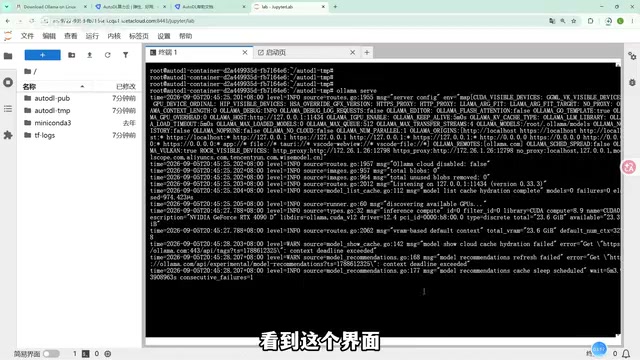
Ollama's core mechanism stores model files locally in GGUF format and uses llama.cpp as the underlying inference engine. GGUF is a quantized model format optimized for inference — it compresses weights that would otherwise require FP32 or FP16 precision down to 4-bit or 8-bit, dramatically reducing VRAM usage and disk space. This is why an 8B-parameter model might be only ~5 GB on disk rather than tens of gigabytes. On top of this, Ollama wraps model lifecycle management, a REST API server, and multi-model concurrent scheduling, so developers don't need to manually manage inference processes. Compared to loading models directly with the Transformers library, Ollama starts faster and releases resources more promptly — models are automatically unloaded from VRAM after a period of inactivity.
Balancing Hardware and Model Size
Before deployment, you must assess your hardware and then choose an appropriate model size. This is the key factor that determines how smooth the experience will be.
Different parameter scales have vastly different hardware requirements:
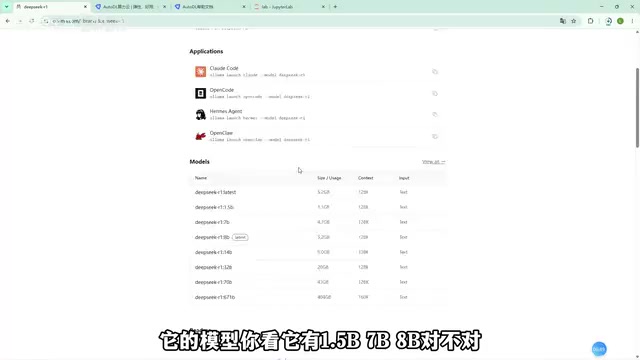
- 1.5B: 4-core CPU, 8 GB RAM, 3 GB disk, 4 GB VRAM — an ultra-small model that can run on almost any machine
- 7B/8B: 8-core CPU, 16 GB RAM, 8–10 GB disk, 8–12 GB VRAM recommended — suitable for local development, testing, and lightweight applications
- 14B: 12-core CPU, 32 GB RAM, 15 GB disk, 16 GB VRAM
- 32B: 24 GB VRAM required
- 70B: Requires multi-GPU parallelism, at least 48 GB per card, 70 GB disk
- 671B: Model files easily reach hundreds of gigabytes — essentially impossible to deploy on a personal computer
The larger the parameter count, the higher the model file size and VRAM requirements. For personal computers, deploying 7B or 8B is a realistic choice, with 14B being about the upper limit. DeepSeekAd-R1's full 671B version is simply not practical for individual users.
Cloud Servers Are the More Cost-Effective Option
If your personal GPU isn't powerful enough, renting a cloud server is the smarter choice. A 4090 GPU instance costs roughly 1–2 CNY per hour — more than adequate for learning purposes, and it won't tie up your local machine.
The demo environment in this article is a rented 4090 server with 80 GB of RAM and ample system storage. With this setup, running a 1.5B model is overkill; you could comfortably go up to 8B.
Downloading and Running a Model
You can search for models in Ollama's model library. Searching for DeepSeek returns multiple versions — DeepSeek-R1, for example, is available in 1.5B, 7B, 8B, and other sizes. The 8B model is approximately 5.2 GB and supports a 128K context window.
Key commands worth memorizing:
ollama serve: Start the Ollama serviceollama pull <model_name>: Pull a modelollama run <model_name>: Run a model (automatically pulls on first run)ollama list: View downloaded modelsollama ps: List currently running modelsollama rm <model_name>: Delete a model
The standard workflow is to pull first, then run — though running directly will also auto-pull before launching. For example, ollama pull deepseek-r1:8b downloads the 8B model. If you just want a quick test, start with the 1.5B model (~1.1 GB) for a much faster download.
Once the model is pulled, run ollama run deepseek-r1:1.5b to enter the interactive session. Just type your question and the model responds. Since the 1.5B model is tiny and paired with a 4090, response speed is very fast. Server logs also show each request's prompt, elapsed time, and token count.
Three Ways to Call the API
While the interactive chat interface works, it's not the ideal approach for developers. The real workflow involves calling the local model via API. Here are three methods.
Method 1: Ollama Official Library
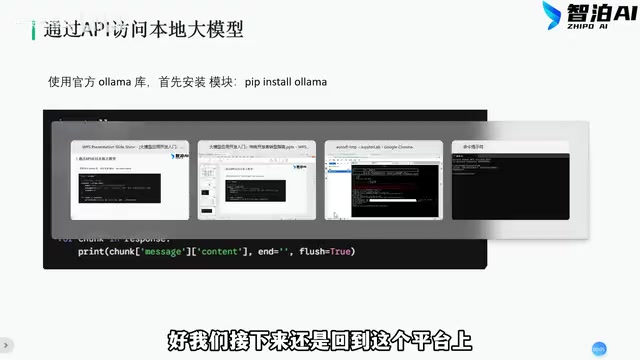
First, install the official library: pip install ollama (prefix with ! in Jupyter notebooks). Then call ollama.chat(), specify the local model name, pass in the message content, and enable stream=True for streaming output.
Streaming output means the model returns content token by token rather than waiting until the full response is generated. Nearly all mainstream models use this approach for a better user experience. With the 1.5B model responding so quickly, you may not even notice a visible typewriter effect.
Method 2: HTTP Requests with requests
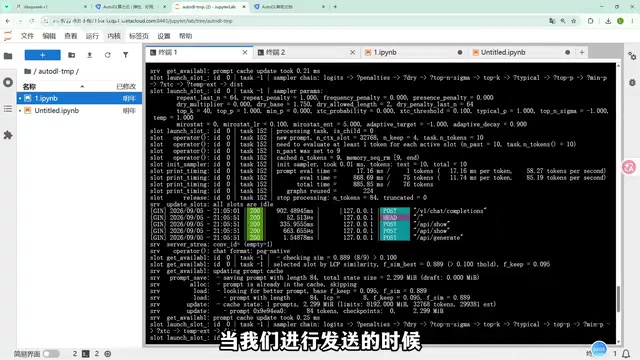
Use the requests module to send a request to the local address. The default port is 11434 and the endpoint path is /api/generate. The request body includes the model name, message, and streaming flag. Once sent, the server receives the request and returns data in chunks. Check that the status code is 200, then parse the returned JSON to extract the model's reply.
Method 3: OpenAI-Compatible Interface (Recommended)
This is the most recommended and most universal approach. Install with pip install openai, then import the client from the openai library and set base_url to http://localhost:11434/v1.
Regarding the API key: you don't need a real key to call a local model — fill in anything, since Ollama doesn't validate it. A real key is only needed when calling cloud-based models (such as official DeepSeek or Qwen API services).
The call syntax is identical to the official OpenAI interface — client.chat.completions.create(), passing in the model and messages, then reading the reply from response.choices[0].message. Virtually every major Chinese LLM today supports this pattern, and Ollama is no exception. This unified interface standard means your code can switch seamlessly between local and cloud-hosted models.
The reason the OpenAI-compatible interface has become the de facto industry standard is that OpenAI opened up its Chat Completions API spec in 2023, and major model providers worldwide quickly adopted it — including third-party Claude proxies, Qwen, Zhipu GLM, Moonshot Kimi, and many others. The spec defines a unified request structure (the role and content fields in the messages array), a response structure (the choices array), and a Server-Sent Events format for streaming. At the code level, you only need to change the base_url and model parameters to switch from local Ollama to any cloud service — true "write once, run anywhere" portability. For scenarios where you develop and debug with a local model but swap in a cloud model for production, this compatibility is especially valuable, reducing migration effort to nearly zero.
Summary
The entire workflow can be summarized as: choose Ollama → evaluate hardware and select model size → download and run the model with pull/run → make API calls for development. Among the three API methods, the OpenAI-compatible interface is the most valuable to learn due to its universality.
For users with limited GPU resources, renting a 4090 cloud instance is the most cost-effective way to learn. For better output quality, go for 7B or 8B within your hardware limits — a good balance of speed and capability.
Related articles

Chain of Thought Isn't Just for AI: How Humans Can Use CoT to Improve Thinking Quality
Chain of Thought isn't just a prompt trick for large models. Starting from a Hacker News discussion, this article analyzes why CoT works for human thinking too, breaks down actionable ways to transfer it, and highlights the key differences between human CoT and machine CoT.
Cloudflare Teams Up with OpenAI: Closi…
Cloudflare Teams Up with OpenAI: Closing the Loop from Vulnerability Discovery to Defense with AI
Cloudflare uses OpenAI Daybreak to investigate security vulnerabilities and generate reviewable remediation plans, while developers use Codex to boost coding efficiency and quality.

Orca Multi-Agent Orchestration in Practice: A Guide to Parallel Collaboration with Claude and Codex
Orca is Stable AI's free open-source agent workbench supporting 34 agents like Claude Code and Codex in parallel. Learn its Git worktree isolation, multi-model orchestration, and mobile management.