DeepSeek + Ollama + AnythingLLM: Complete Guide to Local RAG Knowledge Base Deployment

Build a fully private RAG knowledge base on Ubuntu using Ollama, AnythingLLM, and DeepSeek.
This guide walks through building a fully local private RAG knowledge base using Ollama (model runtime), AnythingLLM (knowledge base and vectorization), and DeepSeek-R1 (inference model). RAG extends LLMs with an external database, solving knowledge cutoff and private data access limitations. Deployment involves three steps: installing AnythingLLM via Docker with domestic mirror sources, manually installing Ollama and pulling DeepSeek, and connecting the two services. Key configuration details include setting `OLLAMA_HOST=0.0.0.0` to allow container access, opening UFW port 11434, and handling CPU instruction set compatibility.
Want your LLM to answer questions about your company's internal policies and workflows? General-purpose models simply can't do that. Based on a hands-on walkthrough by Bilibili creator 孤暴科技Mike, this guide breaks down how to build a fully local, private RAG knowledge base on Ubuntu using Ollama, AnythingLLM, and DeepSeek — bringing a domain-specific LLM to life entirely on your own infrastructure.
Why You Need a Local RAG Knowledge Base
RAG (Retrieval-Augmented Generation) exists to address two fundamental limitations of large language models.
LLMs are trained offline, which means their knowledge has a hard cutoff date — they simply don't know about recent events. More critically, they have no way of knowing a company's internal, non-public information. Ask one about your organization's internal policies, and it will come up empty. These two limitations seriously constrain LLMs in real-world business applications.
RAG's approach is to attach an external database to the LLM. When a user asks a question, the system first retrieves relevant context from the database, then feeds both the retrieved content and the original question to the model for analysis. This ensures up-to-date responses while enabling the model to draw on private knowledge — fundamentally solving both problems.
Embedding is the technical foundation of any RAG system and worth a brief explanation. After a document is uploaded, the system splits the text into chunks, then uses an embedding model to convert each chunk into a high-dimensional numeric vector, which gets stored in a vector database. When a user asks a question, the question is also converted into a vector, and the system uses cosine similarity or Euclidean distance to quickly find the most semantically similar document chunks. These chunks are then passed as context to the LLM. This mechanism makes retrieval semantic rather than keyword-based — even if the phrasing of a question differs from the source text, relevant content can still be found. LanceDB serves as the vector database here; its key advantage is that it requires no standalone service deployment and stores data directly as files, making it ideal for lightweight local deployments.
The Three Core Components and Their Roles
The entire solution is built on three tools working in concert:
- Ollama: A runtime environment for open-source LLMs, similar in concept to a Docker container — it handles loading and scheduling models.
- AnythingLLM: An open-source knowledge base tool responsible for document management, vectorization, and conversational interaction.
- DeepSeekAd: The actual inference model. This guide uses the DeepSeek-R1 series.
On the storage side, AnythingLLM uses LanceDB by default as its vector database for storing chunked document vectors, with embedding handled by the built-in AnythingLLM Embedding engine.
Step 1: Deploy AnythingLLM via Docker
The original author found that the official installer.sh script doesn't work reliably on Ubuntu, and couldn't find a solution in the GitHub issues — so he switched to Docker installation instead, which is the more reliable approach.
Before installing, you'll need to set up the Docker environment: use apt-get remove to clean up old packages, then use apt-get install to install certificates, dependency libraries, and GPG keys, and add the Docker repository. Then run apt update and apt upgrade to refresh the package lists, and finally install Docker with apt-get install docker-ce docker-ce-cli containerd.io.
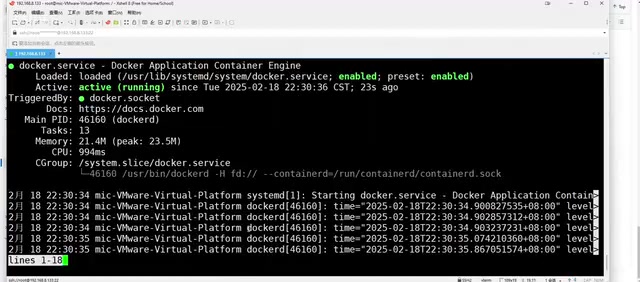
Once installed, start Docker with systemctl start docker and verify it's running properly with systemctl status docker.
A common pitfall when pulling the AnythingLLM image: the official registry requires external internet access, so a direct pull will fail. The fix is to create a /etc/docker/daemon.json file and add mirror addresses from domestic providers like Aliyun or USTC. After updating the config, you must run systemctl daemon-reload to reload it, then stop both the docker and docker.socket services before restarting — otherwise the config won't take effect.
The image is roughly 2.5 GB, so be prepared to wait. After the pull completes, verify with docker images, then use docker run -d -p 3001 to run the image as a container with port mapping. Once running, you can access the AnythingLLM web interface at <server-IP>:3001.
Step 2: Install Ollama and Download DeepSeek
The official Ollama install script is slow to download. The recommended workaround is to go directly to the Releases page of the Ollama GitHub repository and download the pre-compiled binary for your environment (for Linux, choose linux-amd64; the rocm-suffixed builds are for GPU — skip those for CPU-only setups).

Transfer the package to a directory on your server (e.g., /data/program), extract it to /usr with tar -C /usr -xzf, and grant execute permissions with chmod +x /usr/bin/ollama. At this point, ollama serve should run directly.
For easier management, register it as a system service: create a dedicated ollama user with adduser for isolation, then create a service file at /etc/systemd/system/ollama.service specifying the exec command and the user to run as. Load it with systemctl daemon-reload, enable it at boot with systemctl enable ollama, and start it with systemctl start ollama.
Downloading a model is straightforward — just run ollama run deepseek-r1. Without a version tag, Ollama will automatically select an appropriate size based on your hardware (typically 7B by default). Model capability scales with parameter count, ranging from 1.5B to 671B. The model downloaded in this guide is about 4.7 GB; once complete, you can chat with DeepSeek directly from the command line.

The DeepSeek-R1 series ranges from 1.5B to 671B parameters — your choice should be based on your hardware. Parameter count (B = Billion) roughly determines the model's reasoning capability ceiling, but also demands more RAM and VRAM. As a rough reference: a 7B model needs about 16 GB of RAM in CPU mode and runs smoothly; 14B needs 32 GB; 70B and above typically requires multiple high-VRAM GPUs. When no version is specified, Ollama automatically selects an appropriate size based on detected hardware resources, which is very helpful for first-time deployers. CPU inference is noticeably slower than GPU, but for knowledge base Q&A where extreme low latency isn't required, it's entirely acceptable.
Step 3: Connect Ollama to AnythingLLM
This is the step where most people get stuck. After selecting Ollama as the LLM provider in AnythingLLM's settings and entering the address, the model list just keeps loading indefinitely.
The root cause is that Ollama only allows local access by default — checking the OLLAMA_HOST environment variable reveals its default value is 127.0.0.1. The fix is to add an environment variable to the [Service] section of ollama.service: Environment=OLLAMA_HOST=0.0.0.0:11434, which allows access from any host. After making this change, run systemctl daemon-reload and restart the service. You can verify the config is active with systemctl show --property=Environment ollama.service.
Even after this, you might still not be able to connect — in which case, open the firewall port with ufw allow 11434/tcp. Once both steps are done, AnythingLLM should successfully detect and load your local DeepSeek model.

One painful edge case worth mentioning: on one of the author's servers, the Docker container would crash every time he finished configuring the address and clicked "Next." After digging through GitHub issues, this turned out to be related to CPU instruction set support. The author ultimately resolved it by switching to a different server — a reminder that open-source component stability is highly sensitive to hardware environment, and hitting a wall during deployment doesn't mean you've done something wrong.
Ollama defaults to listening on 127.0.0.1 (the loopback address) rather than 0.0.0.0 — this is a common security default for Linux network services, making the service visible only to the local machine. When AnythingLLM runs inside a Docker container, the container has its own network namespace. Even if both services are on the same physical machine, requests from inside the container are not considered "local" requests, so Ollama will reject them. Setting OLLAMA_HOST to 0.0.0.0:11434 makes Ollama listen on all network interfaces, making it accessible from both containers and external machines. UFW (Uncomplicated Firewall) is Ubuntu's default firewall management tool — even if Ollama is listening externally, if UFW rules haven't allowed port 11434, packets will still be dropped at the network layer. That's why both configuration steps are essential.
Building Your Knowledge Base and Verifying It Works
Once integration is configured, confirm your settings: LLM set to Ollama, embedding handled by AnythingLLM Embedding, vector store set to LanceDB. Enter an email address (can be skipped), create a Workspace, and the full system is ready.
Using the knowledge base is intuitive: enter a workspace, click the upload button to import your enterprise documents (e.g., a company policy file), click "Move" to add them to the current workspace, then click "Save and Embed" to parse, chunk, and vectorize the documents into storage. AnythingLLM also supports inputting a URL to automatically scrape webpage content as part of the knowledge base.
To validate, ask a private-knowledge question like "What are the policies on [topic] at [company]?" The system will retrieve relevant context from your uploaded documents, combine it with the question, and pass everything to DeepSeek to generate a complete answer — this is RAG retrieval-augmented generation working exactly as intended.
Summary
The Ollama + AnythingLLM + DeepSeek stack offers small and medium teams a low-barrier path to deploying a private LLM: data stays fully local, CPU-only operation is supported, and everything is open-source and free. The real challenges in practice aren't the tools themselves — they're the configuration details: setting up mirror sources, enabling remote access for Ollama, opening firewall ports, and handling CPU compatibility. Once you've mastered these key points, even a complete beginner can build their own domain-specific knowledge base.
Related articles

Felix Rieseberg Personal Homepage
Felix Rieseberg's personal homepage sparks attention on Hacker News. This article covers the Slack engineer's technical background, the rise and fall of nativefier, and the value of a developer homepage as a tech calling card.

@ai-sdk/vue 3.0.306 Patch Release Syncs with [email protected] Update
@ai-sdk/vue 3.0.306 released, synced with [email protected]. A routine patch release for the Vercel AI SDK ecosystem with no public API changes; the Vue adapter layer stays version-aligned with the core package.

Gemini 4 Argon API Launches: The Era of Million-Token Output Begins
Google launches Gemini 4 Argon with sparse MoE architecture, up to 1M output tokens, and a 68.90% Vals Index score, available across API, AI Studio, and the Gemini app.