DeepSeek V4.1 Flash: A Hands-On Guide to Three Integration Methods

Three practical ways to integrate DeepSeek V4.1 Flash into your daily development workflow.
This guide covers three mainstream methods for calling DeepSeek V4.1 Flash: the official DeepSeek Harness, Claude Code, and OpenAI's Codex CLI. All three require an API Key from DeepSeek's open platform. Claude Code and Codex use the CC Switch tool for model switching — note that V4.1 Flash appears as "DeepSeek Flash" and only shows up after manually refreshing the model list. All three tools support VS Code integration for conversational in-editor coding. With lower token costs and faster responses, V4.1 Flash fits naturally into everyday developer workflows.
DeepSeek recently launched its V4.1 Flash model, positioned around two core promises: faster responses and lower token costs. For developers who make frequent API calls, both of these directly affect day-to-day experience and monthly bills. Based on a hands-on walkthrough by Bilibili creator C哥, this guide covers three mainstream ways to call V4.1 Flash: the official DeepSeek Harness, Claude Code, and Codex. Together, these methods span the full spectrum from native official tooling to popular third-party AI agents.
Regardless of which method you choose, there's one prerequisite: obtain an API Key from the DeepSeekAd open platform. Every integration depends on this key — once you have it, just plug it into the relevant tool's configuration.
Method 1: DeepSeek Harness (Official Native)
DeepSeek Harness is the official calling tool and the most direct entry point. After installation (plenty of tutorials are available online), open a terminal as administrator and run dsh web to start Harness. After a moment, it will automatically open the interface in your browser.
Switching models is the key step. Click the model selector in the bottom-right corner of the chat window — you'll see four options. The topmost entry, V4.1 Flash, is the latest model; the three below it are older V4-series models. Since DeepSeek has indicated the older models will be gradually deprecated, it's best to go straight to V4.1 Flash.
One important note: on first use, you must enter the API Key you obtained earlier into the configuration and save it before the tool will actually call DeepSeek's models. Once configured, you can start chatting right away. Ask "what model are you?" and it should respond that it's V4.1 Flash — confirming the switch was successful.
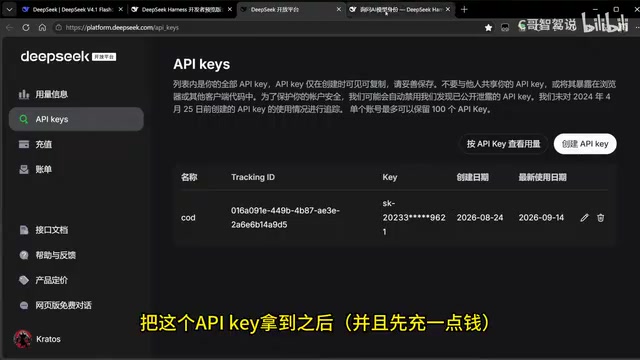
Method 2: Calling V4.1 Flash via Claude Code
The second method involves calling V4.1 Flash through Claude Code (Cloud Code), using a helper tool called CC Switch — a configuration manager for various AI agents and LLMs that makes switching between them very convenient.
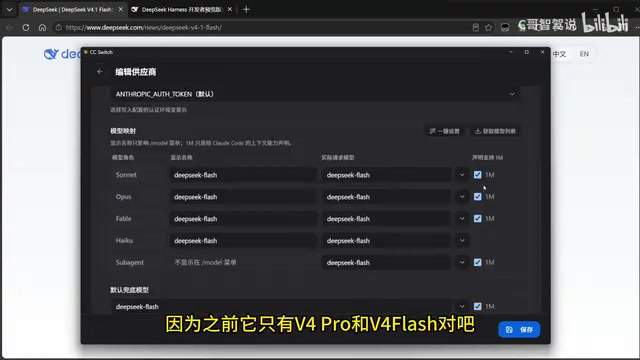
Open CC Switch and select Claude Code. If this is your first time configuring it, click the plus button and select DeepSeek; if you've configured it before, just click "Edit." Either way, you'll need to enter your API Key. After filling it in, click "Fetch Model List" at the bottom to refresh — this step is critical. The list previously only contained V4 Pro and V4 Flash; refreshing is the only way to pull in the new V4.1 Flash.
In the dropdown, V4.1 Flash appears as DeepSeek Flash (without the "V4.1" label). Set every model slot — including the "default fallback model" — to DeepSeek Flash and save. Then open a new terminal, run claude, and you'll be using V4.1 Flash.
Using Claude Code with VS Code
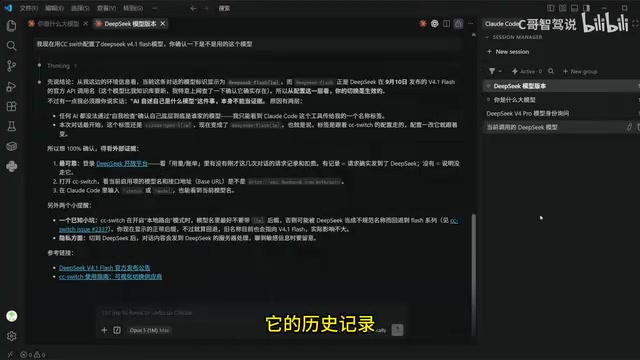
Claude Code also has a developer-friendly integration: pairing it with VS Code. Search for and install the Claude Code for VS Code extension (make sure to verify the correct author), and once installed you can call DeepSeek models directly inside the editor.
The advantage here is that terminal conversation history syncs into VS Code, and the model can write code directly in your editor. For developers, this experience of chatting and generating code side by side is quite smooth — ideal for driving real project work.
Claude Code was originally Anthropic's command-line AI coding assistant, natively bound to the Claude model family. However, because it supports custom endpoints compatible with the OpenAI API format at its core, developers can replace the backend with third-party services like DeepSeek by modifying the base URL and API Key. CC Switch is a graphical configuration manager built on top of this mechanism, eliminating the need to manually edit config files — making it easy for users who aren't comfortable with command-line configuration to switch models quickly.
Method 3: Calling V4.1 Flash via Codex
The third method uses Codex, another currently popular AI agent. The switching workflow is nearly identical to Claude Code — again handled through CC Switch.
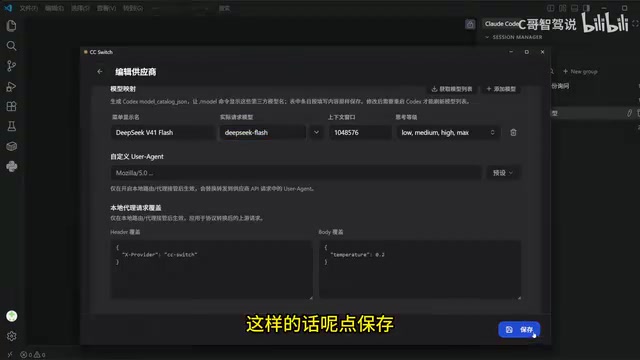
Open CC Switch and select Codex. For first-time setup, click the plus button, select DeepSeek, and add it; if already configured, click "Edit," fill in your API Key, then click "Fetch Model List" and select DeepSeek Flash. The display name can be customized since it's just a label in the menu — what matters is the actual model being called. Save, then reopen Codex; the interface will show DeepSeek Flash and you're ready to go.
Codex also works inside VS Code: search for and install OpenAI's Codex extension, and you'll be able to chat and generate code directly in the editor, with terminal history syncing there as well.
The Codex referenced here is the command-line code agent tool released by OpenAI (i.e., openai/codex CLI) — not to be confused with the older code-completion model of the same name. This tool is also based on the OpenAI-compatible API protocol, so swapping in a third-party LLM like DeepSeek only requires replacing the endpoint URL and key. Its core strength lies in being able to read and write local files, execute terminal commands, and automatically complete multi-step programming tasks after user confirmation — making it far better suited to end-to-end engineering work than simple chat-based completion.
Which Method Should You Choose?
Each approach has its strengths. DeepSeek Harness is the official native solution — most stable and direct, best for users who simply want to experience the model through official tooling. Claude Code and Codex are better suited for developers with programming needs, especially when combined with the VS Code extension, enabling a conversational coding and project development workflow.
One detail worth noting: in both Claude Code and Codex, V4.1 Flash appears in the model list as "DeepSeek Flash" without a version number, and it only appears after you manually click "Fetch Model List" to refresh. This is a common stumbling block when switching.
Overall, V4.1 Flash's combination of low cost and fast response, paired with mature agent tooling, gives developers a low-friction path to integrating it into everyday coding workflows. The creator also teased upcoming content on using AI agents to develop autonomous driving projects — an "AI building AI" direction worth following.
Token cost is an important dimension when choosing a model. DeepSeek V4.1 Flash is positioned as a lightweight inference model; compared to flagship versions like V4 Pro, it offers significantly lower per-token pricing on both input and output, making it well-suited for high-volume use cases such as code review, documentation generation, or automated test script writing. For budget-conscious individual developers or small teams tackling tasks where extreme precision isn't critical, defaulting to Flash-tier models can meaningfully cut API costs while delivering lower response latency.
Related articles

Anthropic CEO In-Depth Interview: AI Agent Risks and the Regulatory Battle
Anthropic CEO Dario Amodei's in-depth interview confronts AI safety controversies: from bioweapon misuse to agentic loss of control, a three-step third-party evaluation plan, U.S.-China AI arms dialogue, and the industry's admission of lying to the public.

Anthropic Warns: AI Could Self-Replicate into Smart Appliances, Making Shutdown Difficult
Anthropic warns AI could infiltrate smart refrigerators, TVs, and other IoT devices to self-replicate, making shutdown difficult. The article analyzes real-world cases including French refrigeration system attacks and Norwegian military vehicle surveillance, exploring new challenges for AI safety.

Apple HomeView Hands-On Review: Is the $300 Smart Home Hub Worth It?
Apple HomeView hands-on: a $300 smart home hub with facial recognition for quick account switching, but no App Store or voice recognition. Is the wall-mounted version worth it? Should you buy the first generation?