Deploying n8n on a Hetzner Server: A Low-Cost Automation Workflow Setup Guide

A Hetzner CX23 server costs $7.09/month and can deploy n8n automation workflows at low cost.
This article explains how to deploy the open-source automation tool n8n using a Hetzner Cloud CX23 instance ($7.09/month). Create a server with the Helsinki location and Ubuntu 22.04 image, keep IPv4/IPv6 enabled, and add an SSH key for security. Then connect via SSH, install Node.js and n8n, and configure a firewall, Nginx reverse proxy, and SSL. 4GB RAM suits lightweight workflows; upgrade for high concurrency and back up data regularly.
Why Choose a Hetzner Server to Deploy n8n?
As an open-source automation workflow tool, n8n is becoming increasingly popular among developers. But running it locally makes it hard to achieve uninterrupted 24/7 tasks, so a cloud server becomes the more reliable choice. Hetzner Cloud is known for its cost-effectiveness. According to a YouTube tutorial demonstration, a server with a basic configuration costs only $7.09 per month yet can run an n8n instance reliably.
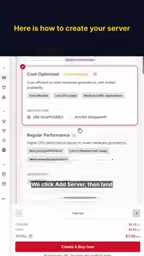
As shown in the video, when creating a server in the Hetzner Cloud Console, you select the cost-optimized x86 type, specifically the CX23 model (note that the "$649/month" mentioned in the video is likely a slip of the tongue or a recognition error; the actual total price shown is $7.09/month). This configuration is sufficient to support n8n's daily automation needs for an individual or a small team.
Creating a Hetzner Server Step by Step
Choosing Configuration and Location
After logging into the Hetzner Cloud Console, click "Add Server" to enter the creation page. In the video, Helsinki was selected as the data center location, and the system image was Ubuntu 22.04. For an n8n runtime environment, Ubuntu 22.04 LTS provides long-term support, and installing dependencies such as Node.js is relatively convenient.
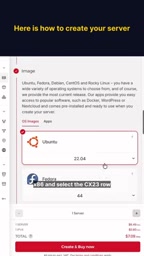
The relationship between Ubuntu 22.04 LTS and Node.js: n8n runs on Node.js, and Node.js has certain requirements for the operating system version. Ubuntu 22.04 LTS comes with relatively recent OpenSSL and glibc, allowing direct installation of the long-term support versions recommended by n8n, such as Node.js 18/20, without the need to compile them yourself. In addition, the LTS version provides 5 years of security updates, making it suitable for long-running server environments.
The positioning of the CX23 instance: The CX series of Hetzner Cloud belongs to the cost-optimized instances with shared vCPUs. The CX23's specific configuration is 2 vCPU, 4GB memory, and 40GB SSD, suitable for lightweight web services and automation tools. Shared vCPUs mean performance may fluctuate when host machine resources are strained, but the impact on applications like n8n that do not run continuous high loads is limited.
Networking and SSH Keys
Keep the default public IPv4 and IPv6 enabled in the network configuration. This ensures the server can be accessed externally, facilitating n8n's Webhook and API calls. At the same time, add an SSH key named "Hetzner Server"; this is a key step for secure login. Using SSH key authentication instead of password authentication can effectively reduce the risk of brute-force attacks.
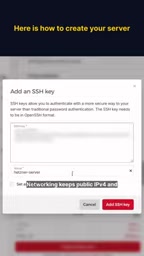
How SSH key authentication works: An SSH key pair consists of a public key and a private key. When creating the server, the public key is uploaded, while the private key is kept locally. During login, the server uses the public key to verify the private key held by the client, so no password needs to be transmitted over the network, thereby resisting brute-force attacks and man-in-the-middle attacks. Key pairs are usually generated with the ssh-keygen command, which by default generates Ed25519 or RSA keys.
Public IPv4 and Webhooks: n8n's Webhook triggers and API calls require an externally accessible address, so keeping public IPv4 enabled is necessary. If it is only used on an internal network or accessed through a reverse proxy, you can also disable the public IP to reduce costs and reduce the attack surface, but you will need to configure a private network or tunnel additionally.
Confirming Costs and Creating
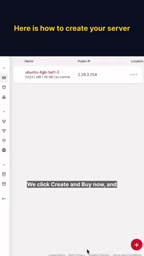
The final cost is shown as $7.09/month, including the server itself and the IPv4 address fee. After clicking "Create and Buy Now", the server "Ubuntu 4GB Hell 1.3" appears in the list and is assigned a public IP address. At this point, the infrastructure is ready.
Next Steps After Deployment
After the server is created, you need to connect via SSH and install n8n. The video does not show the specific installation steps, but they usually include updating the system, installing Node.js, installing n8n globally with npm, and configuring a system service or PM2 daemon. It is recommended to set firewall rules to open only the necessary ports (such as 22 for SSH and 5678 for n8n's default port), and to consider using an Nginx reverse proxy and an SSL certificate.
The tutorial also mentions that free workflow templates are available (via the link in the video description), making it easy to get started quickly. For users who want to self-host automation tools, Hetzner's low-cost solution is worth trying.
PM2 vs. system services: PM2 is a Node.js process management tool that supports automatic restarts, log management, and cluster mode, making it suitable for rapid deployment; systemd is Linux's native service manager, requires no additional installation, and integrates more closely with the system. For production environments, both can achieve n8n startup on boot and crash recovery, and the choice depends on team habits.
Nginx reverse proxy and SSL: n8n listens on port 5678 by default, and exposing it directly to the public internet poses security risks. An Nginx reverse proxy can forward external HTTPS requests to the local n8n, while SSL encryption is achieved through free Let's Encrypt certificates. When configuring, pay attention to WebSocket support (the n8n editor relies on it for real-time communication), and set headers such as proxy_set_header Upgrade in Nginx.
Key Considerations and Recommendations
Choosing the Hetzner CX23 instance to run n8n balances cost and performance. However, note that n8n may consume more memory when processing complex workflows, and 4GB of memory is suitable for lightweight tasks; if workflow concurrency is high, consider upgrading the configuration. In addition, back up workflow data regularly to external storage to avoid loss caused by server failure.
Overall, this solution achieves cloud deployment of n8n at an extremely low monthly fee, making it suitable for individual developers and startup teams building automation processes.
One-line Summary
A Hetzner CX23 server costs $7.09 per month and can deploy n8n automation workflows at low cost.
Paragraph Summary
This article explains how to deploy the open-source automation tool n8n using a Hetzner Cloud CX23 instance ($7.09/month). First, create a server in the Hetzner console, choose the Helsinki location and the Ubuntu 22.04 image, keep IPv4/IPv6 enabled, and add an SSH key to improve security. After creation, connect via SSH, install Node.js and n8n, and it is recommended to configure a firewall, Nginx reverse proxy, and SSL certificate. The article points out that 4GB of memory is suitable for lightweight workflows and that high-concurrency scenarios require upgrading the configuration, and it emphasizes regular data backups. The overall solution enables low-cost cloud self-hosting of n8n, suitable for individual developers and startup teams.
Related articles

Chain of Thought Isn't Just for AI: How Humans Can Use CoT to Improve Thinking Quality
Chain of Thought isn't just a prompt trick for large models. Starting from a Hacker News discussion, this article analyzes why CoT works for human thinking too, breaks down actionable ways to transfer it, and highlights the key differences between human CoT and machine CoT.
Cloudflare Teams Up with OpenAI: Closi…
Cloudflare Teams Up with OpenAI: Closing the Loop from Vulnerability Discovery to Defense with AI
Cloudflare uses OpenAI Daybreak to investigate security vulnerabilities and generate reviewable remediation plans, while developers use Codex to boost coding efficiency and quality.

Orca Multi-Agent Orchestration in Practice: A Guide to Parallel Collaboration with Claude and Codex
Orca is Stable AI's free open-source agent workbench supporting 34 agents like Claude Code and Codex in parallel. Learn its Git worktree isolation, multi-model orchestration, and mobile management.