Do AI Image Generators Support Transparent PNGs? Testing Gemini and ChatGPT

Only OpenAI supports true transparent output among mainstream AI image tools; others need solid backgrounds plus a segmentation API.
The article checks each AI image generator's official docs and finds only OpenAI's GPT Image API offers documented transparent output; Gemini, Grok, and Midjourney don't support it. It warns that prompting "transparent background" can make models paint checkerboards into pixels, provides PIL alpha-channel detection code, and recommends a solid-background-plus-segmentation-API workflow with Python examples.
Title
Do AI Image Generators Support Transparent PNGs? Testing Gemini and ChatGPT
Meta Description
Can AI image generators output true transparent PNGs? This article checks transparent background support in Gemini, ChatGPT, Grok, and Midjourney, and provides Python code to detect fake checkerboards plus an API segmentation fix.
Article Content
Type "transparent background" into an AI image generator, download the PNG, put it on your website—and you get a white box or a gray-and-white checkerboard. This problem is more common than you'd think. Most AI image tools cannot output a true alpha channel, and the few that "seem to support" it often paint the checkerboard directly into the pixels.
This article checks each tool's capabilities against official documentation and provides a complete Python solution from detection to repair.
Transparent Background Support Across AI Image Generators
Based on official documentation from each platform (October 2026), the conclusions are quite divided:
| Tool | Supports transparent output? |
|---|---|
| Gemini / nano banana | No documented transparency option |
| OpenAI GPT Image API | Yes, requires specifying the background parameter |
| Grok (xAI) | No documented option |
| Midjourney | No relevant parameter in the full parameter list |
OpenAI is the only one with a formal API option
The GPT Image API, on supported models, allows setting background to transparent, combined with PNG or WebP output. This is currently the only mainstream tool with a clear documented path. The others either lack this capability entirely or rely on the clumsy workaround of "generate a solid background and cut it out afterward."
Alpha channel is a fourth channel in image formats like PNG, independent of the RGB color channels, storing an additional opacity value from 0–255 per pixel: 0 means fully transparent, 255 means fully opaque, and intermediate values correspond to semi-transparency. WebP also supports alpha channels, while JPEG does not support them at all. A truly transparent background means background pixels have an alpha value of 0, allowing underlying content to show through when the browser renders it; a checkerboard painted into pixels is just ordinary RGB color data with alpha always at 255, so it cannot be "seen through" by CSS or page backgrounds. This is the technical dividing line between real and fake transparent output—it's about the alpha channel, not whether gray-and-white squares are visually present.
Gemini's checkerboard trap
On the Google AI developer forum, a user specifically asked how to get a transparent background with Nano Banana Pro, and the actual result was: the background is merely "graphically rendered as tiles," not truly transparent. Worse, writing "transparent background" in the prompt actually makes things worse—the model has seen too many screenshots with checkerboards, so it paints the checkerboard directly in as a visual symbol of transparency.
According to multi-source verification against OpenAI's official image generation guide, the Google AI developer forum, and xAI's image generation documentation, this conclusion is consistent across three independent sources: only OpenAI truly supports transparent output.
The Fake Checkerboard Problem: Looks Right in Preview, Exposed in Production
A painted checkerboard looks convincing in preview. The gray-and-white squares are fully opaque ordinary pixels; placed on a dark website header, your logo will be surrounded by a ring of squares.
Before the file enters production, run a detection snippet:
from PIL import Image

def has_real_transparency(path: str) -> bool:
    im = Image.open(path)
    if im.mode not in ("RGBA", "LA", "PA") and "transparency" not in im.info:
        return False  # no alpha channel at all
    # at least one pixel is not fully opaque
    return im.convert("RGBA").getchannel("A").getextrema()[0] < 255

print(has_real_transparency("generated.png"))  # a painted checkerboard returns False
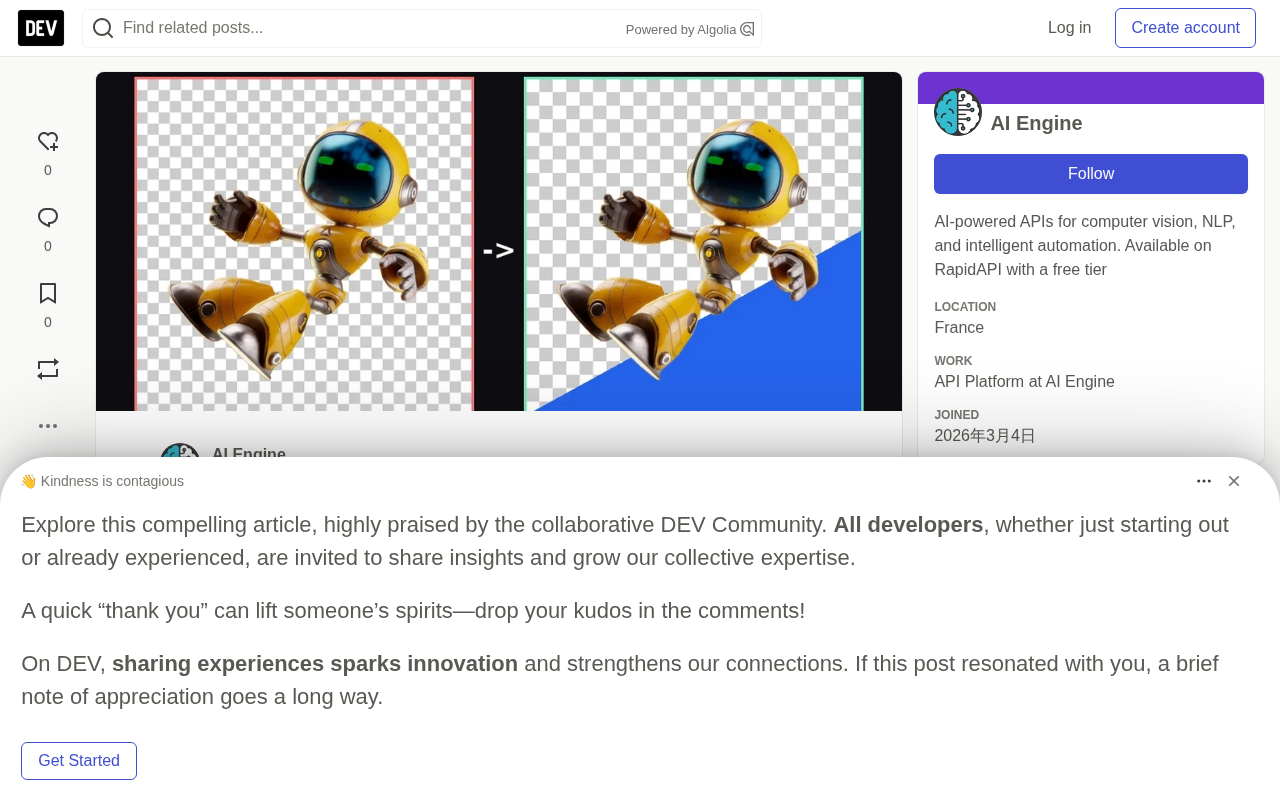
The function's logic is straightforward: no alpha channel means immediate failure; if a channel exists, check the minimum value of the alpha channel, and only pixels that are not fully opaque count as truly transparent. In the original test cover image, the left half returns False (pure RGB), and the right half returns True—the robot's background is half checkerboard and half blue, and it only holds when surrounding pixels are truly "empty."
Image segmentation and color masking are two different approaches to cutout. Color masking makes threshold decisions based solely on pixel color, deleting all green pixels, so it cannot distinguish "background green" from "the subject's own green." Segmentation models learn the subject's semantic boundaries through training, output a per-pixel foreground probability matte, and generate the alpha channel from it, so they can handle soft edges like hair, smoke, and translucent glass, and preserve subject parts that share the background color. Mainstream segmentation APIs are typically based on U-Net or Transformer architectures, and when removing backgrounds they estimate edge alpha values simultaneously rather than performing simple binary cuts.
The Fix: Solid Background Generation + One API Call
Step 1: Generate on a solid, high-contrast background
Write the prompt as "a plain solid orange background, no shadow, no floor." The key is to avoid the word "transparent," which is exactly the switch that triggers checkerboard painting. A dark subject on a light solid background, or vice versa, minimizes the difficulty of later cutout.
Step 2: Call the background removal endpoint
Send the file to /remove-background, and the returned JSON contains a link to an RGBA PNG:
import requests

API_URL = "https://background-removal-ai.p.rapidapi.com/remove-background"
HEADERS = {
    "x-rapidapi-host": "background-removal-ai.p.rapidapi.com",
    "x-rapidapi-key": "YOUR_API_KEY",
}

with open("robot.png", "rb") as f:
    r = requests.post(API_URL, headers=HEADERS, files={"image": f}, timeout=60)
r.raise_for_status()
data = r.json()
print(data["image_url"], data["width"], data["height"])

png = requests.get(data["image_url"], timeout=60).content
with open("robot-transparent.png", "wb") as f:
    f.write(png)
If your generator returns a URL directly, replace the file upload with json={"image_url": "https://example.com/generated.png"}. The original test image was a 3D character render on a solid orange background; after cutout, the hands, thin arm joints, and reflective visor were all preserved. The author also specifically tested an image with a "redrawn checkerboard": the API likewise removed the painted squares, returning a clean RGBA file.
Batch Processing Stickers and Icons
AI-generated assets often come in sets. The following script uses a thread pool to process an entire folder in parallel (PNG, JPEG, WebP input; transparent PNG output):
import requests
from pathlib import Path
from concurrent.futures import ThreadPoolExecutor

API_URL = "https://background-removal-ai.p.rapidapi.com/remove-background"
HEADERS = {
    "x-rapidapi-host": "background-removal-ai.p.rapidapi.com",
    "x-rapidapi-key": "YOUR_API_KEY",
}
SRC = Path("generated")
OUT = Path("transparent")
OUT.mkdir(exist_ok=True)

def make_transparent(path: Path) -> str:
    with open(path, "rb") as f:
        r = requests.post(API_URL, headers=HEADERS, files={"image": f}, timeout=60)
    r.raise_for_status()
    png = requests.get(r.json()["image_url"], timeout=60).content
    out = OUT / f"{path.stem}.png"
    out.write_bytes(png)
    return out.name

files = sorted(p for p in SRC.iterdir() if p.suffix.lower() in {".png", ".jpg", ".jpeg", ".webp"})
with ThreadPoolExecutor(max_workers=4) as pool:
    for name in pool.map(make_transparent, files):
        print("saved", name)
For batch scenarios, keeping max_workers around 4 is relatively safe—it provides parallel speedup without maxing out API rate limits.
ThreadPoolExecutor is a thread pool implementation provided by Python's standard library concurrent.futures, suitable for I/O-bound tasks. Threads wait during network requests, so the GIL is not a bottleneck, and multithreading can significantly reduce overall time. max_workers=4 means at most 4 requests are sent simultaneously, with the rest queued. Controlling concurrency matters because it must match the server's rate limit: most APIs limit by requests per second or per minute, and excessive concurrency triggers 429 errors, which require retries and actually slow down overall progress. In production, combine this with an exponential backoff retry strategy to automatically slow down upon receiving 429.
Green Screen Keying vs. Segmentation API: How to Choose
If you fully control the prompt, you can generate on a solid green background and then delete green pixels with a color mask. This path is free but fails in four scenarios:
- The subject itself is green or yellow-green (plants, mascots, neon logos)
- Soft edges like hair, fur, and smoke leave green halos
- Reflective and glass materials pick up a green cast
- Images you didn't generate: user uploads, painted checkerboards, old asset libraries
Segmentation-based APIs look at "what the subject is," not "what color the pixels are," and a single call covers all the above cases. According to tech blogger Phil Schmid's practice of making transparent stickers with Nano Banana Pro, the green screen approach indeed leaves noticeable green fringes on soft edges, which corroborates the limitations of color masking.
Green spill is a typical byproduct of color keying: the subject's edges reflect or transmit green light from the background, leaving a green halo after green pixels are removed, especially noticeable on hair, gauze, and reflective materials. Professional film workflows use spill suppression (despill) algorithms to lower the green channel of edge pixels to match the red and blue channels, but this requires fine-tuning and has limited effect on semi-transparent areas. Segmentation-based APIs directly estimate the foreground blend ratio when outputting the alpha matte, fundamentally avoiding spill—which is the core reason they outperform color masking on soft edges.
Practical Tips for Clean Cutouts
- Want contrast, not transparency. Don't write transparent in the prompt; instead ask for a dark subject on a light solid background.
- Disable shadows and floors. Soft shadows are part of the image and get removed along with the background during cutout, leaving dirty edges.
- Generate at large size, then cut out. Upscale first, then cut out—not the other way around.
- Need a brand-color background. The
/color-backgroundendpoint accepts abg_colorin "R,G,B,A" format (e.g., "37,99,235,255"), placing the subject directly on your exact color value.
The multi-source cross-verified conclusion is clear: on transparent output, OpenAI provides an API option, Gemini and Grok have no documented path, and Midjourney has no parameter. Rather than gambling with prompts, split generation and cutout into two steps—solid background generation, then a single API call for segmentation. Don't skip the detection step either; that PIL snippet can catch painted checkerboards before files go live.
One-line Summary
Among mainstream AI image tools, only OpenAI supports true transparent output; the rest require solid backgrounds plus a segmentation API as a fix.
Paragraph Summary
The article checks each AI image generator's official documentation and finds that only the OpenAI GPT Image API offers a documented transparent background option, while Gemini, Grok, and Midjourney do not support it. A more insidious problem is that writing "transparent background" in the prompt induces the model to paint the checkerboard directly into pixels—previews look correct, but gray-and-white squares appear in production. The author provides PIL-based alpha channel detection code and recommends a repair workflow of "solid high-contrast background generation plus one segmentation API call," with Python examples for single and batch processing, while analyzing why green screen keying fails in four scenarios: green subjects, soft edges, reflective materials, and images not self-generated.
Related articles

Chain of Thought Isn't Just for AI: How Humans Can Use CoT to Improve Thinking Quality
Chain of Thought isn't just a prompt trick for large models. Starting from a Hacker News discussion, this article analyzes why CoT works for human thinking too, breaks down actionable ways to transfer it, and highlights the key differences between human CoT and machine CoT.
Cloudflare Teams Up with OpenAI: Closi…
Cloudflare Teams Up with OpenAI: Closing the Loop from Vulnerability Discovery to Defense with AI
Cloudflare uses OpenAI Daybreak to investigate security vulnerabilities and generate reviewable remediation plans, while developers use Codex to boost coding efficiency and quality.

Orca Multi-Agent Orchestration in Practice: A Guide to Parallel Collaboration with Claude and Codex
Orca is Stable AI's free open-source agent workbench supporting 34 agents like Claude Code and Codex in parallel. Learn its Git worktree isolation, multi-model orchestration, and mobile management.