DSH Plugin: A Little Gemini Girl in the Corner Watching Your Balance and Quota

A DSH desktop pet plugin that turns balance and Gemini quota into reminders visible every round.
This DSH plugin lives in the bottom-right corner as a "Gemini girl" desktop pet, centrally displaying DSH balance and Gemini quota. It separates top-up balance from bonus credits, shows 5-hour and weekly Gemini quotas with reset times, and auto-reports spend and remaining after each round. Quota queries support AG plugin auto-sync, Refresh Token, and browser OAuth. Low balances trigger a warning icon and bubble alert, and Alt+H hides it instantly. It also offers head-patting, feeding, mini-games, and a Pomodoro timer, plus customizable art. Install by handing the repo address to an agent; Gemini quota syncs via DSHaglink over the official channel.
Let the "Kitty" Keep an Eye on Your Wallet and Quota
When working intensely in DeepSeekAd Harness (DSH), balance and Gemini quota are often the two things most easily overlooked. Switching back and forth to check your balance is a hassle, but not checking makes it easy to burn through your budget without realizing it. A DSH plugin that appeared on Bilibili turns this into a "Gemini girl" living in the bottom-right corner of the interface: poke her, and you can see how much money and quota you have left.
The plugin's positioning is clear—it doesn't replace DSH, but acts as a quiet "wallet keeper" while you work. It consolidates DSH balance and Gemini quota into a single always-on widget, eliminating the cost of switching back and forth.
Core Capability: Balance and Quota Tracked Separately
The plugin tracks DSH balance by recording top-ups and bonus credits separately. This detail matters in practice: bonus credits usually have their own usage rules, and displaying them together can lead to misjudging your available balance. Once tracked separately, you'll have a clearer picture of "which money you can spend and which is bonus."
After switching to Gemini mode, the plugin displays the 5-hour quota and weekly quota, and marks the reset time. During a conversation, after each round it proactively reports how much that round cost and how much balance remains; in Gemini mode it also reports automatically. This "settlement per round" design turns quota management from "discovering it after the fact" into "visible every round."

What are the "5-hour quota" and "weekly quota"
Gemini's paid subscriptions (such as the Gemini benefits in Google AI Pro / Ultra) are not unlimited; they use sliding-window rate limiting: there is a cap on the number of requests or tokens consumed within a 5-hour window, plus a longer total limit per week. The window rolls, so the consumed portion is gradually released after 5 hours, while the weekly quota usually refreshes at a fixed reset time. This is exactly why the plugin marks the reset time—knowing when you'll "recover" lets you plan the timing of key questions.
Why top-up balance and bonus credits should be tracked separately
Top-up balance is money the user has actually paid in, usually valid long-term with no usage-order restrictions; bonus credits (such as newcomer rewards or promotional gifts) often come with their own rules—for example, a shorter validity period, being deductible only within specific scopes, or being consumed after top-up balance in priority order. If the two are merged into a single "total balance" figure, users tend to overestimate their freely disposable quota, and may also mistakenly think they still have plenty left when bonus credits are about to expire. Tracking them separately essentially restores "the source and rules of the money," making budget judgments closer to reality.
Three Query Methods, Switch as Needed
Gemini quota queries offer three paths:
- By default it uses AG plugin auto-sync, ready out of the box;
- Use a Refresh Token: fill in the credentials and query independently;
- Complete OAuth authorization login in the browser.
The three methods can be switched at any time, covering the three needs of "convenience," "independence," and "official authorization." For users who don't want to fiddle with credentials, the default auto-sync path has the lowest barrier; for users who want independent queries, Refresh Token and OAuth provide alternatives.
The differences between AG plugin, Refresh Token, and OAuth
The AG plugin refers to anti-gravity (abbreviated AG in this article), a Gemini client tool that maintains the login state locally and can read the account's quota information. By default the plugin auto-syncs through it, effectively reusing existing credentials with no configuration needed from the user, so the barrier is lowest—but only if you already have AG installed and logged in.
A Refresh Token is a long-lived credential in the OAuth system: after the first authorization you get a token that can be used long-term, and the client uses it to periodically exchange for short-term access tokens, thereby querying the API without re-entering the account password. Manually entering a Refresh Token means the plugin can bypass AG and independently initiate quota queries to Gemini—at the cost of the user having to obtain that credential themselves.
Browser OAuth authorization is the standard three-party login flow: the plugin redirects to Google's authorization page, and after the user clicks agree, it calls back to obtain the token. It offers the best security and compliance, but requires the most steps. The three paths essentially make different trade-offs between "convenience" and "independent control," with corresponding differences in credential scope and expiration risk.
Low Balance Alerts: Warning Icon and Pop-up Bubbles
When the balance or quota is running low, the plugin lights up a small warning icon and proactively pops up a bubble reminder. The intent is straightforward—save the remaining quota for key questions and avoid burning through your budget on unimportant conversations. For users on pay-as-you-go billing or with limited subscription quota, this is an earlier warning than "looking at the bill afterward."
More Than a Tool—Also a Desktop Pet
If you treat it as just a query tool, you underestimate the plugin's design intent. It's more like a desktop pet living in the corner of DSH: you can pet its head, feed it snacks, play mini-games with it, and accumulate affection; it can also accompany you in focusing with a Pomodoro timer. When the boss walks by, press Alt+H and it hides immediately; press it again and it comes back obediently.
In terms of appearance, the plugin supports changing the character art on the appearance page, with a maximum of 10M images, and comes with its own 1:1 ratio image. Click the bubble and you can hear its "snarky comments."


The meaning of the Pomodoro timer and "desktop pet" interactions
The Pomodoro technique is a time management method: a cycle of 25 minutes of focus plus 5 minutes of rest, with a longer break after four cycles. The plugin combines it with the desktop pet to add a layer of rhythm management on top of reminders—preventing long, sedentary sessions from continuously consuming quota, while using a sense of companionship to reduce fatigue during long work. Designs like head-patting, feeding, and mini-games to accumulate affection are typical virtual pet mechanics, using lightweight positive feedback to make users willing to keep the widget resident.
The Alt+H one-key hide solves a very realistic scenario: desktop pet widgets tend to look out of place when sharing screens, in meetings, or during presentations. The shortcut hide lets the "companionship" be put away at any time without interfering with formal occasions—this is also where it's more practical than a fixed floating window.
Installation and Ecosystem: The AG Plugin Is the Key Partner
Installation is lightweight: just hand the repository address to the agent and let it install for you. The repository address is in the video description, and according to the author it takes only a few seconds. The plugin is also about to apply for listing on the DSH plugin marketplace; once listed, you can "adopt" it directly in the marketplace.
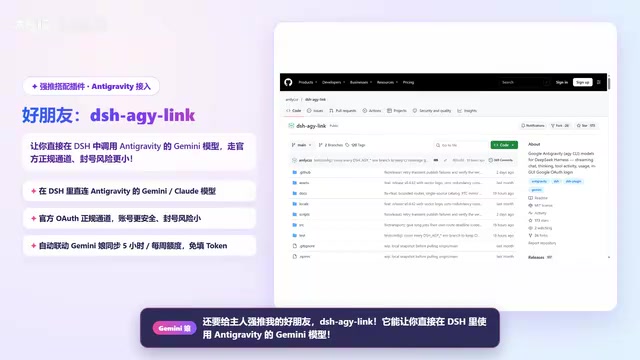
The author also strongly recommends using DSHaglink alongside it: it lets you use anti-gravity's Gemini models directly in DSH, through the official legitimate channel, with lower risk of account bans, and the plugin's Gemini quota also relies on it for auto-sync. In other words, the AG plugin handles the "channel," and the Gemini girl handles the "bookkeeping and reminders"—only together are they complete.
Why the "official channel" reduces ban risk
When third-party clients access Gemini, using unofficial APIs, reverse-engineered protocols, or shared accounts easily triggers risk controls—ranging from rate limiting to account bans. anti-gravity uses the official authorization channel, and its request characteristics match those of a normal client, so the risk is significantly lower. Precisely because it uses the official channel, it can reliably obtain the account's quota data for the plugin to auto-sync—this explains why the Gemini girl's bookkeeping function depends on the AG plugin rather than building its own separate query logic.
Hand the repository address to the agent for installation
Installing this kind of DSH plugin usually doesn't require manual cloning and configuration—just send the Git repository link to an agent with file operation capabilities, and it will download it, place it in the plugin directory, and trigger loading. This is also why the author says it's "done in seconds": the barrier lies mainly in whether you already have a usable agent environment, not in technical details.
Origin and Future Updates
The plugin originally comes from Smith Thompson's Gemini Quarter Widget project, migrated to the DSH platform by the uploader. In the video the author thanked the original creator and suggested starring the original project. The plugin is still being continuously updated; the author welcomes suggestions, bugs, and feature requests in the comments or on GitHub Issues, and promises to read every one carefully. The video script was written by Cloud Opus 5.5, and the video production was done by Gemini 4 Hydrogen.
Who It's For
If you use both DSH and Gemini and don't want to frequently switch to check your balance, the plugin's value is direct: it embeds the visibility of balance and quota into your daily conversation flow, while also providing a desktop-pet-style companionship experience. For budget-sensitive users, those relying on bonus credits, or those using the 5-hour limit mode, per-round settlement and low-balance alerts can reduce "burning through it without realizing."
For users who just want to quickly check their balance, the desktop pet gameplay may be a redundant feature, but designs like appearance changes and hiding won't interfere with the core query function—they're an added layer that's "optional but fun to use."
One-line Summary
A DSH desktop pet plugin that turns balance and Gemini quota into reminders visible every round.
Paragraph Summary
This DSH plugin stays resident in the bottom-right corner of the interface as a "Gemini girl" desktop pet, with the core function of centrally displaying DeepSeek Harness balance and Gemini quota. It tracks top-up balance and bonus credits separately, and after switching to Gemini mode it displays the 5-hour quota and weekly quota with marked reset times, automatically reporting spend and remaining after each conversation round. Quota queries support three methods: AG plugin auto-sync, Refresh Token, and browser OAuth, switchable at any time. When balance or quota is low, it lights up a warning icon and pops up bubble reminders, and Alt+H hides it with one key. The plugin also offers desktop pet gameplay like head-patting, feeding, mini-games, and a Pomodoro timer, and supports changing character art. Installation only requires handing the repository address to the agent, and Gemini quota relies on DSHaglink syncing through the official channel.
Related articles

Abnormal Error Rate Spike in Claude Mythos 5.2 and Fable 5.2
Claude Mythos 5.2 and Claude Fable 5.2 show an abnormal spike in request error rates, marked as investigating on the official status page. This article covers the incident overview, practical impact on developers, and recommended responses.

ReAct Runtime Context Trimming: Why Claude Code Acts at 70%
A deep dive into ReAct runtime context trimming: why Claude Code compresses at ~70% usage, why tool calls dominate, why messages must be dropped in pairs, and why codebases don't need RAG.

AI Agent vs LLM: How Cursor and Claude Code Actually Work
An in-depth analysis of the essential difference between AI Agents and LLMs: LLMs generate code suggestions, while Agents modify files and run tests via tool calls. Using a Spring Boot bug fix as an example, it breaks down the workflows, permission control, and verification mechanisms of Cursor and Claude Code.