Free Local N8N Deployment: Build Your Own AI Agent Automation Platform

N8N Community Edition deploys AI Agents locally for free via Node.js with zero monthly fees.
This article covers running N8N Community Edition locally to build AI Agents as a free alternative to Power Automate, Make.com, and N8N Cloud. The setup involves three steps: install Node.js, globally install N8N via npm, and run n8n to access the web UI at localhost:5678. N8N's visual workflow builder starts with triggers and uses drag-and-drop nodes, including an HTTP Request node that connects to any external API like Postman.
Why Run AI Agents Locally?
When you want to automate daily workflows, run AI Agents on a schedule, or connect to various APIs, most automation platforms start charging once your free quota runs out. Microsoft Power Automate requires a subscription and specific licenses to make HTTP requests, Make.com lets you register for free but bills by credits with limited executions, and N8N Cloud only offers a trial period.
N8N's Community Edition offers a different path — it runs entirely on your local machine with no monthly fees, making it ideal for learning, experimenting, and building your first AI Agent. Of course, you should check the current license terms before commercial use or redistribution.
Installing Node.js: Prerequisites
N8N runs on Node.js, so the first step is installing the Node.js environment. Go to the Node.js official website and download the installer for your operating system (Windows users can download the Windows installer directly). After installation, you'll have both the node and npm commands available.
Run the following commands in your terminal to verify the installation:
node --version
npm --version
If both commands return version numbers, your Node.js environment is ready. This step is simple, but it's the foundation for everything that follows — N8N is essentially a Node.js application, and without this runtime environment, it won't start.
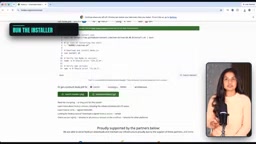
Node.js is an open-source JavaScript runtime built on Chrome's V8 engine that enables JavaScript to run directly on the operating system without a browser. Its core characteristic is an event-driven, non-blocking I/O model, which makes it particularly well-suited for handling high-concurrency network requests — a key reason many automation tools and API middleware choose it. npm (Node Package Manager), installed alongside Node.js, is the world's largest software package registry, allowing developers to install, update, and manage thousands of open-source dependencies with a single command. When installing Node.js, it's recommended to choose the LTS (Long-Term Support) version rather than the latest Current version, because LTS versions are more thoroughly tested, more stable, and receive security updates for a longer period — which is especially important for services that need to run long-term.
Installing N8N Community Edition
Once Node.js is confirmed working, install N8N globally via npm:
npm install n8n -g
The installation may take a few minutes, as N8N needs to download a large number of components and dependencies. You may see some warnings about duplicate packages or dependencies — for small projects or demos, you can ignore them for now, but for production environments, it's advisable to have your security team check whether there are vulnerable versions that need fixing.
After installation, run the following command to verify:
n8n --version
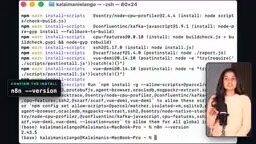
The -g flag in npm stands for global installation. Packages installed this way are placed in system-level directories, and the corresponding executable commands are registered in the system's PATH environment variable. This means you can run the n8n command directly from any directory in your terminal without navigating to a specific project folder. Without the -g flag, the package would only be installed in the current project's node_modules directory and couldn't be called globally. On macOS or Linux, global installation sometimes fails due to insufficient permissions. In that case, consider using nvm (Node Version Manager) to manage Node.js versions, or configuring npm's global directory to avoid using sudo, thereby reducing security risks.
Starting N8N and Accessing the Interface
Simply run the n8n command to start the service. If you want to schedule Agents to run periodically, N8N needs to stay running, so you can later configure it to start automatically on system boot.
After starting, wait about a minute, then visit localhost:5678 in your browser, or press O in the terminal to open the browser automatically. On your first visit, you'll need to create a local account and can choose whether to receive security updates and product notifications.
Once account setup is complete, you have an N8N server instance running entirely on your local machine, and you're ready to start building workflows.
Understanding the N8N Workflow Interface
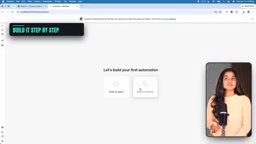
At the heart of N8N is a visual workflow builder. Every workflow starts with a Trigger — which can be a scheduled plan, an app event, or manual execution. Once you've selected a trigger method, you can build subsequent logic by dragging and dropping pre-built nodes.
Making API Requests
Take the HTTP Request node as an example — its configuration is almost identical to API clients like Postman: just fill in the target URL, headers, body, and authentication information. This makes it easy for N8N to connect to external services and APIs, extending your AI Agent's capabilities to virtually any system with an interface.
Triggers are the starting point of a workflow, determining when and how the entire automation process is activated. N8N offers several trigger types: Schedule Trigger lets you set periodic execution using cron expressions, such as automatically collecting data every day at 8 AM; Webhook Trigger generates a unique URL that triggers the workflow when an external system sends a request to that address — perfect for receiving callback events from third-party services; Manual Trigger is for clicking to execute manually, convenient for debugging and testing. There are also event triggers for specific apps, such as listening for new email arrivals or form submissions. Understanding the use cases for different triggers is key to designing efficient workflows — choosing the wrong trigger type can lead to frequent unnecessary executions or missed critical events.
Trade-offs of Local Deployment
The advantage of local deployment with N8N Community Edition is zero monthly fees, data that never leaves your machine, and deep customizability. The cost is that you need to maintain the runtime environment yourself, handle dependency updates, and pay attention to license restrictions on commercial use. For personal learning and building internal tools for businesses, this is a worthwhile investment.
The follow-up to this video will demonstrate how to build a specific data collection Agent — automatically gathering standard information and writing it to a table — a complete hands-on test of N8N's automation capabilities.
One-line Summary
N8N Community Edition runs AI Agents locally for free via Node.js, enabling workflow automation with zero monthly fees.
Paragraph Summary
This article explains how to run N8N Community Edition locally for free to build AI Agents, as an alternative to pay-as-you-go automation platforms like Power Automate, Make.com, and N8N Cloud. The installation process has three steps: install the Node.js runtime, install the N8N package globally via npm, then run the n8n command to start the service and access the web interface at localhost:5678. At the core of N8N is a visual workflow builder, where each workflow starts with a trigger and logic is built by dragging and dropping pre-built nodes. Its HTTP Request node can be configured with URL, headers, body, and authentication information just like Postman, connecting to any external API. The author notes that local deployment's advantages are zero monthly fees, data that stays local, and deep customizability, while the trade-offs are having to maintain the runtime environment and watch for commercial license restrictions — making it suitable for personal learning and building internal business tools.
Related articles

Chain of Thought Isn't Just for AI: How Humans Can Use CoT to Improve Thinking Quality
Chain of Thought isn't just a prompt trick for large models. Starting from a Hacker News discussion, this article analyzes why CoT works for human thinking too, breaks down actionable ways to transfer it, and highlights the key differences between human CoT and machine CoT.
Cloudflare Teams Up with OpenAI: Closi…
Cloudflare Teams Up with OpenAI: Closing the Loop from Vulnerability Discovery to Defense with AI
Cloudflare uses OpenAI Daybreak to investigate security vulnerabilities and generate reviewable remediation plans, while developers use Codex to boost coding efficiency and quality.

Orca Multi-Agent Orchestration in Practice: A Guide to Parallel Collaboration with Claude and Codex
Orca is Stable AI's free open-source agent workbench supporting 34 agents like Claude Code and Codex in parallel. Learn its Git worktree isolation, multi-model orchestration, and mobile management.