Free & Open Source! IOPaint Local Batch Watermark Removal Tool with One-Click Deployment

Open-source IOPaint enables local AI watermark removal with free batch processing and privacy protection.
This article introduces IOPaint, a free open-source local AI watermark removal tool designed to replace paid online services. It runs on CPU or GPU and is easy to install—just unzip and run a script. For single images, users paint over the watermark and export a mask; batch processing uses a fixed mask for image sets with watermarks in the same position. Its key advantages are zero cost, zero uploads, and unlimited batch runs, ideal for asset sets with fixed watermark positions. The article also notes boundaries: it works well on solid-color or regularly textured backgrounds but may leave artifacts in complex areas.
Goodbye Subscription Fees: A Local AI Watermark Removal Solution
Nearly all watermark removal features in apps and software on the market require a paid membership, and batch processing often costs extra. In reality, image inpainting is a fairly mature AI task that can be done entirely locally with free open-source models. According to a demo by a Bilibili creator, IOPaint is exactly such an open-source project—it implements the full workflow for batch watermark removal, and all processing happens locally with no images uploaded to the network, offering far better privacy and security than online tools.

This solution has modest hardware requirements: the model can run on either CPU or GPU. CPU mode offers good compatibility and is sufficient for most cases; if you need to process hundreds or thousands of images at once, you can configure GPU mode (NVIDIA cards only) for faster speed. Detailed configuration guidance is available in the usage instructions.
Image inpainting is a classic task in computer vision, with the goal of automatically filling in occluded or missing regions based on image context. Traditional methods mostly rely on texture synthesis or diffusion algorithms, while deep learning models (such as U-Net-based architectures) trained on large-scale data can generate content that blends more naturally with the surrounding environment. IOPaint is an open-source tool that wraps such models—it doesn't simply "erase" the watermark, but rather has the AI "imagine" the background covered by the watermark. Understanding this helps set reasonable expectations: restoration quality depends on the model's ability to infer image semantics and texture, not on magical lossless recovery.
Installation and Deployment: Just Unzip and Go
The tool has a very low barrier to deployment. After downloading the archive, simply unzip it—make sure the extraction directory does not contain Chinese characters in its path, as this may cause environment errors. Enter the extracted directory and double-click the Install script; the program will automatically initialize the environment and install the required dependencies.
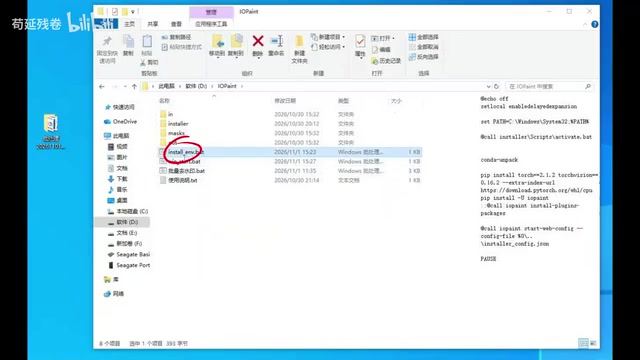
Once installation completes, a configuration page will pop up—keep all default settings and click Save. Then double-click Win Start to launch the watermark removal interface. The whole process involves no complicated parameter tuning and is friendly enough for non-technical users.
Single Image Processing: Manual Painting + Erasing
After entering the interface, drag the image you want to process into the software, scroll the mouse wheel to adjust to a suitable size, then use the brush to circle or trace over the watermark area.
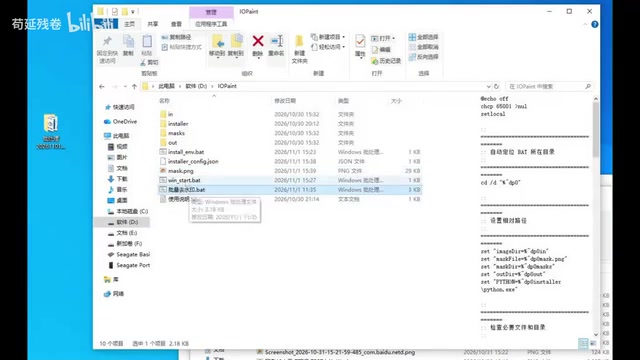
Click the eraser, and the model will inpaint the selected region, removing the watermark from the image. When done, click download to save both the mask and the processed image. There's one practical detail to note: the downloaded mask file is named MASK.JPG by default, and you need to copy it to the software's main directory and rename it to MASK.PNG so that batch processing can correctly reference this mask later.
The mask plays the role of a "signpost" in image inpainting: it is a black-and-white binary image where white areas represent regions to be repaired and black areas are kept as-is. When users paint over the watermark with the brush in IOPaint, they are essentially generating a mask. During batch processing, the same mask is applied to all images, so the watermark position and shape must be highly consistent across every image. This also explains why the mask file needs a unified name and must be placed in the main directory—the script reads that file as the fixed basis for inpainting. If watermark positions shift, batch results will suffer significantly, in which case you'll need to recreate the mask or fall back to single-image processing.
Batch Processing: Handle an Entire Batch at Once
After verifying results with a single image, you can move on to batch mode. Put all the images to be processed into the designated input directory and double-click 批量去水印.bat; the script will automatically apply the same mask to every image in the directory, and it will finish in a moment.
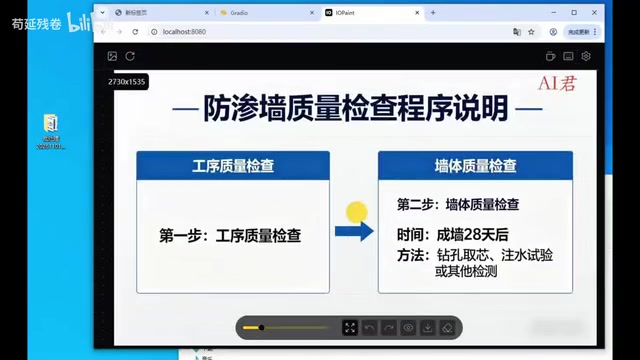
When processing finishes, close the BAT window; the result images will be stored in the OUT directory. Open any one of them and the watermark is gone. This workflow is especially suited to image sets from the same source with watermarks in fixed positions—for example, a full set of assets exported from a certain app, each carrying a logo in the same location, can be cleaned up in batch with a single mask.
Value and Applicable Boundaries
From a technical standpoint, IOPaint follows the image inpainting approach, using AI to complete the content of painted-over regions; the result depends on background complexity and the area covered by the watermark. For logo-type watermarks located on solid-color, gradient, or regularly textured areas, performance is usually quite good; if the watermark sits over a person's face or complex structures, repair artifacts may be more noticeable.
The real advantages of this tool lie in cost and privacy: zero subscription fees, zero network uploads, and unlimited batch runs. For creators who frequently need to clean up assets, deploying locally once for long-term reuse is far better than repeatedly paying for watermark removal. The software download link is available in the video comments, and detailed tutorials for installation and GPU configuration are in the usage instructions.
The difference between CPU and GPU in deep learning inference mainly comes down to parallel computing capability. Image inpainting models involve massive matrix operations, and GPUs (especially NVIDIA cards with CUDA) can process thousands of threads simultaneously, reducing per-image processing time from seconds to milliseconds. However, GPU mode requires correctly installing CUDA drivers and the corresponding PyTorch version, which presents a configuration barrier for ordinary users. CPU mode is slower but compatible with almost any computer, and is entirely acceptable for processing up to a few dozen images. Only when batch tasks reach hundreds of images or more does the acceleration benefit of GPU become significant—at that point, it's more worthwhile to consider configuring a GPU environment.
Related articles
 Tech Frontiers
Sherlock: An Open-Source Tool for Tracking Usernames Across Social Networks
Sherlock is an open-source Python tool that tracks social accounts across networks by username. This article covers its core features, why developers love it, typical use cases, and privacy compliance considerations.
 Tech Frontiers
GitHub Daily·Nov 07: Agent-Ready and Context Compression
GitHub Trending Nov 07: meta's agent-ready design system astryx, billion-context's 5x context compression, sherlock nearing 100k stars, plus local-first localthings and bare-metal GPU orchestration nvke.
 Tech Frontiers
Buoyant Open-Sources Kinference: An Inference Control Plane for vLLM on K8s
Buoyant open-sources Kinference, an inference control plane for vLLM on Kubernetes, with declarative routing, KV-cache-aware load balancing, and per-tenant metrics—claiming 95% lower median TTFT in official benchmarks.