Gemini CLI Advanced Guide: Build an AI Assistant That Truly Knows Your Project with GEMINI.md, Plan Mode, and Memory

Use Gemini CLI's three-tier context, persistent memory, and plan mode to eliminate repetitive explanations.
This article covers three advanced Gemini CLI features that eliminate the need to re-explain your tech stack every session. The three-tier GEMINI.md system stacks global preferences, project context, and module-level details automatically. The /memory command persists facts across sessions without manual upkeep. Plan mode lets you review an AI's approach before any files are touched, while the @ symbol pins relevant files to speed up responses and reduce hallucinations. The article closes by previewing MCP server integration — upgrading Gemini CLI from a knowledgeable assistant to an agent that can call real-time tools.
Tired of re-explaining your tech stack every time you open Gemini CLI? That repetitive overhead is completely avoidable with the right advanced techniques. Gemini CLI's three-tier context system, plan mode, and persistent memory let your AI assistant get to know your project like a seasoned teammate. This article breaks down how these mechanisms work — and how to use them in practice.
Three-Tier GEMINI.md: Telescope-Style Context Stacking
Gemini CLI automatically loads three levels of GEMINI.md files — global, project, and folder-level — with zero extra configuration. The core value of this design is that you never have to describe your environment from scratch at the start of each session.
Think of it like a telescope: the global file sets broad rules that apply to all projects, the project file zooms in on your current tech stack, and the subfolder file narrows further to a specific module. Each layer focuses tighter, and all three stack automatically.
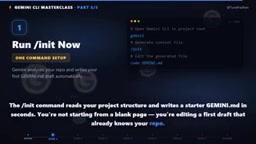
Don't want to start from a blank page? The /init command reads your project structure and generates a GEMINI.md draft in seconds. Instead of a blank slate, you get a draft that already understands your codebase — just edit from there.
What to Actually Put in GEMINI.md
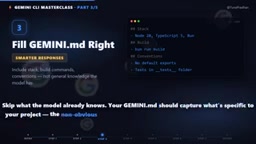
A common mistake is writing in general knowledge the model already has — this just wastes context space. What actually matters is project-specific information:
- Non-obvious build commands
- Your naming conventions
- The gotchas that trip up every new contributor
These are the details that genuinely change the quality of AI responses. In other words: skip what the model already knows, and only document the things that confuse newcomers or cause the AI to go off the rails.
From a filesystem perspective, the three tiers load from: the global file at your home directory (typically ~/.gemini/GEMINI.md), the project file at the Git repo root, and subfolder files in any subdirectory. When you run Gemini CLI inside a subdirectory, all three files are injected into the context in order — global → project → subfolder — and their contents don't override each other; they accumulate. This means you can write "I prefer a functional style" in the global file, "this is a Django backend" in the project file, and "this module handles payment logic and must never introduce external dependencies" in the subfolder file — all three will be active simultaneously in every conversation within that directory.
/memory: Tell It Once, It Remembers Forever
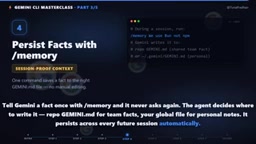
Use the /memory command to state a fact to Gemini, and it won't ask again. What's especially clever is that the agent decides on its own where to store the information:
- Team-shared facts go into the repo's
GEMINI.md - Personal notes go into the global file
These memories persist automatically across every future session — no manual maintenance required.
The Global File: A Standing Brief for Every Session
Your global GEMINI.md is essentially a permanent briefing sheet handed to every Gemini session you ever open. Define your coding style, preferred explanation depth, and framework choices once, and they'll follow you into every project — no more copy-pasting.
This design cleanly separates personal preferences from project knowledge — habits go global, project details stay in the repo — keeping the two from getting tangled.
Plan Mode: Make the AI Show Its Work Before Acting
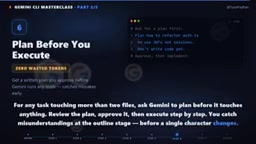
For any task that touches more than two files, the recommended approach is to have Gemini draft a plan first rather than diving straight in. The workflow is: review the plan → approve → execute step by step.
The benefit is straightforward: you catch misunderstandings at the outline stage, before a single character has been changed. Compared to letting the AI rewrite a bunch of files and then backtracking through the mess, plan mode minimizes the cost of course correction — especially for high-risk operations like multi-file refactoring.
In practice, triggering plan mode is usually as simple as adding something like "give me a plan first" or "don't modify any files yet — just walk me through your approach" to your prompt. Gemini CLI also supports entering a restricted execution state via specific flags or conversational instructions, where the model only describes its intentions without performing side effects like writing files or running commands. This aligns with the Human-in-the-Loop engineering principle — the more automated a tool is, the more important it is to insert a human confirmation step before irreversible actions. The risk in multi-file refactoring isn't just getting one file wrong; it's silently breaking cross-file dependencies. A plan-stage outline often surfaces AI misunderstandings about module boundaries before any damage is done.
The @ Symbol: Your Precision Scalpel
In a large codebase, instead of hoping Gemini finds the right files on its own, use the @ symbol to pin exactly the relevant content.
It's aptly called a precision scalpel. A smaller context window delivers two practical benefits: faster responses and fewer hallucinations — the AI can no longer speculate wildly about files that have nothing to do with your question. This is a key technique for maintaining output quality in large projects.
Wrapping Up and What's Next
Once your GEMINI.md files and memory are set up, Gemini CLI's understanding of your project approaches your own. The three-tier context handles static knowledge, /memory handles incremental accumulation, and plan mode plus @ symbols keep interactions precise and controlled.
According to the third entry in this YouTube series, the next installment will go deep on MCP servers — giving the model the ability to actually call databases, APIs, file systems, and other real-time tools, upgrading Gemini CLI from "an assistant that knows you" to "an agent that can act on your behalf."
MCP (Model Context Protocol) is an open protocol proposed by Anthropic in 2024 with the goal of giving AI models a standardized way to connect to external data sources and tools. Its core idea is to abstract operations like "read a file," "query a database," and "call an API" into a standardized tool-calling interface — the model doesn't need to know the underlying implementation, it just sends requests in the protocol format and receives structured responses. Google, OpenAI, and other major players have since adopted MCP, making it the de facto standard for AI tool integration. For Gemini CLI specifically, connecting to an MCP server means the model can query your database in real time during a conversation, read the latest logs, or trigger a CI/CD pipeline — no longer limited to static context text.
Related articles

JobRunner MCP Server: AI Agents Can Now Fix Failed Java Jobs
JobRunner launches an open-source MCP server enabling AI agents to view cluster status, diagnose failures, and recover Java jobs—incident response from any cloud coding environment or existing agent.

MLAI Digital Launches 9 Security Agents: MCP Server Safeguards the Full Lifecycle of Agentic AI
MLAI Digital launches Security MCP Server with nine built-in specialized security agents covering vulnerability discovery, attack simulation, prompt injection detection, API and infrastructure assessment, and accelerated remediation—embedding security validation across the full Agentic AI lifecycle from development to production.

Running Isaac Lab on H100 GPUs: Exploring Better Approaches
Exploring optimization methods for running Isaac Lab on NVIDIA H100 GPUs, including MIG configuration, mixed precision, TensorRT acceleration, and community experience to improve robotics simulation and reinforcement learning efficiency.