Gemini Suggestions Not Working in Google Sheets on iPad? Causes and Solutions
Why Gemini's Google Sheets tips fail on iPad, and 4 ways to fix it.
When using Gemini with Google Sheets on iPad, AI-generated instructions often can't be executed because they're based on the desktop version. This article explains the root cause — the feature parity gap between desktop and mobile apps — and offers four practical solutions: specifying your device context to Gemini, using Safari's desktop mode, switching to Google Forms for quizzes, and verifying AI instructions step by step.
A Real User's Frustration
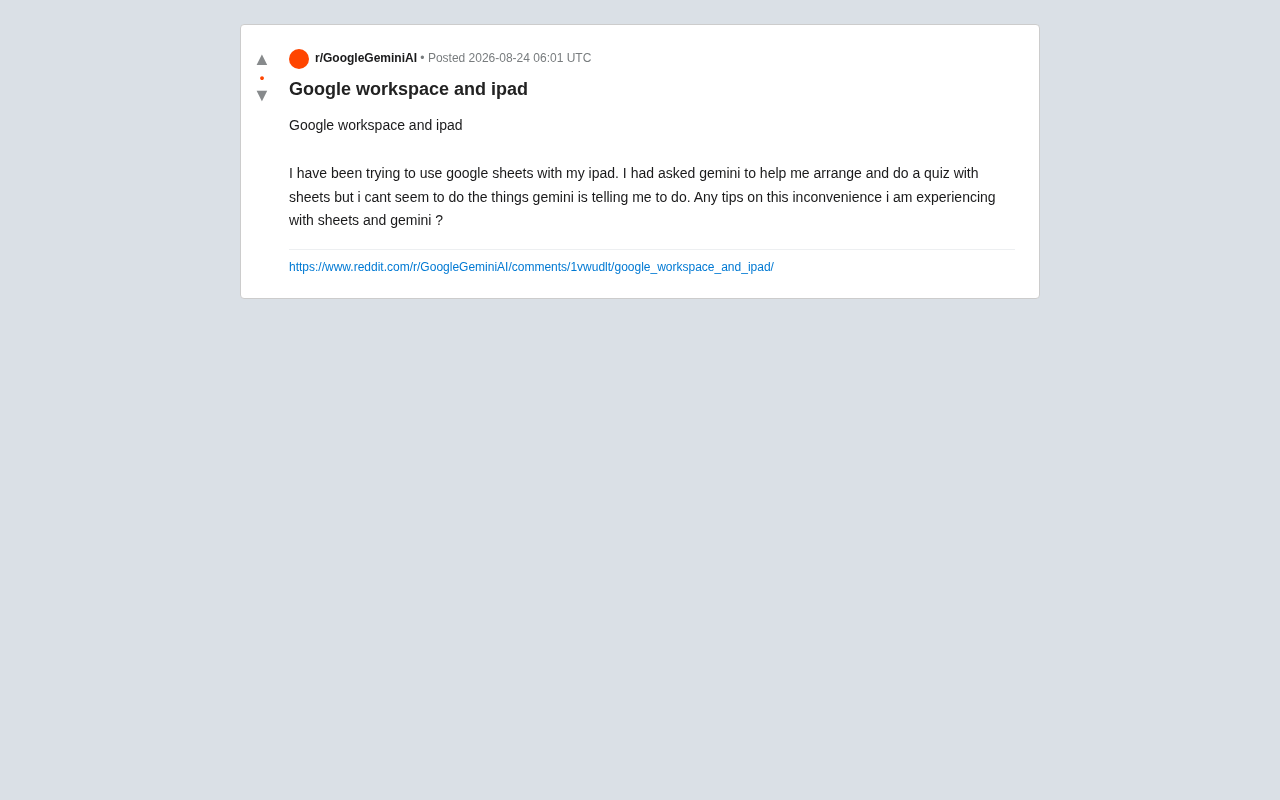
Recently, a Reddit user shared their frustration when using Google Workspace on an iPad: they wanted to use Gemini to help organize data in Google Sheets and create a quiz, only to find that the steps Gemini suggested simply couldn't be executed in the iPad version of the app.
This might seem like a minor issue, but it reveals a deeper compatibility gap between current AI assistants and mobile productivity tools. As we increasingly rely on AI to guide our actual workflows, the disconnect between AI's "theoretical" instructions and the real software environment is becoming a genuine pain point for many everyday users.
Root Cause: Desktop Logic Misaligned with Mobile Platforms
Gemini Defaults to Desktop-Based Suggestions
When Gemini answers questions about "how to do something in Google Sheets," its training data and default assumptions are typically based on the desktop browser version of Google Sheets. The desktop version has the most complete feature set, with full menu structures, keyboard shortcuts, and extension support.
However, the iPad runs a standalone native app with a significantly different interface layout, feature access points, and capabilities compared to the web version. Many advanced features available only on desktop — such as complex data validation, the script editor (Apps Script), and certain chart and conditional formatting options — are either simplified or entirely missing from the iPad app.
This discrepancy has historical roots. Google Workspace's product lineup has evolved from purely web-based applications to multi-platform native apps. In the early days, Google Docs/Sheets ran entirely in browsers with highly consistent functionality. Around 2014, Google began releasing standalone native apps for iOS and Android to provide better offline support and touch experiences. However, developing and maintaining native mobile apps is extremely costly, so Google adopted a "core features first" strategy — mobile apps implement only the most commonly used 80% of features, while advanced capabilities remain exclusive to the web version. This strategy created what's known as the "feature parity gap," where different platforms under the same brand have significantly different feature coverage. For everyday users, the same "Google Sheets" name actually represents two products with vastly different capabilities.
Quiz-Making Requirements May Exceed the iPad App's Capabilities
The user mentioned wanting to "create a quiz." Within the Google ecosystem, quizzes are typically better suited for Google Forms rather than Sheets. If you insist on building an interactive quiz in Sheets, it usually requires writing scripts through Apps Script or setting up complex formula logic — and Apps Script is completely unavailable on the iPad app. This means Gemini's suggested approach was fundamentally incompatible with the user's device capabilities from the start.
For additional context, Google Apps Script is a JavaScript-based cloud scripting platform released in 2009 that allows users to write automation logic within Google Workspace apps. It essentially runs on Google's servers (similar to serverless functions) and deeply integrates with the APIs of Sheets, Docs, Forms, and other apps to enable data processing automation, custom menus, triggers, and other advanced functionality. Because the Apps Script editor and debugging environment requires a full desktop browser (with ample code editing space, console output, breakpoint debugging, etc.), Google has never provided this feature in mobile native apps. This means any advanced logic relying on scripts — such as automatic grading, conditional branching, or data validation feedback — cannot be directly created or edited on mobile devices. Users can only run scripts that were previously deployed from a desktop.
Four Practical Solutions
1. Explicitly Tell Gemini About Your Environment
Context is critical when interacting with AI assistants. Don't just ask "how to make a quiz in Sheets" — specify: "I'm working in the Google Sheets app on iPad and can't use desktop features. Please provide steps that are feasible on iPad." This can significantly improve the relevance of the response.
You can provide even more detail, such as your iPad model, iPadOS version, and Google Sheets app version. The more specific the information, the better the AI can avoid recommending incompatible workflows. If you're unsure of your app version, you can check the Google Sheets update information in the App Store.
2. Switch to Desktop Browser Mode on iPad
Safari on iPad supports requesting the "desktop version" of websites. By opening sheets.google.com in the browser and switching to desktop view, you can access a more complete feature set. However, the experience still won't be as smooth as on a computer due to touch-based interaction limitations.
Here's how: after opening the target webpage in Safari, tap the "aA" button on the left side of the address bar (or long-press the refresh button) and select "Request Desktop Website." Note that iPadOS 13 and later versions automatically request desktop websites by default, but some apps like Google Sheets may still redirect to the mobile interface or prompt you to open the app. In such cases, try disabling the "Open in App" option for the specific website in Safari settings. When using the desktop version, operations like drag-selecting cells and right-click menus require adapting to touch gesture alternatives, and entering complex formulas can be inconvenient without a physical keyboard — pairing a Bluetooth keyboard can significantly improve this experience.
3. Choose the Right Tool: Use Google Forms for Quizzes
If the core goal is "creating a quiz," Google Forms is the natively supported solution within the Google ecosystem. It offers automatic grading, preset answers, and automatic result aggregation into Sheets, and it works relatively smoothly on iPad through the browser. Having Gemini provide advice around Forms is far more efficient than forcing Sheets to do the job.
Google Forms' Quiz Mode was officially launched in 2016, implementing a complete auto-grading engine under the hood. When a creator enables quiz mode, they can set correct answers, point values, and answer feedback for each question. After a respondent submits their answers, the system automatically calculates scores using the preset answer key and can sync results as structured data to a linked Google Sheet. The entire process requires no code whatsoever, and Forms' responsive design makes its mobile browser experience nearly as good as desktop. By comparison, simulating similar quiz functionality in Sheets requires using VLOOKUP/IF nested formulas for answer matching, Data Validation for creating dropdown selections, and conditional formatting to mark correct/incorrect answers — the complexity increases by orders of magnitude, and most of these advanced settings cannot be completed in the iPad app.
4. Verify Each AI Instruction Step by Step
When following multi-step instructions from AI, execute them one at a time and provide timely feedback. When a particular step doesn't have a corresponding menu option on iPad, tell Gemini directly: "I can't find the option you mentioned on iPad," guiding it to adjust its approach to fit your actual environment.
This "conversational correction" approach leverages the multi-turn dialogue capability of large language models. While the model can't automatically detect your device, it can revise its assumptions and adjust its suggested path based on your feedback. If possible, share a screenshot of your current interface (in Gemini versions that support multimodal input), and the AI can provide next-step guidance based on what you actually see on screen, drastically reducing the trial-and-error of "can't find the menu."
Deeper Insight: AI Suggestions Need Environmental Awareness
This user's experience is far from unique — it reflects a universal limitation of current generative AI assistants: a lack of awareness of the user's specific operating environment.
When AI models answer operation-related questions, they tend to provide "standard answers" but struggle to determine whether the user's device model, software version, or system permissions actually support those operations. Functional differences between desktop and mobile, free and paid versions, and different operating systems can all render "theoretically correct" advice impossible to execute in practice.
From a technical perspective, current large language models (LLMs) primarily rely on contextual information from text input to infer user intent and environment when processing queries. The model itself has no ability to detect the user's device type, operating system version, or application state — it cannot call system APIs to retrieve device information the way native apps can. This is the so-called "environmental blind spot" problem. Current industry approaches to solving this include: first, automatically appending device metadata when sending requests through client-side SDKs (as Google has begun practicing in the Android version of Gemini); second, allowing users to share screenshots through multimodal capabilities so the AI can assess the interface state; and third, using Function Calling mechanisms to let the AI interact with applications in real time to retrieve lists of currently available features. Google's integration of Gemini into the "side panel" of Workspace apps is an attempt at the third approach — when Gemini runs inside Sheets, it can theoretically know the current app's version and available feature set, enabling more precise guidance.
For everyday users, this is a reminder: AI is a powerful assistant, but not an omniscient operator. In cross-device, cross-platform scenarios, proactively providing environment information, verifying each step, and maintaining flexibility to switch tools are the keys to truly harnessing AI's capabilities.
For AI product designers, this also points to a clear direction for improvement: future AI assistants should be able to identify the user's device type and software environment, or even integrate deeply with applications, to provide guidance that is truly "executable" rather than merely "theoretically correct." This is perhaps the core problem Google aims to solve by deeply integrating Gemini into Workspace apps. We're already seeing early results in this direction — for example, in Google Docs, the sidebar Gemini can directly manipulate document content rather than just offering text-based suggestions. When this deep integration extends to all features across all platforms (including mobile), the problem of "AI suggestions that can't be executed" will be fundamentally resolved.
Key Takeaways
Related articles

Python 3.15 New Feature: Is the sentinel Type Better Than None?
Python 3.15 adds the sentinel type, using named unique sentinel objects to replace None and bare object(), resolving confusion among missing values, explicit emptiness, and invalid input while avoiding type hint failures.

Deep Learning's Three Architectures and the Universal Approximation Theorem: A Complete Guide to MLPs, CNNs, and Transformers
Explaining the inductive bias differences among MLP, CNN, and Transformer, the existence meaning of the Universal Approximation Theorem (UAT), and the role of Taylor expansion in approximation analysis, while clearing up common misconceptions.

GitLab Emergency Patch Release: Analysis of Critical Security Fixes
GitLab releases critical patch 19.5.1, sparking 355 points of discussion on Hacker News. This article analyzes the background, upgrade steps for self-hosted instances, and verification points to help DevOps teams respond quickly to security updates.