Getting Frequent Gemini Error Messages? A Complete Cross-Account Troubleshooting Guide

A systematic guide to diagnosing and fixing persistent Gemini error messages across multiple accounts.
When Gemini displays persistent error messages across all Google accounts despite clearing cache and updating the app, the issue likely stems from server-side outages, client version bugs, or regional feature restrictions. This guide provides a step-by-step troubleshooting framework — from verifying server status to cross-checking access methods and submitting feedback to Google — helping users efficiently identify and resolve the root cause.
A Real Report from the User Community
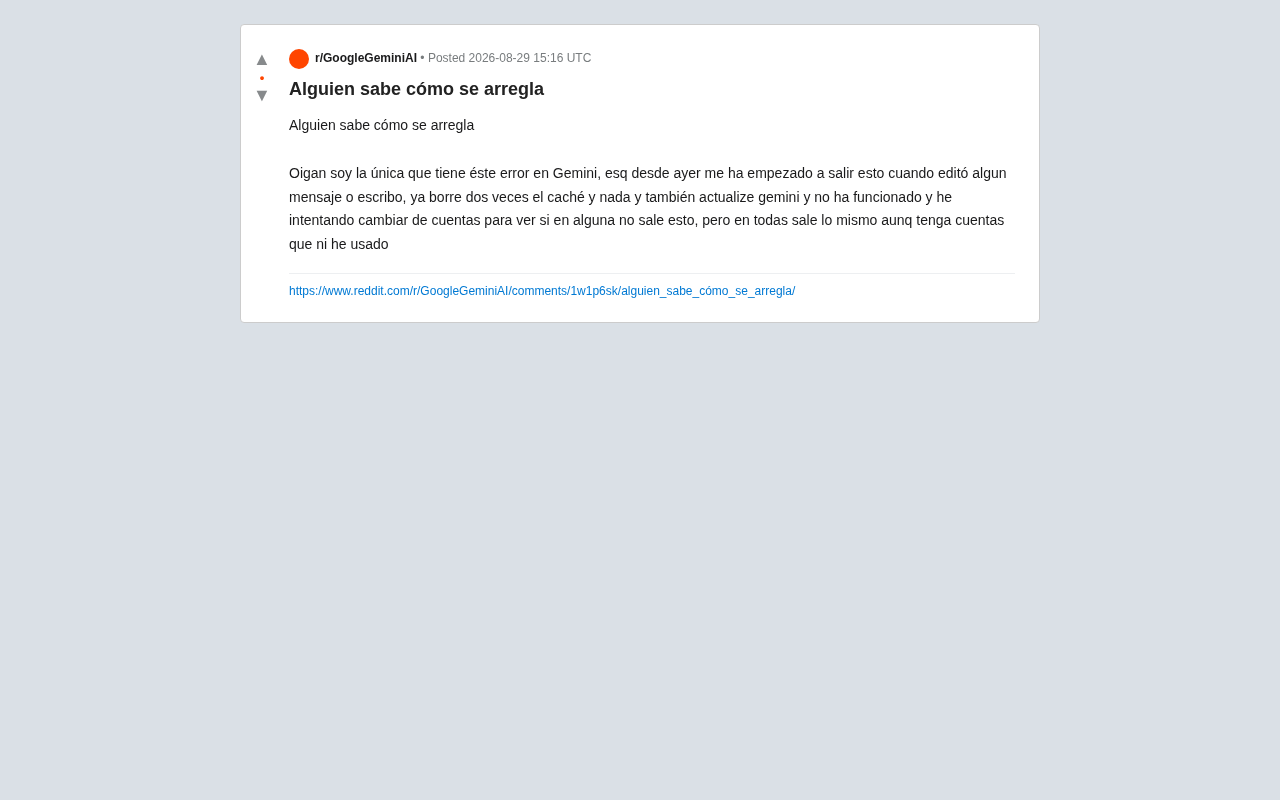
Recently, a Gemini user posted on Reddit asking for help with a persistent error: starting the previous day, Gemini would display an error message whenever she edited a message or typed text. What made it even more frustrating was that this wasn't an isolated incident — the problem appeared across all of her Google accounts, including ones she had never even used before.
While this may seem like an ordinary help request, it actually exposes some common issues with stability and error handling mechanisms in today's AI conversational products. In this article, we'll analyze this case, explore the possible causes of Gemini errors, and provide a systematic troubleshooting approach.
Standard Troubleshooting Steps the User Already Tried
Based on the original post, this user had already done a fair amount of troubleshooting, covering most of the common fixes people typically think of:
- Cleared cache: Cleared the cache twice, but the problem persisted.
- Updated the app: Updated Gemini to the latest version, with no improvement.
- Switched accounts: Tried logging in with different Google accounts, including some that were rarely used — every single one showed the same error.
These three steps are all valid troubleshooting approaches, but none of them worked. This actually gives us an important diagnostic clue: When Gemini error messages persist across multiple accounts and survive cache clearing, the root cause is most likely not on the user's local device or tied to a single account — it's at a deeper level.
Three Possible Causes of Gemini Errors
1. Google Server-Side Outage or Regional Disruption
If the error keeps appearing across multiple accounts and after repeated cache clearing, the most likely explanation is a temporary server-side issue on Google's end. Gemini relies on a massive backend infrastructure, and when servers, API gateways, or model scheduling layers experience anomalies in a particular region, users will continuously receive error messages — regardless of their account or device status.
In this scenario, no local action on the user's part can fix the problem. The only option is to wait for an official fix. It's a good idea to check the Google Workspace Status Dashboard or third-party monitoring sites like Downdetector to see if there's a widespread service outage.
2. Client Version Compatibility Issues
Although the user had already updated the app, the new version itself may have introduced a bug. AI products iterate at breakneck speed, and a particular update might trigger unforeseen errors on specific device models or OS versions. This also explains why "updating to the latest version" didn't help — the problem may have been caused by the latest version itself.
In this case, you can try rolling back to a previous stable version, or switch to the web version (gemini.google.com) to determine whether the issue is specific to the mobile client.
3. Account Region or Feature Rollout Restrictions
Interestingly, the original post was written in Spanish, suggesting the user is likely located in Latin America or Spain. Some Gemini features have gradual rollouts and varying availability across different regions. Certain editing and input-related features may not be fully available in specific regions, or they may be in an A/B testing phase, which could cause frequent errors.
A Systematic Approach to Troubleshooting Gemini Errors
For situations involving "persistent errors across multiple accounts," follow these steps in order:
Step 1: Determine Whether It's a Server-Side Issue
Try accessing Gemini on a different network (e.g., switch to mobile data) and on a different device. If every environment produces the same error, it's almost certainly a Google server-side issue — just wait for the fix.
Step 2: Cross-Verify by Switching Access Methods
- If the mobile app throws errors → try accessing the web version of Gemini via a browser
- If the web version also throws errors → try incognito/private browsing mode to rule out browser extension interference
- Try different browsers (Chrome, Edge, Safari, Firefox) for cross-verification
Step 3: Check Your Network Environment and Regional Factors
Some Gemini errors are closely tied to the user's region. Try checking your Google account's region settings, or look into whether Gemini features are restricted in your area.
Step 4: Submit Feedback to Google
If none of the above methods resolve the issue, use Gemini's built-in "Feedback" feature to submit a problem report, including error screenshots and detailed reproduction steps. When multiple users report the same issue simultaneously, the priority for an official fix increases significantly.
What This Case Reveals About AI Product Stability Challenges
This seemingly minor help request reflects a real dilemma facing today's AI conversational products: how to maintain service stability and provide explainable errors while pursuing rapid iteration.
For average users, a vague error message is deeply frustrating — they don't know where the problem lies, or whether they should wait or take action. This user tried nearly every method she could think of, invested a significant amount of time, and still ended up stuck.
This serves as a reminder for AI product developers:
- Error messages should be more informative, clearly telling users whether it's a temporary service outage or something requiring user action
- Service status transparency needs improvement, making it easy for users to check whether Gemini is currently operating normally
- Gradual rollouts should come with clearer regional availability information to reduce user confusion
For users, the most rational approach when encountering such issues is: first identify the level of the failure, then decide on a response strategy. When you discover that a problem persists across accounts and devices, instead of repeatedly clearing caches and switching accounts, it's better to calmly confirm whether it's a server-side issue — and avoid wasting unnecessary time and energy.
Conclusion
As a mainstream AI assistant, occasional errors in Gemini are inevitable. This real community feedback serves both as a specific technical help request and as a mirror reflecting the room for improvement in AI product user experience. For users, having a clear troubleshooting logic is far more efficient than trying fragmented fixes one by one — when Gemini throws an error, don't rush into repeated actions. Following a systematic troubleshooting process is always the best approach.
Related articles

Chain of Thought Isn't Just for AI: How Humans Can Use CoT to Improve Thinking Quality
Chain of Thought isn't just a prompt trick for large models. Starting from a Hacker News discussion, this article analyzes why CoT works for human thinking too, breaks down actionable ways to transfer it, and highlights the key differences between human CoT and machine CoT.
Cloudflare Teams Up with OpenAI: Closi…
Cloudflare Teams Up with OpenAI: Closing the Loop from Vulnerability Discovery to Defense with AI
Cloudflare uses OpenAI Daybreak to investigate security vulnerabilities and generate reviewable remediation plans, while developers use Codex to boost coding efficiency and quality.

Orca Multi-Agent Orchestration in Practice: A Guide to Parallel Collaboration with Claude and Codex
Orca is Stable AI's free open-source agent workbench supporting 34 agents like Claude Code and Codex in parallel. Learn its Git worktree isolation, multi-model orchestration, and mobile management.