Getting Started with Claude Code: A Complete Guide to Installation, Configuration, and Git Workflows

A complete guide to Claude Code: installation, domestic model switching, and conversational Git workflows.
This guide walks through Claude Code from installation to real-world use: CLI setup, switching to domestic LLMs via CC Switch, core commands, and conversational Git workflows including branch development and automated bug fixing—helping developers quickly master AI-powered coding collaboration.
Claude Code: From Code Assistant to Engineering Collaborator
The popularity of Claude Code needs no further introduction. As an AI programming tool from Anthropic, it initially offered only a command-line version with relatively limited functionality—analyzing project code, understanding file relationships, editing code, and offering suggestions. After rapid iteration, today's Claude Code is worlds apart from its early versions, featuring a wealth of built-in efficient tools and comprehensively enhanced capabilities.
Its core evolution manifests in three dimensions. Its context awareness has improved dramatically: whereas it could once only analyze a single file, you can now directly ask detailed questions about an entire project's structure, and it will provide thorough analysis. An engineering-oriented focus has become its main thread: it's no longer limited to development capabilities but can implement complete engineering workflows like SDD (Specification-Driven Development) and automated testing. High customizability: through the Skill mechanism, developers can distill their real-world work experience into reusable skills, significantly boosting efficiency.
In other words, Claude Code has gradually evolved from a tool geared toward programming scenarios into a true collaborator. The human role shifts toward setting goals, defining constraints, making judgments, and controlling aesthetics, while the AI handles execution—analysis, comparison, and solving repetitive tasks.
Value Scenarios for Different Roles
For programming beginners, tasks like being unable to understand complex open-source project code or facing tricky errors in production environments can all be handed off to Claude Code. It can not only explain code but also discover legacy bugs in the system, identify performance issues, and fix them one by one.
For independent developers, through multi-Agent orchestration, you can launch multiple roles—product, development, testing, operations—within a single environment, handling both frontend and backend at once, drastically reducing time costs.
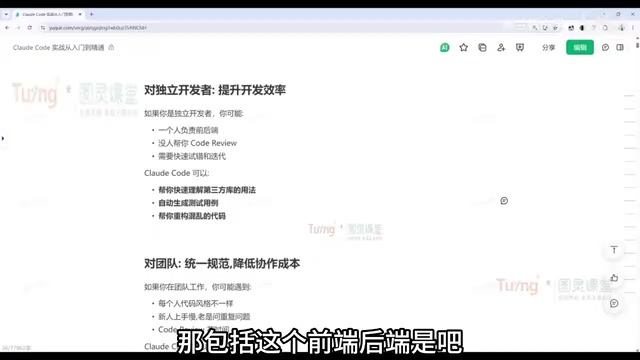
For team collaboration, the value of Claude Code lies in unifying standards and lowering collaboration costs. Common team pain points—inconsistent code styles, difficulty for newcomers to understand projects, time-consuming code reviews—can all be addressed by building Skills. For example, you can use CLAUDE.md to unify team development standards, and create dedicated Skills to analyze issues, check code compliance, and perform code reviews. This experience can all be accumulated, helping newcomers get up to speed with projects quickly.
Environment Setup and Switching to Domestic Models
Claude Code currently comes in three main versions: the Web version (used directly in a browser, suitable for simple conversations), the CLI command-line version, and the plugin version integrated into editors like VS Code, PyCharm, and IDEA. Early on, since only the CLI version existed, the command-line approach was more common; now, with editor plugins available, you can simply install them for a more efficient experience.
Claude Code CLI Installation Steps
Command-line installation is very simple—just one command gets it done. On Mac/Linux/WSL environments, use the official Shell script; on Windows, use the irm command. After installation, run claude -v to check the version—seeing a version number (such as 2.1.207) means the installation succeeded. A prerequisite for installation is a stable network connection; if you encounter errors, try a few more times.
You can also install via npm, which requires first configuring a Node.js environment (version 22.x is recommended). Run node -v to confirm. If npm downloads are slow, switching to a domestic mirror source is recommended. Updating is even simpler—Claude Code will prompt you to upgrade when it detects a new version, or you can manually run claude update.
Switching to Domestic LLMs with CC Switch
Due to network reasons, Claude Code's official models cannot be reliably accessed within China, so switching to a domestic LLM is recommended. Here, we recommend using the CC Switch tool to quickly complete the model switch.
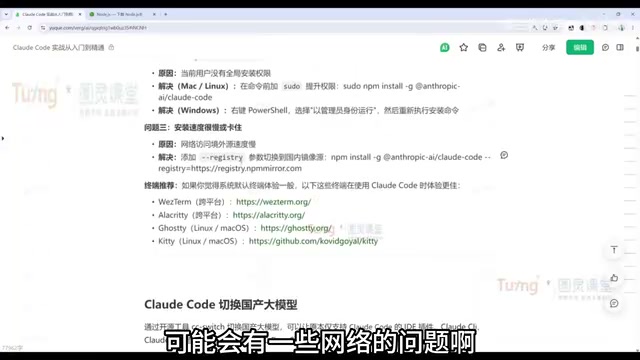
Download the corresponding version from the CC Switch project page (Windows users should note the difference between ARM and AMD64 architectures—regular users can simply choose AMD64). The tool supports both a portable version (unzip and use) and an MSI installer version. After installation, open the interface, select the appropriate mode (terminal users choose Claude Code), and click the plus sign to add a model—it supports mainstream domestic models like DeepSeek V4, Kimi, and Tongyi Qianwen.
When configuring, simply enter the corresponding API key and keep the remaining parameters like the address at their defaults. After adding, click the enable toggle, then check "Local Routing" in the settings, and restart Claude Code for normal use. Domestic models are used the same way as the official models, though there is a certain gap in performance. If you want to use the official model, simply choose the first option and log in to your subscription normally.
Core CLI Commands and Basic Interaction
Even if you primarily use it within an editor, mastering basic CLI commands is still necessary. You can view all available commands via /help, but a more recommended approach is to simply ask through conversation—when you don't know how to use a certain command, just ask "Which command should I use to resume a conversation?" and it will tell you directly, almost eliminating the need to consult the official documentation.
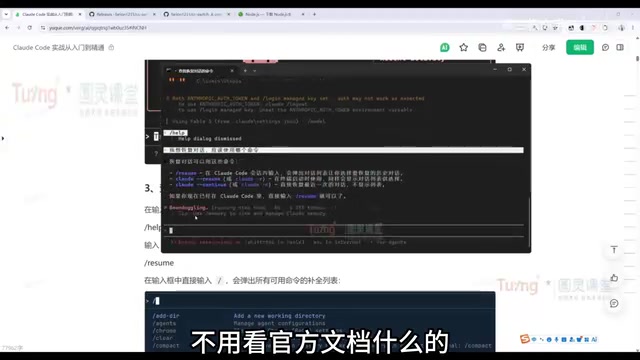
A few high-frequency commands worth remembering:
claude -corclaude --continue: Resume the previous conversation—the most frequently used commandclaude -r/claude --resume: View the conversation history list and choose one to resume/clear: Clear the current conversation record and start a fresh sessionclaude -p "prompt": Headless mode, directly executing a single task via command (such as "analyze the project structure of the test directory"), with results output to the console—no need to enter the conversation window
Real Project Structure Analysis
When using Claude Code for enterprise-level development, the first step is usually to have it analyze the project structure. After switching to the project directory, launch claude and ask "analyze this project"—it will clearly outline details like the project type (such as a Vue frontend admin management system) and the relationships between various modules. For interns just starting out or developers encountering a project for the first time, this is the most practical way to get started.
Hands-On Git Workflows Through Conversation
One of Claude Code's most impressive capabilities is making Git operations as simple as everyday conversation. Developers don't need to memorize specific Git commands—they just describe their needs in natural language, and it automatically invokes the appropriate commands.
A Complete Branch Development Workflow
An entire Git workflow can be completed purely through conversation:
- Create a project and push it: "Help me create a personal tech blog project using only HTML+CSS+JS," then "move the files to the test project, commit and push the code"—Claude Code automatically invokes git commands to complete the whole process.
- Query commit history: "Check how many commits the test project has, and output each commit in table form."
- Create a branch to develop a new feature: "Create a dev branch, implement three different sorting algorithms, then commit and push"—it will automatically create the branch, write the code, run tests (such as all 12 tests passing), and finally complete the commit and push.
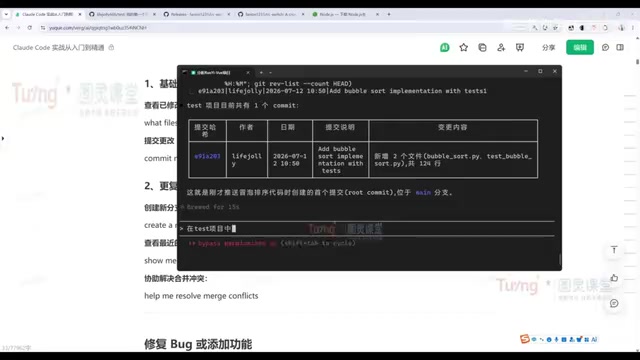
Throughout the entire process, developers can achieve "zero manual code changes"—everything is driven by conversation.
An Automated Closed Loop for Bug Discovery and Fixing
A more advanced use case is having Claude Code form an automated closed loop of "discover problems—organize problems—solve problems." For example: "Analyze what problems exist in the code of the test project's dev branch, and output an issue.md file." It will automatically locate the relevant code, understand the context, analyze the root causes of the problems, and organize the discovered issues (correctness issues, mismatches between documentation and implementation, design portability issues, etc.) into a document.
Then ask "refer to issue.md to fix all problems, commit and push the code," and it will gradually complete the fixes. If test cases exist in the project, it will also run the tests to verify the fixes. This process is essentially automated code review.
Claude Code's Standard Modification Workflow
Understanding Claude Code's modification workflow is crucial. Every modification follows fixed steps: locate the relevant files → display the changes → wait for user approval and confirmation → execute the modification. Users can approve changes one by one, or accept or reject them in batches, ensuring modifications remain controllable. This collaboration model of "AI proposes, humans gatekeep" is precisely the core embodiment of Claude Code as an engineering collaborator.
Summary
Claude Code has completed its transformation from a command-line code assistant into an engineering collaboration platform. For domestic developers, switching to a domestic LLM via CC Switch solves the access stability problem; once you've mastered the basic CLI commands and conversational Git workflows, you can quickly handle the vast majority of development scenarios. Meanwhile, advanced capabilities like Skill customization, MCP services, and Subagent collaboration open up even greater possibilities for team-level AI-powered engineering programming.
Related articles
Deep Dive into vLLM Worker-Side GPU KV Cache Initialization
Deep dive into vLLM's Worker-side KV Cache GPU memory allocation, covering the full pipeline from KVCacheConfig generation to physical memory binding via ModelRunner.
Zepto Builds AI Customer Service with MLflow: An Evaluation-Driven Practice Guide
Deep dive into how Zepto built an evaluation-driven AI customer service system using MLflow and Databricks, achieving 60% faster responses and 40% less manual handling. From technical architecture to practical insights.
Iran Captures U.S. Underwater Drone in Strait of Hormuz: A Comprehensive Analysis
Iran announces capture of U.S. Navy underwater drone in Strait of Hormuz. In-depth analysis of the incident, strategic value of UUVs, U.S.-Iran geopolitical competition, and implications for global energy security and military dynamics.