Getting Started with Codex: How It Differs from GPT and Five Core Practices

Codex differs from GPT by entering project folders to create real files; master five key practices and start with the desktop client.
This beginner guide clarifies a common misconception: Codex isn't just GPT with a new interface—it can enter your computer's project folders, read documents, and directly generate real files. It covers five core practices for beginners (folders, agent.md, plan-first, real deliverables, Skills), introduces Codex's four forms, and recommends starting with the desktop client, including download and setup steps.
Title
Getting Started with Codex: How It Differs from GPT and Five Core Practices
Meta Description
What's the real difference between Codex and GPT? This guide covers folders, agent.md, plan-first, real deliverables, and Skill workflows—plus desktop client installation steps for beginners.
Article Content
Many people open Codex for the first time and wonder: isn't this just GPT with a different interface? It's also a chat box, it can answer questions, it can write code—so why should I learn Codex?
This tutorial skips the complex features and explains the biggest difference in one sentence: GPT mainly answers you inside a chat box, while Codex can enter your computer's project and actually build the files for you.
For example, suppose you're writing a paper. You can tell Codex: "Based on the paper I'm writing, help me make a PPT on how personality models will affect humanity in the next 20 years, then save it to the location I specify." With regular GPT, you'd typically paste the paper in first, ask it to summarize, then open PowerPoint yourself to do the layout. Codex is different—as long as the paper is in a project folder it can access, it can read the document, organize the content, generate the PPT file, and save it.
It can turn results into real files—that's the most worthwhile thing to learn about Codex.
Five Things Beginners Should Understand First—Don't Rush the Terminology
If you've never used Codex, don't worry about advanced features yet. Just understand these five things first.
First: Choose a folder for the task
In Codex, you put comment data, documentation, scripts, and output results into a single folder, then select that folder. After that, when you say "analyze the comments in this folder and organize them into an Excel file," it knows where to find the data and where the results should go.
If you don't select a folder, or your files are scattered everywhere, Codex will struggle to help you reliably. So the first step for beginners isn't learning commands—it's putting the task into a clearly defined folder.
Second: Write fixed requirements into agent.md
Don't repeat yourself every time. For example, every time you'd have to explain to Codex: "I create content about AI tools, this project is about analyzing YouTube comments, I want to know what viewers are asking, what they want to see, which tools they're interested in, and I need an Excel report at the end. Should the API be written into the code? Give me a plan before writing any code."
Saying all this every time is tedious, so you can put an agent.md file in the project. It doesn't need to be complex—just write these fixed requirements into it. From then on, when Codex opens this project, it reads this document first, so it feels more like continuing a long-term project rather than guessing your needs from scratch every time.

What is agent.md?
In AI coding tools like Codex, agent.md (sometimes written as AGENTS.md) is a plain-text instruction file placed in the project root, serving as a "project brief" for the AI. It was first adopted by convention among open-source AI coding agents, and later officially supported by tools like Codex: each time a task starts in that folder, the tool reads this file first and injects its contents as long-term context.
Since LLM conversation context has a length limit and each new session starts from zero, relying on repeated verbal instructions is both time-consuming and error-prone. By writing role definitions, project background, output formats, coding standards, and prohibitions into agent.md, the AI can reliably "remember" these constraints. It's essentially prompt engineering made systematic: turning one-off conversational instructions into a version-controlled, team-shareable project configuration file.
Third: For complex tasks, ask for a plan first
The better approach is: "Don't write code yet—first tell me how you plan to do this." It will then break down the task, for example: read the comments, design the categories, generate the Excel, and finally consider whether a webpage is needed. Once you've reviewed the plan and think the direction is right, let it execute. If something seems off, you can adjust the plan first—tell it "skip the webpage for now, get the Excel done first," or "the categories must include tool comparisons, content suggestions, and technical questions." This prevents it from going off track from the start.
Fourth: Make it produce real deliverables, not just suggestions
Many people tell AI "help me analyze the comments," and the results are usually vague. You can phrase it more like a real task: "Analyze the last 200 YouTube comments, categorize them by tool comparisons, content suggestions, technical questions, and general feedback, identify the most worthwhile comments to reply to, and generate an Excel file with a summary, categorized details, tool mentions, priority replies, topic ideas, and raw data."
What Codex produces is no longer a chat reply, but a file you can actually open, inspect, and keep editing. That's the difference between Codex and ordinary chat AI: you're not just asking for its opinion—you're making it build something.
Fifth: Save repeated tasks as fixed workflows
For example, if you do comment analysis every week—pulling comments, categorizing, summarizing topic ideas, generating Excel—don't re-explain it every week. Once the workflow runs smoothly, you can have Codex organize it into a Skill. From then on, you just say "generate this week's comment insights" and it follows the fixed process.
If you want to go further, you can also set it up as an automated task—for example, automatically generating a report every Sunday evening. But beginners don't need to rush into automation; first get a workflow running manually, then consider scheduled execution.

The difference between Skills and automated tasks
A Skill can be understood as a codified set of operating instructions or a workflow template, usually stored as a file in the project, recording which steps are needed to complete a certain type of task, which scripts to call, and what output format to use. When you say "generate this week's comment insights," Codex reads the corresponding Skill and executes the established steps—essentially "recording" a successful manual workflow into a reusable instruction set, reducing the deviations that come from re-describing requirements each time.
Automated tasks add a trigger layer on top of Skills—for example, starting the Agent workflow on a time schedule (Sunday evenings) or on an event. The relationship is: Skills define "what to do and how to do it," while automation defines "when to do it." For beginners, the safer path is to first run the workflow manually and distill it into a Skill, then consider adding scheduled triggers.
Four Ways to Open Codex—Beginners Should Start with the Desktop Client
Codex isn't just one desktop app—it has four ways to open it, each with different roles. Don't get confused from the start.
- Desktop client: Supports macOS and Windows, bringing the project backend, Git integration, and automation together in one window. It's the most fully featured form in the entire system and the best starting point for beginners. This lesson installs the desktop client.
- Codex CLI: Runs in the terminal, suited for ops work, script writing, and advanced users comfortable with pure command-line operation. Beginners can skip this for now.
- IDE plugin: For example, embedded in VS Code, letting you stay in the editor and have AI modify code while you watch. Great for local code iteration and real-time assistance. You may use this later when we cover actual development.
- Web version: Runs in the cloud, connected to your cloud Git repository, without directly reading or writing your local project files. Suited for cloud-based projects.
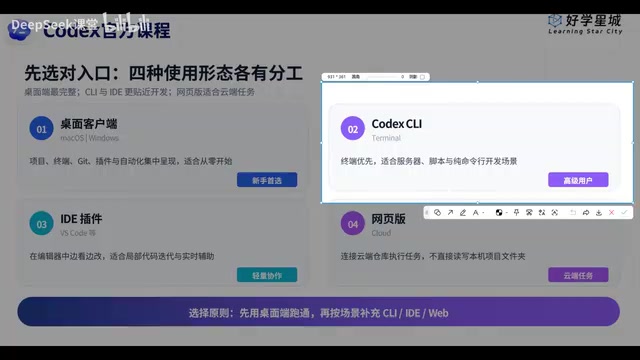
Recommended path: get the desktop client running first, then add CLI, IDE plugin, or Web as needed.
Who should use CLI vs. IDE plugin?
CLI (command-line interface) drives Codex through terminal commands. Its advantages are scriptability and the ability to chain with other command-line tools—suited for advanced users who need batch processing, remote server operations, or embedding AI into automated pipelines. Without a graphical interface, errors can only be read from text logs, so the learning curve is steeper for beginners.
IDE plugins are embedded in editors like VS Code, reading the currently open code file directly and suggesting changes near where you're editing—ideal for "write-and-revise" local iteration. They're not suited for large cross-folder tasks, but offer the best real-time assistance for everyday coding. Understanding the positioning of these two forms helps beginners, after getting the desktop client running, choose supplementary tools based on actual scenarios rather than installing everything at once.
Download and Installation: Stick to Official Channels
Before downloading, let's clarify three goals for this lesson: first, download the correct installer, distinguishing Windows from Mac versions and finding the official source; second, install successfully—double-click the installer and complete the process, handling small hiccups like agreements and paths along the way; third, complete the first-time initialization—installing doesn't mean you can use it immediately. Opening the client, agreeing to terms, and seeing the welcome screen—only after that are you officially connected to the LLM.
To download, open your browser and go directly to openai.com, then select Codex under products. The page will offer the Windows version, or the macOS version for Mac users. After downloading, double-click the application to reach the installation screen. If it's already installed on your computer, it will prompt you to update to the latest version.
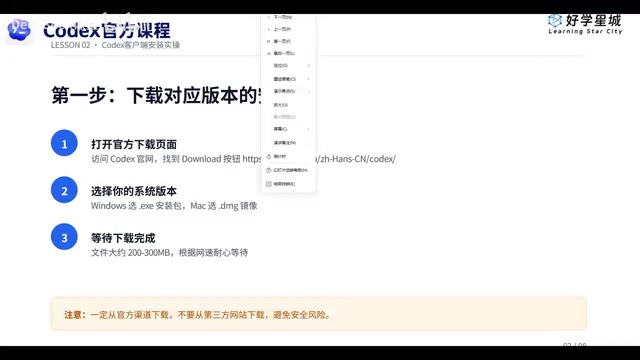
If the installer won't open, Windows users can also open the Microsoft Store and search for ChatGPT. Why ChatGPT and not Codex? Because OpenAI has now bundled Codex and ChatGPT into one desktop app, so downloading ChatGPT gives you access to Codex as well.
After installation, you should have a Codex icon on your desktop that opens normally—that completes the entire installation process.
Summary
When learning Codex as a beginner, don't start by memorizing a pile of terminology. Just remember these five things: first, choose a folder for the task; second, write fixed requirements into agent.md; third, for complex tasks, ask for a plan first; fourth, make it generate real files rather than just suggestions; fifth, save repeated workflows as Skills. Then you'll understand that Codex isn't just a GPT that's better at coding—it's more like an AI assistant that can continuously get work done inside your projects. That's the core that beginners should master first when learning Codex.
One-line Summary
Codex's core difference from GPT is that it can enter project folders and generate real files. Beginners should master five key practices and start with the desktop client.
Paragraph Summary
The article targets beginners who have never used Codex, first clearing up a common misconception: Codex isn't GPT with a new interface—it's an AI assistant that can enter your computer's project folders, read documents, and directly generate real files. Based on this, the article presents five things beginners should understand first: choose a clear folder for the task, write fixed requirements into agent.md, have the AI give a plan before executing complex tasks, require openable real deliverables rather than vague suggestions, and distill repeated workflows into Skills or even automated tasks. It then introduces Codex's four forms—desktop client, CLI, IDE plugin, and web version—recommending beginners start with the most fully featured desktop client, and finally explains the download and initialization process via the official OpenAI website or the Microsoft Store searching for ChatGPT.
Related articles

Abnormal Error Rate Spike in Claude Mythos 5.2 and Fable 5.2
Claude Mythos 5.2 and Claude Fable 5.2 show an abnormal spike in request error rates, marked as investigating on the official status page. This article covers the incident overview, practical impact on developers, and recommended responses.

ReAct Runtime Context Trimming: Why Claude Code Acts at 70%
A deep dive into ReAct runtime context trimming: why Claude Code compresses at ~70% usage, why tool calls dominate, why messages must be dropped in pairs, and why codebases don't need RAG.

AI Agent vs LLM: How Cursor and Claude Code Actually Work
An in-depth analysis of the essential difference between AI Agents and LLMs: LLMs generate code suggestions, while Agents modify files and run tests via tool calls. Using a Spring Boot bug fix as an example, it breaks down the workflows, permission control, and verification mechanisms of Cursor and Claude Code.