Getting Started with Google Cloud Platform: A Practical GCP Core Services Crash Course

A practical GCP crash course covering six core services, IAM, and cost control for AI/ML engineers.
This article distills a beginner-friendly GCP crash course, covering Google Cloud Platform's core architecture and hands-on essentials. Starting from projects and billing accounts, it walks through Cloud Storage, Cloud Run, Compute Engine, Cloud SQL, BigQuery, and Vertex AI, with IAM as the central thread. It highlights GCP's postpaid billing risks — budget alerts aren't hard caps, and deleting a project is the safest way to stop charges. The gcloud CLI follows a consistent structure, and the goal is to help beginners build a global map of GCP rather than deep-dive into any single service.
For AI and machine learning engineers, mastering cloud platforms has become an essential core skill. Whether it's AWS, Azure, or GCP, when a project moves from a personal experiment into production, concerns around compliance, security, and scalability quickly surface — and cloud platforms exist precisely to simplify that complexity. This article is based on a beginner-friendly GCP crash course, distilling the most important services, core terminology, and hands-on tips for both the Google Cloud Console UI and the gcloud command-line interface (CLI).
Start with Projects and Billing Accounts
GCP's organizational logic is built around the Project as the top-level container. A project can contain multiple resources, and resources are concrete instances of various services. When creating a project, keep in mind that project names don't need to be globally unique — but the Project ID generated from it is globally unique. If you use a common name like "test," the system will automatically append numbers. Many CLI operations require the Project ID rather than the project name, so it's important to keep these straight.
Another prerequisite you can't avoid is the Billing Account. Almost every service on GCP requires a linked payment method, even if it only charges a few cents. The course repeatedly emphasizes a critical risk: GCP uses a postpaid billing model — unlike prepaid systems, there's no hard ceiling. You get charged for whatever resources you use after the fact, and even if your account balance is insufficient, the amount is still recorded as a debt. That's why it's crucial to develop the habit of promptly deleting idle instances.
Cloud Storage: The Simplest Storage Service
Cloud Storage is the most intuitive service to start with on GCP. Its core concept is the Bucket — a space for storing files and folders. When creating a bucket, you must specify a name that is globally unique and permanent, meaning it cannot be changed once created.
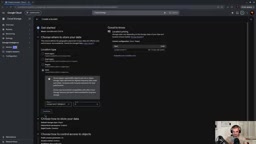
During setup, you'll encounter Region — an important term that determines the physical location of the servers, directly affecting latency and compliance. You can choose a single region, multi-region (highest availability, suitable for EU compliance scenarios), or a more granular Zone. For storage classes, Standard is for frequently accessed data, Nearline is for backups accessed within a month, Coldline for quarterly access, and Archive for long-term retention — the further down the list, the higher the latency and the lower the cost.
One easily confused detail is the Hierarchical Namespace. If you don't enable it, the "folders" you create are actually just prefixes in file names — not real directories on disk. For machine learning scenarios that store datasets with directory structures, enabling this option makes much more sense.
Creating a bucket via the CLI is equally straightforward, following the pattern gcloud storage buckets create gs://bucket-name --location=europe-west4.
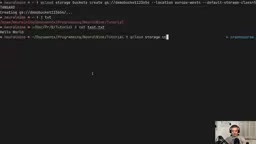
Uploading files is done with gcloud storage cp. The GCP CLI command structure is highly consistent: gcloud [service] [resource] [action]. Once you internalize this pattern, picking up new services becomes much easier.
Cloud Run: Deploying Containerized Applications
If Cloud Storage is for "storing things," Cloud Run is for "running things" — it's used to deploy Docker containers, websites, or web applications. The course demonstrates two deployment paths: deploying directly from source code, and deploying from a pre-built Docker image pushed to a registry.
Deploying from source only takes a single gcloud run deploy command, but the first run often surfaces a common problem: the default compute service account lacks the permissions needed to build containers, causing the deployment to fail. The fix is to go into IAM & Admin and add the "Cloud Run Builder" role to the default service account. This introduces GCP's core concept — IAM is the central hub for managing all permissions, policies, roles, and service accounts.
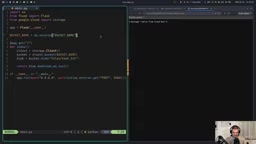
A more advanced scenario involves having a deployed application access other services. The course builds a Flask app that reads file contents from a private storage bucket. The key is configuring the Cloud Run service with a dedicated service account that has the "Storage Object Viewer" role, rather than relying on the default account. The full flow involves building a Docker image locally, pushing it to Artifact Registry, and deploying from the image registry — with fine-grained permission configuration being the tricky part.
Artifact Registry is GCP's managed private container image registry (similar to a private Docker Hub), and also supports storing Maven, npm, and other artifacts. In the advanced Cloud Run deployment flow, a locally built Docker image must first be pushed to Artifact Registry, from which Cloud Run then pulls the image for deployment. This step is also governed by IAM — the service account needs read access to the corresponding repository, or the deployment will fail due to the inability to pull the image. Compared to deploying directly from source code, using pre-built images decouples the build process from the deployment process, making it better suited for CI/CD pipeline scenarios.
Service Accounts in GCP represent the identity of an "application or service," as opposed to regular accounts that represent real users. Every service in Cloud Run runs under some service account, and that account's roles determine what resources the service can access. The Principle of Least Privilege calls for creating dedicated accounts for each service and granting only the necessary permissions, rather than sharing the default account — this both reduces security risk and makes permission auditing clearer.
Compute Engine and Cloud SQL
Compute Engine is used to launch virtual machines (VMs). When creating an instance, the right-hand panel shows the estimated monthly and hourly cost in real time; you can adjust region, CPU count, and memory to influence the price — the cheapest e2-micro preset runs about $9/month. After selecting an operating system (Debian by default) and enabling HTTP/HTTPS traffic, you can create the instance and then connect via browser-based SSH or gcloud compute ssh.
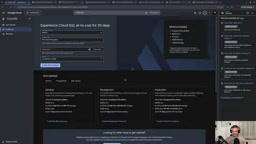
Cloud SQL provides managed MySQL or PostgreSQL databases, handling compliance, security, and backups more conveniently than self-managed setups. The course author admits to disliking the GUI (which injects a 30-day free trial offer that interferes with custom instance creation) and recommends working purely from the command line. Worth noting: you must install the cloud-sql-proxy component before connecting to an instance — this is something the course author stumbled on when trying to install via the AUR package on Arch Linux. Ultimately, only the official default installation method worked.
BigQuery and Vertex AI
BigQuery is GCP's best-known data analytics service — essentially an all-in-one data warehouse, comparable in stature to Databricks or AWS SageMaker. The course demonstrates running SQL queries against public datasets (such as the Stack Overflow questions dataset) and flags an important billing detail: the query interface shows how much data will be processed (e.g., 1.98 GB), and a LIMIT clause does not reduce the amount scanned — which directly affects cost. Notably, BigQuery has its own dedicated bq CLI tool for creating datasets, loading CSVs, and running queries, which reflects just how significant this service is.
Vertex AI is the most important service in the AI/ML space. The course covers two directions: calling Google's generative models directly (such as Gemini 2.5), with an emphasis on the ability to enforce EU data residency to meet compliance requirements (the author explicitly notes this doesn't constitute legal advice and recommends doing your own research); and deploying a locally trained scikit-learn model to Vertex AI as an API. The latter involves a longer workflow — uploading the model to a storage bucket, registering it with gcloud ai models upload, creating an endpoint, and deploying to that endpoint — with the entire deployment process potentially taking tens of minutes.
Data Residency refers to restricting the storage and processing of data to a specific geographic region, and it's one of the core requirements for compliance with the EU's General Data Protection Regulation (GDPR). Vertex AI supports forcing model inference requests to route to EU-region nodes, ensuring that user prompts and model responses never leave EU-based data centers — helping organizations satisfy "data localization" regulatory requirements. It's worth noting that achieving compliance isn't just about selecting the right region; it also requires reviewing service terms, Data Processing Agreements (DPAs), and internal data governance processes. Cloud platform technical settings are only one part of an overall compliance framework.
Why LIMIT doesn't reduce scan volume in BigQuery stems from its underlying columnar storage and full-scan architecture (the Dremel engine). BigQuery fully scans all referenced columns first, then truncates the result set to the number of rows specified by LIMIT — billing is based on bytes scanned, not rows returned. The right ways to control costs include: using Partitioned Tables (partitioned by time or field) to narrow the scan range, using Clustering to physically co-locate related data, or using the "This query will process X GB" estimate before executing to decide whether to proceed.
Cost Control: Budgets, Alerts, and Hard Limits
Given GCP's postpaid billing model, cost management is something beginners must take seriously. The course offers several key insights:
- Budgets and alerts are not hard caps. Setting a €10 budget alert will only send email notifications at 50%, 90%, and 100% thresholds — and those notifications may be delayed. It does not automatically stop spending.
- The newly introduced Spend Cap Enforcement feature is currently in preview and only covers certain services; it cannot guarantee a complete block on costs.
- The truly safe approach is to limit functionality, not cost — for example, setting a hard per-hour token limit on a specific model in Vertex AI, because such limits aren't directly tied to billing.
- The most thorough way to stop all spending is to delete the project entirely, which immediately terminates billing (though any charges already incurred still need to be settled).
To investigate cost sources, check the services actively processing requests under "APIs & Services," active resources in the IAM asset inventory, and the consumption overview in the billing account — but be aware that the latter may have up to ~24 hours of delay and cannot be relied upon for real-time visibility.
The ~24-hour delay in GCP billing data stems from the asynchronous architecture of its billing pipeline: resource usage is first reported to the billing system by each service, then undergoes aggregation, currency conversion, discount calculation, and other processing before a viewable invoice is generated. This means a sudden cost spike in the middle of the night may not appear in the console until the next day. To address this blind spot, combine Cloud Monitoring to set real-time alerts based on resource metrics (such as VM CPU usage or API call counts) rather than relying solely on billing alerts — resource anomalies are typically captured at the metrics layer earlier than billing anomalies.
Summary
The value of this crash course lies in its hands-on approach, helping beginners build an overall mental model of GCP: understanding the project/resource/service hierarchy, learning to operate via both the Console UI and gcloud CLI, getting familiar with the six core services — Cloud Storage, Cloud Run, Compute Engine, Cloud SQL, BigQuery, and Vertex AI — and grasping the critically important IAM permission model and cost control mechanisms. Each of these services could easily expand into its own in-depth tutorial, but building that global map first — knowing what exists and where to find it — is the most effective starting point for getting up to speed with cloud platforms.
Related articles

WorkBuddy Full Guide: How an AI Coworker Takes Over Workplace Automation
What is WorkBuddy? This article analyzes the core capabilities of this full-scenario AI agent: autonomous execution with deliverable results, local file processing, multi-agent parallelism, and workplace automation workflows, helping you judge its essential difference from ordinary AI chat tools.

The Truth About AI Agents: A Hundred Lines of Code + an LLM, Deconstructing the Agent's Underlying Logic
AI agents aren't a new AI species—just a language model plus tools, a loop, and a goal. Here's the underlying logic: how 100 lines of Python hit a 75% fix rate, why the harness beats the model, and Gartner's "agent washing."

AI Agent Deployment: Three Things Developers Should Do
AI Agent deployment doesn't require rushing into multi-agent systems. This article outlines an actionable deployment path and engineering acceptance thresholds for developers, covering human baselines, bounded single-agent scope, and a controlled code-modification loop.