Getting the Most Out of Claude: Building a Personal Life System That Runs Itself

All the AI tools, none of the system: diagnosing and fixing a Claude power user's broken workflow.
A Claude Pro user with a complete AI toolkit — Claude Code, Notion, Google suite, and more — posted on Reddit feeling like he's "driving a Lamborghini at 45 mph." The core problem isn't weak tools; it's that he acts as the human middleman between them. This article breaks down why his Notion Command Center became a burden, how to build a persistent Mac dashboard, how Claude Projects and Scheduled Tasks can eliminate manual work, and how to use Claude Code responsibly without a programming background — ultimately offering a simple benchmark: count your manual interventions.
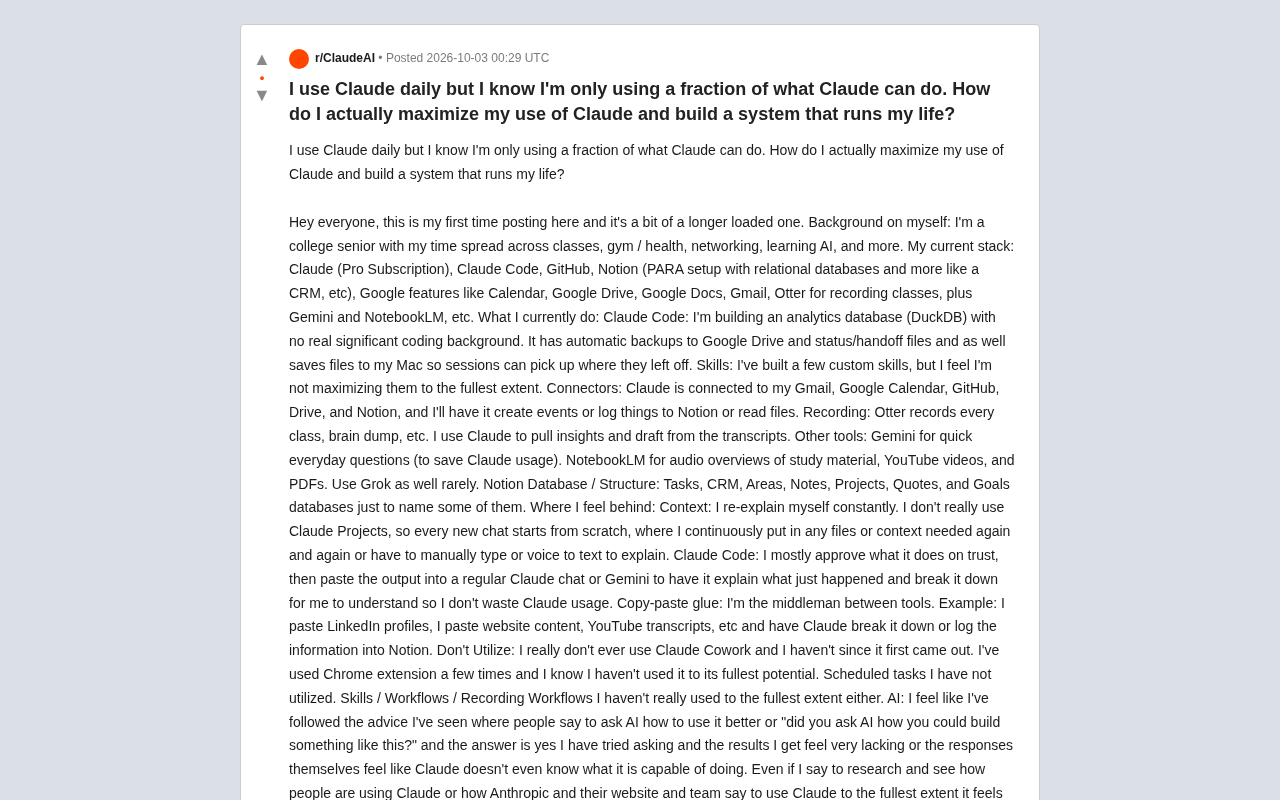
A heavy Claude Pro user posted a lengthy thread on Reddit describing a feeling many AI power users will recognize: "I'm driving a Lamborghini but I'm stuck at 45 mph, knowing full well it can do 150." He uses Claude every day, with a complete toolkit — Claude Code, Notion, the Google suite, Otter, NotebookLM, and more — yet he constantly feels like he's only tapping a fraction of what Claude can actually do.
This post is worth unpacking because it hits the core tension in AI tool use today: the pace at which tools are improving far outstrips the average user's ability to build workflows around them. Starting from this user's real struggles, this article analyzes the walls people typically run into when trying to build a personal AI system — and offers actionable ways forward.
The Real Problem Isn't Too Few Tools — It's "Human Glue"
This user's toolkit is actually quite complete: Claude Pro, Claude Code, GitHub, Notion (with a PARA structure and relational databases used as a CRM), Google Calendar/Drive/Gmail, Otter for transcription, Gemini for lightweight daily queries to save Claude credits, and NotebookLM for audio overviews of learning materials. On paper, this setup already beats most people's.
But he identified the most critical weak link himself: "I am the middleman between all these tools." He manually pastes LinkedIn profiles, web content, and YouTube transcripts into Claude, has it break them down, then enters everything into Notion by hand. Every new conversation requires re-explaining context from scratch and re-uploading files. This "copy-paste-re-explain" loop is essentially using human labor to compensate for the missing automated connections between tools.
This isn't a capability problem — it's a systems architecture problem. He has a pile of powerful components with no transmission system welding them into a machine that runs on its own.
Why the Notion "Command Center" Became a Burden Instead
One of the most insightful parts of the post is his reflection on his own Notion "Command Center." He built an aggregated view with all tasks and deadlines, contact follow-ups, projects, goals at the top, rotating daily quotes, and notes at the bottom. He thought it would solve things.
The result? "It just became another thing I have to manage." He had to proactively click into it, manually sync deadlines, log progress — and he could only see it when he opened his computer and switched to that tab.
This reveals a critical insight: for users with ADHD and the "out of sight, out of mind" trait, any system that requires you to actively open it is a failed design. What he actually wants is a persistent dashboard — "open my Mac and see everything I need to do today, without clicking into anything." This is a fundamental shift from "passive management" to "active push."
The "out of sight, out of mind" characteristic of ADHD has profound implications for productivity tool design. Researchers studying neurodiversity have long observed that people with ADHD tend to have limited working memory capacity — when a task or piece of information isn't in their field of vision, it essentially "disappears" cognitively. Unlike neurotypical individuals, they can't rely on internalized reminder mechanisms to surface things automatically. This means the behavioral assumption baked into traditional GTD (Getting Things Done) systems — "you will proactively open your inbox to check" — simply doesn't hold for this population.
This also explains why many ADHD users repeatedly build and abandon task management systems. It's not that the systems lack features; it's a fundamental mismatch between the system's interaction model (pull-based) and the user's cognitive profile (which needs push-based). Effective design should bring information into the user's field of view proactively, rather than depending on the user to remember to "go look for it." This insight is valuable for everyone — it's just especially pronounced in the ADHD population.
A Persistent Dashboard: Technically Very Doable
The first concrete question this user asked was: how do you build an "always visible" dashboard on a Mac? This is technically well-solved.
- Desktop layer approach: On macOS, tools like Übersicht and GeekTool render script output directly as widgets on the desktop wallpaper layer — visible from the moment you boot up, no clicking required.
- Menu bar / floating approach: Raycast or Alfred, paired with scripts, can keep a today-at-a-glance task summary permanently in the menu bar.
- Data sources: Notion, Google Calendar, and Gmail all have mature APIs that can be polled on a schedule and aggregated into a single view.
The hard part was never "displaying" data — it's "how does data flow in automatically" — which brings us back to eliminating the human glue.
It's worth briefly explaining how Übersicht and GeekTool work: both use macOS's desktop rendering layer to draw the output of scripts (Shell, JavaScript, Python, etc.) directly on top of the wallpaper, at a layer below all normal windows. This means they can't be accidentally clicked, and they don't consume Dock or menu bar space. Übersicht uses CoffeeScript/JSX to define widget styles and supports configurable live-refresh intervals; GeekTool is more lightweight and outputs plain text or images. Both are free.
Raycast occupies a different niche: it's a command launcher that appears on a keyboard shortcut, supports plugin extensions and script commands, and is better suited for "quickly check when needed" scenarios rather than "always visible" ones. For a truly persistent dashboard, Übersicht is the closer fit; for users who want to quickly summon information without breaking their workflow, Raycast is the better tool. The two aren't mutually exclusive and can be used together.
Replacing the "Human Middleman" with Automation
To make the system run on its own, the key is handing off manual-transfer steps to automated orchestration. A few directions worth exploring:
Make full use of Claude Projects and custom Skills. He admits he barely uses Claude Projects, which is why he starts from scratch every session. Projects exist precisely to persist context — lock in your personal background, your Notion structure, your common instructions, so you never have to re-explain. He's already created a few Skills but never used them properly. That's exactly the right place to encapsulate repetitive actions like "enter a LinkedIn profile into Notion" as a one-click flow.
Use Scheduled Tasks and Connectors for automated syncing. He's already connected Claude to Gmail, Calendar, GitHub, Drive, and Notion — but has never used scheduled tasks. It's entirely feasible to set up a morning routine that automatically reads his calendar, Notion tasks, and important unread emails, then generates a daily briefing.
Handle email triage with a two-layer approach: rules plus AI. The automatic email sorting, filtering, and alerting he wants can start with Gmail's native filters for coarse screening, then use AI to label and summarize important messages.
Claude Projects is a feature Anthropic designed for persistent conversation context: users can upload files, set system prompts, and configure custom instructions at the Project level — all of which apply automatically to every conversation within that Project, with no need to re-paste anything. Skills (also called custom tools or integrations) let users wrap external service operations into callable actions — for example, "add a new record to a Notion database" or "read today's calendar events" — so Claude can trigger those actions directly in conversation rather than requiring the user to move data manually.
Scheduled Tasks is a newer Claude feature that lets users set a task to trigger automatically at a specified time — for example, every morning at 8 a.m., automatically summarize the day's calendar, emails, and to-dos and generate a briefing. These three features used together form the core infrastructure for moving from "human-driven" to "system-automated." The user in question has already set up his Connectors but never configured Scheduled Tasks — roughly equivalent to installing an engine but never pressing the gas pedal.
Using Claude Code Without a Programming Background
He mentions using Claude Code to build a DuckDB analytics database, but "basically just trusting it and approving operations, then pasting the output into regular Claude or Gemini to have it explained." This reveals a real dilemma: how do you balance "blind trust" against "wasting time learning to code from scratch"?
The realistic answer is a middle path. You don't need to systematically learn programming — but you do need to build a minimum cognitive foothold of "being able to tell what's happening": understanding file structure, data flow, and what each step is changing. You can ask Claude Code to explain its plan before executing and write handoff documentation afterward (he's already doing automatic backups and handoff files, which is a great habit). The key is grounding "trust" in "verifiability" — not in "it said it was fine, so it must be."
How to Know If You're Using AI Well
He also asked a question many people can't quite reason through: how do you evaluate which of your AI habits are high-quality, and which ones could be done better?
A simple but effective benchmark is counting how many times you have to manually intervene. If a workflow still has you repeatedly copying and pasting, repeatedly explaining context, or manually triggering everything from scratch each time — it almost certainly has room to improve. Conversely, if an action has been encapsulated into a one-click trigger or scheduled automation, and you only need to make decisions at key junctures — that's a sign you're using it well.
As for his complaint that "asking Claude how to better use Claude gives vague answers, as if it doesn't even know what it can do" — that's actually a widespread phenomenon. Models have limited awareness of the details of their own product ecosystem and other people's real-world workflows. That kind of knowledge is more likely to be found in communities, case studies, and firsthand user accounts than in a model's training data. Which is exactly why posting on Reddit for help was the right move.
Final Thoughts
What makes this post genuinely valuable is that it presents a complete picture of a classic failure mode: "all the tools, none of the system." For anyone trying to build a personal AI system, the lessons are clear: eliminate the human glue before chasing flashy features; design for "out of sight, out of mind" habits with persistent, push-based interfaces rather than yet another tab to open; and before trusting AI to execute, establish a minimum verifiable understanding of what it's actually doing.
Going from 45 mph to 150 mph usually doesn't require a more powerful engine. It requires the drivetrain that connects the engine, the gearbox, and the wheels.
Related articles

@ai-sdk/vue 3.0.306 Patch Release Syncs with [email protected] Update
@ai-sdk/vue 3.0.306 released, synced with [email protected]. A routine patch release for the Vercel AI SDK ecosystem with no public API changes; the Vue adapter layer stays version-aligned with the core package.

Gemini 4 Argon API Launches: The Era of Million-Token Output Begins
Google launches Gemini 4 Argon with sparse MoE architecture, up to 1M output tokens, and a 68.90% Vals Index score, available across API, AI Studio, and the Gemini app.

DukaanAI: Turning Product Photos into Inventory Lists with Open-Source AI
DukaanAI is an AI inventory tool for small retailers that turns product photos into inventory entries using the open-source Gemma 3 model, with local inference, editable fields, and CSV export.