GitHub Copilot CLI Hands-On Review: A Terminal AI Coding Tool Put to the Test

GitHub Copilot CLI enters public preview, bringing AI coding agent capabilities to the terminal with deep GitHub integration.
GitHub Copilot CLI has officially entered public preview, offering a terminal-native AI development experience. Its core advantages include deep GitHub integration (natural language operations on repos, Issues, and PRs), multi-model support (Claude Sonnet 4, GPT-5, etc.), MCP server extensibility, and full agentic coding capabilities. Compared to competitors like Claude Code, it differentiates through native GitHub ecosystem integration and multi-model flexibility, making it especially well-suited as a zero-cost upgrade for enterprises and teams with existing Copilot subscriptions.
GitHub Copilot CLI has officially entered public preview. This terminal-native AI development tool brings the full power of the Copilot coding agent into the command line. It competes directly with tools like Claude Code, Amazon Q, and Warp Terminal, but carves out a differentiated path through its deep integration with the GitHub ecosystem.
I spent some time hands-on with this tool, and here's a complete feature breakdown along with my impressions.
Core Features: A Full-Stack AI Development Experience Native to the Terminal
GitHub Copilot CLI delivers four core capabilities:
Terminal-Native Development: Interact with the Copilot coding agent directly from the command line without switching back and forth between an IDE and terminal. For developers who live in the terminal, this efficiency boost is immediately noticeable.
Deep GitHub Integration: Out-of-the-box access to your repositories, Issues, Pull Requests, and other GitHub resources. This is the standout advantage over competitors like Claude Code — you can use natural language to operate on everything in GitHub directly.
Full Agentic Capabilities: Supports building, editing, debugging, and refactoring code. The AI agent can plan and execute complex tasks, going far beyond simple code completion.
MCP Server Extensibility: Supports configuring and using various MCP (Model Context Protocol) servers, including Playwright MCP, GitHub MCP, and more, vastly extending the tool's capability boundaries.
What is MCP? MCP is a standardized protocol proposed and open-sourced by Anthropic in late 2024, designed to address the fragmentation of integrations between AI models and external tools/data sources. Before MCP, every AI tool needed to develop separate adapters for different external services, resulting in extremely high maintenance costs. MCP defines a unified "server-client" communication specification that allows any AI application to invoke external capabilities — file systems, browsers, databases, APIs — in a standardized way. The MCP ecosystem now has hundreds of community servers covering mainstream tools like GitHub, Slack, PostgreSQL, and Playwright, and is becoming the de facto standard for AI toolchains.
Installation & Configuration: One Command to Get Started
The installation process is dead simple — one command does it all:
npx install -g @github/copilot
Once installed, type copilot in any directory to launch it. On first launch, it automatically handles GitHub login authentication and configures the GitHub MCP server by default.
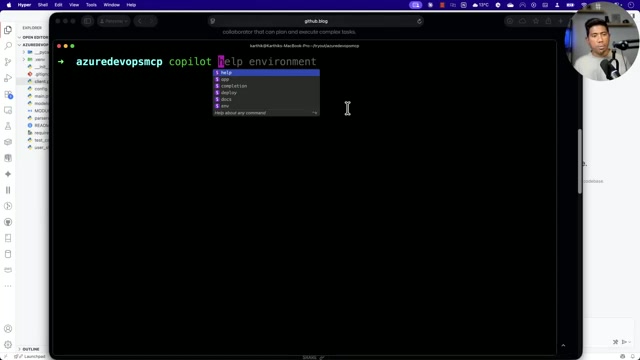
Running copilot help reveals a rich set of command options, including directory whitelist settings, tool permission management, and configuration changes.
Worth noting: Copilot CLI supports multi-model switching — it defaults to Claude Sonnet 4 but can be switched to GPT-5 or other models via environment variables. This design reflects the unique advantage of GitHub's parent company Microsoft in AI infrastructure: through Azure OpenAI Service, Microsoft has priority access to the GPT model family, while GitHub's partnership agreement with Anthropic enables deep integration of Claude models. By comparison, Claude Code — as Anthropic's own product — naturally supports only the Claude family, while Amazon Q is tied to the model ecosystem on AWS Bedrock. Multi-model support is especially important for enterprise users — across different task scenarios, capabilities like code generation, long-context analysis, and instruction following vary significantly between models, and flexible switching allows for better balance between cost and performance. This flexibility is consistent with the model selection experience in VS Code.
MCP Server Configuration in Practice
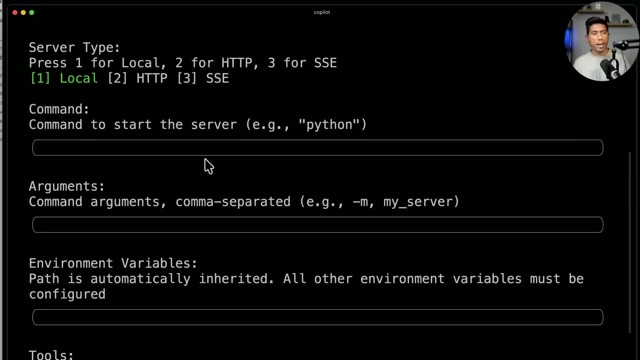
MCP server configuration is a major highlight of Copilot CLI. Using the Playwright MCP server as an example, here are the configuration steps:
- Type
/mcpin Copilot CLI to enter the MCP management interface - Press
ato add a new server, enter a name (e.g., "playwright") - Select the server type (Local / HTTP / SSE)
- Configure the startup command (e.g.,
npx) and arguments - Select which tools to enable, then press
Ctrl+Sto save
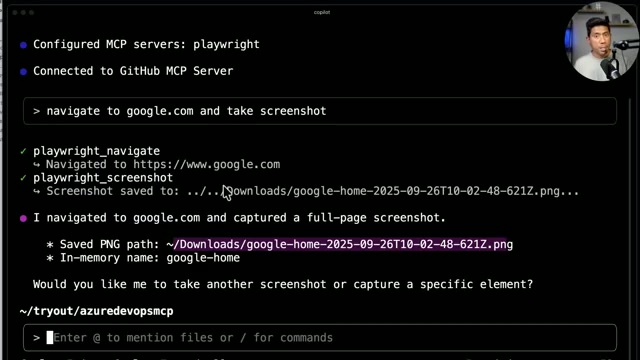
Once configured, you can invoke MCP tools using natural language. For example, typing "navigate to google.com and take screenshot" will have Copilot CLI automatically call the Playwright MCP navigation tool to open a browser, visit the target page, and save a screenshot.
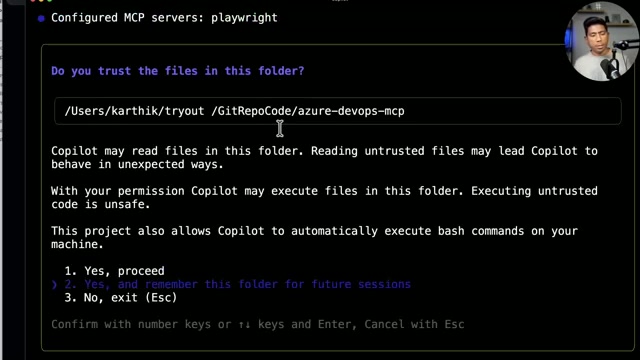
The entire process is quite smooth — each tool invocation requests user confirmation, ensuring operational safety.
GitHub Integration: Operating Repositories with Natural Language
This is Copilot CLI's most competitive feature and where it pulls away from other terminal AI tools.
Why Are Terminal AI Tools the New Battleground? The rise of terminal AI coding tools stems from developers' strong aversion to "context switching costs." While traditional IDE plugins (like Copilot in VS Code) are convenient, for backend engineers, DevOps engineers, and open-source contributors who rely heavily on the command line, frequent switching between editor and terminal severely disrupts flow. Claude Code was the first to bring full agentic coding capabilities to the terminal in early 2025, followed by Amazon Q Developer CLI and Warp Terminal's AI features maturing shortly after, creating the current multi-player landscape. The core competitive dimension in this space has evolved from "can it write code" to "can it integrate into a complete development workflow."
You can complete full GitHub workflows using natural language in the terminal:
Code Analysis & Improvement: Type "analyze this code and tell me what improvements I can make," and Copilot will traverse the entire project codebase, generating detailed analysis reports and improvement suggestions.
Automatic Pull Request Creation: Type "update the readme file with more details and create a pull request," and Copilot will automatically:
- Analyze the existing README content
- Generate more detailed documentation
- Create a new branch
- Commit changes and push
- Automatically create a Pull Request
Issue-Driven Development: After creating an Issue on GitHub, you can assign it to the Copilot coding agent, which will automatically analyze the problem and attempt a fix. This is powered by the GitHub Coding Agent — an autonomous programming agent that runs in an isolated cloud sandbox environment. It clones the repository, analyzes the Issue description, plans a fix, executes code changes, and ultimately submits results as a Pull Request for human review. This "asynchronous agent" mode complements Copilot CLI's "interactive agent" mode: the former is suited for batch-processing well-defined bug fixes and feature iterations, while the latter is suited for exploratory development tasks requiring real-time feedback. Together, they form a complete automation loop from problem discovery to code merge.
GitHub Copilot CLI vs. Claude Code: A Comparative Analysis
In terms of feature coverage, Copilot CLI and Claude Code overlap significantly: both support in-terminal code editing, debugging, and refactoring, and both support Agent mode and MCP extensions. But the differentiation is clear:
| Dimension | GitHub Copilot CLI | Claude Code |
|---|---|---|
| Ecosystem Integration | Native deep GitHub integration | General-purpose, not tied to a specific platform |
| Model Selection | Multi-model support (Claude / GPT, etc.) | Claude family only |
| Target Users | Existing GitHub / Copilot users | Independent developers, multi-platform users |
| Pricing Model | Copilot subscription system | Pay-per-API-usage |
For enterprises and teams already using GitHub Copilot, Copilot CLI is essentially a zero-cost capability upgrade. No additional subscription needed, no tool chain switching required — just add terminal AI coding capabilities directly to your existing workflow.
However, if you don't rely on the GitHub ecosystem or value the model's reasoning capabilities above all else, Claude Code remains a worthy consideration.
Conclusion: Which Fits Your Terminal Workflow Better?
The release of GitHub Copilot CLI means that AI coding tool competition has officially expanded into the terminal domain. Saying it "killed Claude Code" would be premature — but for developers deeply embedded in the GitHub ecosystem, it offers a compelling, integrated alternative that's hard to ignore.
Related articles
 Product Reviews
The Programmer's Desk Setup Guide: Building a Workspace That Feels Like Home
Discover how programmers build productive, comfortable workspaces. From multi-monitor setups to ergonomic design, explore the desk philosophy that drives focus and flow.
 Product Reviews
Qoder vs Cursor Real-World Comparison: Which $20/Month AI IDE Is Better?
Hands-on comparison of Qoder vs Cursor AI IDEs: Agent autonomy, human interaction count, and architecture decisions. Qoder needed only 2 interactions vs Cursor's 8.
 Product Reviews
Cursor Cloud Agent Demo: Eliminating Bottlenecks Across the Entire Software Development Lifecycle
Deep analysis of Cursor's Cloud Agent demo showing how cloud VMs, automated test artifacts, and a full-chain control plane systematically eliminate human bottlenecks across the software development lifecycle.