Google CC AI Agent Deep Dive: 6-Person Shared Account with Automated Email and Calendar Management

Google CC AI Agent upgrades to a 6-person shared collaborative agent with its own Google account and automated briefings.
Google CC AI Agent has undergone a major upgrade, evolving from a single-user assistant into a team collaboration agent shared by up to 6 people. Its core innovation is a dedicated Google account using a least-privilege design, so team members can leverage AI without sharing full account access. CC supports auto-subscribing to designated senders and quick forwarding, generates daily "Your Day Ahead" briefings, and manages shared calendars and task lists while keeping personal calendars private. Current limitations include inability to handle encrypted PDFs, video, or audio.
Google Apps recently rolled out a major update to its CC AI Agent, upgrading what was once a single-user assistant into a collaborative agent that up to 6 people can share. It comes with its own dedicated Google account, can read designated emails, auto-generate morning briefings, write events to a shared calendar, and remember member preferences. Based on a detailed breakdown by a Bilibili content creator, the core breakthrough of this update is the word "shared" — a team can genuinely run on a single AI agent.
Three Leaps in Nine Months
CC's evolution deserves its own spotlight. According to the video, when Google first launched CC, it was designed for a single user and sent one AI-generated email every morning. That concept was then brought into the Gemini App under the name Billy Brief. In the latest major overhaul, CC went from "one person + one inbox" to "6 people sharing one Agent" — and this Agent has its own account and an independent computing environment.
Google Apps Senior Product Manager Tom Shin noted in the announcement that users wanted a tool to help manage busy family life, which led Google to reposition CC as "built for families." Going from single-user to multi-user shared access in just nine months is a remarkably aggressive pace.
There's one easily confused point about the member limit: the official documentation says up to 6 members are supported, while social media posts say you can add up to 5 people. Both are correct — you complete the initial setup first, then invite 5 more people, totaling 6.
A Dedicated Account: From "Living in Your House" to "Someone Who Opens a Specific Door"
The most critical design decision in this update is that CC now has its own Google account. The video uses a vivid analogy: previous AI assistants were like someone living inside your account who could see everything; the new CC is more like "someone who temporarily comes to open a door for you" — you can give it only the key that opens specific doors.
In other words, CC can only see what you actively send to it. Google emphasizes that it will only reply to members within the group by default and will not share any information outside the group without permission. This permission-scoping design is critical for both privacy and team collaboration — you don't have to hand over your entire account to let AI participate in your workflow.
At a technical level, this permission design corresponds to fine-grained control over OAuth authorization scopes. Traditionally, when third-party apps request Google account access, they often ask for full mailbox or calendar access. CC's dedicated account model sidesteps this entirely — it is itself an independent Google account entity. You control what it can see by "sending emails to it" or "adding it to a group," rather than giving it a free-roaming access token. This is similar to the "Service Account" approach common in enterprise environments: the Principle of Least Privilege — granting only the minimum access needed to complete a task. For everyday users, this means you can intuitively manage privacy boundaries without needing to understand API permissions — if you don't send it something, it simply can't see it.
Team Use Cases: One Agent Replaces Countless Check-ins
Transposing the family scenario to a small team makes the value even clearer. The video uses a hypothetical content team as an example: 6 people, each responsible for content, community, calls, and so on. Previously, all information piled into one person's inbox and every question had to go through that one person. Now the team shares one Agent — each person can delegate tasks directly to it without sharing full account access, saving enormous back-and-forth communication.
Onboarding new members also changes dramatically. Before, bringing someone new up to speed meant explaining everything and sharing a pile of login credentials. Now, just add the new member to the group and they immediately receive the same shared briefings, the same calendar, and the same task lists — ready to hit the ground running on day one.
Two Ways to Feed Data: Auto-Subscribe and Quick Forward
There are two ways to get content into CC.
The first is auto-subscribe (referred to in the video as ArtC): you designate senders whose emails you always want CC to see — like your child's school or a swimming club. Those emails then flow into CC automatically, with no manual action required. In a business context, teams can consolidate community platform notifications, event tool alerts, partner emails, and tool updates from specific senders, reducing time spent on manual sorting.
One privacy detail worth highlighting: CC gives you a new private sender list each week that only you can see — you decide what to share and what to skip. When new senders appear, like a new coach or club, CC doesn't automatically pull them in; it pauses and asks for your input first.
The second is quick forward (Send it to CC): for one-off emails, just forward them. Got a date in a text message? Send it over. You can even take a photo — snap a flyer or a whiteboard and send it to CC, and it will add the dates or tasks to your shared calendar and task list. It supports PDFs, images, and plain text.
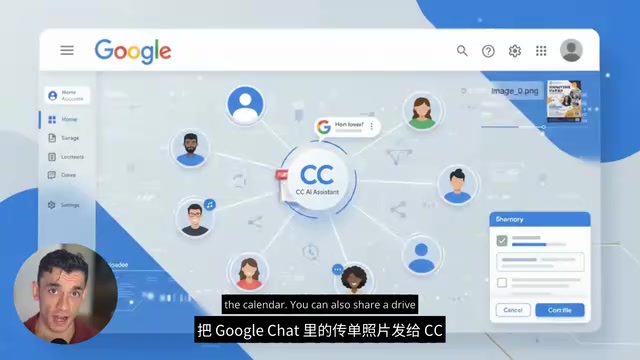
The name "ArtC" appears in the video but isn't promoted as an official term in Google's documentation — think of it as an abbreviation or informal name for "Auto-route to CC." This subscription-based data ingestion approach is similar to RSS readers or email newsletter aggregators (like Feedbin or Hey's The Feed) — pulling scattered information streams into a single consumption point. The difference is that CC doesn't just passively display content; it structurally processes what it ingests: extracting dates, identifying tasks, and categorizing senders. The "quick forward" method corresponds to the "capture" phase of the GTD (Getting Things Done) workflow in a lightweight digital form, reducing the friction of bringing real-world information (flyers, whiteboards) into a digital system.
Morning Briefings, Shared Calendars, and an Underrated Memory Feature
Every morning, CC sends a shared email called "Your Day Ahead," containing the most important items to focus on — who needs to be where, what needs to get done, and what CC already completed yesterday. That last point is genuinely useful: it tells you what's already been handled so you don't have to chase down every status update individually.
For a content team, this briefing can display the day's Coaching Call, what the next video should cover, and what the team accomplished yesterday. For community managers, if a member's question hasn't been responded to, the person responsible sees it first thing in the morning — preventing issues from dragging on for days. Fast responses build trust.
On the calendar and task front, CC tracks shared dates and to-dos, writes them to the shared calendar and shared task list, and automatically updates them when plans change. One boundary worth praising: CC only manages the shared CC calendar — it does not read or modify your personal calendar unless you explicitly add your private calendar to it. Your personal schedule remains your own.
What It Can't Do
The video also honestly outlines CC's limitations — important context for setting expectations:
- Cannot open password-protected encrypted PDFs
- Cannot currently process video or audio (so you can't drop a YouTube recording directly into it)
- The memory feature is a highlight but often underestimated — it remembers member preferences, and its long-term value compounds over time
Understanding these limitations upfront allows you to design workflows around them rather than forcing unsupported tasks onto the system.
Conclusion
The significance of Google CC's latest update isn't any single dazzling feature — it's that CC has been reconstructed from a "personal tool" into a "team collaboration layer." The permission isolation enabled by a dedicated account, combined with shared briefings and shared calendars for information alignment, collectively address the most common pain points of small teams: information silos and repetitive communication. For families or small teams, this is a low-barrier, fast-payoff starting point for automation.
Related articles

Workbuddy for Absolute Beginners: How a Desktop AI Agent Fits Into Real Workflows
A beginner's guide to the Workbuddy desktop AI agent: installation, claiming credits, file management, and building automated workflows—compared with CodeX for fit and cost, helping professionals shift from AI question-askers to AI managers.

OpenAI's New Agent Stack: Computer Use, Decisions API, and Ultra-Fast Workflows
OpenAI Dev Day unveiled a new agent stack: Computer Use outperforms humans, Decisions API delivers ultra-low-latency classification via Luna, Agents API opens the same Computer Use capabilities, and GPT-6.1 Sol costs only one-seventh of Astra. Core updates, benchmark data, and developer insights.

Liang Wenfeng Open-Sources DeepInfo Inference Framework, Takes On U.S. Ban
DeepSeek open-sources its DeepInfo inference framework after its models, featuring GPU/CPU cross-pipelining, small-model prediction with large-model verification, and full Huawei Ascend and NVIDIA chip support—facing the U.S. federal ban head-on. This article analyzes its significance for AI deployment and open-source strategy.