GPT-6 Full Power Guide: Unlocking Ultra Thinking Intensity via GPT-work
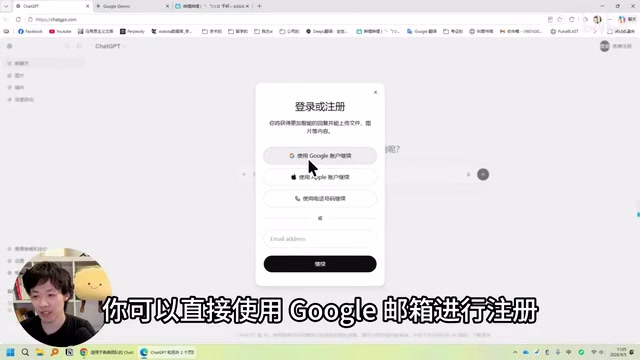
Paying for GPT doesn't auto-unlock GPT-6 — you must switch to Work mode and manually enable Full Access at max thinking intensity.
This guide walks through the complete process of experiencing GPT-6's full capabilities on desktop. The key insight: after purchasing a Plus ($20) or Pro subscription, GPT-6 does not appear in the regular chat interface — it's deliberately placed in GPT-work's "Work" mode. Users must manually select GPT-6 from the model list, set thinking intensity to maximum, and enable "Full Access" to activate GPT-6 Ultra. The web version has a similar hidden unlock path but is easier to accidentally reset. The article also recommends new users register via Apple ID to avoid phone verification friction, and start with Plus before upgrading as needed.
If you want to experience GPT-6's full capabilities on your computer — rather than staying limited to the web interface's chat mode — using the official GPT-work client (also known as the Codex client) is currently the most straightforward path. This article, compiled from a hands-on tutorial by a Bilibili creator, walks through the complete process: from account registration and subscription to enabling GPT-6 Ultra at maximum thinking intensity. It also explains the differences between the web version and the desktop client in terms of model unlocking.
Why the Subscription Plan Beats the API
The tutorial author explicitly recommends using GPT's subscription plan rather than calling the API directly. The reason is simple: API usage is metered by token consumption, and costs can skyrocket quickly in high-frequency or long-context scenarios. For everyday users who need a large volume of high-quality conversations, a flat monthly subscription is clearly more cost-effective.
Subscription tiers come in several options: the entry-level Plus plan is $20/month, suitable for light to moderate use. Heavy users may want to consider a Pro membership, which comes in 5x and 20x quota options. The author specifically notes that for heavy usage, the 20x tier (priced at around $200) is genuinely worth it — the quota it provides far exceeds what you'd expect to consume at that price point.
Background: The API (Application Programming Interface) charges based on the number of tokens consumed. A token is roughly the smallest unit of text a model processes — approximately one to two Chinese characters per token. Large models like GPT-6 can consume thousands to tens of thousands of tokens in a single call when handling long documents or complex reasoning, meaning costs accumulate very quickly at high usage volumes. By contrast, a subscription plan exchanges a fixed monthly fee for unrestricted use within a certain quota, making it far better suited for daily power users. The "5x" and "20x" Pro tiers refer to quota multipliers relative to the Plus baseline, with correspondingly higher monthly fee caps — essentially providing heavier users with more headroom, not just a speed boost.
Account Registration and Client Download
The first step is ensuring your network can reliably access OpenAI services. Then search "Test GPT-work" on Google and download the Windows client. This GPT-work is the Codex local client mentioned above — install and run it directly.
If you already have an OpenAI account, you can log in directly. If not, go to the official ChatGPT website, click "Sign up" in the top-right corner, and register for free. Registration supports Google accounts and Apple ID. The author recommends using Apple ID, as it typically bypasses common hurdles like phone number verification, making the process smoother.
Background: GPT-work (the Codex client) is a local desktop application from OpenAI aimed at developers and advanced users. Its key difference from the web-based ChatGPT is that it integrates more workflow features — including reading local files, executing code, and generating structured documents — positioning it more as an AI workstation than a simple chat tool. The name "Codex" historically referred to OpenAI's code-generation model, but it's now repurposed as the internal name for this client. Its functionality now extends well beyond code, covering document processing, data analysis, and general productivity tasks. Another advantage of the client is that model selection and parameter controls are centralized in one place, rather than scattered across hidden locations like in the web version.
Purchasing a Plan and Payment Options
After logging into the client, go to the settings page and find "Usage and Billing" in the left sidebar. Click "View Plans." If you haven't subscribed yet, you can select and purchase a plan directly from here.
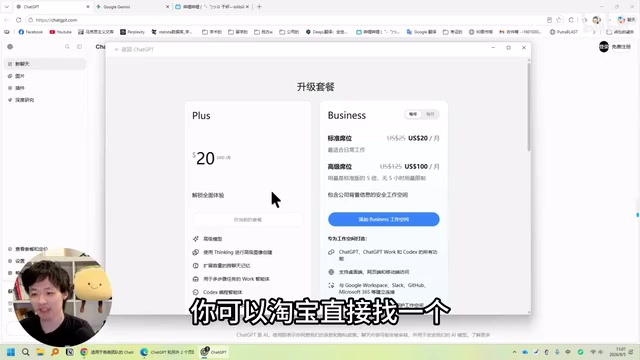
There are two main payment options: if you have an international bank card, you can pay directly. If not, users without one can top up through third-party services on platforms like Taobao. For gauging how much quota you need, the author's advice is: start with Plus, and if you find the $20 quota isn't enough, scroll down and upgrade to the 5x or 20x Pro tier. This tiered approach helps you avoid paying for more than you need upfront.
The Key: How to Actually Unlock GPT-6
This is the most critical — and most commonly misunderstood — part of the entire tutorial. After purchasing a subscription and returning to the main screen, many users encounter a counterintuitive situation: if you're just using regular chat, you won't get GPT-6 at all. In chat mode, the highest available model is only GPT-5.6.
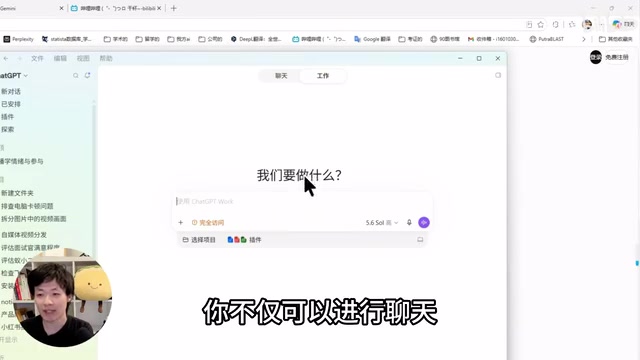
To access GPT-6, you must switch to GPT-work's "Work" mode. This mode supports not only conversation but also office tasks like reading documents, analyzing spreadsheets, generating web pages or reports, and writing code. Even within this mode, the thinking intensity selector and model dropdown initially only show GPT-5.6.
The key action to unlock GPT-6 is: click once in the model list, and a new GPT-6 option will appear. Select it and turn the thinking intensity up to maximum. There's one critical detail you must not miss — you must enable "Full Access" and click confirm to truly activate GPT-6 Ultra at its highest level. If you want faster generation, you can also toggle on the 1.5x speed option. Only then are you running the full, unrestricted GPT-6.
Background: "Thinking Intensity" is a control parameter OpenAI introduced in its reasoning models to regulate how deeply the model performs internal reasoning (Chain-of-Thought) before generating a response, and how many computational resources it commits to that process. Higher intensity means the model "thinks" through more steps before answering — producing longer reasoning chains and generally stronger output quality and logical rigor — but it also consumes significantly more compute (i.e., quota) and takes longer to generate. GPT-6 Ultra corresponds to the highest tier of this mechanism, and represents the current ceiling of publicly available reasoning capability. The existence of the "Full Access" toggle indicates that OpenAI has deliberately made maximum-tier reasoning opt-in rather than default, likely to manage overall system load.
The Hidden Unlock Path on the Web Version
For users who prefer the web interface and don't want to install the client, the tutorial also provides an alternative — though the steps are more obscure.
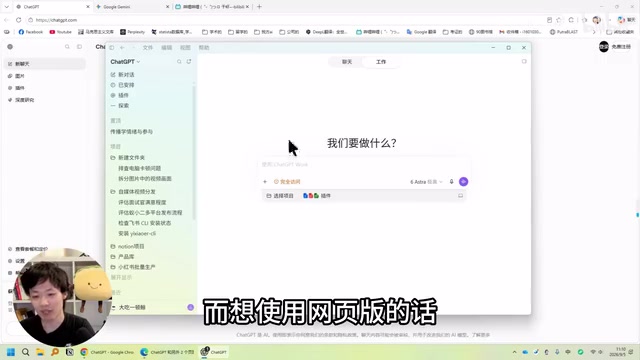
In the web interface's work panel, click the thinking intensity control and drag it upward — GPT-5.6 will automatically switch to GPT-6 "Light" and "Medium" levels. But you can't go further from there. To reach "High" or "Maximum," you need to click the download list below, select GPT-6, and only then can you continue dragging upward. Be careful though — once you click "Reset," the settings revert to their defaults.
The author speculates that the reason official channels bury these higher tiers so deeply is likely to control the rate of quota consumption, or to ease server load. Whatever the reason, the conclusion is the same: if you want a truly high-level GPT-6 experience, you need to manually navigate every layer of settings to reach maximum — the system won't hand you the strongest configuration by default.
Summary
The real value of this walkthrough is that it exposes an information gap: paying for a subscription doesn't automatically mean you get the most powerful model experience. GPT-6 is intentionally placed in "Work" mode rather than regular chat, and requires you to manually enable Full Access and set thinking intensity to maximum. For users who genuinely need high-quality output, understanding and completing these steps is what turns your subscription into its full value.
Related articles
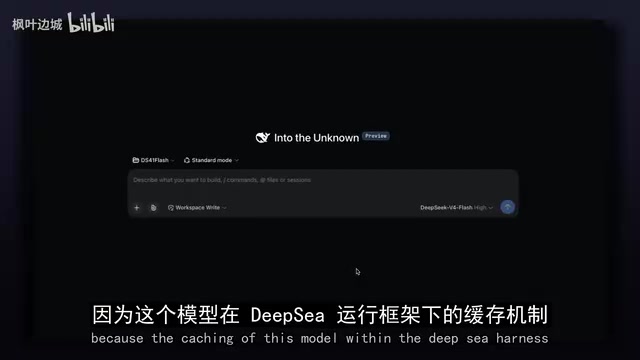
Overseas Blogger Tests DeepSeek's New Flash Model: KV Cache Efficiency Up 337x
Overseas blogger benchmarks DeepSeek's new Flash model: 337x KV cache efficiency gain, native AutoML, object detection, and visual generation — full hands-on breakdown.
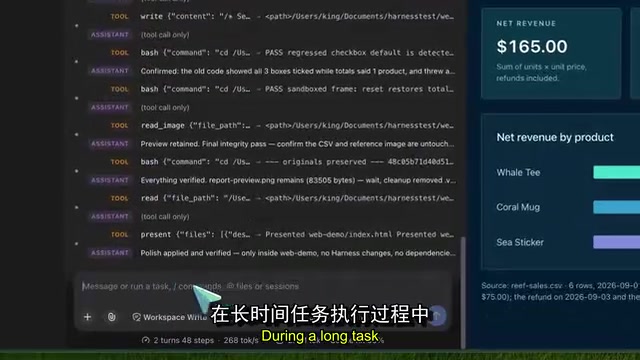
DeepSeek Harness V4.1 Flash Hands-On: Native Image Input and Cache Reuse Get Major Upgrades
DeepSeek Harness 0.1.5 RC1 integrates V4.1 Flash with native image input, cache reuse optimization, a new file preview sidebar, and real-time agent control. Full hands-on breakdown inside.
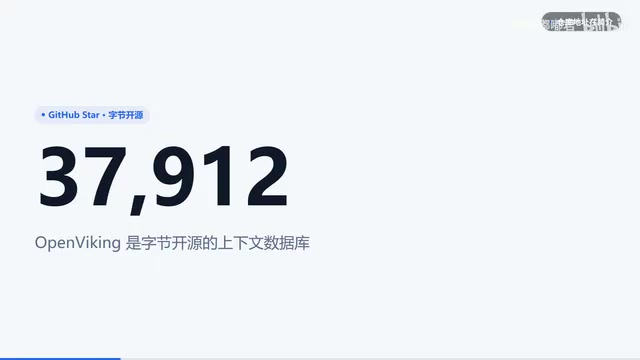
Giving DeepSeek Harness a Memory: OpenViking Cuts Tokens by Up to 91% in Real-World Tests
ByteDance's open-source OpenViking adds cross-session memory to DeepSeek Harness via a 3-layer filesystem. Official data shows 34–91% token reduction; real tests hit 40% zero results.