Herder: An Open-Source Terminal Multiplexer for Managing Multiple AI Agents Like a Pro

Herder is an open-source terminal multiplexer built for managing multiple AI coding agents in parallel.
Herder is an open-source terminal multiplexer designed for AI coding agents — think "tmux with agent support." It manages multiple agents like Claude Code and Codex in parallel within a single terminal window, using color-coded status indicators to show whether each agent is running, waiting for approval, finished, or idle. Sessions persist in server mode so agents keep running after you close the terminal or drop an SSH connection. It follows tmux/Vim keyboard conventions and supports pane splitting, multi-level workspaces, and custom configs. Its standout feature is a built-in CLI that both humans and agents can use — enabling a supervisor agent to automatically spawn and orchestrate sub-agents across panes and workspaces.
If you're juggling multiple AI coding agents — Claude Code, Codex, OpenCode, Pi, and others — across different projects simultaneously, you've probably run into this problem: too many terminal tabs open, no idea which agent is still running, which one is stuck waiting for your approval, and which one has already finished. The open-source tool Herder was built to solve exactly this pain point. It's an agent-oriented terminal multiplexer — essentially "tmux with Agent support built in."
What Is Herder: Shepherding a Flock of Agents
The name "Herder" comes from the concept of herding — you're managing a flock of agents, like a flock of sheep. Its core purpose is clear: let you control multiple agents in parallel within a single terminal window, with the status of each agent visible at a glance.
For anyone familiar with tmux, Herder's interaction model will feel immediately natural. It supports pane splitting, tab switching, and even uses Ctrl+B as the default prefix key. But on top of tmux-style functionality, Herder adds a critical agent-specific capability: status indicators. Each agent displays a color-coded status:
- Yellow: Agent is actively working
- Red: Agent needs human intervention (e.g., waiting for command authorization)
- Green: Agent has completed its task
- Idle: Waiting for your next instruction
When you're running 10 agents simultaneously, a single glance at the sidebar tells you "where I need to step in, where I can leave it alone, and where I should write a new prompt." That's exactly where the value lies.
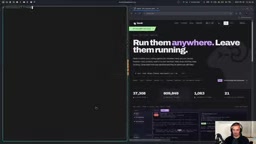
Installation is straightforward. Official cross-platform install commands are available for Linux, macOS, and Windows — run a single command to install or update to the latest version, then execute herder to enter the interface.
Terminal Multiplexer refers to a class of tools that allow users to create and manage multiple independent terminal sessions within a single terminal window. The most well-known examples are tmux and GNU Screen. Their core capabilities come in two parts: first, "multiplexing" — running multiple programs in parallel within one physical terminal, organized through pane splitting and tab switching; second, "session persistence" — programs run as server-side processes in the background, so they aren't interrupted when the user disconnects (e.g., closes the terminal or drops an SSH connection), and can be resumed by reconnecting. tmux was created in 2007 and has become a standard tool in server administration and developer workflows. Herder builds on tmux's design philosophy and adds a status-awareness layer specifically for AI agent management, making it capable not only of multiplexing terminal sessions but also of visually representing the runtime state of each agent.
Session Persistence: Close Your Terminal, Keep Agents Running
One of Herder's most practical features is persistent operation. It runs in server mode in the background, and your terminal UI is simply "attached" to that session.
In a demo video, the author navigates to a project directory, starts Claude Code, sets it to auto mode, tells it to "create a simple Flask to-do app," and then closes the entire terminal. The agent doesn't stop — because the Herder server is still running in the background. Re-running the herder command reconnects to the session, and the task is still in progress.
This feature is especially valuable in SSH remote scenarios. Just as developers commonly SSH into a server and start tmux so their work survives a disconnection, Herder keeps agents running on a server for extended periods. The only requirement is that the machine doesn't go to sleep.
Keyboard Controls: A Comfort Zone for tmux/Vim Users
If you're a keyboard-first user who loves Vim or Linux, Herder's interaction style will feel right at home. All actions are triggered via a prefix key, defaulting to Ctrl+B (the video author rebinds it to Ctrl+A).
Common shortcuts include:
Prefix + V: Vertical pane splitPrefix + -: Horizontal pane splitPrefix + X: Close current panePrefix + C: New tabPrefix + N / P: Switch to next/previous tabPrefix + Shift+X: Close entire tabPrefix + H/J/K/L: Move focus between panes using Vim-style movement keys
If you forget a shortcut, Prefix + ? lists all available commands. Mouse interaction is also supported — you can click to create tabs and switch panes.

The config file lives at ~/.config/herder/config.toml, where you can customize the prefix key, extend movement keys (the author adds Ctrl+Alt+Arrow keys), move panes to new tabs, and more. One important note: after changing the config, you must run herder server reload-config for changes to take effect.
Workspace Hierarchy: Workspace → Tab → Pane
Herder uses a three-level hierarchy: workspaces contain multiple tabs, and tabs contain multiple panes. This lets you organize different large projects into separate workspaces without interference.
Relevant shortcuts:
Prefix + Shift+N: Create new workspacePrefix + Shift+D: Delete entire workspacePrefix + Shift+W: Rename workspacePrefix + W: Open workspace navigator, use arrow keys to switch
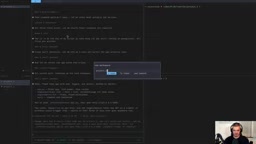
Worth noting: the sidebar displays "workspace name + tab name" rather than the current directory, which can be confusing on first use.
CLI Tool: Let Agents Operate Herder Themselves
This is the most imaginative design in Herder. It ships with a built-in CLI tool, meaning the entire Herder application can be controlled via the command line — herder session list lists sessions, herder workspace list lists workspaces, herder workspace close <ID> closes a workspace, and herder server stop stops the server (workspaces remain persistent after a restart).
The key insight: if a human can use the CLI, so can an agent. You can have a "supervisor agent" use the Herder CLI to split panes, launch new agents, and aggregate output from other agents.
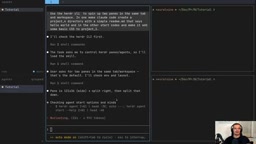
A demo video illustrates a typical scenario: the author instructs a Claude instance to "use the Herder CLI to spin up two panes in the same tab and workspace — have one Claude Code instance create a project directory with a hello world README, and have another start Codex to add basic CSS to project one." This supervisor agent loads the Herder skill, then automatically creates panes, runs commands in each, asks for your approval when authorization is required (following Herder's rules), and can finally read each agent's output and summarize the results.
This means you only need to talk to one agent to indirectly direct an entire team of agents across panes and workspaces, dramatically reducing the cognitive overhead of multi-agent collaboration.
This pattern of a "supervisor agent orchestrating sub-agents" is known as Multi-Agent Orchestration in the AI field. The basic idea: a high-level agent with planning capabilities handles task decomposition and tool invocation, while delegating actual execution to specialized sub-agents. Compared to a single agent executing steps sequentially, a parallel multi-agent architecture can significantly reduce overall task time — for example, having one agent write the backend while another writes the frontend simultaneously. Common orchestration approaches include communication via shared file systems, message queues, or API calls. Herder's CLI approach offers an orchestration path that more closely resembles "human terminal operations": agents directly control other agents' terminal panes via shell commands, without needing to set up any additional message middleware. For developers already comfortable with command-line workflows, the barrier to adoption is extremely low.
SSH Remote Connection and Theme Customization
Beyond running Herder directly on a server, it also supports connecting directly from a local client to a remote server. Use herder --remote <username>@<IP> to connect; if Herder isn't installed on the server, it will be installed automatically and will inherit your local client configuration. This means you don't need to SSH into the server first and manually start Herder — your local keybindings (like Ctrl+Alt+Arrow keys) still work.
UI themes are also customizable. Press Prefix + S to open settings and switch themes — Gruvbox is a popular choice among users.
Conclusion
Herder targets a specific type of user: developers running multiple agents on multiple tasks across multiple projects in parallel. It combines tmux's persistent sessions and keyboard-friendly operation with agent status management and CLI programmability, making it possible for "one agent to manage many agents." For terminal-and-keyboard-first developers — especially those who need to run agents on a server over SSH for extended periods — this is an open-source tool worth adding to your toolkit.
Related articles

Chain of Thought Isn't Just for AI: How Humans Can Use CoT to Improve Thinking Quality
Chain of Thought isn't just a prompt trick for large models. Starting from a Hacker News discussion, this article analyzes why CoT works for human thinking too, breaks down actionable ways to transfer it, and highlights the key differences between human CoT and machine CoT.
Cloudflare Teams Up with OpenAI: Closi…
Cloudflare Teams Up with OpenAI: Closing the Loop from Vulnerability Discovery to Defense with AI
Cloudflare uses OpenAI Daybreak to investigate security vulnerabilities and generate reviewable remediation plans, while developers use Codex to boost coding efficiency and quality.

Orca Multi-Agent Orchestration in Practice: A Guide to Parallel Collaboration with Claude and Codex
Orca is Stable AI's free open-source agent workbench supporting 34 agents like Claude Code and Codex in parallel. Learn its Git worktree isolation, multi-model orchestration, and mobile management.