How to Choose a Local LLM: Four Criteria to Find the Right Model

Four hard criteria — params, format, context, license — turn local LLM selection into a clear, executable funnel.
Faced with thousands of open-source model files, this guide offers a four-step filtering framework. First, use parameter count against your VRAM budget as a hard gate. Second, distinguish Instruct/Chat from Base models to avoid picking the wrong variant. Third, match format to your engine — GGUF for local Ollama/LM Studio use, AWQ/GPTQ/FP8 for high-concurrency server deployments with vLLM; when unsure about quantization, default to Q4_K_M. Fourth, evaluate context length based on actual needs and verify the license for commercial use (Apache 2.0 or MIT). Applied in sequence, these four criteria let you pinpoint the right model from any crowded repository.
Faced with thousands of model files in open-source communities, even if you know where to download, it's easy to get overwhelmed. Downloading the wrong multi-gigabyte file wastes bandwidth and may not even run on your machine. In this guide, we skip the guesswork and turn model selection into a structured, executable checklist using four hard criteria: parameter count, format/quantization, context length, and license.
First: Learn to Read a Model Filename
Open-source model filenames follow a consistent pattern. Once you decode it, you've got half the map. A typical filename is composed of several segments:
- Prefix: The creator and model name;
- Parameter count: e.g.,
8B,7B,72B; - Use-case label:
InstructorChatmeans instruction-tuned for dialogue; no label means it's a base model; - Format and quantization info: Determines which engine runs it and at what precision.
The "B" stands for Billion, so 7B means 7 billion parameters, and 72B means 72 billion. Once you have the parameter count, you can plug it directly into the VRAM budget formula we covered previously to determine whether your hardware can handle it.
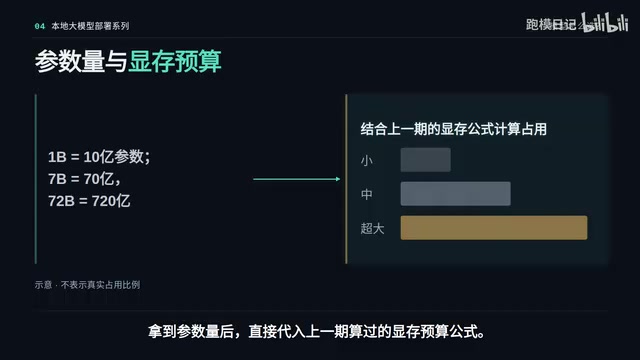
Criterion 1: Parameter Count Determines If It'll Even Fit
Parameter count is your first filter — it quickly eliminates a huge chunk of irrelevant options. Plug the parameter count from the filename into the VRAM budget formula. Anything that exceeds your budget gets skipped immediately, no second-guessing.
What happens if you accidentally download an oversized model? There are two scenarios:
- Slightly over budget: The engine will borrow from regular RAM, but generation speed will plummet from tens of tokens per second to nearly one token at a time — essentially unusable;
- Severely over budget: The model won't even start, throwing an OOM (Out of Memory) error.
This step isn't optional — it's a hard gate. Eliminate everything your machine can't run before moving on.
Criterion 2: Match the Use Case — Don't Make the Model Look "Dumb"
Once the parameter count passes, the next checkpoint is use case. Always look for versions labeled Instruct or Chat.
These models have been instruction-tuned and know they're supposed to act as assistants — they'll understand and answer your questions normally. Models without these labels are Base models. They have no conversational awareness and will typically just continue your input as a word completion sequence. They seem "dumb" not because the model is bad, but because you picked the wrong variant.
One rule to remember: For business use or conversation, look for Instruct/Chat. Only use Base if you're doing further training or researching the foundation model itself.
Criterion 3: Format Must Match Your Inference Engine
This is the most rigid requirement — a format mismatch means your engine simply won't start. The community is split into two major camps, each suited to entirely different use cases.
Personal Local Use: GGUF
If you're using Ollama or LM Studio, don't hesitate — go with the GGUF extension. It packages everything into a single file, dramatically simplifying deployment. It's designed for personal use at home, handling one query at a time.
High-Concurrency Server Use: GPU-Native Formats
If you're running high-concurrency inference with vLLM on a server, download the AWQ, GPTQ, or FP8 quantized versions, or the official BF16 full-precision version.
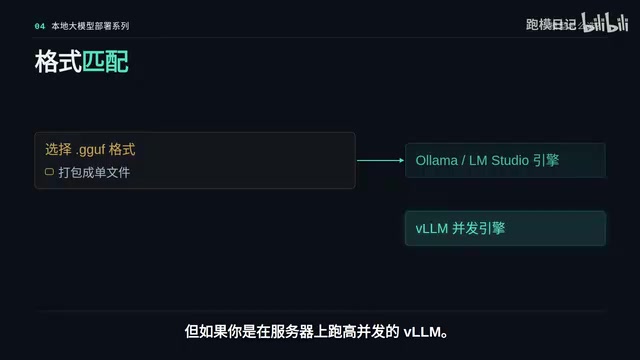
A useful analogy explains why these two camps exist: GGUF is like a single-lane road — fine for handling one request at a time at home. But if you're building a customer service system at a company with dozens of simultaneous users, GGUF will completely bottleneck and collapse. You need to switch to GPU-native formats like AWQ, paired with vLLM's multi-lane parallel processing.
Understanding the fundamental difference between the two format families helps you avoid common pitfalls. GGUF (GPT-Generated Unified Format) is a format defined by the llama.cpp project, with a core design goal of being "CPU-friendly" — it supports distributing model weights across both RAM and VRAM, making it viable on consumer devices without high-end GPUs. AWQ (Activation-aware Weight Quantization), GPTQ, and FP8, on the other hand, are formats specifically optimized for CUDA GPUs. They rely on GPU parallelism for high throughput and cannot run efficiently in a CPU-only environment. BF16 is a 16-bit floating-point format that cuts memory usage in half compared to FP32, while offering better numerical range stability than FP16 — making it the dominant precision format for modern LLM training and inference.
Choosing a Quantization Level: When in Doubt, Use Q4_K_M
Inside a GGUF directory, you'll see many files with underscore-separated suffixes. These represent quantization levels. The pattern is simple: lower numbers mean smaller file size, but also more risk of incoherent outputs.
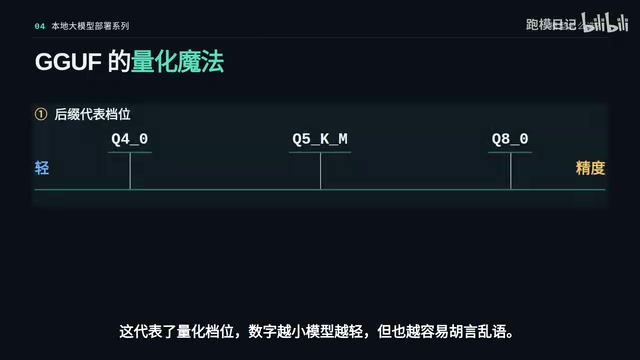
If you're not sure what to pick, here's an answer you can memorize: Q4_K_M. It's been validated by the community over time as the best balance between file size and output quality, suitable for the vast majority of personal use cases.
Quantization refers to the technique of compressing model weights from high-precision floating-point numbers (like FP32 or BF16) into lower-bit integers. For example, Q4 means storing each weight as a 4-bit integer, reducing file size by roughly 75% compared to the original 16-bit floats. The K in the filename indicates the K-quants algorithm — an improved quantization scheme introduced by llama.cpp that preserves more precision for critical weights at the same bit depth, outperforming earlier uniform quantization methods. M (Medium) is the mid-tier precision variant within the same bit depth, sitting between S (Small, most aggressive compression) and L (Large, most conservative compression). So Q4_K_M in full means: 4-bit K-quants at medium precision — the community-recognized sweet spot of "good enough quality at a manageable size."
Criterion 4: Context Length and License
The remaining two factors are relatively straightforward.
Context length (e.g., 32K, 128K) determines how long a document the model can process in a single pass. But keep in mind: longer "memory" comes at a steep VRAM cost. Bigger isn't always better — choose based on your actual needs.
License matters especially in commercial settings. For business use, look for Apache 2.0 or MIT. The ones to watch out for are licenses with Community or Non-Commercial in the name — they may look free, but using them commercially could constitute infringement.

Context length (Context Length) corresponds technically to the attention computation window in the Transformer architecture. VRAM usage grows roughly quadratically with context length, because the attention mechanism must maintain a "KV Cache" (key-value cache) to store intermediate states for all historical tokens. For 128K context, the KV Cache alone can consume several gigabytes — sometimes exceeding the model weights themselves. Unless your use case genuinely requires processing long documents (like full contracts or academic papers), choosing 32K or shorter context versions will significantly reduce VRAM pressure and improve response speed.
Putting the Four Steps Together as a Selection Funnel
Run through this process in order to accurately locate exactly the file you need from thousands of options:
- Check parameter count — use your VRAM budget to determine if your hardware can handle it;
- Match format to your engine — local engines use GGUF; concurrent server deployments use GPU-quantized formats like AWQ;
- Pick a quantization level — when uncertain, go with Q4_K_M;
- Check version and license — for conversation, use Instruct; for commercial use, verify Apache 2.0 or MIT.
Remember to look for the Instruct label, and you'll never blindly download the wrong file again. Once your model is selected, the next step is getting it to actually run — the next installment will compare two mainstream approaches: the command-line Ollama power-user route versus the GUI-based LM Studio beginner route. We'll also cover how to avoid pitfalls with the API path, how to keep ports isolated, and how to protect against LAN exposure risks.
Related articles

@ai-sdk/vue 3.0.306 Patch Release Syncs with [email protected] Update
@ai-sdk/vue 3.0.306 released, synced with [email protected]. A routine patch release for the Vercel AI SDK ecosystem with no public API changes; the Vue adapter layer stays version-aligned with the core package.

Gemini 4 Argon API Launches: The Era of Million-Token Output Begins
Google launches Gemini 4 Argon with sparse MoE architecture, up to 1M output tokens, and a 68.90% Vals Index score, available across API, AI Studio, and the Gemini app.

DukaanAI: Turning Product Photos into Inventory Lists with Open-Source AI
DukaanAI is an AI inventory tool for small retailers that turns product photos into inventory entries using the open-source Gemma 3 model, with local inference, editable fields, and CSV export.