How to Connect Codex with a $1.99/Month Gemini Subscription: A Complete Guide

Use a $1.99/month Gemini subscription with a local API proxy to power Codex at minimal cost.
This guide covers a budget-friendly approach to using Gemini with Codex: subscribe to Gemini for $1.99/month, use an open-source local API proxy to convert that membership into an OpenAI-compatible API, then connect Codex via the local address `http://127.0.0.1:8317/v1` with model mapping configured. Steps include setting up the subscription, editing config.yaml, authenticating your Google account, and adding a third-party config in Codex. Local proxying delivers near-zero latency, though this is an unofficial integration method dependent on open-source community maintenance.
For developers in China, the cost barrier to AI coding assistants has always been a pain point — monthly subscriptions starting at $20 keeps many people on the sidelines. Google Gemini's membership at just $1.99/month (under ¥20 CNY) makes "using Gemini to power Codex" an exceptionally cost-effective option. Based on a hands-on demonstration from a Bilibili creator, this guide walks through the complete workflow: from subscribing to Gemini, setting up a local API proxy, to connecting everything in Codex.
Why Use Gemini to Power Codex
The core idea here is to "translate" a Gemini subscription into a standard API interface using a local API proxy tool, which Codex can then call. Compared to buying API credits from other coding assistant providers, Gemini's pricing advantage is hard to beat — $1.99/month gets you access to Gemini models, with the flexibility to cancel anytime.
The Bilibili creator was blunt about it: "Gemini is just ridiculously cheap — less than ¥20 a month, the value is insane." For individual developers doing everyday coding and assisted development, the cost is practically negligible.
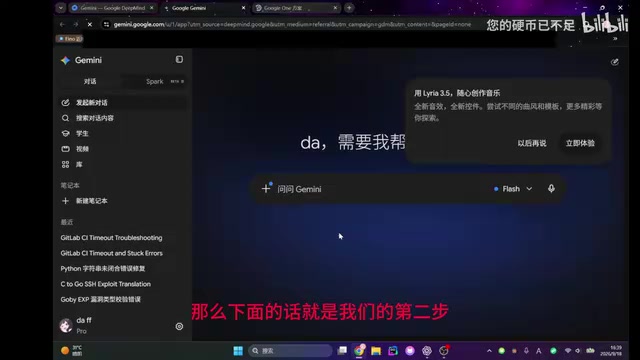
Signing up is straightforward: go to the Gemini web app, click "Upgrade" in the top-right corner, and you'll see the $1.99/month subscription option. Enter your card number and cardholder name, click subscribe, then refresh the page — your membership will show as active.
A quick note on terminology: "Codex" here refers to OpenAI's line of code intelligence products, and is also commonly used as a general term for AI-powered programming tools. The technical principle behind "API proxying" is this: a local tool makes requests to Google's servers using your authenticated Gemini membership, while simultaneously exposing an HTTP endpoint on your local machine that conforms to the OpenAI API spec. This means any client that supports custom API endpoints — including Codex, Cursor, Continue, and others — can call Gemini models exactly like they'd call a standard OpenAI API, with no awareness of the underlying differences. These middleware tools are often called "API Proxies" or "API Wrappers," and their core value lies in protocol adaptation — converting Gemini's proprietary authentication mechanism and request format into the industry-standard OpenAI-compatible format.
Setting Up the Local API Proxy
Subscribing to Gemini is just the first step. The real key is converting that membership into an API that Codex can actually call. This step relies on an open-source project on GitHub.
Search GitHub for a project like "Clewd-Codex-API" (the creator referenced the top result, which had 52K stars), navigate to the Releases page, and download the version for your operating system. The creator used Windows as the example, selecting the AMD64 architecture build. The download is a compressed archive — just extract it to a folder of your choice.
Modifying the Config File
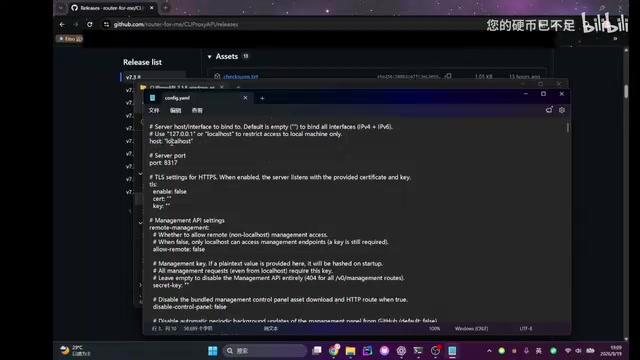
After extracting, you'll find a file called config.example.yaml in the directory. Rename it by removing the .example. portion so it becomes config.yaml, then right-click and open it for editing.
There are two key changes to make in the config file:
- host section: This will be empty by default — copy in the
localhostconfiguration here. - API key section: By default there are three entries for three different items. Delete the last two and change the first one to a custom key value (the creator used
local-gemini-key— you can name it whatever you like, but make sure you remember it).
Save the file when done.
"52K stars" is GitHub's metric for measuring an open-source project's popularity — it means over 52,000 developers have bookmarked the project, which generally signals an active maintenance community and higher reliability. Worth noting: tools that convert subscription memberships into API interfaces occupy a gray area regarding terms of service — Google Gemini's subscription agreement typically restricts programmatic, API-style bulk usage, so these tools are not officially supported. AMD64 (also known as x86_64) is the processor architecture used in most mainstream PCs and servers; the alternative is ARM64 (common on Apple Silicon Macs and some Windows laptops). Make sure you download the correct version for your device's architecture, otherwise the program won't run.
Authentication and Starting the Service
Once configuration is complete, right-click inside the project directory to open PowerShell and run the login command:
./clewd-codex-api.exe --config config.yaml
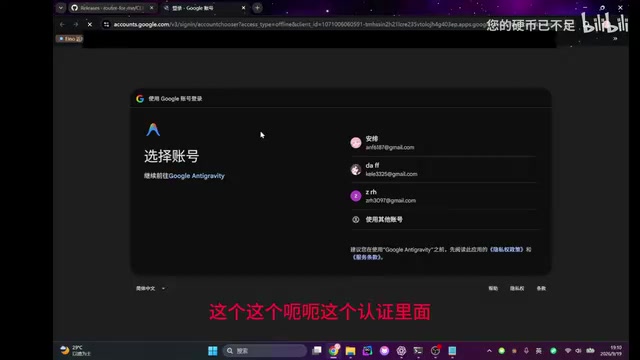
This will redirect you to an authentication screen — select the Gemini account you just subscribed with and authorize it. When the screen shows login success, return to PowerShell and wait until it also displays success, confirming the login is complete.
Next, enter the startup command to get the project running. When you see a refresh-related message appear in PowerShell, the service is ready. Your local API proxy is now up and running, waiting for Codex to connect.
Configuring Codex to Use the Local API
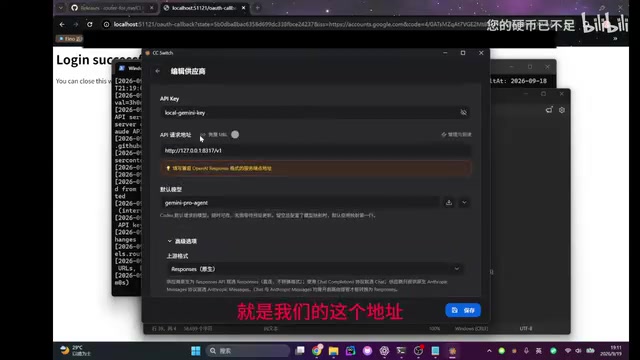
The final step is connecting the local API to Codex. The creator used a configuration management tool like CCSwitch to "add a third-party configuration." The key parameters are:
- Provider name: Can be anything — it doesn't affect functionality.
- API Key: Enter the custom value you set in
config.yaml, such aslocal-gemini-apiorlocal-gemini-key. - API address:
http://127.0.0.1:8317/v1(the default address for the local proxy service). - Default model: Choose from the model list — the
gemini-proseries is available by default.
Model Mapping Setup
In the advanced options, select "Native" mode, then click "Fetch Model List" and "Add Model." The creator added several models in the demo, including gemini-2.5-flash-lite, flash-high, and pro-agent — add whichever ones you need.
Once configured, click "Manage & Speed Test" to check connectivity. In the demo, latency showed as 0 milliseconds, confirming that local calls have virtually no overhead. After the speed test passes, click save, enable the configuration, then close and reopen Codex — everything should work normally from there.
The creator summed up the workflow by saying it "works exactly like the regular approach, except we no longer need a router" — local proxying makes the request path more direct and eliminates extra relay hops.
gemini-2.5-flash-lite, flash-high, and pro-agent are different variants within the Gemini model family. Models named "Flash" are generally faster and cheaper, making them well-suited for high-frequency code completion and Q&A. Models named "Pro" have more parameters and stronger reasoning capabilities, but with higher latency — better for complex architecture design or code review scenarios. "Model mapping" here means the local proxy tool needs to know which actual Gemini backend model to call when a client requests a specific model name. You don't need to add every model at once — pick 2–3 based on your actual usage patterns and scenarios. Too many mapping entries will just make selection harder.
Usage Tips and Caveats
At its core, this approach converts a subscription membership into API calls — it's an unofficial integration method. A few things to keep in mind: the local proxy tool must keep running for Codex to make calls; always use a custom API Key and keep it safe; model mappings can be configured flexibly based on your actual needs, and there's no need to add all models upfront.
For developers on a tight budget who want to experience Gemini's capabilities inside Codex, the value proposition here is genuinely compelling. That said, be aware that the stability and compliance of third-party proxy tools depends on the project's maintenance activity. Understand the risks and make your own informed decision before using it.
Related articles

Chain of Thought Isn't Just for AI: How Humans Can Use CoT to Improve Thinking Quality
Chain of Thought isn't just a prompt trick for large models. Starting from a Hacker News discussion, this article analyzes why CoT works for human thinking too, breaks down actionable ways to transfer it, and highlights the key differences between human CoT and machine CoT.
Cloudflare Teams Up with OpenAI: Closi…
Cloudflare Teams Up with OpenAI: Closing the Loop from Vulnerability Discovery to Defense with AI
Cloudflare uses OpenAI Daybreak to investigate security vulnerabilities and generate reviewable remediation plans, while developers use Codex to boost coding efficiency and quality.

Orca Multi-Agent Orchestration in Practice: A Guide to Parallel Collaboration with Claude and Codex
Orca is Stable AI's free open-source agent workbench supporting 34 agents like Claude Code and Codex in parallel. Learn its Git worktree isolation, multi-model orchestration, and mobile management.