How to Remove Startup Pop-ups Left Behind After Uninstalling Software: A Complete Troubleshooting Guide

A complete guide to finding and removing startup pop-ups left behind after uninstalling software.
Uninstalled a program but still seeing pop-ups every time you boot? This guide explains why startup configurations persist independently of deleted program files, and walks you through clearing residual entries on Windows (Task Manager, Task Scheduler, Registry), macOS (Login Items, LaunchAgents), and Linux (systemd, autostart). It also covers prevention tips and deep-uninstall tools.
The Problem: You Uninstalled the Software, but the Pop-ups Won't Go Away
In a Reddit tech support thread, a user raised a remarkably common yet frustrating issue: they had already uninstalled a piece of software and deleted related files via the terminal, but a pop-up notification kept appearing faithfully every time they booted up.
This scenario is all too familiar for many users. We assume that dragging an app to the Recycle Bin or deleting a few files from the command line is the end of it. In reality, modern operating systems and software installation mechanisms are far more complex. An application often leaves "hooks" scattered across multiple corners of the system—especially programs configured to launch at startup.
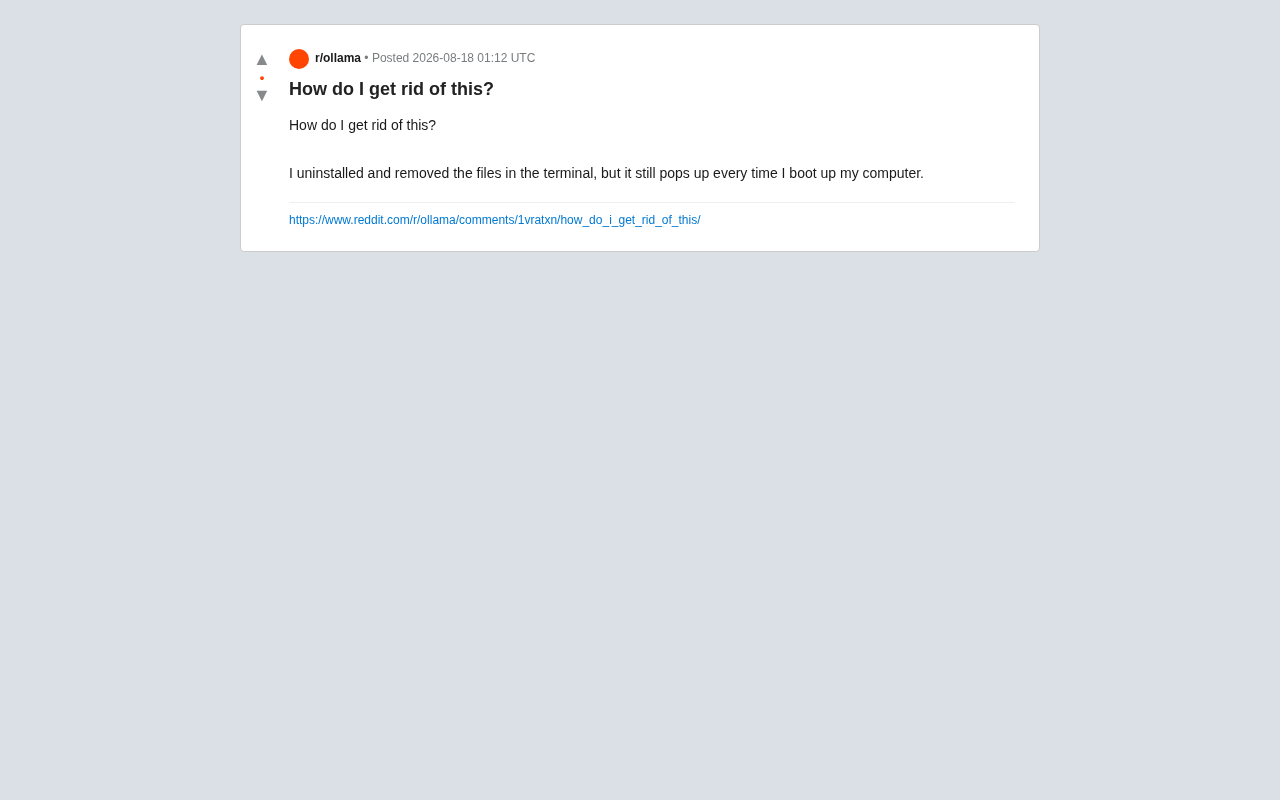
This article takes a technical approach to systematically explain why pop-ups persist after uninstallation, and how to completely eliminate these issues across different operating systems.
Why Do Pop-ups Still Appear After Deleting Files?
Startup Entries Are Independent of the Main Program
The key insight is this: startup configurations and the program itself are two entirely separate things. When you delete an application's main executable, the startup entry responsible for "running it every time the computer boots" often remains in the system.
At boot, the system reads a "startup checklist" and attempts to execute every item on it. Even if the corresponding program files no longer exist, the system will still try to run them—and the pop-up you see is likely the system or a residual component reporting that "a certain file cannot be found" or "a service failed to load."
The boot process of a modern operating system is a multi-stage chain-loading workflow. Take Windows as an example: after the system boots from BIOS/UEFI into the kernel loading phase, it sequentially initializes system services (managed by the Service Control Manager), executes Group Policy scripts, loads the Shell (Explorer.exe), and only then gets to user-level startup programs. Each stage has its own independent configuration source: the Registry's Run keys, the service database, Task Scheduler XML definition files, and shortcuts in the Startup folder. This layered design means a single piece of software can register startup entries at multiple levels simultaneously. If only one layer is cleaned up during uninstallation, residual configurations at other levels will still be faithfully executed by the system on the next boot.
The Diversity of Residual Locations
During installation, software may write to the following locations:
- Registry (Windows): startup entries, services, scheduled tasks
- Startup folders: both system-level and user-level sets
- Background services/daemons: running persistently as system services
- Configuration directories: hidden folders under the user's home directory
Simply deleting the main program files won't clean up these scattered configuration entries. This is exactly why the Reddit user's approach of "deleting files in the terminal" didn't work—they likely only removed the program binaries without touching the startup configurations.
How to Remove Residual Startup Pop-ups on Windows
Step 1: Check Startup Items in Task Manager
Press Ctrl + Shift + Esc to open Task Manager, then switch to the "Startup" tab. This lists all programs configured to launch at boot. Find the suspicious entry, right-click it, and select "Disable." This is the most straightforward and lowest-risk method.
Step 2: Check Task Scheduler
Some programs bypass conventional startup entries by disguising themselves as "scheduled tasks." Search for "Task Scheduler" in the Start menu and check the Task Scheduler Library for any unfamiliar tasks pointing to deleted programs. Delete them.
Step 3: Clean Up Services and Registry Startup Entries
If the above methods don't work, there may be residual system services. Run services.msc to review the services list. For deeper cleanup, check the following Registry paths:
HKEY_CURRENT_USER\Software\Microsoft\Windows\CurrentVersion\Run
HKEY_LOCAL_MACHINE\Software\Microsoft\Windows\CurrentVersion\Run
The Windows Registry is a hierarchical database that stores virtually all configuration information for the operating system and applications. It uses a tree structure composed of five root keys (Hives): HKEY_CLASSES_ROOT, HKEY_CURRENT_USER, HKEY_LOCAL_MACHINE, HKEY_USERS, and HKEY_CURRENT_CONFIG. The reason the startup-related Run keys are split between HKCU and HKLM paths is that the former only affects auto-start behavior when the current user logs in, while the latter applies to all users. Additionally, there are RunOnce keys (which execute only once and then auto-delete), as well as 32-bit compatibility paths under Wow6432Node. Some malware even exploits more obscure Registry locations like Shell extensions and Winlogon notification packages to achieve persistent residence.
Warning: Modifying the Registry carries risks. It's recommended to export a backup before making changes.
Clearing Startup Residuals on macOS and Linux
macOS: Login Items and LaunchAgents
On macOS, startup pop-ups typically originate from two places:
- System Settings → General → Login Items: Directly remove unwanted startup items.
- LaunchAgents / LaunchDaemons: Check for
.plistfiles in the following directories:
~/Library/LaunchAgents/
/Library/LaunchAgents/
/Library/LaunchDaemons/
macOS's background task management system is built on launchd, a unified service management framework Apple introduced starting with Mac OS X 10.4 to replace traditional Unix tools like init, cron, and inetd. Although both LaunchAgents and LaunchDaemons are defined through .plist (Property List) configuration files, they run in completely different contexts: LaunchAgents run within a user session, with the current user's permissions and environment variables, and can interact with the GUI (such as displaying dialog boxes); LaunchDaemons are loaded by the root user at system startup and run in a background environment with no user interface, typically used for system-level tasks like network services and hardware drivers. Keys in the .plist file such as KeepAlive, RunAtLoad, and StartInterval determine the trigger conditions and lifecycle of the task. Understanding this distinction helps you pinpoint the source of a pop-up—if it appears after the login screen, it's most likely a LaunchAgents issue.
Once you've identified the corresponding configuration file, first unload it with launchctl unload, then delete the file.
Linux: systemd and autostart
Linux users can check:
systemctl --user list-unit-filesto view user-level services- Desktop startup entries in the
~/.config/autostart/directory - System-level auto-start items in
/etc/xdg/autostart/
systemd is the init system and service manager adopted by the vast majority of mainstream Linux distributions (including Ubuntu, Fedora, Arch Linux, Debian, etc.), originally developed by Lennart Poettering starting in 2010. It uses unit files as its basic configuration unit, supporting multiple types including service, timer (replacing traditional cron), socket (socket activation), mount, and more. One of systemd's key features is support for user-level service management (via the --user flag), meaning regular users can register and manage their own background services without root privileges. User-level unit files are typically stored in the ~/.config/systemd/user/ directory. The desktop environment's autostart mechanism follows the freedesktop.org Desktop Application Autostart Specification, controlling whether an application launches at boot through keys like X-GNOME-Autostart-enabled in .desktop files.
Once you've identified the residual service, disable it with systemctl disable and delete the corresponding unit file.
Solutions and Prevention Tips for Thorough Software Uninstallation
Use the Official Uninstaller
Many software residuals stem from "uninstalling the wrong way." Directly deleting files is the most brute-force approach and the most likely to leave remnants. Always prefer the software's built-in uninstaller or the system's application management interface for removal—these can automatically clean up most registered startup entries and services.
Use Professional Deep-Uninstall Tools
For stubborn residuals, consider third-party deep-uninstall tools (such as Revo Uninstaller on Windows or AppCleaner on macOS). These tools scan various system locations for leftover files and configurations, providing one-stop cleanup.
Taking Revo Uninstaller as an example, deep-uninstall tools typically employ a dual strategy of "monitoring + scanning." During installation, the advanced mode creates a system snapshot (recording Registry state and file system state), then monitors all changes throughout the installation process—including newly created files, modified Registry keys, and created services. During uninstallation, the tool first runs the software's built-in uninstaller, then uses snapshot comparison or heuristic scanning to detect residual items. Even without installation-time monitoring records, these tools can perform global searches across the Registry and file system using keyword matching (program name, developer name) to find associated residual data. AppCleaner on macOS leverages macOS's metadata indexing system (Spotlight) and the application sandbox's Container directory structure to locate associated files. It's worth noting that cleanup suggestions from these tools aren't 100% accurate—users should carefully verify each item before deletion to avoid accidentally removing critical system components.
Develop Good Software Management Habits
- Always use the official uninstall process rather than manually deleting files
- Periodically review startup items and disable programs you don't need
- Stay vigilant before installing software from unknown sources to avoid bundled installations
Conclusion
Returning to this Reddit user's problem: the root cause of "pop-ups persisting after deleting files" is incomplete uninstallation leaving behind startup configurations. The solution isn't to keep deleting more files, but rather to find the actual startup entry that triggers the pop-up—whether it's a Windows startup item or scheduled task, a macOS LaunchAgent, or a Linux systemd service.
Understanding your operating system's boot mechanism is the key to troubleshooting this kind of issue. Next time you encounter a "pop-up that won't go away," ask yourself: who is triggering this pop-up at boot? Follow that thread, and the answer usually becomes clear.
Related articles

Chain of Thought Isn't Just for AI: How Humans Can Use CoT to Improve Thinking Quality
Chain of Thought isn't just a prompt trick for large models. Starting from a Hacker News discussion, this article analyzes why CoT works for human thinking too, breaks down actionable ways to transfer it, and highlights the key differences between human CoT and machine CoT.
Cloudflare Teams Up with OpenAI: Closi…
Cloudflare Teams Up with OpenAI: Closing the Loop from Vulnerability Discovery to Defense with AI
Cloudflare uses OpenAI Daybreak to investigate security vulnerabilities and generate reviewable remediation plans, while developers use Codex to boost coding efficiency and quality.

Orca Multi-Agent Orchestration in Practice: A Guide to Parallel Collaboration with Claude and Codex
Orca is Stable AI's free open-source agent workbench supporting 34 agents like Claude Code and Codex in parallel. Learn its Git worktree isolation, multi-model orchestration, and mobile management.