How to Run LLMs Locally on a Regular PC: VRAM, Quantization, and Ollama Explained

A complete beginner's guide to running LLMs locally: VRAM, quantization, and deployment with Ollama and LM Studio.
This guide is aimed at first-time local LLM deployers. Starting from the key insight that fitting on disk doesn't mean it can run, it breaks down parameter count, quantization formats (Q4, Q8, etc.), KV Cache, and why VRAM capacity matters more than raw GPU compute. On the practical side, it recommends LM Studio for GUI users or Ollama for CLI-oriented users, suggests starting with 3B–8B Instruct models at 4-bit quantization, and defines deployment success not as whether the model loads, but whether it runs stably at an acceptable speed for your actual tasks.
Two people, same hardware. One gets a local LLM running in half an hour. The other spends the whole evening at it — the model downloads fine, but crashes with an out-of-memory error the moment it tries to load. Then there's the person who bought a new GPU specifically for this, only to discover a different kind of frustration: the model runs, but generating a single sentence takes so long it's practically unusable.
The real difficulty in local LLM deployment usually isn't installing software. It's understanding what a large model actually needs your computer to store — and what it needs your computer to compute. Get that straight before you deploy, and you'll avoid most of the common pitfalls.
What Local Deployment Actually Means: Moving Cloud Inference to Your Machine
Local deployment simply means moving the model inference that normally happens on a remote server onto your own computer.
When you use a cloud-based model, your question gets sent to a server, where GPUs run the model and send the answer back. With local deployment, the model weights live on your machine, and the inference computation happens on your own CPU, GPU, or other accelerator hardware.
So the very first question in local deployment isn't "what's my GPU benchmark score" — it's whether the model can even fit into your memory. And note: that doesn't mean your hard drive. Model files might be a few GB to tens of GB, and your 1 TB drive looks more than sufficient. But when the model actually runs, it needs to load its weights into RAM (system memory) or VRAM (GPU memory).
Think of your hard drive as a warehouse, and your VRAM and RAM as the workbench. A warehouse can hold ten thousand books, but what determines how much you can actually work with right now is how many books fit on your desk. This is why so many beginners hit the same first wall: the model downloaded successfully — so why won't it run? Because fitting on disk doesn't mean it can run.
Parameter Count and Quantization: How Much Memory Does a Model Actually Need?
You've probably seen labels like 7B, 8B, 12B, 14B, or 70B. The "B" stands for billion parameters — 7B means roughly 7 billion, 8B means roughly 8 billion.
But parameter count alone isn't enough. You also need to know how much precision each parameter is stored at. If each parameter uses 16-bit precision (about 2 bytes), then an 8B model's weights alone would theoretically approach 16 GB — already a heavy load for a typical consumer machine.
The technology that made local LLMs accessible to ordinary users is called Quantization. The basic idea is compressing the numbers inside the model: instead of storing each parameter at 16-bit precision, you compress it down to 8-bit or even 4-bit.
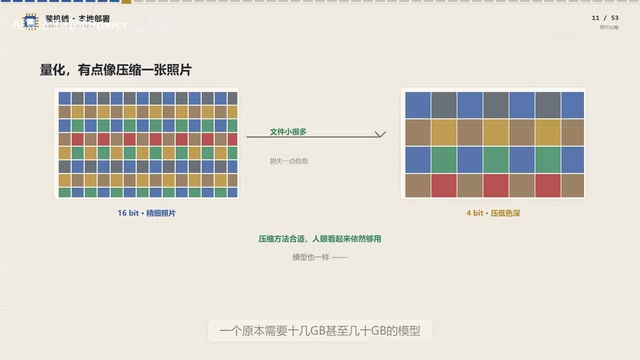
It's a bit like taking a high-resolution photo and reducing the color depth to save space. The file gets much smaller, some information is lost, but if the compression method is good, the result is still perfectly usable. Same with models — one that originally required tens of GB can see its footprint drop significantly after 4-bit quantization.
This is why you'll see local models labeled Q4, Q5, Q8: these are different levels of quantization. Lower numbers generally mean less memory usage, but at the cost of some precision loss. This introduces the central trade-off in local deployment: model capability, memory footprint, and inference speed — you can rarely have all three.
A note on the technical side: common quantization formats like GGUF (popularized by the llama.cpp project) compress model weights in blocks at varying precision levels, supporting Q2, Q3, Q4, Q5, Q6, and Q8 tiers, where the number represents the bits used per weight. Variants like Q4_K_M or Q5_K_S use a more refined grouped quantization strategy — the "K" indicates the k-quants method, while "M" and "S" refer to precision tiers (Medium/Small). These typically achieve a better balance between quality and speed than naive quantization at the same bit depth. For most users, the takeaway is simple: a model's Q4_K_M version usually has more controlled precision loss than a plain Q4 version, and it's the most commonly recommended starting format for local deployment.
More Than Just Weights: KV Cache and Hidden Memory Costs
So does the model run as long as its file size is smaller than your VRAM? Not quite. Model weights are just the first line item.
Your OS consumes memory. Your inference software consumes memory. The model needs working space to generate text. And as your conversation grows longer, memory usage keeps climbing. One key component here is called KV Cache.
You don't need to memorize the name — just think of it as a running scratchpad the model keeps during a conversation. If someone forgot everything said in the last two hours every time they spoke, a conversation couldn't go anywhere. LLMs are the same: to make use of earlier context when generating new tokens, the model saves some of the intermediate computations it already performed. These accumulate in memory, and the longer the context, the bigger this overhead gets.
So when someone asks "can 16 GB of VRAM run this model" — strictly speaking, that's not enough information. You'd also need to ask: at what quantization level? With how long a context? All on GPU, or split with CPU? Serving one user or several? Change any of those conditions and the answer could be completely different.
The full name is Key-Value Cache, derived from how the attention mechanism in Transformer architectures works. Each time the model generates a token, it needs to reference the Key and Value vectors from every previous token. To avoid recomputing these, they're cached — hence KV Cache. Memory usage scales with context length, as well as model depth, number of attention heads, and precision settings. A model that supports a 128K context window could consume several GB of memory from KV Cache alone if that context is fully used. This is why many inference tools — including LM Studio and Ollama — let users manually cap the context length. Reducing the context limit doesn't just affect how much the model "remembers" — it directly caps peak memory usage.
What Your GPU Actually Does: Capacity Determines Whether It Runs, Speed Determines How Fast
GPUs primarily affect speed. LLM inference involves massive amounts of matrix computation, and GPUs are exceptionally good at processing large numbers of similar operations simultaneously.
Think of a CPU as a small group of highly capable math teachers, and a GPU as an exam hall with thousands of students — hand out the same problem to everyone and they all solve it at once. This parallel approach is a natural fit for neural networks. The more of the model that fits in GPU memory, the more comfortable the generation speed typically becomes.
But here's the critical point: for local LLMs, VRAM capacity usually determines whether you can run the model at all, while GPU compute determines how fast it runs. A GPU with blazing-fast compute but small VRAM often doesn't run slow — it just can't load the model in the first place.
What Hardware Do You Actually Need: Stop Memorizing GPU Model Numbers
Don't start by memorizing GPU specs. Learn a decision framework instead.

If you just want a first taste, start with smaller models in the 3B, 7B, or 8B range — especially their 4-bit quantized versions, which are much more forgiving of typical consumer hardware. Here's a rough breakdown by memory tier:
- 8 GB RAM: Choices are limited. Very small quantized models might work, but don't expect to run other apps, use long contexts, and still have a smooth experience.
- 16 GB RAM: Can reasonably run some small quantized models.
- 32 GB RAM: Noticeably more comfortable — more room for both the model and context overhead.
- 64 GB RAM: Opens the door to larger model sizes.
Once you get into the tens-of-billions range — say, 70B — even after 4-bit quantization you might still need dozens of GB of memory. So don't assume "4-bit" means any model will fit on a regular laptop. Quantization makes the box smaller, but a box that started out enormous is still large after compression.
If you're on an Apple Silicon Mac (M-series chip), there's a special consideration: it uses unified memory, where CPU and GPU share the same memory pool. This means machines with 32 GB or 64 GB of unified memory can be surprisingly flexible when it comes to fitting local models.
The Fastest Path to Your First Deployment: From Runtime to Model Selection
If you're a complete beginner, don't start by wrestling with Python environments and dependency conflicts. First, confirm what you're doing: inference, not training. If you want to chat with a model, have it summarize documents, or assist with simple tasks, that's inference — you don't need to train a model from scratch.
Next, check three things on your machine: RAM, VRAM, and available disk space. Once you've assessed the hardware, the next step isn't to randomly download a model — it's to pick a model runtime. Think of the model as an engine, and the runtime as the system that installs it, starts it up, and controls how it runs.

If you want to avoid the command line entirely, LM Studio is a solid starting point. It supports Windows, macOS, and Linux, lets you search for and download local models directly from its interface, and then load and chat with them. The official documentation walks you through downloading a model, loading it into memory, and starting a conversation as separate steps — which nicely maps to the full deployment chain you need to understand as a beginner. It can also run as a local API server for other applications to call.
Another popular route is Ollama, which focuses on making model management and execution simple. It's a better fit if you're planning to explore AI development, agents, or local knowledge bases down the road. But if this is your first time and you're not comfortable with a terminal, a graphical tool will usually make the whole process easier to follow.
Once you've picked a runtime, you reach the step where most beginners go wrong: choosing a model. Many people immediately Google "what's the strongest open-source LLM" — but that's not the right first question. Ask instead: what size model fits my hardware.
You'll run into the word Instruct here. This refers to a version of a model that has been fine-tuned to follow human instructions. Within the same model family, the base version mainly predicts the next token, while the instruction-tuned version is more suitable for direct conversation. If you're a regular user deploying locally to chat, prioritize Instruct or Chat variants. On quantization: if you're not sure where to start, Q4 or Q5 are usually safe choices — they tend to strike a practical balance between memory usage and output quality.
Ollama and LM Studio differ in orientation in ways worth understanding. Ollama is fundamentally a command-line-first model management and inference server — once installed, you can pull and run a model with a command like
ollama run llama3, and it automatically starts a locally hosted API compatible with the OpenAI format. Its design is closer to "running a model as a service," making it well-suited for users who want to embed a local model into scripts, workflows, or development projects. LM Studio provides a graphical interface with built-in model search, download, loading, and chat functionality, plus a resource estimation panel before loading — which gives first-time deployers more immediate feedback. Both use llama.cpp under the hood for inference, support highly overlapping model formats and quantization types, and the choice between them mostly comes down to whether you prefer a GUI or the command line.
From Loading to Testing: How to Know Your Deployment Actually Worked
After selecting a model, the next step is downloading the weights — essentially just copying the model from the internet to your hard drive. Once downloaded, it's just sitting in the warehouse. The critical step is what comes next: loading.
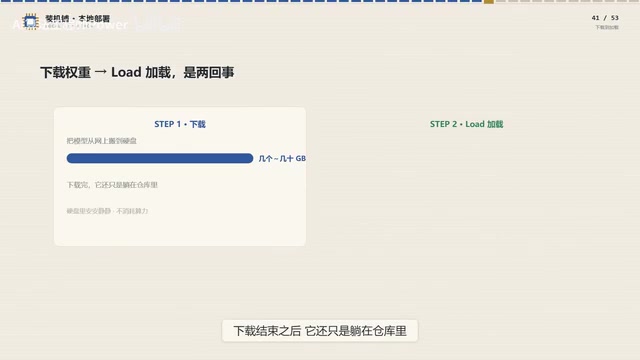
During loading, the inference tool attempts to place the model weights into RAM and VRAM. If this step fails, the first things to suspect aren't a broken model file — ask instead: is the model too large? Did I pick too high a quantization level? Is the context length set too long? Are other apps consuming too much memory? LM Studio even provides a pre-load memory estimator that factors in context length, GPU offload settings, and other conditions to give you a resource usage estimate.
This brings up another useful concept: GPU Offload. A model doesn't have to fit entirely in your GPU. Some frameworks can split the computation — part runs on the GPU, part runs on the CPU and system RAM. Like a moving job where one truck isn't enough: you bring a second truck to share the load. The trade-off is usually speed. So if a model is just barely too big for your VRAM, that doesn't necessarily mean it won't run at all.
Once loading succeeds, don't declare victory just yet. Run a simple test first: ask three different types of questions — a simple factual question, a longer summarization task, and then several rounds of follow-up conversation. What you're watching for isn't just whether it responds, but three dimensions: speed, memory stability, and context handling.
If the first response comes quickly but the machine noticeably slows down after a few exchanges, you're running tight on headroom. If output trickles out a few words at a time, consider whether the model is too large, whether GPU utilization is too low, or whether too much computation is falling to the CPU. If short questions work fine but feeding in long documents causes an out-of-memory crash, KV Cache and context length are likely the culprits.
The real measure of a successful first deployment isn't whether the model starts — it's whether it can stably complete the tasks you actually need, at a speed you can live with, on your specific machine.
From Chatbot to AI Infrastructure
Once you've got the basics of local deployment working, your computer contains a model file, an inference engine, and an entry point for interacting with the model. Everything beyond this is optional — but worth knowing about.
For example, you can expose the model to other programs by starting a local API server — essentially opening an AI window on your own machine. Software that previously called a cloud model can be reconfigured to call your local one instead. LM Studio already supports exposing local models as both a REST API and an OpenAI-compatible interface for other applications to consume.
Go further, and you can connect the model to a local knowledge base, a coding assistant, an automation workflow, or even an agent. At that point, a locally deployed LLM is no longer just a chatbot you installed — it becomes your own personal AI infrastructure.
Related articles

Gemini 4 Argon Hands-On: AI Builds Board Games, Constructs Temples, and Trains Robots Autonomously
Gemini 4 Argon hands-on roundup: AI autonomously builds a desk racetrack and temple in Blender, writes a ray tracing engine, trains a humanoid robot to sink 7 shots, plus API pricing and developer access.

The Magic Octagonal Coin: Why Only 9% of People Can Predict Its Flip?
Only 9% of people can correctly predict the Magic Octagon coin flip. This article explains its spatial rotation mechanism, common cognitive pitfalls, and a new hypothesis based on Relevance Theory, exploring the limits of human spatial reasoning.

Sam Altman: AI Is Entering the Era of Scientific Discovery — Math Breakthroughs Will Replicate in Biology and Energy
Sam Altman says AI is entering the era of scientific discovery — math breakthroughs will replicate in biology, materials science, and energy to help develop new drugs and energy sources.